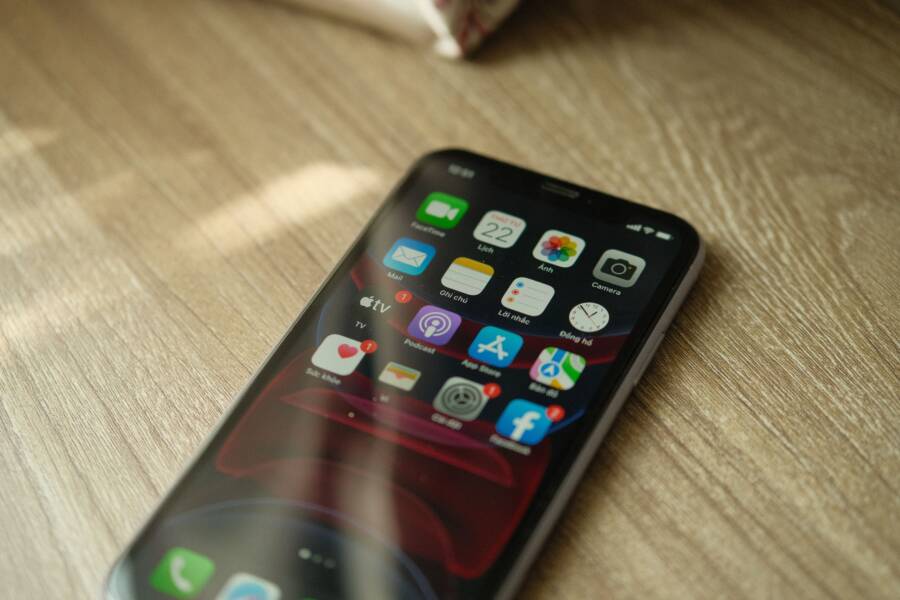
A permanent notification bar shadow on a phone screen is usually screen burn-in or image retention, and the fix depends on how severe it is.
If the mark is light, a few software checks and display tests may help, but real burn-in usually won’t disappear fully. On some screens, image retention fades after rest, while damaged OLED or LCD pixels keep the shadow in place on your smartphone.
The good news is you can confirm which problem you have, try safe fixes, and decide when a repair or screen replacement is the smarter move.
Is it really a notification bar shadow, or something else?
A mark near the notification bar is often a screen persistence issue, but it can also be a sign of burn-in or hardware damage. The fastest way to tell is to watch how the mark behaves on different backgrounds and after the phone has been idle for a while.
If the shadow fades, shifts, or disappears after rest, it usually points to image retention. If it stays in the same place no matter what you do, the problem is more likely permanent. That difference matters because one problem may improve on its own, while the other usually needs repair or replacement.
How to tell image retention from burn-in
Start with a bright plain background, such as white, light gray, or a solid color photo. This makes the mark easier to see and helps you compare it clearly.
Then leave the phone alone for a short period, especially after normal use. Check it again later and look for any change. Image retention often fades, while burn-in usually stays put.
A few simple checks can help:
Open a solid white screen and look for the shadow.
Switch to a dark background and see if the mark still appears.
Put the phone aside for 10 to 30 minutes, then check again.
Compare the same spot in a few apps and on the home screen.
If the shadow looks lighter after a break, that is a good sign. If it never changes, the problem is less likely to be temporary.
You can also search for a plain test pattern online and view it full screen. That makes the affected area easier to spot, especially on an OLED smartphone display. The key is to keep the test simple and repeat it once or twice before drawing a conclusion.
Signs the screen may have hardware damage
Some symptoms point past retention and toward a deeper display issue. Uneven brightness is one of the biggest warning signs. If part of the screen looks dimmer, patchy, or washed out, the panel may be damaged.
Look for these clues as well:
Color patches that sit in one spot
Flickering that comes and goes
A ghost image that never fades
Touch problems in the same area
Lines, blotches, or dark spots near the shadow
When these signs show up together, software fixes usually won’t help. The screen may have panel wear, pressure damage, or another fault inside the display itself. In that case, the shadow is only one part of a larger problem, and the phone may need professional repair.
Safe ways to reduce a phone screen shadow at home
You can often reduce the appearance of a persistent shadow on your display by adjusting how you use your device. If the issue is temporary image retention, the screen needs a break to recover its normal state. These simple habits help your display refresh itself and prevent the shadow from becoming a permanent mark on your smartphone.
Let the screen rest and lower the brightness
The quickest way to help a screen recover is to turn it off completely for several hours. When pixels show the same static image for too long, they struggle to return to their baseline. Leaving your smartphone powered down allows the display panel to cool and the voltage to stabilize across the pixels.
High brightness settings accelerate the wear on OLED panels and make image retention more likely. You should keep your brightness level below 70 percent whenever possible to reduce the strain on the display. Turning off the always-on display feature is also a smart move because it prevents static icons from constantly burning into the same spot. By lowering the load on your screen, you give it the best chance to clear out temporary ghost images on its own.
Use screen rotation, dark mode, and moving content
Static elements, like the status bar or navigation icons, are the primary cause of shadows on most displays. You can trick these pixels into resetting by changing what they show throughout the day. Using dark mode is one of the most effective ways to reduce the visibility of these shadows because it shifts bright pixels to black, which turns off the light emission for those specific areas.
You should also try these methods to shuffle your display content:
Enable auto-rotate so your icons and menus move to different parts of the screen.
Switch your wallpaper to an abstract, colorful image that changes every hour.
Hide the navigation bar or use gesture controls to eliminate permanent on-screen buttons.
Install apps that shift the display content by a few pixels periodically to prevent static buildup.
These small changes keep individual pixels active rather than letting them settle into a fixed color. While this does not fix hardware damage, it makes existing shadows much harder to notice during daily use.
Try pixel-refresh or built-in display tools if your phone has them
Some manufacturers include specific display management tools within the settings menu to address minor issues. You might find options labeled as screen optimization, panel calibration, or pixel refreshing, depending on your device model. These tools work by cycling through a sequence of colors and patterns to stimulate pixels that have become stuck in one state.
Always check the official settings on your smartphone before looking elsewhere. Avoid downloading random third-party apps from app stores that claim to fix burn-in with magical buttons. Many of these tools simply flash random colors at high speeds, which can overheat your device and cause more harm than good. Stick to the manufacturer-provided utilities, as they are calibrated for your specific panel technology and carry no risk of damaging your display further. If these built-in tools do not help, the shadow is likely a sign of physical pixel degradation rather than temporary retention.
What actually works when the shadow is caused by burn-in
If you have confirmed that your screen shadow is permanent, you are dealing with physical pixel degradation. This happens when the organic compounds in an OLED screen lose their brightness unevenly. Because the damage is physical, no software trick can undo the wear. However, you can manage the visibility of the mark or decide if the display requires a replacement.
When software fixes are worth trying
You should only attempt software-based solutions if the shadow is faint or if you suspect simple image retention. These methods aim to refresh pixels that are temporarily stuck in a specific state. They are most effective when the shadow first appears. Once the display shows permanent burn-in, these tools rarely make a visible difference.
Try these steps early to see if your display improves:
Use a white or gray background to watch for changes.
Run a manufacturer-provided screen cleaner or pixel refresher utility.
Keep the display brightness low to reduce further strain.
Switch to a dark theme to stop using the damaged pixels.
These options help prevent the issue from getting worse. If you notice no change after a few days of effort, the underlying pixels have likely reached the end of their lifespan.
When screen replacement is the only real fix
A permanent shadow means the physical layer of the display is worn out. You can hide the mark with dark mode or by moving your status bar, but the damage remains under the glass. If the notification bar shadow is visible during normal use and ruins your experience, replacing the screen is the only actual fix.
This situation occurs often on a smartphone used with high brightness and static images. OLED panels consist of millions of tiny lights, and those used for the status bar burn out faster than others. When the difference in light output between these areas becomes stark, the panel is compromised. A replacement restores the original brightness and consistency of your display.
Repair cost versus replacement cost
Deciding whether to fix a screen depends on the value of your device compared to the repair quote. You must weigh the age of the smartphone against the cost of a new display assembly. A professional screen replacement is often expensive because it requires a high-quality part and precise installation.
Consider these factors before you pay for a repair:
If the repair cost exceeds half the price of a newer smartphone, an upgrade is usually the better financial choice. A new screen might look perfect for now, but your other hardware components will still carry the wear of daily use. Use your repair quote as a baseline to see if you are better off keeping the phone or moving to a device with a fresh warranty and battery.
How to keep the shadow from coming back
Once you address the initial display shadow, your primary goal is to prevent the pixels from settling into that state again. Displays in a modern smartphone are susceptible to wear when they display static content at high intensity for extended periods. By modifying a few habits, you can stop these persistent marks from forming and keep your screen clear for years.
Reduce static icons and always-on elements
Static elements are the main culprits behind screen burn-in. Icons like the battery indicator, signal strength, or time sit in the same location for hours every day. When a specific set of pixels remains unchanged while others shift, they lose brightness at a faster rate than the rest of the display.
You can lower this risk with a few configuration changes:
Hide your status bar icons when they are not needed. Many systems allow you to collapse these menus or use full-screen mode in apps.
Disable the always-on display feature if your device supports it. While this feature is convenient, it keeps the same set of pixels illuminated 24 hours a day.
Limit the use of lock screen widgets that occupy the same area every time you glance at your smartphone.
Use lower brightness and shorter screen timeout settings
High brightness forces the display panel to draw more power, which accelerates pixel degradation. Lowering your brightness by even 10 or 20 percent significantly reduces the thermal and electrical stress on the screen. Most users find that a medium brightness setting is perfectly adequate for indoor use and still provides excellent clarity.
You should also adjust your screen timeout settings to a shorter duration, such as 30 or 60 seconds. If you leave your device on a table while doing other tasks, a short timeout ensures the screen turns off quickly rather than displaying a static home screen for several minutes. These small adjustments prevent unnecessary wear and help maintain the longevity of your display panel.
Rotate content and change your wallpapers often
Pixels stay healthy when they show a variety of colors and brightness levels throughout the day. If your screen shows the same high-contrast wallpaper for months, the image can eventually leave a faint ghost on your display. Using an abstract or colorful wallpaper helps distribute the load across the entire panel.
Gesture navigation also helps prevent shadows because it removes the static buttons that usually sit at the bottom of the screen. If you prefer traditional navigation, try changing your app layout or moving your dock position every few weeks. This simple rotation prevents any single region of your smartphone screen from bearing the brunt of static display content. By keeping your layout dynamic, you give individual pixels the chance to stay refreshed and uniform.
When to get professional help or replace the phone
Determining if your smartphone needs a technician or a full replacement depends on the origin of the shadow. While some persistent marks arise from standard pixel aging, others stem from physical events that require a professional touch. Knowing the difference saves you time and prevents you from spending money on repairs that might not solve the underlying issue.
What a repair technician can check
A professional technician performs a diagnostic that goes beyond simple software observations. They can open the housing of your smartphone to inspect internal components that you cannot reach. If you dropped your device, hit it against a hard surface, or exposed it to moisture, a technician is your best resource.
The technician identifies three main possibilities:
The display panel itself has sustained physical damage, such as a micro-crack or liquid ingress, which manifests as a persistent shadow.
The connector cable between the display and the motherboard is loose, damaged, or slightly dislodged, causing uneven signal delivery to the pixels.
The internal heat distribution is failing, leading to localized pixel burnout near the notification bar where heat often concentrates.
Professional diagnosis is helpful because technicians can verify if the shadow results from a faulty backlight controller or a damaged ribbon cable. If the issue appeared right after an accident, the hardware is almost certainly the culprit. In these cases, software resets provide no relief, and a technician can offer a precise quote for either a cable repair or a full screen assembly replacement.
How to decide between repair, warranty, and upgrade
Deciding between fixing a smartphone and moving to a new model requires a simple assessment of value. You should first check your warranty status, as a persistent screen shadow is often covered under manufacturer defects if there is no physical damage. If the screen is free of cracks and the phone is relatively new, contact the manufacturer before attempting any repairs.
Consider these factors when the phone is out of warranty:
Age of the device: If your smartphone is more than two years old, the cost of a new display often consumes a large portion of its remaining market value.
Repair price: Compare the cost of a screen replacement to the price of a mid-range or refurbished model. If the repair exceeds 50 percent of the current trade-in value, it is rarely a sound financial investment.
Severity of the shadow: Minor retention that only appears on specific gray backgrounds is an annoyance, not a failure. However, if the shadow interferes with text, icons, or navigation, it degrades the daily experience enough to warrant a change.
If the shadow is a result of advanced burn-in on a device that is several years old, a repair is usually a poor choice. The rest of the hardware, including the battery and processor, likely shows signs of age as well. In this scenario, putting that money toward a new smartphone provides a fresh warranty and improved battery life, which offers more long-term utility than replacing just one component.
Conclusion
Temporary image retention often fades with rest, dark mode, or display rotation. However, a permanent notification bar shadow typically signifies physical screen burn-in that software fixes cannot correct.
If your display remains unchanged after basic adjustments, you are likely dealing with hardware degradation. At this point, the most practical step is to weigh the cost of a professional screen replacement against the value of your current smartphone.
Prioritize these actions to manage or resolve the display issue:
Use dark mode and dynamic wallpapers to hide faint shadows.
Lower your screen brightness to prevent further pixel wear.
Contact a technician if the display shows flickering, touch issues, or severe discoloration.