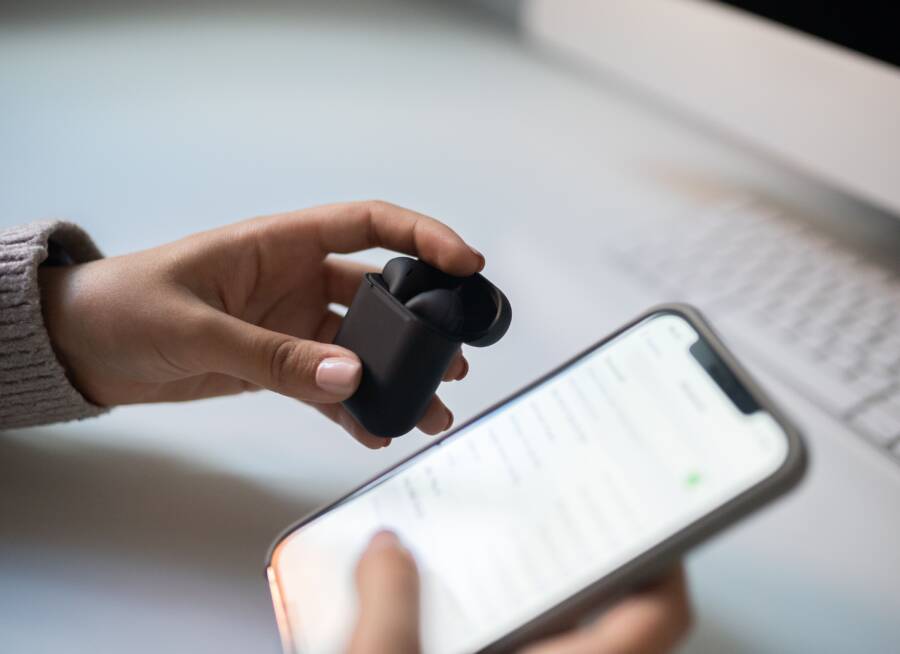
If your smartphone fails to detect nearby Bluetooth devices in a crowded area, it is usually because the sheer volume of active signals creates invisible traffic jams. You can fix this by clearing nearby interference, resetting your wireless settings, or moving to a less congested spot.
Crowded spaces contain hundreds of devices constantly broadcasting signals. This intense activity makes it difficult for your phone to isolate and connect to the specific gadget you need. Your device simply gets overwhelmed by the background noise.
You do not need to accept this connection failure as a permanent condition. The following guide walks you through the steps to stabilize your signal and regain control of your hardware.
Understanding Bluetooth Signal Interference in Public Spaces
Your smartphone relies on low-power radio waves to connect with peripherals. When you enter a crowded location, these waves often collide with physical barriers and competing signals. This environment creates a congested radio frequency space, which forces your device to filter out excessive noise to find a valid connection. Understanding how these obstacles function helps you manage your expectations and troubleshoot connection issues more effectively.
Why Physical Obstacles and Signal Saturation Matter
Bluetooth signals operate on the 2.4 GHz frequency band. This band is narrow and shared by various technologies, including Wi-Fi routers and microwave ovens. In a dense public area, such as a concert venue or a busy train station, hundreds of people carry active gadgets. Every smartphone and wearable device in the vicinity competes for space within this narrow frequency. This creates a high level of background noise, which makes it harder for your phone to isolate the specific signal you want.
Human bodies also affect signal strength because they are largely composed of water. Water absorbs radio frequency energy efficiently. When you stand in a tightly packed crowd, the surrounding people act as physical dampeners that weaken the signal between your phone and your headphones. If your device sits inside a bag or a deep pocket while you are in a crowd, the added distance and material thickness further degrade the signal. Your phone struggles to maintain a handshake with a peripheral when the signal quality is this low.
The issue worsens if many devices broadcast their discovery beacons simultaneously. Your smartphone scans for these unique identifiers to generate a list of available hardware. If the airwaves are saturated with too many requests, the communication protocol may experience collisions. Your device receives corrupted data packets and simply ignores them, resulting in a blank or incomplete list of nearby gear.
The Impact of Software Glitches on Device Discovery
External interference is not always the culprit when your phone fails to detect nearby equipment. Sometimes the issue resides within the Bluetooth management software of your smartphone. The system maintains a cache of previously identified devices to speed up future connections. If the software becomes stuck or overloaded by previous session data, it stops refreshing the search results correctly.
This glitch often occurs when your phone attempts to communicate with devices that moved out of range or turned off their radio. The operating system lingers on these phantom signals while ignoring new, active hardware in your immediate vicinity. This makes the search screen appear frozen or unresponsive to your current environment.
To address this, you can perform a quick refresh of the internal wireless state. Toggling the Bluetooth radio off and then on forces the system to dump the current cache and initiate a fresh scan. If the problem persists, clearing the Bluetooth cache in your phone settings or restarting the device resets the stack entirely. This removes any corrupted temporary files that block your smartphone from discovering new connections in busy locations.
Quick Fixes to Get Your Smartphone Connecting Again
When your smartphone refuses to find nearby devices in a crowded room, a few quick actions often clear the path. These adjustments force your phone to stop scanning corrupted data and start a clean search for available hardware. You can resolve most temporary connectivity issues within seconds by using these standard diagnostic steps.
Toggling Radio Settings for a Rapid Reset
The quickest way to solve a temporary Bluetooth lockup is to power-cycle your wireless radios. Airplane mode acts as a master switch for your phone signal, Wi-Fi, and Bluetooth, which forces the system to drop all current connections.
Swipe down or up to open your control panel or settings menu.
Tap the Airplane mode icon to turn it on, then wait about ten seconds.
Tap the icon again to disable Airplane mode.
If your device still struggles, toggle the Bluetooth button off and back on separately.
This process clears the temporary memory buffers that hold onto old connection attempts. Your smartphone then restarts its discovery mode with a blank slate. Because this action removes the backlog of connection requests, the device spends its processing power looking for new hardware rather than managing old, failed signals.
Clearing Old Pairings and Resetting Network Preferences
Sometimes your phone keeps too much history, which causes the Bluetooth module to lag or fail during a scan. If you have a long list of unused devices, your phone tries to handshake with them in the background. Removing these ghost devices creates more space for your current search.
Start by deleting old device profiles within your Bluetooth settings menu. Tap the gear icon or info symbol next to any peripheral you no longer use and select “Forget” or “Remove.” This prevents your smartphone from prioritizing past connections over new ones.
If that fails, consider a network settings reset. This action deletes your saved Wi-Fi passwords and paired Bluetooth devices, returning your radio settings to their factory state. You will need to reconnect to your home network, but this often fixes deeper software glitches that prevent the discovery of new gear. You can find this option under the “System” or “General Management” menu on most phones. Resetting these preferences clears out corrupted configuration files that accumulate over time.
Advanced Troubleshooting for Stubborn Bluetooth Connections
Persistent connection issues often stem from deeper software layers that dictate how your hardware handles radio signals. When your environment is saturated with noise, your smartphone relies on optimized internal processes to maintain a stable link. If your system software remains outdated, your phone struggles to parse the complex handshake required to isolate a single device among hundreds of others.
Managing Software Updates and Driver Conflicts
Your smartphone operates on a set of protocols that govern every wireless transmission. Manufacturers frequently release updates to these protocols to improve how your device handles signal congestion. When you ignore these updates, your phone runs on legacy code that lacks the intelligence to filter out high-density interference.
Updating your operating system is the most effective way to provide your phone with the latest Bluetooth drivers. These drivers act as the translator between your hardware and the crowded radio environment of a public space. If these drivers are outdated, your device may misinterpret incoming signal packets or fail to broadcast its own discovery request correctly.
You can verify your current status by following these steps:
Open your device settings and look for the System or Software Update menu.
Check if a pending update exists for your operating system.
Install any available security or firmware patches.
Restart your smartphone to ensure the new drivers initialize properly.
Driver conflicts can also occur if third-party applications interfere with your Bluetooth stack. Some apps request constant background access to your location or nearby hardware, which creates extra work for your Bluetooth module. If you suspect an app is the root cause, try booting your phone into safe mode. This state disables all non-essential software, allowing you to test if the connection succeeds without interference from other programs.
If your discovery issues persist despite these updates, you might have corrupted configuration files. These files store how your phone remembers specific device handshakes. When they become corrupted, the system fails to initiate new connections properly. A factory reset of network settings is often the only way to purge these lingering conflicts and restore the default, high-performance state of your Bluetooth radio.
Best Practices for Maintaining Connections in Busy Environments
Your smartphone faces significant challenges when operating in crowded areas. When hundreds of devices occupy the same frequency, the airwaves become thick with digital traffic. Maintaining a stable Bluetooth connection requires more than just luck; it demands careful management of your physical and software environment. By adjusting your proximity and connection habits, you reduce the risk of audio drops or failed discovery attempts.
Optimizing Device Proximity for Stronger Pairing
The most effective way to help your smartphone identify and link with a target device is to close the physical gap between them. You should keep both gadgets within arm’s reach while you initiate the initial discovery process. This short distance allows the Bluetooth signal to penetrate the ambient noise more effectively, ensuring the handshake succeeds before interference can interrupt it.
Crowded spaces contain high levels of electromagnetic noise from other people, routers, and nearby electronics. A stronger signal at the start of the pairing process helps your phone identify the specific broadcast signature of your peripheral. Once the devices establish a primary link, they typically maintain that connection even if you move slightly further apart.
Follow these habits to improve your success rate in dense areas:
Keep your phone and the peripheral in the same hand or pocket during the search phase.
Remove cases that contain heavy metal or thick plastic, as these materials can dampen low-power radio waves.
Position yourself away from major interference sources like large speakers, Wi-Fi hubs, or dense concentrations of people.
When your devices are close, the signal-to-noise ratio favors your equipment. This direct path minimizes the chance that your smartphone will capture data packets from unwanted sources. If you struggle to see the peripheral on your screen, move to a clear, quiet corner of the room just for the pairing process. Establishing the connection in a stable environment usually ensures the bond holds firm once you return to the crowd.
Conclusion
Connecting your smartphone in a crowded area is often difficult because of intense signal noise. Most discovery failures result from temporary congestion or software cache issues rather than permanent hardware damage. You can usually resolve these problems by toggling your radios, clearing old device profiles, or moving to a spot with fewer people.
Simple adjustments like these restore your connectivity in moments. Keep your operating system updated to ensure your device handles modern signal interference with the latest protocols. Consistent software maintenance is the best way to keep your phone ready for any environment.