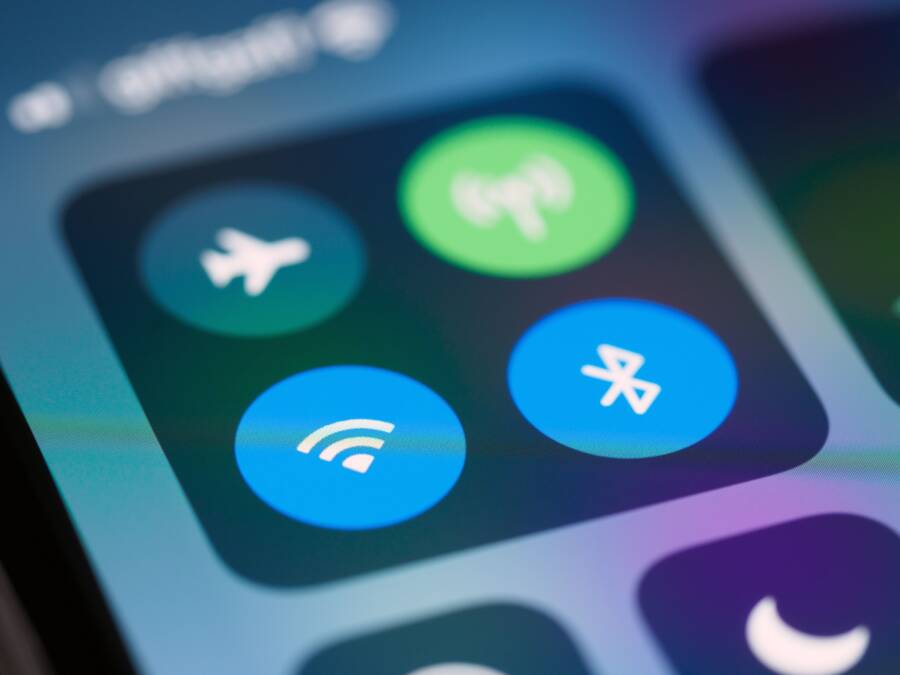
Bluetooth audio lag occurs because your device takes time to compress and transmit data to your wireless headphones. While some delay is unavoidable with Bluetooth, you can often minimize it by adjusting codec settings, keeping your software current, and using dedicated game modes on your smartphone.
These small adjustments ensure your audio keeps pace with your onscreen action. Follow the steps below to restore sync to your favorite mobile games.
Why Your Smartphone Has Bluetooth Audio Lag
Bluetooth audio lag happens because wireless signals require time to travel from your smartphone to your headphones. Digital audio files consist of massive amounts of data. To send this information over a wireless connection, your device must shrink the file size. This conversion happens in real time, and the small delay created during this process results in the sync issues you notice while gaming.
Understanding the Role of Bluetooth Codecs
A codec acts as the bridge between your audio files and your headphones. It is the language your smartphone uses to compress data before transmission and the language your headphones use to decode it afterward. Different codecs prioritize different aspects of the listening experience.
High-quality codecs like LDAC or aptX HD focus on preserving audio detail. They pack more information into each signal, but this requires significant processing power from your device. Because these codecs have to work harder to compress and decompress complex audio, your smartphone takes more time to finish the task. This processing time is exactly what causes the noticeable gap between an onscreen action and the sound you hear.
Faster codecs, such as SBC or aptX Low Latency, operate differently. They prioritize speed over pure audio fidelity. These formats use lighter compression techniques to push data to your ears immediately. While you might lose a tiny amount of audio clarity, your game audio stays aligned with the action on your screen.
Environmental Factors Affecting Wireless Signals
Even if your codec settings are perfect, physical surroundings often disrupt the connection stability. Bluetooth operates on the 2.4GHz frequency, which is a busy part of the spectrum. When your smartphone shares this space with other signals, your audio may stutter or drop frames.
Common interference sources that delay your audio include:
Crowded Wi-Fi environments where multiple routers compete for the same frequency band.
Physical barriers like walls, furniture, or even your own body, which absorb or reflect wireless signals.
Other active Bluetooth devices like smartwatches or trackers that create noise within your local area.
These obstacles force your smartphone to re-send lost data packets. Every time a signal fails to reach your headphones, your device tries again. This back-and-forth communication adds milliseconds to the transfer time. As these delays pile up, the sound falls behind the video. Maintaining a clear line of sight between your device and your headphones usually improves the timing significantly.
Practical Steps to Reduce Delay During Gaming
You can often fix audio synchronization issues on your smartphone by adjusting hidden system configurations. Most modern devices provide specific tools designed to bypass standard processing queues. Identifying these settings and maintaining your software allows your hardware to function at its peak performance.
Enable Dedicated Low Latency or Game Mode
Many wireless headphones and smartphones now include a dedicated mode that prioritizes speed over high-fidelity audio. This setting reduces the size of the audio buffer, which is the temporary storage area where data waits before playback. By shrinking this buffer, the system sends audio packets to your ears faster.
Start by checking the companion app for your specific headphones. Manufacturers such as Sony, Bose, or Sennheiser often hide this feature inside a toggle labeled Game Mode or Low Latency Mode. Turning this on might slightly lower the audio sample rate, but the gain in synchronization is worth the trade-off during fast-paced play.
If your headphones lack a dedicated app, check the Bluetooth settings menu on your smartphone. Some devices offer a specialized gaming profile or a toggle that allows you to prioritize connection stability over sound quality. You should also look for developer options in your system settings, as some Android smartphones let you manually select different Bluetooth audio codecs like aptX Low Latency if your hardware supports it.
Update Your Device Firmware and Software
Outdated software is a common cause of poor Bluetooth performance. When your smartphone runs an old version of its operating system, it may struggle to communicate with your headphones efficiently. Frequent updates often contain patches that improve Bluetooth driver stability and reduce connection overhead.
Check for updates using these methods:
Open your smartphone settings and look for the System Update or Software Update menu to ensure your phone runs the latest version.
Visit the mobile application store to see if your headphone manufacturer has released a firmware update for your specific model.
Keep the companion app installed, as it often prompts you to perform a firmware sync when you connect your headphones.
Updating the firmware inside the headphones is just as important as updating the phone software. These tiny pieces of code handle the handshake process between your device and the audio receiver. Newer firmware versions often solve bugs that cause intermittent lag or desynchronization. If you notice persistent audio delays, verify that both your phone and your headphones are running the most recent software provided by the manufacturer.
When Hardware Limitations Are the Real Problem
Sometimes the source of audio delay lies within the hardware rather than the software settings. Your smartphone and headphones must support compatible wireless standards to communicate efficiently. If the hardware lacks the necessary components, even the most optimized software configurations cannot fully eliminate latency. Identifying these physical constraints helps you decide if a simple fix exists or if a hardware upgrade is necessary.
Comparing Bluetooth Versions and Performance
The version of Bluetooth running on your device dictates the efficiency of data transmission. Older standards like Bluetooth 4.0 or 4.1 struggle with modern data demands. They often consume more power and require longer processing times to transmit audio packets, which creates a noticeable lag during intensive tasks.
Newer versions like Bluetooth 5.2 and 5.3 significantly improve how a smartphone handles wireless traffic. These iterations introduce features that prioritize small data packets over high-bandwidth streams. This shift allows the device to minimize wait times during the handshake process.
Upgrading to a smartphone that supports modern Bluetooth standards offers a more stable experience. If your phone or headphones rely on older protocols, you will likely experience a persistent delay regardless of the game mode settings.
Wired Alternatives for Competitive Gaming
Wired headphones remain the gold standard for players who require instant audio feedback. Because they transmit sound through a physical copper connection, they bypass the wireless processing cycle entirely. This direct link eliminates the compression and decompression time inherent in Bluetooth, making the audio perfectly synchronized with your actions.
Wireless signals often face interference from routers, household appliances, or other active electronics in your vicinity. A wired connection avoids this interference completely. While wireless convenience is helpful for casual listening, the physical cable provides a level of reliability that wireless technology has yet to match for fast-paced play.
If you play games where every millisecond matters, switching to wired audio is the most effective solution. Many smartphones accept standard 3.5mm jacks through affordable dongles. This simple hardware change provides the most consistent performance because it removes the environmental variables that trigger audio lag.
Common Questions About Wireless Audio Lag
Many players wonder if their equipment choice causes synchronization issues while they use a smartphone. Bluetooth technology involves inherent limitations that affect how sound reaches your ears. Understanding these constraints helps you separate actual hardware problems from simple settings errors.
Does Bluetooth version 5.0 eliminate all lag?
Version 5.0 brings better speed and data transfer than its predecessors. However, it does not remove lag entirely. The delay depends on how your smartphone processes the audio and how fast the headphones decode that data. While newer versions are more efficient, they still rely on compression codecs that require a few milliseconds to function. Bluetooth 5.0 improves stability, but it cannot override the physics of wireless data transmission.
Will high-end headphones fix audio delay?
Expensive headphones offer better audio quality, but they do not guarantee perfect sync for gaming. Many premium models prioritize high-fidelity music playback over low-latency connections. If your headphones lack a specific gaming mode, they might still introduce noticeable delay because they favor processing high-resolution files. Check if your device supports low-latency codecs like aptX Adaptive before assuming a higher price tag solves your problem.
Do cases or skins block Bluetooth signals?
Physical obstructions often interfere with the signal path between your phone and your headphones. Metal cases or thick, dense materials can dampen wireless signals significantly. If you play games while your smartphone is inside a bulky cover, try removing it to see if the audio improves. Keeping a clear line of sight between the transmitter and receiver reduces the need for the device to resend dropped data packets, which often clears up stuttering audio.
Does a low battery level increase lag?
Low power modes on a smartphone often restrict background processes to save energy. This limitation can affect the Bluetooth radio and cause audio processing to slow down. If your phone battery is below 20 percent, the system may throttle performance to prolong life. Connecting your phone to a charger or disabling battery saver mode often helps the processor maintain consistent audio synchronization during long gaming sessions.
Conclusion
Fixing Bluetooth audio lag requires a logical process of elimination. Start by adjusting your settings through game modes or codec selections, as these software tweaks often provide the quickest results. Always verify that your smartphone and headphone firmware remain current to avoid known synchronization bugs.
Keep in mind that wireless physics imposes limits on data transmission speed. If your gaming experience remains hindered after these adjustments, consider that wired connections offer the only way to eliminate delay entirely. Test your specific setup with a familiar game to confirm which configuration provides the best performance for your needs.