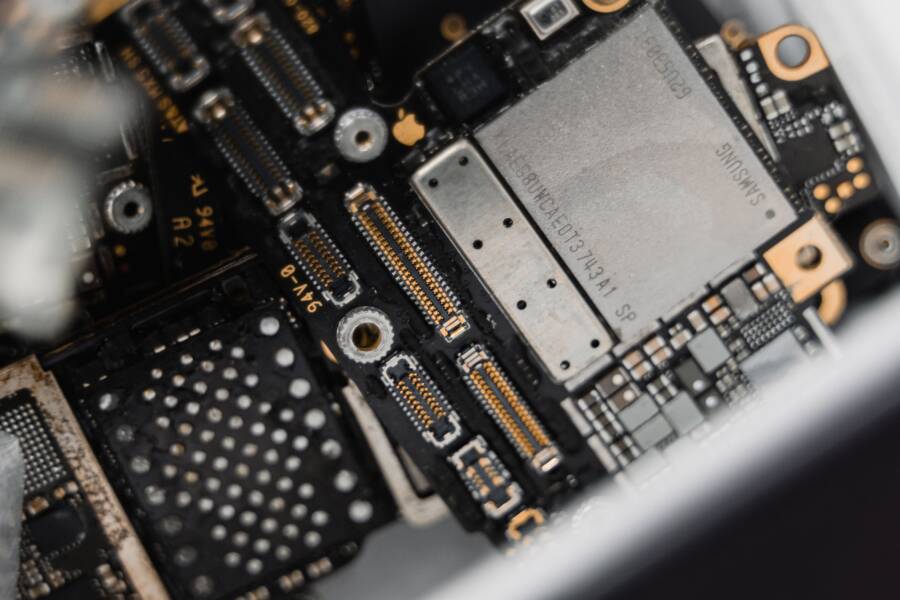
Indoor location tracking often fails because walls, roofs, and concrete structures block direct signals from GPS satellites. When these radio waves cannot reach your smartphone, the internal receiver loses its ability to calculate your precise position.
To overcome this, your device switches to nearby Wi-Fi networks and Bluetooth beacons to estimate where you are. These alternative signals fill the gap left by satellites to maintain a functional map pin while you stay indoors.
Why GPS Fails Inside Buildings
GPS technology relies on a clear line of sight to multiple satellites orbiting the Earth. Thick building materials absorb or bounce these weak signals, which makes it impossible for your hardware to lock onto a reliable coordinate. A smartphone requires a direct path for the best results, so moving deep into a large structure or a basement usually kills the connection.
How Devices Maintain Connectivity
Modern mobile devices use a process called Assisted GPS (A-GPS) to compensate for signal loss. By scanning for surrounding Wi-Fi access points and Bluetooth signals, the system identifies known geographic locations linked to those routers. This method provides a fast, accurate estimation without requiring a direct connection to the sky.
Steps to Improve Indoor Positioning
Enable Wi-Fi and Bluetooth: Keep these settings active even if you are not connected to a network, as they provide essential location data.
Check Location Permissions: Ensure your map applications have permission to access location data at all times.
Restart Your Device: A simple power cycle often resets the internal sensors and clears minor software glitches affecting the antenna.
Calibrate the Compass: Open your maps app and follow prompts to recalibrate the motion sensors to improve orientation accuracy.
Comparing Location Methods
Wi-Fi positioning remains the most consistent method for urban environments. It balances energy efficiency with enough accuracy to pinpoint your location within a few meters.
Common Questions About Location Issues
Why does my phone show me in the wrong building?
The device likely picked up a Wi-Fi signal from a neighboring structure. This creates a drift in the calculated coordinates.
Does turning on Airplane Mode affect this?
Yes, enabling Airplane Mode usually disables all radio signals, including the ones needed for indoor positioning.
Summary of Fixes
Fixing indoor tracking starts with ensuring Wi-Fi and Bluetooth are active. If that fails, checking app permissions and recalibrating the internal compass usually restores functionality. Keeping your software updated also ensures your device uses the most efficient algorithms for signal processing.
Quick Fixes for When Your Phone Cannot Detect Location Indoors
When your smartphone struggles to pinpoint your location inside a building, it often means the device is stuck searching for a satellite signal that cannot penetrate the structure. You can often restore accuracy by forcing the phone to reset its sensor handshake. These adjustments nudge the system to stop hunting for unreachable satellites and focus on local data sources instead.
Refresh Your Location Services Settings
A simple toggle of your location settings forces the operating system to drop its current, failed connection attempts. This action clears the cache of stale satellite data and triggers a fresh request for location information from the nearest cell towers and Wi-Fi networks.
Follow these steps to perform a quick refresh:
Open your device Settings menu.
Navigate to the Privacy or Location section.
Switch the main Location toggle to Off.
Wait about ten seconds to let the background processes stop.
Toggle the switch back to On.
By performing this refresh, you provide the smartphone with a clean slate. The internal antenna system stops prioritizing high-power GPS signal acquisition and redirects its resources to scan for more accessible indoor signals. This process takes only a moment, but it frequently corrects temporary software hangups that prevent your maps from updating your position.
Enable Wi-Fi and Bluetooth Scanning
Many users disable Wi-Fi and Bluetooth to save battery, but these sensors are essential for indoor navigation. While you might assume these features only serve to connect you to wireless internet or headphones, they also act as location beacons.
Modern operating systems use a feature called Wi-Fi and Bluetooth scanning to improve location accuracy. When these are active, your smartphone detects the unique identifiers of nearby routers and low-energy beacons. Because your device knows the physical location of those routers, it can triangulate your position with high precision even deep inside a warehouse or office.
Keep these sensors active to maintain your location:
Wi-Fi Scanning: This allows your phone to map your position based on the known locations of nearby access points.
Bluetooth Scanning: This lets your device pick up signals from small beacons often placed in malls or large public venues to help you find your way.
Enabling these options ensures your device has the most data possible when satellite signals are blocked. You do not need to connect to these networks to benefit from their presence. Simply having the radio sensors turned on provides the necessary infrastructure for your map apps to function without a clear view of the sky.
Optimize Software to Improve Indoor Accuracy
Your phone relies on a complex mix of hardware and software to track your position. When satellite signals fail to reach you indoors, your device turns to internal algorithms to estimate your location. Keeping your software in peak condition is one of the most effective ways to help your device navigate these constraints.
Check Your System Updates
Operating system updates do more than just add new features or patch security gaps. They often include critical driver updates for the wireless chips that manage GPS, Wi-Fi, and Bluetooth data. If your software is outdated, your smartphone might struggle to interpret location signals from newer, more efficient infrastructure like modern indoor beacons.
Manufacturers frequently optimize how location data is processed within these updates. A newer version of the operating system can improve the handshake between your device and the various access points inside a building. This results in faster positioning and better accuracy when you are moving through complex indoor environments.
Follow these steps to check for pending updates:
Open the Settings app on your smartphone.
Tap on General or System settings.
Look for the Software Update option.
Download and install any available packages.
Regular updates ensure that your device has access to the latest protocols for assisted positioning. If your phone is running old software, it might ignore modern signals that could otherwise help it pinpoint your location. Keeping your system current is a simple habit that maintains the efficiency of your internal location hardware.
Manage Background App Location Permissions
Many apps request access to your location at all times, even when you aren’t using them. When too many apps run background location checks, they compete for limited system resources and processing power. This excessive activity clutters the data stream, which makes it harder for your smartphone to provide an accurate reading when you actually need it.
Managing these permissions helps your device focus on providing accurate data to the apps that matter most. You should regularly review which programs have constant access to your location. Restricting unnecessary background access saves battery life and helps the operating system prioritize the navigation tools you use indoors.
Use these steps to refine your app permissions:
Open your device Settings and find the Privacy menu.
Select the Location Services or App Permissions section.
Review the list of apps that have Always access to your location.
Change settings to While Using or Never for apps that do not require constant tracking.
Restricting background access does more than protect your privacy. It reduces the load on your system sensors, allowing your phone to process incoming Wi-Fi and Bluetooth location signals with less interference. This optimization creates a smoother experience when you rely on map apps to navigate large indoor spaces.
Hardware Limitations and When to Seek Help
Your smartphone relies on internal sensors like GPS receivers, Wi-Fi antennas, and accelerometers to determine your position. These components work together to provide accurate data. However, sometimes physical barriers or mechanical failures prevent these systems from functioning correctly. Recognizing when your device is reaching its physical limits is important for troubleshooting.
Understanding Physical Signal Blockage
Buildings made of dense concrete, steel beams, or high-density glass often act as shields. These materials reflect or absorb radio signals before they reach your smartphone. While modern devices are sensitive, they cannot overcome the laws of physics. If you are deep inside a large parking garage, a basement, or a vault, the signal drop is likely a hardware limitation rather than a software defect.
Moving closer to a window or an open doorway can help. These areas provide a clearer path for the signal to reach your internal sensors. If your device regains accuracy near a window, the issue is environmental rather than a failure of your hardware.
Identifying Potential Hardware Failure
Most indoor location issues originate from software settings or signal interference. However, a physical malfunction can occur if a device is dropped or exposed to water. You might have a faulty antenna if your device consistently fails to find a location even when you are outdoors in a clear, open area.
Common signs that your hardware needs professional attention include:
The phone fails to detect location even after a factory reset.
Wi-Fi and Bluetooth toggles are grayed out or unresponsive.
The device shows no response when you open a compass or level app.
Your phone experiences frequent crashes or overheating during navigation.
When to Contact Support
If you have updated your software, reset your network settings, and verified your permissions without success, a technician may be necessary. You should seek professional help if your smartphone suffers physical damage like a cracked casing or exposure to liquid. These events often damage the delicate internal antennas that manage location data.
A qualified technician can run diagnostic tests to check the health of the GPS chip and antenna array. They will determine if a simple internal loose connection is causing the issue or if the main board requires a replacement. Before visiting a store, ensure you have backed up your data. This prepares your device for repair and protects your personal information.
Common Questions About Indoor Location Tracking
Many people notice their position fluctuates or becomes inaccurate when they move inside a large building. This happens because indoor environments block the direct signals that satellites send to your smartphone. Your device must then rely on local data sources to calculate its position. These questions cover the most frequent concerns regarding indoor positioning performance.
How does my device find me without a GPS signal?
Your smartphone creates a position estimate by scanning for nearby signals that it can identify. Wi-Fi access points and Bluetooth beacons emit unique identifiers that your hardware detects even without an active connection. Your operating system maintains a large database of these identifiers matched to specific geographic coordinates. When your phone spots three or more known access points, it uses triangulation to pinpoint where you stand.
Why is the blue dot on my map jumping between floors?
Vertical positioning is difficult for most consumer devices because standard sensors often lack enough detail to distinguish between levels. If you are in a multi-story shopping mall, your phone might struggle to tell if you are on the ground floor or the level above. The device often locks onto the strongest signal available, which can belong to a router located on a different floor. Tall, open atriums inside buildings further complicate this by allowing signals to travel further than expected, which leads to drifting coordinates.
Does turning off Wi-Fi or Bluetooth improve accuracy?
Turning off these sensors actually makes indoor tracking much worse. Your smartphone needs the data from these radios to estimate its location when satellite coverage is unavailable. If you disable Wi-Fi and Bluetooth, you restrict your device to cellular tower triangulation. This method is far less precise and can leave you with a search radius of several hundred meters rather than a few feet. Keep these radios active to help your device gather enough data for a stable, reliable map pin.
Can thick walls permanently damage the GPS receiver?
Building materials do not damage the internal hardware of your phone. Concrete, steel, and heavy masonry merely block the electromagnetic waves from reaching your receiver. Once you step back outside into an open space, your device will clear the old data and reconnect with satellites as normal. If your location does not recover after returning to an outdoor area, a software glitch or a sensor error is a more likely cause than physical damage from being indoors.
Conclusion
Improving indoor location tracking relies on a few simple adjustments to your device settings. Keeping Wi-Fi and Bluetooth scanning active provides the most consistent results by allowing your smartphone to detect nearby signals when satellites are out of reach. Regularly updating your operating system also helps your hardware process these signals more efficiently.
If you still experience issues, check your location permissions to ensure your map apps have the access they need to function correctly. A quick toggle of your location services or a simple restart is often enough to resolve minor glitches. Troubleshooting these settings first is the most reliable way to restore accurate navigation on your device.