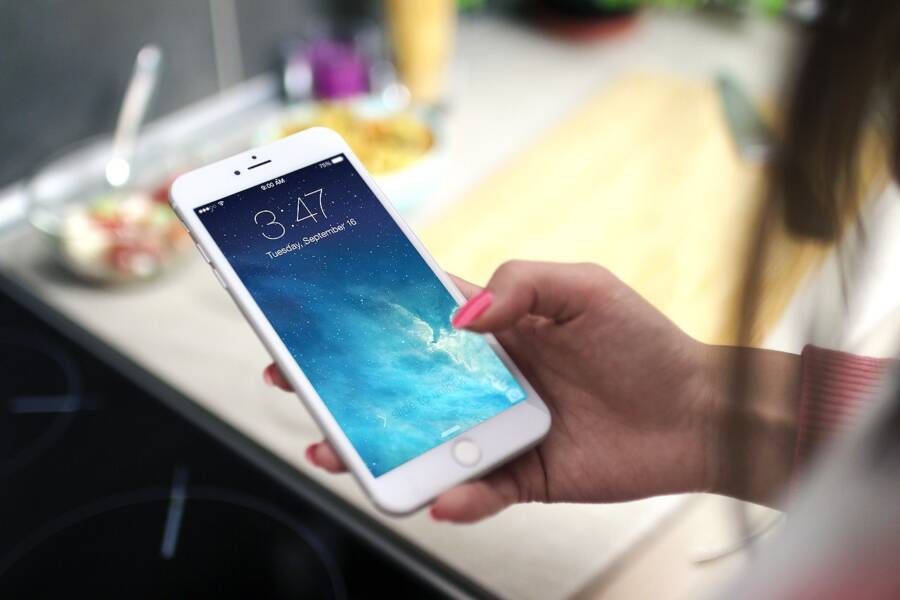
Accidental touches are a common frustration for anyone using a smartphone with a curved display. These unintended inputs occur because your palm or fingers naturally rest on the sensitive edges while you hold the device.
You can fix these ghost touches by adjusting your software settings, modifying your grip, or using physical accessories. This guide covers the most effective methods to reclaim control of your screen.
Why Curved Displays Cause So Many Palm Rejection Issues
Curved screens provide a sleek look, but they change how a smartphone interacts with your skin. The display wraps around the side frame, removing the traditional bezel that once kept your fingers away from active touch zones. Because your hand needs a surface to grip, your thumb or palm often bridges the gap between the frame and the glass. When the screen detects contact in these border areas, the phone struggles to filter out the noise. This leads to ghost touches where the device registers inputs you never intended to make.
Understanding the Touch Sensitivity Limits
The digitizer under your screen is a grid of electrodes that detects changes in electrical capacitance. Engineers calibrate these sensors to be highly reactive, ensuring that a light swipe registers even through a thin screen protector. At the curved edges, the sensor density often increases to maintain touch uniformity. This makes the edges hypersensitive compared to the flat portion of the screen.
When your finger rests on the curve, the digitizer sees a large contact patch instead of a precise point. Software algorithms attempt to predict your intent by analyzing the size and movement of this contact. If the contact remains stationary, the system usually ignores it. However, if your skin shifts slightly while you hold the smartphone, the software interprets this movement as a deliberate drag or tap. Distinguishing a resting thumb from an active swipe is difficult because the screen cannot differentiate between a purposeful command and a steady grip. Manufacturers implement palm rejection logic to mask these edges, yet this software often fails during fast-paced activity or when your grip angle changes suddenly.
The Role of Grip and Ergonomics
How you hold your smartphone dictates the frequency of accidental touches. Most users wrap their fingers around the device to maintain stability, which naturally places the base of the thumb or the heel of the palm directly on the glass. A tighter grip increases the contact area, forcing more of your skin onto the active display area. If you switch to a more relaxed grip, you often lose the stability needed to reach the top corners of the screen.
You can manage this conflict by adjusting your physical interaction with the device. Consider these adjustments to reduce ghost touches:
Use a slim case with a raised lip along the sides to create a physical barrier between your palm and the curved glass.
Change your hand position so your thumb remains on the flat plane of the screen rather than wrapping around the side.
Enable one-handed mode or accessibility settings that shrink the active interface away from the extreme edges.
Support the bottom of the device with your pinky finger instead of cradling the sides with your entire palm.
Balancing a secure hold with screen protection requires practice. When you prioritize a grip that limits edge contact, you reduce the reliance on software filters that might inadvertently block legitimate touches in the corners. Finding the right compromise between ergonomics and screen functionality is the most effective way to keep your interactions intentional.
Quick Software Tweaks to Minimize Ghost Touches
You can mitigate accidental inputs on your curved screen by adjusting internal settings. Manufacturers often include specific software features to detect and block unintentional contact from your palms or fingers. These tools rely on the proximity sensor and the gyroscope to determine if the smartphone is currently in your pocket or being held in a way that risks false triggers.
Configuring Built-in Protection Features
Most modern Android devices feature built-in protections designed to improve handling for curved displays. You can usually find these options within your display or accessibility menus. Enabling these settings forces the device to ignore inputs that occur near the edges when it detects an irregular contact pattern.
To locate these settings, check the following areas on your smartphone:
Open your device Settings app and navigate to the Display section. Look for entries labeled “Accidental touch protection,” “Mistouch prevention,” or “Palm rejection.”
Toggle the switch to active. This feature uses the proximity sensor to check for obstructions whenever you attempt to unlock the screen.
If your device has specific Edge Screen settings, visit that sub-menu to adjust the touch sensitivity or width of the active edge zone.
These protections function best when the proximity sensor is not covered by a low-quality screen protector or a poorly designed case. If you notice the screen remains unresponsive even after enabling these features, verify that your protective gear does not overlap the sensor area at the top of the device. Regularly calibrating your screen or checking for system updates also helps, as developers frequently refine these algorithms to better distinguish between a thumb and a finger swipe.
Using Third-Party Apps to Create Custom Touch Zones
If your device lacks granular control over edge sensitivity, you can use third-party applications to define custom touch zones. These tools allow you to mask the edges of your display, effectively shrinking the interactive area to avoid the sensitive curved glass. By placing a software buffer along the left and right sides of your smartphone, you prevent the digitizer from registering taps where your palm normally rests.
Apps like “Touch Protector” or various “Edge Screen Masking” tools offer a visual overlay that disables touch input in specific margins. You can customize the thickness of these dead zones to match your specific grip style. Once configured, the phone ignores any data originating from the masked pixels, even if your skin presses against them.
Consider these benefits when using edge masking tools:
You define the exact pixel width of the blocked zone, which is helpful if you only struggle with touches on one side of the device.
These apps typically offer a quick toggle in your notification shade, allowing you to disable the restriction when you need full-screen access for gaming or media.
They work independently of the system software, providing a secondary layer of defense that complements your built-in palm rejection features.
While these tools add a slight visual margin to your display, they significantly reduce the frustration of unintended menu triggers or phantom app launches. Start with a narrow buffer of a few pixels and increase it until you find a balance that stops the ghost touches without interfering with your ability to navigate the interface. Most users find that reclaiming even a small portion of the extreme curve is enough to stabilize their experience during normal use.
Physical Accessories That Actually Solve the Problem
When software adjustments fail to stop ghost touches on your smartphone, hardware solutions often provide the necessary relief. These accessories physically alter the interaction between your hand and the curved glass, effectively removing the margin for error that leads to unintended inputs.
Choosing a Case with a Raised Lip
A case with a raised lip is perhaps the most practical defense against accidental palm contact. While many slim cases sit flush with the screen to maintain a sleek aesthetic, they offer no protection for the curved edges. You want a case that extends slightly higher than the surface of the glass, creating a physical buffer that your skin must navigate to reach the active display area.
This raised edge forces your fingers to grip the frame of the smartphone rather than resting naturally on the glass curve. Because the lip acts as a barrier, it creates a small gap that keeps the fleshy part of your palm from triggering sensors near the border. When you choose a protective case, look for specific features that prioritize this ergonomic distance:
Reinforced, rigid edges that do not collapse under pressure when you grip the device tightly.
A thicker profile at the top and bottom of the phone, which provides better support for your fingers during one-handed use.
Textured or rubberized grips on the sides, which encourage a more stable hold and discourage your palm from sliding onto the display.
These physical barriers provide a clear tactile boundary. You will likely notice that your hand naturally finds a more comfortable position along the frame, as the ridge provides a secure point of contact that a slippery, bezel-less design lacks.
Selecting the Right Screen Protector
The type of screen protector you install determines whether your display remains responsive or becomes a source of frustration. Choosing between thin film and tempered glass involves a trade-off between clarity and touch interaction. Film protectors are typically very thin and flexible, which means they conform perfectly to the curves of a smartphone display. They do not usually interfere with the digitizer sensitivity because they add almost no thickness.
Tempered glass protectors provide better scratch resistance, but they often struggle with curved surfaces. To maintain adhesion, many manufacturers use adhesive only along the edges of the protector. This gap between the glass and your screen often reduces touch sensitivity. If the protector does not sit perfectly flush, you might find that you have to press harder, which causes your palm to wrap further around the device and trigger more accidental inputs.
When shopping for a screen protector, keep these distinctions in mind:
Tempered glass protectors with full-screen adhesive are generally more reliable because they eliminate the air gap that causes sensitivity issues.
Thin TPU or hybrid film protectors offer the best compatibility with curved edges, as they stretch to cover the entire surface without lifting at the corners.
Avoid thick or cheap glass protectors that lack precise cutouts for sensors, as these can confuse the proximity sensors and interfere with palm rejection algorithms.
If you notice an increase in ghost touches after installing a protector, the accessory might be applying constant, unintended pressure to the curved edges. In this case, removing the protector or switching to a thinner film option often resolves the issue instantly. A high-quality protector should feel invisible, providing protection without forcing you to change how you hold your device.
Best Practices for Holding Your Device Daily
You can significantly reduce accidental screen inputs by refining how you interact with your smartphone during daily use. Adjusting your grip mechanics helps the hardware prioritize your deliberate commands while ignoring the unintentional contact caused by your fingers or palm.
Refine Your Natural Grip
Most users instinctively wrap their fingers around the sides of their smartphone to maintain a secure hold. Unfortunately, this behavior forces the heel of your hand and the base of your thumb directly onto the curved glass edges. To break this habit, try resting the base of the device on your pinky finger instead of cradling the sides with your entire palm. This change shifts your contact points toward the bottom frame, which is usually inactive or less sensitive than the curved display panels.
You might also experiment with a finger-loop or a pop-socket accessory. These tools provide a stable anchor for your hand, allowing you to hold the phone securely without needing to wrap your skin around the display. When your hand stays on the back of the device, the likelihood of your skin bridging the gap to the front screen drops considerably.
Optimize One-Handed Interaction
Reaching for content at the top of a large screen often causes your grip to shift, which frequently results in phantom touches along the opposite edge. When you use your smartphone with one hand, keep your thumb on the lower half of the display whenever possible. Many modern operating systems offer reachability settings that slide the active content down toward the bottom of the screen. Utilizing these features keeps your digits away from the sensitive curved corners, preventing your palm from triggering unintended actions while you navigate.
If you find yourself frequently using your thumb to reach across the entire width of the display, consider switching to two-handed operation for complex tasks. Using your free hand to stabilize the device allows your primary hand to interact with the screen more precisely. This approach minimizes the pressure your skin exerts on the curved sides, as you no longer rely on a crushing grip to keep the device from slipping out of your hand.
Practice Consistent Finger Placement
Consistency in how you place your fingers during various tasks helps your device learn your specific interaction patterns. Try to develop a habit of keeping your fingers extended along the back panel rather than curled around the sides. If you must use a side-grip, try to keep your fingertips perpendicular to the screen surface. Contacting the glass with only the tips of your fingers is much less likely to register as a wide, erroneous touch compared to the flat, fleshy pads of your fingers or palms.
If you notice a specific app or keyboard layout triggers more ghost touches than others, examine your hand position during that specific activity. You might discover that you naturally tighten your grip during intense gaming or fast-paced typing sessions. Relaxing your tension during these moments can prevent the device from misinterpreting your physical support as an intentional drag or tap command.
Conclusion
Fixing ghost touches on a curved screen almost always comes down to a two-pronged strategy. By combining built-in palm rejection software settings with a well-designed protective case, you can stop 99 percent of accidental inputs. These tools work together to establish a clear boundary between your hand and the sensitive display edges.
While manufacturers continue to improve touch algorithms, your personal habits remain a primary factor in how your smartphone registers contact. Adjusting your grip or adopting small changes in finger placement will further reduce the frequency of unintended commands. You now have the knowledge to regain full control over your device and enjoy a frustration-free experience.