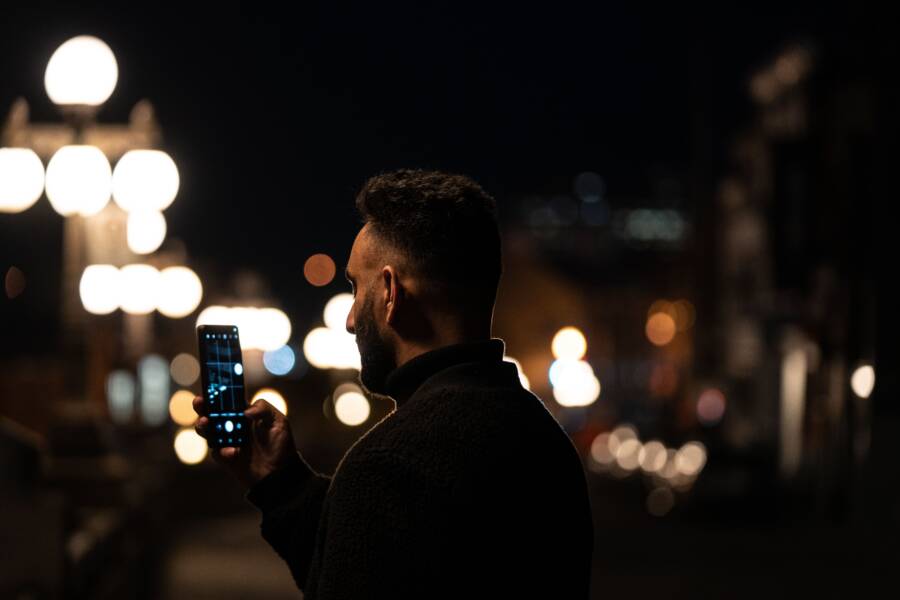
Your photos appear blurry in low light because your smartphone camera shutter stays open longer to gather enough light for the shot. Any minor movement from your hands or the subject during this extended exposure creates a smear or lack of sharpness in the final image.
Modern mobile sensors struggle when the environment lacks proper illumination. You can often resolve this issue by adjusting your technique or using built-in settings designed for dark conditions. The following sections explain how to keep your pictures clear even when the sun goes down.
Why Your Smartphone Camera Struggles in the Dark
Your smartphone camera faces a difficult challenge when light levels drop. While human eyes adjust to shadows and dim rooms, sensors require a steady stream of photons to produce a clear image. When light is scarce, the device must compensate for the lack of data by changing how it records the scene. This process often results in grain, noise, or motion blur that ruins your shot. Understanding why this happens allows you to adjust your approach and capture better photos in tricky conditions.
The Science of Shutter Speed and Motion
Shutter speed describes the duration that the camera sensor remains open to gather light. In bright daylight, this happens in a tiny fraction of a second. However, the sensor needs more time to collect enough light when the environment is dark. A longer shutter speed allows more photons to hit the pixels, which results in a brighter image.
This necessity creates a major problem for handheld photography. Because the shutter stays open for a longer duration, any small movement from your hands or the subject becomes recorded as a blur. Even a minor tremor from your fingers during this window smears the light across the sensor. Most people struggle to keep a smartphone perfectly still for more than a fraction of a second. Consequently, your camera captures a blurry version of your subject rather than a sharp, crisp photograph.
How Light Sensors Affect Image Quality
The physical size of the camera sensor plays a massive role in how much light your device gathers. Smartphone cameras are small by necessity to fit into thin device bodies. Professional cameras, in contrast, use much larger sensors that feature bigger individual pixels. These larger pixels act like wider buckets, catching more light particles in the same amount of time as a smaller smartphone pixel.
When a small sensor works in the dark, it must amplify the signal to make the image visible. This amplification is where the trouble starts, as it boosts the light signal along with the background noise. This noise shows up as grain, which makes the image look textured and less sharp. While software processing tries to smooth this out, it often sacrifices fine details in the process. Larger sensors avoid this struggle because they gather more natural light, allowing for cleaner shots with less reliance on artificial signal boosting.
Quick Fixes to Get Sharper Photos Right Now
You can often improve your photo quality immediately by addressing simple physical barriers. Low light environments amplify every flaw in your camera setup. A few minor adjustments prevent common issues like soft focus, smearing, and motion blur. These fixes require no extra equipment and help your smartphone produce cleaner, sharper images in seconds.
Clean Your Lens for Clearer Light Intake
Your smartphone spends most of its time in pockets, bags, or dusty surfaces. Over time, a thin layer of skin oil, lint, or fingerprints builds up on the lens glass. In bright daylight, this smudge is often unnoticeable. However, in low light, the lens acts differently.
When light sources like streetlights or lamps hit a dirty lens, they scatter across the glass surface. This causes unwanted halos, fog, and light streaks that degrade your image quality. A clean lens allows light to pass through without obstruction.
Follow these tips to keep your lens in top shape:
Use a soft, lint-free microfiber cloth to gently wipe the glass.
Avoid using your shirt sleeve if the fabric is rough or contains synthetic fibers that might scratch the lens coating.
Check your lens every time you prepare to take a shot in a dim setting.
Removing this layer of grime clarifies the light path. It restores contrast and sharpness, which prevents the sensor from struggling to focus on the scene.
Finding a Steady Base for Long Exposures
Motion is the primary enemy of clear photos in the dark. Since your smartphone keeps the shutter open longer to capture dim surroundings, any slight shake in your hands shows up as a blurry mess. You must minimize physical movement during this window to keep the image sharp.
Finding a stable surface changes the outcome of your nighttime shots. Look for objects in your environment that provide a firm base. A flat wall, a sturdy railing, or a table works perfectly to anchor your phone. Lean the device against these items, or rest your elbows on them if you hold the phone manually. This technique mimics the effect of a tripod by eliminating the natural tremor of your muscles.
If you capture shots often in low light, a pocket-sized tripod is a worthwhile investment. These tools offer a rigid, shake-free mount that allows the sensor to remain motionless throughout the exposure. When you remove human error, the camera captures clean data rather than motion blur. Even without a tripod, training yourself to tuck your elbows into your sides and hold your breath briefly creates a significantly more stable platform.
Adjusting Camera Settings for Better Results
You can gain more control over your photography by moving beyond the automatic settings of your smartphone. While the default mode works well in broad daylight, it often guesses incorrectly when light is limited. Manually adjusting focus and exposure gives you the power to tell the sensor exactly what to capture. These small tweaks make the difference between a blurry, noisy mess and a clear image.
Mastering Manual Focus and Exposure Control
Most smartphone camera apps allow you to pick the focus point and brightness level with a simple touch. Start by pointing your camera at the subject and tapping the screen directly on the object you want to be sharp. A yellow or white box will appear to lock the focus onto that area. This prevents the lens from hunting for focus across the background, which often causes the blur you see in low-light shots.
Once the focus is locked, you can adjust the exposure to keep the image from looking blown out or too dark. On most devices, a sun icon or a vertical slider appears next to the focus box after you tap. Slide your finger down to lower the brightness. Lowering the exposure forces the camera to use a faster shutter speed or a lower ISO setting. This reduces motion blur and decreases the amount of digital grain, resulting in a cleaner photograph.
Open your camera app and frame the scene.
Tap the subject on the screen to lock the focus.
Drag the exposure slider downward until the image looks dark but still detailed.
Hold the phone steady as you press the shutter button.
Experimenting with these manual controls teaches you how the camera interprets light. You might find that a slightly darker shot looks more natural than a bright one that is full of digital noise. Adjusting these settings gives you a more professional result because the camera relies on your input rather than its own best guess.
Leveraging Built-in Night Modes Effectively
Modern smartphone software uses sophisticated processing to solve the low-light challenge. Night mode is a feature that captures multiple frames at different exposure levels and merges them into one single image. The software identifies the best parts of each frame, such as the sharp details from a short exposure and the light data from a longer one. This combination creates a bright, clear photo without the motion blur that occurs in a single long exposure.
When you activate night mode, the software often takes control of the shutter timing for you. It calculates how long it needs to gather light based on the darkness of the scene. You might see a countdown on the screen that tells you how long to hold the phone still. It is best to use a solid surface or a tripod when the phone indicates a longer wait time.
Software processing also handles noise reduction during this final merge. By comparing the frames, the smartphone can distinguish between actual detail and random digital grain. It removes the grain while keeping the edges of your subject crisp. Keep the following points in mind when using these automated features:
Night mode works best when your subject remains relatively still.
The software needs a few seconds to process the image after you press the shutter, so keep the phone steady until the preview appears.
Disable flash when using night mode, as the software usually gathers enough light on its own.
Modern processing tools allow you to capture scenes that were previously impossible to photograph with a mobile device. Understanding when to use these features and when to stick to manual settings provides you with the best results in every environment.
When to Use External Lighting or Apps
You might find that your smartphone still struggles to produce sharp images even after cleaning the lens and finding a steady surface. In these cases, the environment lacks the physical light needed for a clear exposure. Adding external equipment or using advanced software allows you to bypass the limitations of your built-in camera settings. Choose these options when you need professional results in extreme low-light situations.
Improving Light Quality with Simple Accessories
External lights provide the easiest path to cleaner images because they increase the actual amount of light hitting your sensor. When you add a dedicated light source, your camera no longer needs to use a long shutter speed to compensate for darkness. This eliminates motion blur entirely by allowing the phone to use a much faster shutter setting.
Portable accessories offer a high degree of flexibility for mobile photography. You can pick from these common tools:
Small ring lights that clip onto your smartphone to provide soft, even illumination.
Portable LED panels that feature adjustable brightness and color temperature settings.
Pocket-sized light cubes that offer a bright burst for close-up shots.
These devices work well because they put the light source closer to your subject than a standard overhead lamp. You should prioritize accessories that allow for brightness adjustments, as you can easily wash out your subject if the light is too intense. Always position the light at a slight angle to the subject to create soft shadows, which adds depth to your final image.
Using Advanced Apps for Professional Control
Standard camera apps often prioritize ease of use over technical precision. They make automated guesses about lighting that frequently result in blurry or grainy photos. Manual mode apps give you complete authority over your smartphone sensor. These tools allow you to override automatic settings that are not working for your current environment.
Manual apps help you solve the two biggest causes of blur: shutter speed and ISO. You can force the app to use a faster shutter speed to freeze motion, even if the scene is dark. If the resulting image is too dim, you can manually adjust the ISO settings. A lower ISO keeps the image clean, while a slightly higher setting lets you brighten the shot without the blur associated with long exposures.
Look for apps that offer these technical features:
Independent control over shutter speed, which lets you lock in a fast timing to prevent blur.
ISO locking, which prevents the camera from boosting digital gain too high and causing grain.
Manual white balance, which ensures colors look natural instead of muddy or orange.
RAW image capture, which saves all the sensor data so you can perform high-quality edits later.
These apps require more patience than a standard camera interface, but they provide the consistency you need in dark conditions. Once you master manual controls, you will stop relying on the software to guess your intent. You can then dictate exactly how the light is captured, ensuring every image remains sharp and detailed regardless of the time of day.
Conclusion
Achieving sharp photos in low light is mostly about managing the physical limitations of your smartphone hardware. Because your camera requires longer exposure times to capture enough light, keeping the device stable is the most effective way to eliminate motion blur. Once you stabilize the phone, you can further refine your results by using manual focus settings or night mode features.
Apply these steps to improve your low-light photography:
Clean your camera lens with a microfiber cloth to remove oils and dust.
Rest your device against a stable surface or use a tripod to prevent camera shake.
Tap the screen to lock your focus and slide the exposure bar down to reduce grain.
Turn on night mode to let the software merge multiple frames into one clear shot.
Use external portable lights if you need extra illumination in near-total darkness.
These adjustments give you total control over how your camera interprets dim scenes. Experiment with these settings the next time you shoot in the dark to see how your image quality improves. You will soon find that your mobile device performs better than you once expected.