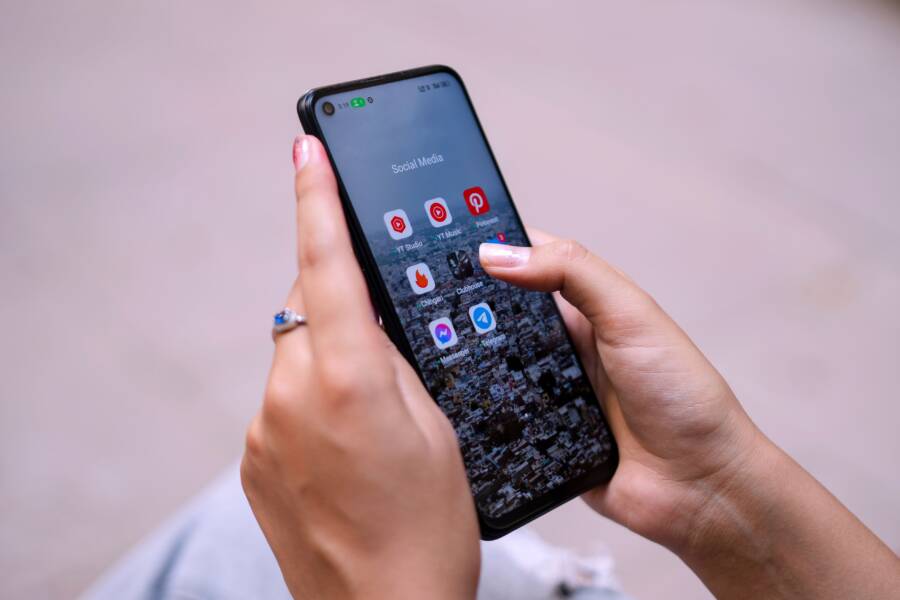
If your smartphone stops alerting you about important tasks, it is usually because of a small software glitch or an active focus mode. You can typically restore these alerts by checking your notification permissions and ensuring your device isn’t set to silence non-urgent items.
Most users find that their smartphone settings restrict reminders to save battery or limit distractions during work hours. Identifying the specific setting that suppresses these alerts is the fastest way to get your schedule back on track.
Check Your System Notification Settings First
Before you hunt for complex software bugs, examine your basic system settings. Often, a simple toggle within the notification menu prevents your smartphone from alerting you. Software updates or accidental taps sometimes change these preferences without warning. By starting here, you rule out the most common reasons for missing alerts on both iOS and Android.
How to Verify iPhone Notification Permissions
Apple organizes alert preferences in a central menu, which makes verifying them straightforward. When your reminders fail, check that the app has permission to display banners and sounds. Follow these steps to audit your configuration:
Open the Settings app on your iPhone.
Tap the Notifications menu.
Scroll down the list until you find the Reminders app.
Ensure the Allow Notifications toggle is set to the on position.
Confirm that the Banners, Notification Center, and Lock Screen alerts are selected.
Check that the Sounds toggle is active so your smartphone plays an audible alert.
If you previously set a focus mode, check if Reminders is added to your allowed apps list. Sometimes a focus profile silences apps that are not explicitly approved. You can find these settings under Settings -> Focus. Selecting your active focus mode lets you manage which apps remain active during specific times of the day.
Adjusting Android Notification Channels
Android handles alerts through a system of notification channels. This feature groups different types of alerts, allowing you to silence some while keeping others active. If your main category is set to a low priority, your smartphone might suppress the notification entirely.
Adjust these settings to ensure your alerts receive high importance:
Open your phone Settings and navigate to Apps or App Management.
Select Reminders from the list of installed applications.
Tap on Notifications to view the available categories.
Look for specific reminder types, such as tasks or due dates.
Confirm that each category is set to show as high priority or alert.
When these channels are set to silent, your device will not vibrate or trigger a sound. Setting the category to alert gives your phone permission to display banners and play notification sounds. You should also verify that the global notification settings for the app are not turned off, as this overrides any individual channel configuration. Regularly checking these tiers helps you maintain control over which alerts interrupt your day.
The Impact of Focus and Do Not Disturb Modes
Focus modes and Do Not Disturb settings are designed to filter out distractions on your smartphone. While these features help you stay productive, they often block essential alerts from your Reminders app. When a mode is active, your device suppresses sounds and banners from apps that fall outside your allowed list. Checking these configurations is often the quickest way to resolve silent notifications.
Silencing Focus Modes on iOS
Apple includes multiple Focus profiles like Work, Personal, and Sleep. Each profile determines which apps can reach you. If your Reminders app is missing alerts, the active Focus mode likely restricts it by default. You can fix this by updating the allowed apps list within your settings.
Follow these steps to authorize Reminders:
Open the Settings app on your iPhone.
Select the Focus menu to view your profiles.
Tap on the specific Focus mode you usually use during the day.
Choose the Apps option under the Allowed Notifications section.
Tap the plus icon and select Reminders from the list.
Confirm that the Reminders app is now added to your allowed list.
Once you add the app, your smartphone will permit notifications even when that Focus mode is active. You can also toggle the Share Focus Status option if you want your contacts to know your status. Periodically review these profiles because system updates sometimes reset default permissions.
Managing Android Do Not Disturb Exceptions
Android provides a granular Do Not Disturb menu that acts as a gatekeeper for all incoming alerts. If this feature is on, it silences everything except for items you explicitly mark as priorities. To ensure your tasks surface, you must manually add Reminders to your priority list.
Use this process to modify your exceptions:
Open your smartphone Settings menu.
Search for Do Not Disturb and select it from the results.
Tap on App notifications or Allowed apps.
Look for the option to add or include apps.
Select Reminders from your installed applications.
Ensure the toggle for allowed alerts is set to on.
Beyond setting app exceptions, check the People or Calls section within the Do Not Disturb menu. Sometimes, settings here interfere with calendar or task-based alerts that sync with your contact list. Setting your preferences to Allow All or Priority Only usually solves the issue. Once you adjust these settings, your phone will resume alerting you at the scheduled time for your tasks.
Software Glitches and Battery Management
Your smartphone relies on complex background processes to track time and trigger alerts. When the operating system prioritizes energy conservation over background tasks, your reminder notifications often suffer. Minor software bugs or aggressive power settings frequently interrupt the communication between your app and the system notification service. Resolving these issues requires a check of your energy usage settings and a simple refresh of the system state.
Does Battery Saver Stop Reminders?
Battery saver modes work by restricting background activity to extend your daily charge. When this mode triggers, your smartphone cuts off non-essential data connections and background app refreshes. This logic often prevents the Reminders app from pinging the server for updates or triggering alerts on time. If your battery level drops below a specific threshold, your phone might suppress notifications entirely to prevent further power drain.
You can prevent these interruptions by whitelisting the Reminders app in your energy settings. This tells your phone that the app is an exception to the standard power-saving rules.
Open your phone Settings menu.
Select Battery or Battery Optimization.
Tap on App Battery Usage or Battery Optimization to view your list of apps.
Locate the Reminders app in the list.
Choose the Unrestricted or Don’t Optimize setting to allow the app to run in the background.
By choosing these settings, you permit the app to wake up the system and display alerts even when your phone runs in low-power mode. This simple adjustment ensures that your tasks remain visible throughout the day, regardless of your remaining battery percentage.
Performing a Soft Reset to Clear Background Errors
Temporary software glitches sometimes freeze the notification bridge between your apps and the hardware. A soft reset clears your device cache and closes background processes that have become stuck. This process is safe for your data and effectively restarts the services responsible for pushing alerts to your lock screen.
To perform a soft reset, follow the standard power cycle method for your model. For most modern iPhones, quickly press and release the volume up button, then the volume down button, and finally hold the side power button until the screen goes black and the Apple logo reappears. On most Android devices, hold the power button for ten seconds until the phone restarts.
A simple restart forces the operating system to reload its notification daemons from scratch. This action often resolves silent notification errors caused by memory leaks or background conflicts. After your smartphone reboots, check the notification tray for any missed alerts that were trapped in the system queue. If the issue persists, verify that your date and time settings remain accurate, as incorrect timestamps can also block scheduled reminders from firing correctly.
Testing Your New Notification Settings
After you modify your permissions, focus modes, or battery settings, verify that your changes work. You can do this by setting a test reminder for a time just one or two minutes away. This quick experiment confirms whether your smartphone now successfully pushes alerts to your lock screen.
Running a Successful Test
Set the test task for a specific time and keep your screen locked to replicate a normal usage scenario. If the device remains silent, the system may still be blocking the app. If the alarm sounds, you have identified and corrected the underlying issue.
Use this simple sequence to ensure your testing is accurate:
Create a reminder in your app for a time exactly two minutes from the current moment.
Lock your screen immediately.
Place your phone on a table and wait for the alert.
Listen for the sound and watch for the visual banner.
If the alert appears, swipe it to confirm the notification logic is active.
Keep in mind that some devices require a full screen wake-up to show notifications correctly if you use certain lock screen widgets. If you still see no alert, verify that your volume settings are audible and not set to vibrate only.
Troubleshooting Common Test Failures
If your test reminder fails to trigger, the configuration might still conflict with another background process. Check your sound profile, as some users accidentally leave their smartphone in silent mode while assuming the app is the culprit. Also, make sure that the Do Not Disturb schedule did not automatically activate during your test.
Review these areas if your test does not work:
Check the physical mute switch on the side of your iPhone or the volume rockers on your Android.
Verify that you did not accidentally mute individual notification threads within the app settings.
Restart the app after changing the permissions to force the system to register your new settings.
Repeating this test once more after a system restart often resolves lingering synchronization errors. If you still encounter problems, ensure your software is updated to the latest version. A fresh start for the notification daemon often clears away persistent errors that simple toggles cannot fix.
Common Questions About Reminder Issues
Most users experience occasional delays with their reminders because of local network fluctuations or server sync pauses. When your tasks do not appear on your secondary devices, it is usually a result of inconsistent account connectivity. These hurdles often resolve once you confirm your network signal and verify your cloud account status.
Why do my reminders sync late across devices?
Synchronization delays occur when your smartphone or tablet fails to communicate correctly with the central cloud server. iCloud and Google servers rely on a steady internet connection to push updates between your hardware. If your signal is weak, the server cannot register new tasks or update existing ones in real time.
Data congestion often triggers these sync lags. When you have dozens of pending tasks or large attachments, the sync process takes longer to complete. You can troubleshoot this by checking your account status in the settings menu.
Check if your internet connection is active by opening a web page.
Navigate to your account settings to ensure you are signed in.
Verify that the Reminders app has permission to use cellular data.
Toggle the sync switch off and on to force a fresh connection.
If you use multiple accounts, confirm that the reminder was created in the list tied to your primary cloud service. Many users accidentally save tasks to a local list on their smartphone instead of the cloud. Local lists never sync to other devices. You can confirm your list type by looking at the account name at the top of your reminder interface. If it says Local or On My iPhone, you must move the task to an iCloud or Google account list to see it elsewhere.
Conclusion
Roughly 90 percent of notification issues stem from simple settings misconfigurations rather than hardware failures. Checking your Focus modes, app permissions, and battery optimization settings usually resolves the silence on your smartphone.
If the problem persists after you verify these items, check for available software updates. Manufacturers frequently release patches that fix bugs within the system notification services. Keeping your operating system current is the most effective way to maintain long-term stability for your reminders.