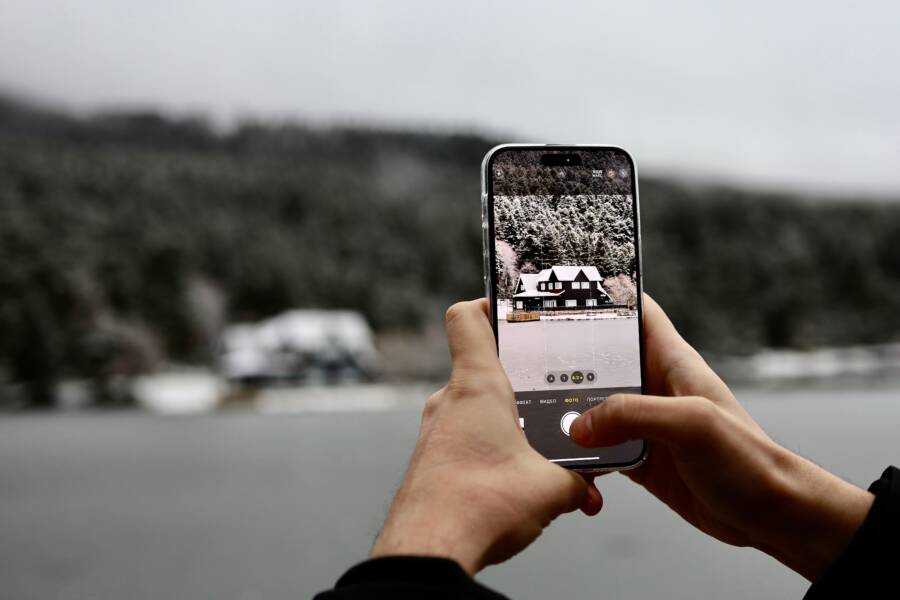
It is frustrating when you open your camera app to capture a moment, only for it to close instantly. This error typically stems from a temporary software glitch or insufficient storage space on your smartphone. Most users can resolve the issue with a few simple troubleshooting steps without needing professional repair.
You do not need technical expertise to get your device back in working order. Follow the steps below to identify the root cause and restore your camera functionality today.
Quick Fixes for When Your Camera App Keeps Closing
Minor software bugs often cause camera apps to crash unexpectedly. When your smartphone fails to capture photos, a fresh start is usually the fastest way to restore functionality. These basic troubleshooting steps clear out frozen processes and temporary data conflicts that block the camera from working properly.
Force Closing and Restarting the Camera
When an app hangs, it often stays stuck in a loop of corrupted data. Terminating the process forces the operating system to discard that bad data and reload the camera from scratch.
On an iOS device, you can close the app by swiping up from the bottom of the screen to the center to open the App Switcher. Locate the camera app window and swipe it upward to remove it from the list. After you clear the card, return to your home screen and tap the camera icon again to launch a fresh instance of the application.
Android devices provide a more direct path through the settings menu. Open your phone settings and navigate to the Apps or Application Manager section. Find the camera app in the list, tap it, and select the Force Stop button. Once the system confirms the action, you can reopen the camera as you normally would. If the app remains stubborn, perform these steps and immediately restart your smartphone to ensure no lingering background tasks interfere with the hardware.
Checking for Essential System Updates
An outdated operating system creates compatibility gaps between the phone software and the camera hardware. Smartphone manufacturers release updates to patch bugs, improve stability, and address errors that cause native apps to exit prematurely. If your device runs on an old version of the operating system, it may fail to communicate correctly with the camera module.
To check for updates on an iPhone, head into your settings, select General, and tap Software Update. If a version is available, tap Download and Install to begin the process. Android users should navigate to settings, find the System or About Phone menu, and select Software Update or System Update to check for pending patches.
Keeping your software current does more than fix camera crashes. It installs security enhancements and performance improvements that help the rest of your device function smoothly. Once you complete the update process, the smartphone automatically restarts to integrate these changes. Always ensure your device has at least fifty percent battery or remains connected to a charger while updating to prevent potential installation errors.
Solving Persistent Camera Crashes Through Storage Management
Your camera app depends on available storage space to process and save temporary files. When your smartphone runs out of capacity, the system cannot create the buffers required for high-resolution images or videos. This bottleneck causes the camera to quit immediately. Managing your internal memory effectively is a reliable way to keep your photography tools stable and responsive.
Clearing App Cache and App Data
Temporary files accumulate as you use your device. These cache files speed up performance under normal conditions but can become corrupted over time. If your camera app frequently closes, clearing its cache forces the device to discard these damaged files and rebuild them properly.
Follow these steps to refresh your camera settings on an Android device:
Open the Settings menu and select Apps or Application Manager.
Locate the Camera app within the list of installed programs.
Tap on Storage.
Select Clear Cache to remove temporary junk data.
If the app continues to crash, tap Clear Data to reset the application to its default state.
Clearing the cache does not delete your photos or videos. It simply removes the temporary instructions the app uses to operate. Resetting the app data is more thorough because it wipes custom configurations, but it remains safe for your personal media files.
Freeing Up Space for Photos and Videos
Modern cameras record massive amounts of data in a few seconds. If your storage is nearly full, the operating system denies the camera permission to save new files. The application crashes to prevent data loss or system instability when it detects this lack of space.
You should aim to keep at least 5 to 10 percent of your total storage free at all times. This overhead allows your smartphone to manage background processes and temporary file creation without interruption.
Check your current status by navigating to your storage settings. If you find your phone is almost full, use these methods to recover space:
Delete large video files that you no longer need.
Offload old photos to a cloud service or a computer.
Remove unused apps that occupy significant internal memory.
Clear your browser cache and deleted items folder in your gallery app.
Cleaning up your device prevents the crash loop caused by insufficient memory. When you have enough room for the system to breathe, the camera functions as intended. Frequent maintenance ensures you capture important moments without interruptions.
Advanced Troubleshooting for Software Conflicts
Sometimes, your smartphone camera struggles because of a conflict with another application. Software on your device shares resources like memory and camera access. If a third-party app demands these resources improperly, the camera app often shuts down to protect system stability. Identifying these conflicts requires a methodical approach to isolate the behavior.
Identifying Conflicting Third-Party Apps
Third-party photo editing or filter apps frequently request permission to access your camera hardware. These applications often run background processes that conflict with the native camera software. If you installed a new photo app right before the camera started crashing, that program is likely the culprit.
Look for applications that require the following permissions:
Access to your camera hardware.
Real-time image processing features.
Background location tracking for photo geotagging.
Check your settings menu to see which apps have active camera permissions. You might disable permissions for suspicious apps to see if the stock camera remains stable. If the camera works after you restrict an app, you have found the source of your problem. Consider updating those third-party apps or uninstalling them if they continue to trigger crashes on your smartphone.
Using Safe Mode to Isolate the Problem
Safe mode is a diagnostic environment that disables all user-installed applications. This mode loads only the factory software that came pre-installed on your smartphone. If the camera works perfectly in this mode, you know a downloaded app causes the conflict.
To enter safe mode on most Android devices, follow these steps:
Press and hold the power button until the power-off prompt appears on the screen.
Tap and hold the Power Off or Restart icon in the menu until the Reboot to Safe Mode prompt appears.
Confirm your choice and wait for the device to restart.
Once in safe mode, launch the camera app. If it functions without closing, you should restart your phone normally to exit safe mode. After the reboot, begin removing recently installed apps one by one. Test the camera after each removal to identify the specific app that causes the conflict. If the camera still crashes in safe mode, the issue likely lies within the core operating system files, which might require a more significant system repair or a factory reset.
When to Consider a Factory Reset or Professional Repair
If you have tried clearing your cache, managing storage, and running your smartphone in safe mode without success, you face a deeper issue. These advanced steps help you decide if a software reset or a technician is necessary. Sometimes, the camera application fails because of deep-seated system corruption that standard troubleshooting cannot fix.
Performing a Factory Reset
A factory reset returns your smartphone to its original out-of-the-box state. This process wipes all personal data, apps, and settings, providing a clean slate for the operating system. You should only use this method as a final resort for software-based camera issues.
Before you start, back up your photos, contacts, and documents to a cloud service or a computer. Once you trigger the reset, you cannot undo the data loss.
To proceed with a reset on your phone:
Navigate to your device settings menu.
Select the system or general management section.
Choose the option to reset your device or erase all data.
Confirm your choice and let the phone complete the reboot process.
After the phone restarts, set it up as a new device and check if the camera app opens normally. If the app still crashes immediately upon launch, the problem likely stems from the physical camera module itself.
Deciding on Professional Repair
If a factory reset fails to resolve the crash, you likely have a hardware defect. Physical damage from drops, water exposure, or simple component failure can cause the camera module to stop communicating with your phone logic board. Software updates cannot repair broken internal hardware.
Visit an authorized service center or a certified repair shop to have a technician inspect your device. These professionals use specialized tools to diagnose circuit board issues, loose ribbon cables, or damaged lens assemblies.
Look for signs of hardware failure if the software fixes do not work:
The camera lens appears physically cracked or misaligned.
Your smartphone shows signs of overheating specifically when you attempt to launch the camera.
The screen remains black or displays a persistent error message even after a full system reset.
You recently dropped the device or exposed it to moisture.
Professional repair costs vary depending on your warranty status and the specific model of your smartphone. Check your manufacturer warranty or insurance policy before paying for out-of-pocket repairs. An authorized technician provides a reliable diagnosis, which prevents you from spending money on unnecessary software troubleshooting.
Conclusion
Most camera crashes on your smartphone are temporary software glitches rather than permanent hardware failures. You can usually fix these issues by clearing your app cache, installing system updates, or freeing up enough internal storage.
Regularly monitor your available memory to keep your camera stable. Keeping your software current also helps your smartphone run efficiently while preventing future errors. If these steps do not work, consider a factory reset or seek professional help to address deeper system or hardware problems.