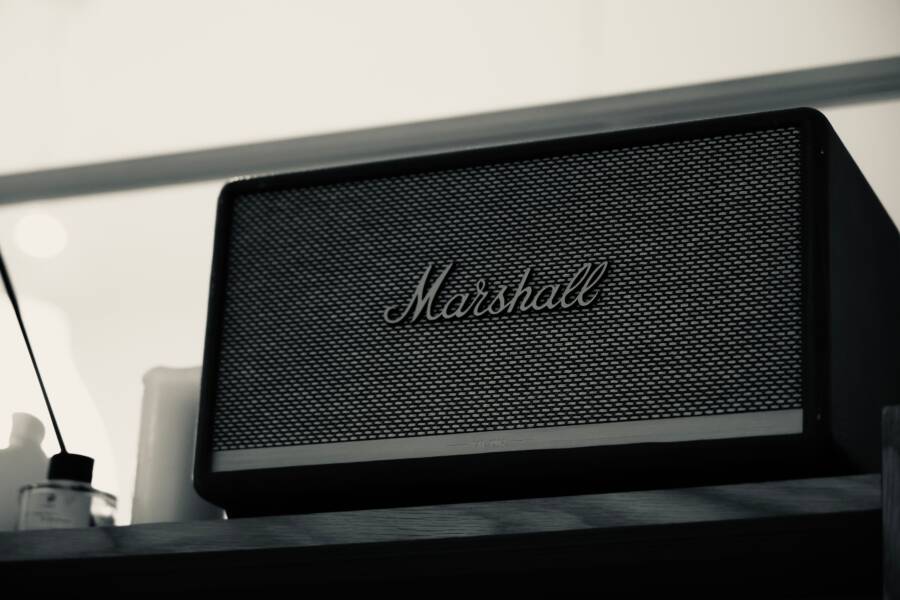
When your smartphone stops sending audio to a Bluetooth speaker, a simple software refresh usually fixes the problem. Most connection errors occur because of temporary glitches in the communication between your devices.
If your speaker remains silent, you likely face a minor configuration error or signal interference. You can resolve these issues by resetting your connection settings or cycling the power on both devices.
Follow these steps to restore your sound and get your music playing again.
Check the Basics First
Before you assume a technical fault exists, verify the simple settings that often cause audio silence. Most connection issues on a smartphone are minor and resolve with quick adjustments. You should confirm your hardware settings before attempting advanced repairs or resetting your network configuration.
Verify Volume Levels on Both Devices
Many users forget that Bluetooth speakers and your smartphone act as two separate audio entities. Your phone has a master volume setting, but the external speaker maintains its own internal amplifier level. If you turn the volume up on your phone but leave the speaker at zero, you will hear nothing.
Check these items to ensure audio flows correctly:
Press the volume up button on your smartphone repeatedly until the level shows at least 50 percent.
Locate the physical volume buttons on your Bluetooth speaker or the rotating dial if your unit includes one.
Increase the speaker volume to a moderate level to ensure the device is ready to output sound.
Check if your speaker includes a mute button, as this sometimes activates accidentally during transport or storage.
You might notice that certain speakers have a secondary “media volume” in the Bluetooth settings menu. Ensure this slider is also moved to the right. Balancing both volume sources is often the only step required to hear your music again.
Confirm Active Bluetooth Pairing
A device showing up in your list does not always mean it is currently active. Your smartphone might show the speaker as a “saved” or “paired” device without actually maintaining an open data stream. This state occurs when the signal drops or the speaker connects to a different nearby device first.
Open your Bluetooth settings menu on your smartphone to see the exact status. You should look for specific indicators that confirm an active link:
The word “Connected” should appear directly under the name of your speaker.
If the text only says “Paired” or “Saved,” tap the device name to manually initiate the handshake process.
Toggle your Bluetooth off, wait ten seconds, and turn it back on to force the devices to find each other again.
If the device name remains grayed out or shows an error message, tap “Forget this device” and restart the pairing process from the beginning. You can verify the signal strength is sufficient by keeping the two devices within three feet of each other during the initial setup. Ensuring this active connection is present confirms that your phone is actually attempting to send audio data to the speaker.
Software Troubleshooting for Your Smartphone
When hardware checks fail to restore sound, software glitches are the most common culprits. Your smartphone relies on a complex stack of services to route audio correctly. Occasionally, a process hangs or a temporary file becomes corrupt, which stops the data flow to your speakers. You can fix most of these issues by clearing cached data or forcing your phone to reload its core communication services.
Toggle Bluetooth and Restart Your Phone
Toggling the Bluetooth connection often clears minor handshake errors between your smartphone and the speaker. This action forces the phone to drop the current connection and seek a fresh signal. If a simple toggle fails, a full system reboot is your next step. A restart closes every background app and resets the cache, which eliminates hidden conflicts that prevent audio playback.
You should perform these actions in this specific order:
Open your phone settings and tap the Bluetooth menu.
Slide the Bluetooth toggle to the off position.
Wait at least ten seconds to allow the radio to fully power down.
Turn the Bluetooth back on and wait for the speaker to reconnect.
If sound remains silent, hold the power button on your device to trigger a full restart.
A reboot is effective because it clears the random-access memory (RAM) where temporary glitches reside. By refreshing the system state, your phone regains the ability to initiate new, clean connections to your external hardware.
Clear the Cache of Bluetooth Settings
Android devices often store temporary data in a dedicated “Bluetooth Share” app. When this data accumulates, it can cause pairing bugs or audio routing failures. Clearing this cache removes corrupted files without deleting your saved devices or personal settings. This process is a safe way to resolve persistent software errors on your smartphone.
Follow these steps to clear the Bluetooth cache on most Android models:
Open your phone settings and tap on the Apps or Application Manager menu.
Select the option to show system apps if the Bluetooth share app is not visible.
Find and tap on Bluetooth Share or Bluetooth in the list.
Select Storage from the menu and tap Clear Cache.
Restart your phone to finish the process.
This action tells the operating system to discard old, buggy connection data and create fresh entries during the next boot. After you restart, the system will rebuild the necessary links for your speakers. Most users find that audio begins to function immediately after this cleanup.
Handling Interference and Connection Range
Bluetooth signals travel through the air using radio waves, but these waves face limitations when moving through physical objects. When your smartphone struggles to play audio, the distance or obstacles between the devices are often the primary cause. Thick walls, metal appliances, and even furniture can weaken the signal enough to cause audio stuttering or total connection drops. Maintaining a clear path between your devices ensures a stable flow of audio data.
Reduce Physical Obstructions
Bluetooth technology works best when there is a clear line of sight between the transmitter and the receiver. If you keep your smartphone in another room or tuck it behind a large television, the signal must penetrate solid barriers. Each wall or piece of metal furniture absorbs or reflects the Bluetooth waves, which reduces the effective range.
To improve your audio playback, try these simple physical adjustments:
Move your smartphone closer to the speaker while you test the connection.
Remove large metal objects like refrigerators or filing cabinets from the direct path.
Keep the phone away from other wireless transmitters, such as Wi-Fi routers or cordless phone bases.
Place the speaker on a flat, open surface instead of inside a closed cabinet or drawer.
Most Bluetooth connections remain stable up to 30 feet away in an open environment. If you notice the audio cuts out, move your device within a few feet of the speaker to see if the playback stabilizes. If the music plays fine at close range but fails when you walk away, the issue relates to signal blockage.
Manage Competing Bluetooth Connections
Your smartphone often tries to manage multiple active connections simultaneously. If your phone pairs with a smartwatch, a tablet, and a speaker at the same time, it can confuse the audio routing system. Sometimes the device sends audio to the wrong output, or the high traffic on the Bluetooth controller causes the signal to drop.
Follow these tips to keep your audio path clear:
Turn off Bluetooth on other nearby devices, such as tablets or laptops, that might be “stealing” the connection.
Disconnect your smartwatch temporarily to see if the speaker starts playing audio.
Check the Bluetooth menu on your phone to ensure the speaker is the only active audio output device.
Forget or remove devices you no longer use from the saved Bluetooth list to prevent accidental auto-connections.
When too many accessories compete for the same radio frequency, the data stream for your music becomes inconsistent. Simplifying the connection environment helps your phone focus its resources on the speaker. This process often resolves mysterious silence or audio routing errors by ensuring the smartphone only communicates with the intended hardware.
Advanced Solutions When Simple Fixes Fail
Persistent audio issues often indicate deeper software conflicts or outdated configurations within your smartphone. When basic volume checks and quick toggles do not resolve the silence, you must address the core connection logic. These advanced steps rebuild the communication handshake from the ground up to restore functionality.
Forget the Device and Repair
Sometimes your smartphone holds onto a corrupted profile for a speaker. This saved data causes handshake failures every time the devices try to communicate. By deleting the existing profile, you force the system to perform a fresh, clean scan.
Follow these steps to reset the pairing link:
Open the Settings menu on your smartphone and select Bluetooth.
Locate your speaker in the list of paired or connected devices.
Tap the gear icon or the “i” symbol next to the name.
Select “Forget this device” or “Unpair” to remove it from your system.
Disable Bluetooth, wait five seconds, and then turn it back on.
Put your speaker into pairing mode according to the manufacturer instructions.
Select the speaker from the new list of available devices on your phone screen.
This process removes any stored configuration errors that interfere with audio playback. Once the phone recognizes the speaker as a brand-new device, it usually establishes a stable connection without further trouble.
Update or Reset Network Settings
Outdated system software often contains bugs that affect how your smartphone handles wireless connections. Manufacturers regularly release updates that contain patches for Bluetooth driver stability. If your phone runs an older version of its operating system, it may lack the fixes needed to communicate with modern hardware. Check your settings menu for any pending software updates and install them if they exist.
If your software is current yet the problem remains, the network configuration files might hold bad data. These files control everything from your cellular signal to your Wi-Fi and Bluetooth handshakes. Resetting these settings clears all custom network configurations and restores them to their factory defaults.
Note that this action will remove your saved Wi-Fi passwords and paired Bluetooth devices. You will need to reconnect to your home network and your other accessories after the process completes.
To reset these settings:
Navigate to your system settings.
Find the section for General Management or System.
Tap on the Reset options.
Choose “Reset network settings” or “Reset Wi-Fi, mobile, and Bluetooth.”
Confirm your choice and allow your smartphone to restart.
This full reset clears out the hidden cache and restores the default communication protocols. After the reboot, your phone starts with a blank slate for wireless connectivity. Pairing your speaker now often works immediately because the background interference from previous bad data is gone.
Conclusion
Most audio issues involve minor settings or temporary glitches that respond well to basic troubleshooting. Start with the volume levels and connection status before you move to system resets. You will often find the fix by simply toggling your settings or clearing the cache on your smartphone.
Test your audio after every single step to avoid unnecessary work. If you follow these procedures in order, you will restore your sound without needing professional repair services. Enjoy your music and stay connected with a stable wireless link.