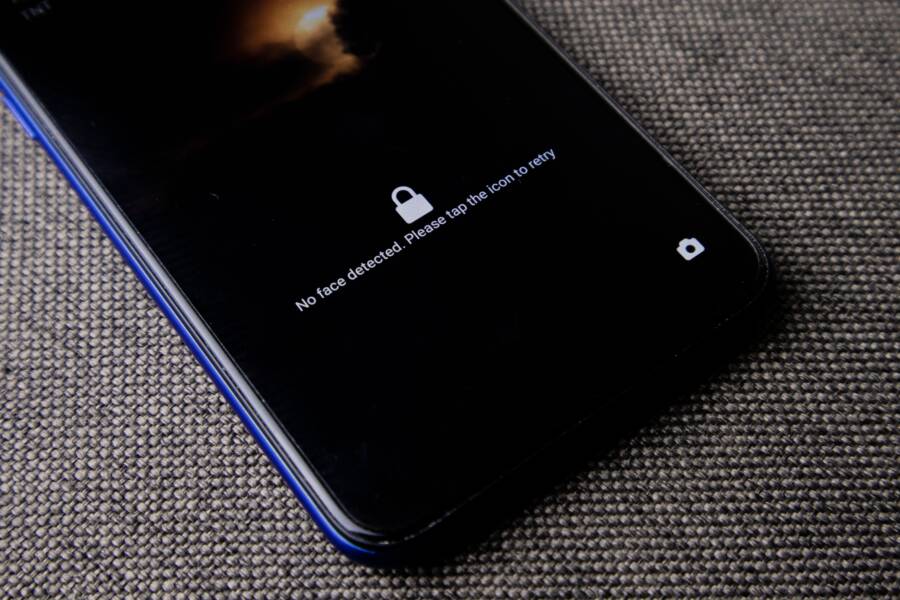
Your smartphone cannot keep security patches installed because of full storage, a corrupted update cache, or temporary network interruptions that break the installation process. These patches are essential to protect your data from vulnerabilities, so you should resolve these update errors as soon as possible.
When your device rejects a mandatory patch, it leaves your system open to potential threats and software instability. You can often fix this issue by clearing your system cache or freeing up enough space for the operating system to unpack the new files.
Follow the troubleshooting steps below to identify the root cause and restore the update function on your device.
Quick Checks to Get Your Security Patches Moving Again
If your smartphone displays an error message or stops midway through an update, several simple barriers are often to blame. You do not need technical expertise to clear these blocks. Most update failures originate from local storage conflicts or inconsistent network communication between your device and the manufacturer’s servers. Addressing these two specific areas resolves the vast majority of stuck security installations.
Clear Out Your Phone Storage
An operating system requires a significant amount of free space to decompress and install new security patches. When your storage is nearly full, the device cannot create the temporary files necessary to swap out old code for new protections. If you do not have several gigabytes of breathing room, the system simply halts the process to prevent data corruption.
Start by reviewing your storage settings to identify what occupies the most space. You can often recover substantial capacity by removing unused applications or clearing cached data from high-usage apps like web browsers and media players.
Open your device settings and navigate to the storage menu.
Review the list of apps and identify those you no longer use.
Uninstall redundant apps to instantly free up space.
Clear the cache for streaming services or browsers if the system recommends it.
Removing temporary files provides the OS with the working room it needs to unpack the update package. Once you delete large, unnecessary files, restart the smartphone to refresh the system processes. This simple cycle often clears the installation queue and allows the patch to resume naturally.
Verify Your Internet Connection
Security patches are often large files that require a consistent data stream to download without errors. If your Wi-Fi signal drops for even a few seconds, the download might become corrupted or stall entirely. A smartphone needs a reliable, high-speed connection to verify the integrity of the patch against the manufacturer’s server before installation begins.
Avoid using public Wi-Fi networks for updates because these connections are frequently unstable or throttled. Instead, connect to a private, high-speed network to ensure the download finishes in one uninterrupted session.
Place your device closer to your router if you suspect signal interference.
Toggle your Wi-Fi off and back on to force a fresh connection handshake.
Avoid using cellular data for updates unless you have a strong, consistent signal, as interruptions can waste mobile bandwidth.
If the update still fails after you secure a stable connection, the previous, partially downloaded file might be damaged. In this case, turning your Wi-Fi off and then on again often prompts the smartphone to re-check the server and start a fresh, clean download of the security package. Following these basic connectivity checks removes the most common technical hurdles that prevent your phone from staying secure.
Advanced Steps to Resolve Persistent Update Failures
When standard storage and connectivity checks fail, your smartphone might require more involved troubleshooting to accept a security patch. Software conflicts often reside deep within the system partition or within outdated background services. These advanced methods reset the interaction between your device and the update server, allowing you to bypass stubborn installation blocks.
Clear the System Cache Partition
The system cache partition holds temporary files used by the operating system to speed up app launches and background tasks. Sometimes, these files become corrupted after an update, causing future patches to fail because the system cannot write new data over the broken cache. Clearing this partition removes the temporary clutter without affecting your personal photos, contacts, or installed applications.
To perform this on most Android devices, you must enter the recovery environment:
Turn your smartphone off completely.
Press and hold the power button and the volume down button (or volume up, depending on your manufacturer) simultaneously until the device logo appears.
Use the volume keys to navigate the menu to the option labeled “Wipe cache partition” or “Wipe cache.”
Press the power button to select this option and confirm your choice when prompted.
Once the process finishes, select “Reboot system now” to restart your device.
This operation forces the smartphone to generate a fresh, clean set of system cache files upon startup. Many users find that this step alone resolves hanging update notifications or error codes that appear during the installation phase.
Check for Pending App or System Updates
Smartphone security patches often depend on the state of your core system applications. Specifically, Google Play Services acts as the bridge between your device and the manufacturer’s update servers. If this service is outdated, it might lack the instructions needed to correctly authenticate or unpack a new security patch.
Check the following areas to verify that your essential software components are current:
Google Play Store: Open the store app, tap your profile icon, and navigate to “Manage apps and device.” Install all pending updates, especially those for system-level tools.
Manufacturer Services: Some devices include a separate app store or maintenance hub for proprietary software. Check these apps to see if they require updates to support the latest security protocol.
Android System WebView: Ensure this component is up to date through the Play Store, as it facilitates the interface used during many installation processes.
Dependencies exist between these core services and the operating system. If you run an old version of these tools, the smartphone might trigger a failed installation because the system environment does not match what the patch expects. Updating these background components restores the compatibility needed for your security patch to finalize correctly.
Troubleshooting Software Conflicts and Custom Settings
Your smartphone functions as a complex ecosystem where various apps and system modes work in tandem. Sometimes, specific software configurations interfere with the update process, creating a digital wall that blocks security patches. When your device fails to communicate with official servers, the root cause is often a protective tool or a restrictive power setting that limits background activity.
Disable VPNs and Third-Party Security Software
Virtual Private Networks (VPNs) and third-party security suites often cause update failures by filtering or redirecting your device traffic. Because these tools route your connection through private servers or scan outgoing requests for threats, the update manager on your smartphone may perceive this as an unreliable or unauthorized connection. Official security patches require a direct, unfiltered handshake with the manufacturer’s servers to verify the integrity of the installation files.
If you keep a VPN active, your device might show an error because the server location mismatches your regional update profile. Additionally, some security apps identify the update package itself as a potential threat due to its size or its request for deep system permissions. To troubleshoot this, you should pause or completely disable these applications before checking for updates.
Open your VPN or security app settings.
Select the option to disable protection or disconnect the tunnel.
Keep the app closed while you restart your smartphone.
Navigate back to your system update menu to attempt the download again.
Once you have successfully installed the patch, you can re-enable your security software. If the update finishes without issue, your previous settings were simply acting as a barrier to the server connection.
Turn Off Extreme Power Saving Modes
Manufacturers include power saving modes to extend battery life by limiting how apps perform in the background. While these features are helpful during daily use, they are often too aggressive for system updates. When you enable extreme battery saving, your smartphone kills non-essential background processes and limits network activity to keep the processor idle.
The update manager relies on these exact background processes to download files, decompress data, and prepare the installation scripts. If the power mode shuts down these services prematurely, the installation halts and often results in a corrupted file. Always ensure your device has sufficient charge and remains in a standard performance mode when you trigger a system update.
Check your battery settings to confirm that power saving or battery saver modes are switched to the off position.
Plug your smartphone into a wall charger to signal the software that it is safe to perform power-intensive tasks.
Avoid using the device while the update process runs, as manual input can sometimes trigger a pause in background operations.
By disabling these restrictions, you provide the update manager with the full resources required to verify, download, and apply security patches. Once the installation completes and the device reboots, you can return to your preferred battery settings.
When to Consider a Factory Reset or Technical Support
If you have exhausted all standard troubleshooting steps and your smartphone still refuses to install security patches, you may need to consider more drastic measures. A factory reset or professional technical support should serve as your final options because these paths involve risks to your personal data or require external intervention. You should weigh the time investment of these actions against the necessity of having an up-to-date, secure device.
When a Factory Reset Becomes Necessary
A factory reset wipes everything on your phone and restores the software to its original out-of-the-box state. This process is effective because it deletes corrupted system files, hidden software conflicts, or misconfigured settings that you cannot reach through standard menus. If you notice other system instability alongside your update failures, such as random app crashes or severe battery drain, a reset often acts as a cure-all.
You must prepare thoroughly before you begin this process, as all photos, contacts, and messages not backed up to the cloud will disappear permanently. After the reset, you will need to sign back into your accounts and redownload your applications.
If you decide to proceed, navigate to your settings menu, locate the reset or recovery section, and select the option to erase all data. Only perform this step after you have verified that your backups are current and complete.
Seeking Help from Technical Support
Professional support is your best option if your device is still under warranty or if you suspect a hardware failure is blocking the software update. Manufacturers and mobile carriers have access to proprietary flashing tools that can reinstall the operating system manually. These tools bypass the standard over-the-air update process and can resolve issues that a simple factory reset cannot touch.
Contacting support is the right choice in the following scenarios:
Your phone remains stuck in a boot loop after a failed update attempt.
You have already performed a factory reset and the update still fails.
The device screen or buttons are physically damaged, preventing you from navigating recovery menus.
Before you contact a technician, write down your phone model, the current software version, and the exact error message you see on the screen. Providing this information helps the support team narrow down the cause quickly. Many manufacturers offer live chat support through their websites, which can help you determine if your specific issue requires a physical repair or a software flash. Always check your warranty status first, as unauthorized repairs could void your coverage.
Conclusion
Fixing a smartphone that rejects updates usually requires clearing temporary obstructions or establishing a stable environment. Start by managing your storage capacity and verifying that your internet connection remains uninterrupted during the download process.
If these basic steps don’t trigger the update, clearing your system cache or disabling restrictive battery modes often restores the necessary background permissions. Your security patches remain the primary line of defense against emerging threats, so keep your device clean of unnecessary files and apps to prevent future update failures.