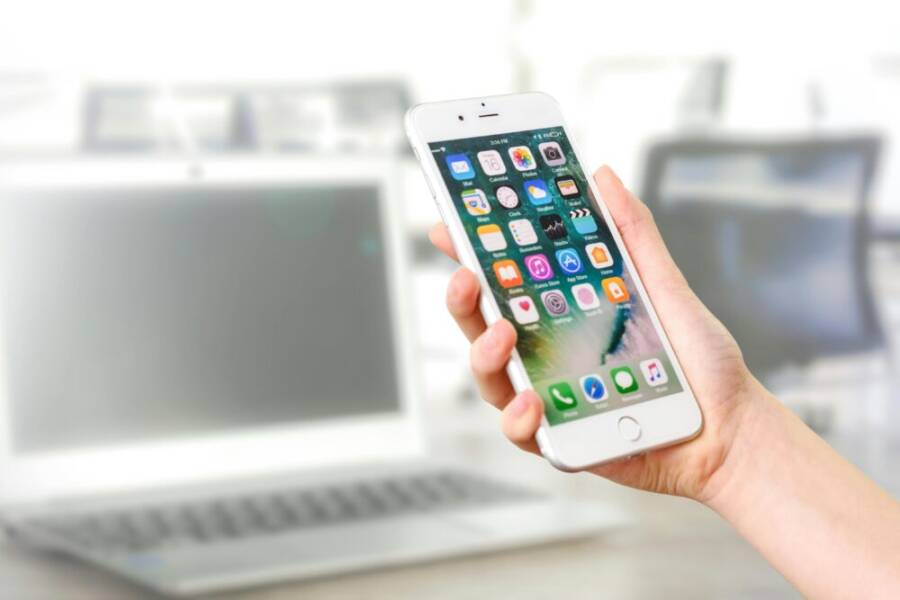
If your phone feels crowded, you’re not alone. The average smartphone carries 80 to 87 apps, yet most people only rely on about 30 to 38 each month and 9 to 10 every day. That gap between what’s installed and what’s used adds clutter, slows you down, and eats storage.
This guide shows you a simple, step by step plan to reclaim speed and focus. You’ll learn how to identify the apps that matter, safely remove the rest, and set up a system that keeps your phone lean over time. By the end, you’ll have a faster device, easier navigation, and more space for the things that truly matter.
We’ll cover the exact steps you can follow today, plus practical tricks to prevent app pileups in the future. Expect a clear path from a chaotic home screen to a streamlined, efficient smartphone that supports your daily routines rather than getting in the way.
Assess Your App Landscape: Find What You Actually Use
declutter starts with knowledge. Before you delete a single icon, take a clear, organized snapshot of what sits on your phone. This section guides you through counting, categorizing, spotting rarely used apps, and eliminating duplicates. The goal is a lean, purposeful set of tools that supports your daily routine without dragging you down.
Count and categorize your apps
A quick inventory sets the foundation for smarter decisions. Start by tallying what’s on your home screen and what sits in your app drawer or app tray. Here’s a simple, reliable approach:
- Create a lightweight list or spreadsheet. Include columns for: App name, primary use, last used date, and a note on whether you need it daily, weekly, or rarely.
- Label by usage level. Use three buckets to keep it simple: Daily, Weekly, and Rarely. Mark each app accordingly as you review it.
- Flag the outliers. Apps that haven’t been opened in the last 14 to 30 days should get a flag for review. If you tolerate a longer idle period, extend the window to 60 days.
- Include context. Note if an app is tied to a specific project, event, or travel plan. Some apps live in your phone for a rare purpose but are essential in certain moments.
- Keep it up to date. Schedule a quarterly check to prune stale items and refresh the list.
If you want a quick method right away, you can rely on built-in usage data. For iPhone users, Screen Time provides a daily or weekly activity view that highlights which apps you touch most and least. It’s straightforward to see a run of days and identify long gaps in activity. For Android devices, Digital Wellbeing shows app time and battery impact, helping you spot apps that rarely add value. Using these tools makes the tally faster and more reliable. Learn more about Screen Time on iPhone and Digital Wellbeing on Android to support your categorization decisions. Get started with Screen Time on iPhone and explore how Android users check app usage in Digital Wellbeing. How to find what drains your Android battery
To keep the process smooth, aim for a one-page snapshot. A compact summary helps you see the big picture at a glance and prevents you from overthinking each app. If you enjoy a structured format, consider a simple table like this:
- App name | Category | Last used | Usage label | Action
- WhatsApp | Communication | Today | Daily | Keep
- Camera | Tools | 2 weeks ago | Rarely | Review
- StudioX | Work | 60 days ago | Rarely | Remove or replace
By the end of the exercise you’ll have a clear map of your app footprint and a plan for what to remove or consolidate.
Identify rarely used apps
Knowing what you never touch is the fastest path to a lean phone. A practical method combines time-based usage with a confirmable removal plan. Here’s how to identify the culprits without guessing:
- Use a 30 to 60 day window. Apps that haven’t seen use in this window are prime candidates for removal or relocation to a folder. If you’re wary, extend the window to 90 days for low-usage tools.
- Set a usage threshold. Pair the time window with a minimum daily usage threshold. For example, anything with less than 2 minutes of daily average time over the past month qualifies as rarely used.
- Create a safe trial removal plan. Instead of deleting right away, try a temporary offboard strategy:
- Move candidates to a dedicated folder labeled “Trial Remove.” Leave them there for 2 weeks.
- If you don’t miss any of them, move to permanent removal from the home screen and app drawer.
- If you realize you need one later, you can reinstall quickly from the Store.
- Document decisions. In your app log, mark the outcome for each flagged item: keep, move to a different screen, or delete. This keeps you honest and future-proof.
- Consider dependencies. Some apps might be essential for a specific task or workflow and seem unused daily. If that’s the case, reclassify rather than delete.
For iPhone users, Screen Time makes this process concrete by showing you daily and weekly activity per app. It’s a reliable way to verify which apps you truly use. For Android, Digital Wellbeing offers similar visibility and can help you validate your rarely used list before you decide to prune. If you want a quick read on how to approach this on iPhone, check the official guidance on Screen Time setup and activity view. Get started with Screen Time on iPhone
A practical example helps readers connect with the concept. Imagine you discover you haven’t opened a native weather app in 60 days, a game you haven’t touched in 45 days, and a photo editor you only use for a single project once a month. You can safely remove or relocate these, freeing space and reducing decision fatigue every time you reach for your phone.
Spot duplicates and bloat
Duplicate apps and bloated tools are a common source of clutter. Consolidating functionality not only saves space but also simplifies your workflow. Here’s how to approach it like a pro:
- Identify similar apps. Scan for two or more apps that perform the same job, such as multiple photo editors, note apps, or payment tools. Ask yourself which one you consistently prefer and why.
- Consolidate features. Choose a single app that handles the majority of the tasks you need. If you use one editor for basic tweaks and another for advanced effects, you might opt for a single, capable editor that covers both needs.
- Check data and login retention. Before removing an app, make sure you won’t lose important data. If the app stores work locally, export or back up before uninstalling. If you rely on cloud syncing, ensure your accounts are stable and accessible from your preferred replacement.
- Save for the essentials. Keep a minimal set of core tools on your home screen and within finger reach. Archive or uninstall the rest to reduce distractions. For example, you might keep a single top-tier photo editor, a fast notes app, and one robust browser as your daily trio.
- Reevaluate regularly. Every few months, reassess which apps you actually use and prune again. This keeps the pool from expanding during busy periods.
When you clean up duplicates and bloat, you’ll notice faster launches, smoother switching between tasks, and a cleaner home screen. If you want guidance on where to start, you can look at how popular apps stack up in terms of responsibilities and data use, and consider choosing a single comprehensive tool to replace several niche apps. For Android users, reliable explanations of how to view app usage and battery impact can help you decide what to keep. How to find what apps are draining your Android battery
In practice, this approach also helps you avoid the trap of minor conveniences that add up to major clutter. A single capable tool reduces the cognitive load of deciding which app to open and keeps your phone running lean. The result is faster performance and less time spent organizing your digital life.
What’s next: once you’ve counted, categorized, and trimmed, you’ll want to build a simple, reliable system to keep your app landscape tidy. The next section covers how to implement a lightweight review cadence and maintain a clutter-free phone long-term.
Step-by-Step Decluttering Process: Uninstall, Archive, and Organize
A lean smartphone is faster to use, easier to navigate, and simpler to keep organized. This section lays out a practical, repeatable decluttering process you can follow in minutes today. You’ll uninstall in small batches, safely archive or hide apps you still need, and set up a rollback plan in case you miss something. Think of it as a three-act workflow: prune, shield, and safeguard.
Uninstall in batches
Start with low-hanging fruit. Deleting 5 to 10 apps at a time keeps you in control and gives you quick feedback on whether the device feels noticeably snappier. After each batch, check responsiveness, app switching speed, and storage gain. If the phone improves, move to the next batch; if not, reassess which apps truly add value.
Here’s a simple, repeatable approach:
- Pick 5–10 apps to remove. Prioritize those you rarely open, duplicate tools, or clutter you don’t rely on for your daily tasks.
- Test device speed and responsiveness. Open your most-used apps, navigate between screens, and observe any lag. If everything feels smoother, proceed.
- Repeat in small cycles. Aim for 2–3 cycles per week until you hit a comfortable balance.
- Record outcomes. Note what you removed and how the device performed afterward. This makes future pruning faster.
Visual reasoning helps. Keep only the apps that directly support your daily routines plus a few essential utilities. If you want a quick reference, use a simple checklist to track each batch: batch number, apps removed, immediate performance change, and next steps. For iPhone users, you can manage many removals from the home screen, while Android users may prefer the Settings path to bulk uninstall. If you’re curious about bulk removal options, this discussion offers practical methods for multiple devices. How to Bulk Delete Apps on My Phone
Suggested image to accompany this step:
 Photo by AS Photography
Archive or hide apps you still need
Some apps serve a purpose but just don’t belong on your main screen. Archiving, offloading, or hiding them can declutter your interface while preserving data and access when needed.
Practical strategies:
- Offload or archive where possible. On iPhone, you can offload unused apps to free space while keeping data intact. On Android, you can adjust app visibility or move data to the cloud before removal.
- Use folders to hide away nonessential tools. Create a single “Archive” or “Later” folder on the last home screen. Move apps there so they don’t distract you, yet remain accessible if needed.
- Rethink with a minimalist layout. Limit home screen icons to the apps you actively use. Store the rest in folders or a dedicated page so your primary workflows stay front and center.
If you want a quick how-to, offloading on iPhone keeps data but frees storage, and hiding or archiving on Android can be done through the app drawer or custom home screen layouts. For iPhone specifics, see guidance around turning off or offloading unused apps. Expert tips to offload unused apps on your iPhone easily
Image suggestion for this subsection:
Photo by AS Photography
Create a safe rollback plan
A smart plan includes backing up data before removal and knowing how to reinstall if you later realize you need an app again. A rollback mindset keeps you fearless about pruning because you know you can recover quickly.
Key steps:
- Back up important app data. Use cloud backups or export data from apps that store local files. This protects against accidental data loss when you delete or archive.
- Document what you remove. Maintain a short log with app name, reason for removal, and whether you kept data externally. This makes reinstallation decisions faster.
- Keep reinstall paths handy. Ensure you can access the store or developer accounts to reinstall in seconds if needed.
- Test a managed restoration plan. After a purge, try reinstalling a few apps you removed recently to confirm you can recover quickly if you miss them.
A practical example helps. Suppose you delete several social and utility apps. If you later realize you need a photo backup tool or a specific browser, you can reinstall from the store with minimal friction. To explore how to recover quickly on Android devices, this guide explains common restoration steps. How to find what apps are draining your Android battery
After implementing a rollback plan, you’ll gain confidence to prune more aggressively over time. Your home screen becomes more navigable, and your device runs smoother.
Images and further ideas:
- For a clean, focused home screen, consider a layout refresh photo that emphasizes minimalism and efficiency.
- If you’re sharing your process on social channels, a before-and-after shot can illustrate the impact of batch uninstalling, archiving, and rollback planning.
What’s next: with the batch uninstall, archiving, and rollback plan in place, you’re ready to establish a lightweight maintenance routine. The next section will show you how to set up a simple cadence to keep your app collection lean without overthinking every choice.
External resources and practical reads:
- Bulk uninstall tips and methods for iPhone and Android: How to Bulk Delete Apps on My Phone
- Offloading apps on iPhone and related considerations: Expert Tips to Offload Unused Apps on Your iPhone Easily
- Android battery and app usage insights to guide pruning: How to find what apps are draining your Android battery
Note: If you want to see a quick reference for starting points, you can check a concise walkthrough on offloading and hidden-app strategies in the guidance linked above.
Optimize for Quick Access: Keep Your Phone Neat
A tidy phone is a fast phone. When your apps are organized, you spend less time hunting for what you need and more time getting things done. The goal here is simple: reduce visual clutter, prioritize what you use daily, and create a layout that supports your routines. In this section, you’ll find practical ways to arrange your home screen, make smart use of built-in organization tools, and cut down on interruptions so you can reach what matters in a moment.
Organize home screen and use folders
A clean home screen starts with thoughtful grouping. Think about how you actually work with your phone and create folders that mirror those tasks. Here are practical layout ideas you can apply today:
- Group by task, not by app name. Have a “Communication” folder for messaging, calls, and email; a “Media” folder for photos, music, and video apps; a “Productivity” folder for notes, calendar, and cloud storage.
- Use color coding for quick recognition. If your icons align with a color scheme, your eyes will find what you need faster. For example, keep all blue icons in one area and all green ones in another.
- Prioritize frequently used apps. Place your daily drivers at the top row or in a dedicated “Daily” page so you can tap them with one hand.
- Create a simple archive page. Move rarely used tools onto a second screen or into a single “Archive” folder. You’ll still have access if needed, but they won’t distract you.
- Use built-in folder options. On iPhone, folders are quick to create by dragging one icon onto another. On Android, folders appear similarly and can be organized across pages. Apple’s official guide shows how to organize apps into folders step by step, which is a reliable starting point for any user. Organize your apps in folders on iPhone
If you want extra layout inspiration, there are several perspectives on how to structure the home screen for productivity. For example, one practical approach is to place essential apps in a dedicated row and use a few folders to keep related tools grouped together. It’s a straightforward way to reduce friction when you’re in a rush. For Android users, third-party ideas can help you tailor a look that fits your workflow. A good starting point is practical guidance from library and tech tips outlets that focus on organizing the home screen with folders and minimal clutter. Organize Your Phone Home Screen: Simple Hacks That Work
Tip: keep a single “Favorites” page and a separate “Everything Else” page. This approach minimizes decisions in the moment and speeds up access to the apps you rely on most. If you’re unsure how to begin, try a one-page pilot. Move your top 6 to 9 apps into a well-ordered row or folder, then use the rest as a secondary layer you access only when needed. A quick review after a week will tell you whether your arrangement truly serves you.
Leverage app library and widgets
Your phone already includes powerful tools to reduce clutter without sacrificing accessibility. App libraries and widgets give you fast access to what you need, while keeping your home screen clean and focused.
- Use the app library for discovery and minimization. The app library automatically categorizes apps, so you can hide seldom-used tools from the home screen while still keeping them within reach. This is especially helpful for maintaining a tidy main page while preserving full access to every app.
- Smart folders streamline access. Modern operating systems scan how you use apps and can suggest smart folders or shortcuts that group related tools. These automated prompts save you from endless manual sorting and keep your most-used combos right at hand.
- Widgets bring key information to you without opening apps. A weather widget, calendar glance, or quick note widget reduces taps and makes your day smoother. Position widgets thoughtfully so they support your routines rather than distract you with data you rarely need.
For iPhone users, the built-in app library is a natural way to declutter without losing access to anything important. You can still search quickly, but your home screen remains uncluttered. For Android users, widgets and launcher options provide similar benefits with a different look and feel. If you want a concise overview of how to use app libraries and widgets to cut clutter, you can explore beginner-friendly explanations from reputable sources. A practical read on iPhone widget usage highlights how to pick the right widgets for quick access. 15 iOS home screen layout ideas to organize your iPhone
To integrate these tools smoothly, start with a low-risk pass: keep your top three to five apps visible, tuck everything else into the App Library or a single folder, and add one or two widgets that genuinely save you time. For example, a calendar widget on your home screen can replace several taps into a calendar app each day, while a weather widget helps you plan outfits and commutes without opening the app. Think of widgets as quick anchors that anchor your daily flow rather than decorative bits that require constant adjustment.
If you’re curious about different layout ideas and how people implement widgets, a few hands-on guides offer practical setups you can adapt. They emphasize balancing visibility with simplicity, so your most important tools stay at the ready without turning your screen into a crowded dashboard. 11 Creative iPhone Home Screen Layouts to Organize Your iPhone
One practical example: keep a single row of essential apps on the first screen, then place a weather widget, a calendar preview, and a quick note widget above them. This arrangement reduces the need to open multiple apps to check basic information, speeding up your day and keeping your focus on tasks you want to accomplish.
Tweak notifications to reduce distractions
Notifications are powerful, but they can derail your focus if left unmanaged. A lean notification system helps you respond faster to what matters and ignore the rest until you’re ready.
- Turn on focus modes. Focus modes group apps and alerts by your current activity, such as work, personal time, or driving. When a focus mode is active, only important notifications push through. This keeps interruptions to a minimum during critical moments.
- Use do not disturb strategically. Do Not Disturb can quiet alerts during meetings, sleeping hours, or deep-work blocks. You can schedule it and allow calls from trusted contacts if needed.
- Apply per-app notification controls. Review each app’s notification settings and disable nonessential alerts. For apps that you must monitor, set high-priority alerts that come through even when DND is on.
- Batch your alerts. Some apps generate constant pings. Group notifications under a shared category and review them in a dedicated window rather than in real time.
To implement these settings, you’ll want to tailor each approach to your routines. For iPhone users, Focus modes are powerful for keeping a smartphone experience calm during work hours, while Android users can rely on Do Not Disturb and per-app interruptions. If you’d like quick guidance on setting up focus modes on iPhone, Apple provides a straightforward how-to guide. Get started with Focus on iPhone
Beyond the OS features, consider your daily needs. If you rely on a few apps for work, keep their notifications enabled but limit others to a digest daily summary. For example, social media alerts can be silenced during work hours, while important messages from a team chat or a calendar invite still come through with little disruption.
Putting it all together, the combination of a tidy home screen, intelligent use of the app library and widgets, and a disciplined notification strategy creates a phone that serves you, not the other way around. A well-organized setup reduces friction, speeds access, and helps you stay focused on what matters most.
What’s next: with home screen organization, app library usage, and notification management in place, you’re ready to establish a lightweight maintenance routine. The upcoming section walks you through a simple cadence to keep your setup lean without overthinking every choice.
Maintain the Habit: Long-Term Clutter Control
Keeping your phone lean isn’t a one-off task. It’s a steady habit you sustain with quick, repeatable checks and smart automation. This section lays out a simple rhythm to ensure clutter stays under control, not a pile you tackle once a year. Think of it as a wellness routine for your digital life: short, focused, and consistent. By building these routines, you protect speed, space, and your focus over the long run.
Weekly quick checks
A 5-minute weekly sweep keeps new clutter from sneaking in and helps you re-evaluate apps with fresh eyes. Use a compact checklist you can memorize and tick off in a coffee break.
- Review recently added apps. Are they still adding value, or did you try them once and forget them? If you didn’t touch them this week, they probably aren’t essential.
- Scan for duplicates and near-duplicates. If two apps perform the same job, pick the one you prefer and remove the rest.
- Check for nonessential notifications. If an app keeps pinging for no meaningful reason, silence or remove it.
- Reassess the home screen layout. Move the tools you use daily to the most reachable spots and tuck everything else into folders or a secondary page.
- Note any changes in storage. If you’re running low, prioritize removing apps with large caches or data you don’t need to keep.
A practical way to hit these points fast is to dedicate a single page in your planner or a one-page note on your phone. Mark “Keep,” “Archive,” or “Remove” next to each app and carry the decisions forward to the monthly review. For apps you’re unsure about, give them a one-week “trial removal.” If you don’t miss them, remove them. If you do, reinstall with a clearer job description in mind. To support your routine, you can reference how Screen Time on iPhone guides time limits and weekly reviews. Set schedules with Screen Time on iPhone
Tip: use a consistent 2-column mini table on your note for weekly checks: App name | Action (Keep / Remove / Archive). This keeps decisions transparent and easy to review next week.
Monthly reviews with a checklist
A monthly review goes deeper. It’s your opportunity to confirm that the apps you rely on still deserve a place and to prune anything that’s drifted into your lane by accident. Provide yourself with a printable or shareable checklist that walks readers through the criteria for keeping or removing apps. A structured monthly process helps you stay focused and saves time in the long run.
- Confirm value against routine. Does the app support your current daily or weekly tasks? If not, consider moving it to Archive or removing it.
- Check for data dependencies. Some apps hold critical information or login details. If you remove them, ensure you’ve exported or backed up what you need.
- Review battery and data usage. Apps with surprising battery drain or data consumption should face closer scrutiny, even if you use them occasionally.
- Test reinstall paths. If you remove an app with a potential future need, can you re-download and recover data quickly?
- Update classifications. Re-categorize apps if your routines shift. A tool you used for travel last year may be unused now but could come back later.
Provide readers with a ready-to-print checklist they can use every month. This keeps the process consistent, reduces decision fatigue, and ensures readers don’t drift back into clutter. For those who want an integrated approach, link to guidance on how to use Screen Time to set schedules and limit categories. Apple’s official guidance shows how to set app limits and schedules, which pairs well with a monthly review. Set schedules with Screen Time on iPhone
If you’re sharing a printable checklist, include sections like:
- App inventory snapshot
- Keep / Remove / Archive decisions
- Data backup steps
- Reinstallation plan
A practical benefit of monthly reviews is that you catch creeping clutter before it becomes a problem. You’ll keep your most-used tools front and center while everything else remains neatly tucked away.
Set limits and use automation
Automation turns a manual, time-consuming task into a set-and-forget system. By setting time limits and using automation to hide or move apps after inactivity, you preserve clarity without constant policing.
- Time limits for categories. Use built-in tools to cap how long you spend in apps that tend to distract you. This helps you maintain focus on tasks that truly matter.
- Automatic hiding or archiving. After a period of inactivity, move nonessential apps off the main screen or into an Archive folder. This keeps your home screen clean while keeping the apps accessible if you need them later.
- Quick reset options. Build a simple reset path so you can temporarily override limits if you’re working on a project or traveling.
On iPhone, you can set app limits and schedules using Screen Time. This keeps your focus on essential tasks and prevents drags from time sinks. If you’re new to these features, a quick reference is to set a limit for app categories and adjust as your routine evolves. For a practical how-to about time limits on iPhone apps, this guide is helpful. How to Set Time Limits on iPhone Apps
For Android users, combine Digital Wellbeing insights with your routines to decide which apps deserve limits. While the exact steps vary by device, the principle remains the same: curb the time spent on low-value apps and nudge yourself toward productive use. If you’re curious about how limits play out in real life, look to reputable how-tos and user experiences that explain setup in clear terms. A quick read on adjusting limits can provide a practical blueprint.
Practical tips to implement right away:
- Start with your daily drivers. Apply the tightest limits to games or social apps that tempt you off-task.
- Keep an emergency bypass. Allow a small window for essential tasks during peak work hours, so you don’t feel boxed in.
- Review quarterly. Even with automation, set a brief quarterly check to ensure the rules still fit your life.
Small automation wins accumulate. You’ll notice fewer interruptions, faster app launches, and more mental bandwidth for the tasks that matter most. If you want a broader view of how to manage app usage on Android, a battery and usage guide can help validate which apps deserve attention. How to find what apps are draining your Android battery
By weaving weekly checks, monthly reviews, and smart automation together, you create a sustainable system. The goal is not perfection but predictability. You want your phone to stay focused on you, not the other way around. The next section shows how to stitch these habits into a lightweight maintenance routine you can keep without overthinking.
Troubleshooting and Edge Cases
Even with a clear plan, you’ll hit a few snags. This section addresses common edge cases you’ll encounter while decluttering and how to handle them without backsliding into chaos. Think of it as your quickDebug guide for when essential apps stubbornly stay, updates shuffle icons, or data safety requires extra care. Expect practical steps, concrete decisions, and tips you can apply today.
Dealing with essential apps you cannot delete
Some apps are built into the system or tied to essential functions. You don’t want to remove them, but you can still reduce clutter and keep your home screen tidy. Start by limiting their footprint and visibility.
- Disable auto-start where possible. Some apps launch automatically in the background and use resources even when you don’t open them. Restrict background activity to prevent unnecessary churn. If you’re unsure how to adjust this, check device-specific guides for your OS.
- Restrict notifications. Essential apps can still pester you with alerts. Switch to a minimal notification profile that only surfaces high-priority updates. Treat nonessential alerts as background noise.
- Use folders to group and minimize. Place essential apps in a dedicated “Core” folder or row. Keep them accessible, but out of the way. A simple rule: only the daily必用 tools sit on the primary screen; everything else hides in folders or a secondary page.
- Rely on the app library and smart folders. If your OS supports it, move non-critical essentials into the App Library (iOS) or a general archive area (Android). This keeps the main screen clean while preserving quick access when you need it.
- Reassess ownership periodically. Even essential apps can drift from daily use. A quarterly review helps you confirm they still belong where they are or deserve a different placement.
A practical example helps here. Suppose your device ships with a built-in banking app and a system utility app you never open but rely on for occasional checks. Place both in a secure, non-prominent folder and keep a single tap away in a “Daily” row for fast access. For iPhone users, organizational guidance on folders is straightforward and reliable. Organize your apps in folders on iPhone
If you want to explore the friction points of essential apps that feel indispensable, a quick read on how to manage auto-start and notifications in practice can help you decide what to quiet down. For example, some threads discuss methods to limit auto-start behavior and notifications on various devices. How to prevent apps from auto starting at boot
Key takeaway: you can keep essential tools reachable and quiet enough to avoid constant interruptions. The goal is a clean entry point to your most-used apps, not a stripped-down phone that nudges you to reinstall forgotten utilities.
Apps that reappear after updates
You’ve pruned, only to see some apps pop back after an update or device restart. This happens for a few reasons: system processes reinstating shortcuts, updates restoring previously removed defaults, or app bundles reconfiguring layouts. Here’s how to stay ahead of the cycle.
- Understand the cause. Deleted apps may reappear if the system resets your home screen or if an update reinstalls shortcuts. Sometimes a reboot triggers a reappearance because the launcher restores a default set.
- Tidy during post-update windows. After a major OS or app update, do a quick review to confirm which icons reappear. Move any that return to a consistent location to keep the screen clean.
- Use a consistent staging approach. After updates, prune again in small batches. Avoid a full reset right after an update; instead, schedule a targeted cleanup in the first 24 to 72 hours.
- Consider hidden placements. If an app reappears for you but isn’t essential, relocate it to a folder or App Library so it stays out of sight yet accessible.
- Re-verify core tasks. After updates, confirm you still have quick access to the apps you rely on every day. If a needed app resurfaces in a suboptimal place, relocate it again.
When this happens, a quick audit helps you decide whether to keep, archive, or remove again. For iPhone users, discussions about apps reappearing after restarts provide context about how to address the issue on iOS devices. Deleted apps reappear after restarting my iPhone
If you’re dealing with Android devices, you’ll often see reappearance tied to launcher behavior or system restores. A practical community discussion can illuminate device-specific quirks and fixes. Pixel 9 – Uninstalled apps keep reinstalling
Edge-case discipline helps here. After an update, do a two-minute screen review to confirm which icons landed back on the home screen. If you find yourself fighting the same app reappearing, adjust its placement to a non-prominent folder and continue with your standard declutter rhythm.
Data migration and safety
Data safety is the backbone of any prune plan. You must protect important data before removal and ensure you can restore it if you later realize you need an app again. A careful approach reduces risk and keeps your workflow uninterrupted.
- Back up important app data. Use the app’s built-in export options or trusted cloud backups. If you store work or memories in an app, ensuring you have a copy elsewhere avoids painful recovery later.
- Check data tied to the app before removal. Some apps link to accounts, notes, or clouds. If you remove such an app, confirm you won’t lose access to critical information. Export or sync data ahead of time when possible.
- Keep a simple rollback record. Maintain a short log of what you removed, why, and where the data lives now. This makes it easy to reinstall with confidence if you miss something.
- Reinstall paths should be obvious. Have a quick note with where you can re-download the app and how to recover data. This reduces friction if you need to bring back an app for a project or travel.
- Test recovery before finalizing. After archiving or removing, try reinstalling a recently purged app to confirm you can recover data quickly.
In practice, a solid data safety approach looks like this: you back up a frequently used tool, export its important files, and keep a simple reinstall plan in case your needs change. When you follow these steps, you’ll prune with confidence rather than fear of losing something valuable.
If you want a practical reminder about battery and usage patterns while managing data and apps, these resources offer helpful context for Android devices and how to verify what drains your phone. How to find what apps are draining your Android battery
Closing thought: treating data safety as an active part of your declutter routine makes it easier to stay lean long term. You’ll reduce the risk of accidental losses and keep the door open to reintroduce any tool you truly need.
What’s next: with the edge-case challenges covered, you’re ready to apply a practical, repeatable maintenance rhythm that keeps your smartphone clean and fast. The next section will walk you through a lightweight cadence that fits a busy life.
Conclusion
Decluttering your phone apps streamlines your workflow, speeds up your device, and reduces decision fatigue. Start today by listing what you actually use, pruning duplicates, and organizing remaining tools into simple folders. Your main gains come from a cleaner home screen, smarter use of the app library, and fewer distractions for the smartphone you rely on every day. Action plan: pick five apps to remove this afternoon, archive one nonessential tool, and set a 15 minute weekly check to stay on track. Revisit this plan in a week to confirm improvements and adjust as needed.