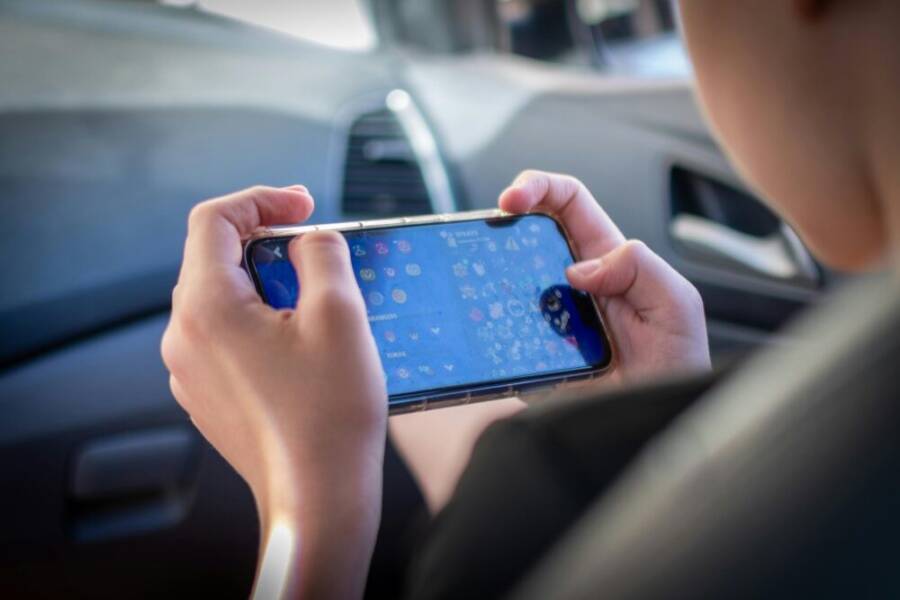
People spend a surprising amount of time on their phones each day, but small changes can add up to real time saved. Your routine can run smoother when you adopt a few simple daily habits that cut friction and expedite tasks. This post breaks down practical, easy steps you can start today.
If you want to reclaim time, start with a quick audit of your routines. Average daily screen time sits around 4.5 to 5.2 hours, but the exact number isn’t as important as what you do with it. By trimming repetitive taps and reining in distractions, you convert scattered minutes into productive moments.
A few smart tweaks go a long way. Create zippy shortcuts for frequent tasks, batch notifications to a set time, and clean up your home screen to reduce decision fatigue. With steady use, your phone becomes a tool that respects your day instead of stealing it.
Think of your smartphone as a time ally rather than a constant companion. By applying these habits, you’ll unlock more focus for work, more space for family, and more energy for the activities you love. The payoff shows up quickly in the small wins that compound over a busy week.
Limit Distractions to Save Time
Small changes to how you handle notifications and phone usage can add up to big time savings. In this section, you’ll learn practical steps to cut distractions, so you can focus on the tasks that move you forward. You’ll see quick before and after examples and simple language you can act on today.
 Photo by MESSALA CIULLA
Turn Off Nonessential Notifications
Notifications are designed to grab your attention, which can steal minutes you could spend on productive tasks. Start with a quick audit of every app that sends alerts.
- Audit steps:
- Open your phone’s settings and list all apps with notification access.
- For each app, ask: Do I need this right now, or can I get this later without missing something essential?
- Mark essential (e.g., calendar, banking, messages from loved ones) and nonessential (gaming, social media reminders, promo apps) separately.
- Quick before and after examples:
- Before: You get pinged by five apps every hour, pulling you away from work.
- After: You only receive alerts from critical apps. Nonessential messages land in a daily digest at a set time.
- How to set quiet hours:
- Enable a daily quiet period (for example, 9 p.m. to 7 a.m.). During this window, only alarm and essential notifications come through.
- Use Focus modes or Do Not Disturb to enforce the quiet period automatically.
For both iPhone and Android users, you can tailor this by app and by time of day. On iPhone, go to Settings > Notifications, then customize per app and enable scheduled focus times. On Android, Settings > Notifications > Modes or Do Not Disturb lets you filter alerts by priority and time. See Apple’s guide for details on notification settings and how to display them in the way you prefer. If you’re using Android, Google’s guidance shows how to limit interruptions with Modes and Do Not Disturb and set filters for calls and messages. You can review these resources here: Change notification settings on iPhone, Use notifications on your iPhone or iPad, Control notifications on Android, Limit interruptions with Modes & Do Not Disturb on Android.
Use Focus Modes to Limit Apps
Focus modes simplify what apps can interrupt you and when. They’re a simple guardrail that keeps you in the zone during deep work and free during personal time.
- How to enable and customize focus modes:
- Open Settings and find Focus or Do Not Disturb. Create at least two modes: Work and Personal.
- For Work mode, allow calls from colleagues or a select group, enable only essential productivity apps, and silence social media or games.
- For Personal mode, limit work-related alerts, keep family messages visible, and disable work email notifications.
- Benefits:
- Fewer interruptions means quicker task completion and less context switching.
- You’ll spend less time checking your phone and more time finishing tasks.
- Real-world tip:
- Schedule a recurring Work mode during your core work hours. Switch to Personal mode during meals or breaks to protect downtime.
If you want more details on how to fine tune these settings, Apple and Google offer straightforward instructions. Apple’s guidance covers adjusting how notifications display and respond to them on iPhone and iPad. Google’s support details how to set up modes and customize filters on Android devices. Learn more at: View and respond to notifications on iPhone, Limit interruptions with Modes & Do Not Disturb on Android.
Set Specific Phone Free Periods
Planned phone-free windows train your mind to wait for the next scheduled check instead of reacting to every ping.
- Suggested schedule:
- Morning: After waking up, avoid phone until after your first focused task.
- Midday: Check only at a fixed break window, for example, 12:00–12:15 p.m.
- Evening: Create a wind-down period 60 minutes before bed with no nonessential apps.
- Simple plan to gradually extend free periods:
- Week 1: Start with one 60-minute phone-free block in the morning.
- Week 2: Add a 30-minute afternoon block.
- Week 3: Extend both blocks and add a longer night-time wind-down.
- How to keep momentum:
- Use a dedicated task list or timer during free periods to fill the space with meaningful activities.
- If you feel anxious about missing something, set a reliable daily digest time for nonurgent updates.
A phone-free routine is a habit you train like a muscle. It reduces spur-of-the-moment checks and frees time for meetings, workouts, or quality time with family. For more on handling notifications across devices, you can refer to the official guidance on iPhone and Android notification management linked above.
Images and other visuals can reinforce these ideas. For practical layouts and quick checks, consider a simple printable checklist you can tape to your desk or fridge. The key is consistency: small blocks of time spent in focused work compound into bigger time wins over the week.
If you’d like to see further practical examples or want a tailored plan based on your daily routine, I can draft a custom schedule that fits your job, family life, and personal goals.
Organize Your Phone for Quick Access
A phone that’s easy to navigate saves minutes every day. The goal is to put your most-used tools at your fingertips while hiding distractions behind folders or on secondary screens. A little upfront organization yields steady daily wins, from faster app launches to calmer notifications.
Tidy Home Screen Layout and Folders
Keep only the apps you use most daily on the home screen. Move everything else into clearly labeled folders or onto secondary screens. This reduces decision fatigue and prevents minor tasks from turning into time sinks.
- Prioritize core apps first: messaging, email, calendar, maps, notes, banking.
- Group distractions into folders with simple names like “Social,” “Entertainment,” and “Shopping.”
- Regularly prune unused apps to keep the layout clean.
A simple monthly review keeps this system fresh. Set a calendar reminder for the end of each month to audit your home screens. For each app, ask if you truly open it daily. If not, relocate it to a folder or uninstall it. If you use an iPhone, you can organize apps in folders by dragging one app onto another to form a folder. For Android, you can arrange apps and folders similarly on the home screen and add more folders as needed. See official guidance for organizing on iPhone and Android:
- Apple: Organize your apps in folders on iPhone
- Android: Add apps, shortcuts & widgets to your Home screens
External links:
- https://support.apple.com/guide/iphone/organize-your-apps-in-folders-iph822ece7dd/ios
- https://support.google.com/android/answer/9450271?hl=en
Widgets and Shortcuts for Common Tasks
Widgets put essential data and quick actions at a glance. Shortcuts connect a single tap to a routine like sending a message, starting navigation, or logging a note. With a few taps, you can shave minutes off common tasks every day.
- Add widgets for quick status checks (calendar, weather, reminders) on the home screen.
- Create shortcuts for frequent actions, such as “Message Mom,” “Navigate to Work,” or “Log a Note.”
- Place shortcuts in a dedicated area or inside folders for easy access.
Quick setup steps:
- On iPhone, long-press the home screen, choose Edit Home Screen, then tap the plus sign to add widgets. Use the Shortcuts app to build custom actions.
- On Android, long-press the home screen, select Widgets, then drag a widget to the home screen. For shortcuts, long-press an app and choose Create Shortcut or use the Shortcuts app if available.
- For both ecosystems, arrange widgets and shortcuts so your most-used actions are always within reach.
Official guidance and examples:
- Apple: Organize shortcuts in folders on iPhone or iPad
- Android: App widgets overview
- Samsung: Add, customize, and use widgets on Galaxy phones
External links:
- https://support.apple.com/guide/shortcuts/organize-shortcuts-in-folders-apd113493874/ios
- https://developer.android.com/develop/ui/views/appwidgets/overview
- https://www.samsung.com/us/support/answer/ANS10000945/
Declutter Apps and Use Folders to Hide Distractions
A focused home screen means fewer temptations. Move social apps or games to secondary screens or folders, and limit them during peak work periods. A light structure keeps your phone ready for the tasks that matter most.
- Establish a monthly cleanup cadence. During the review, consider which apps still earn their space on the home screen.
- Use folders to group distractions. For instance, place all social apps in a single “Social” folder away from your primary workspace.
- Implement gentle limits to curb temptations. Many devices offer app limits or screen-time controls to reduce nonessential usage.
A simple routine works best. At the end of each month, review your layout and move any rarely used apps off the main screen. If you find a category consistently pulling you away, consider creating a dedicated secondary screen just for that category. For detailed steps, explore guides that cover Android and iPhone organization and screen limits:
- Lifehacker: A Guide to Organizing Your Android Home Screen
- Google support: Add apps, shortcuts & widgets to Home screens
External links:
- https://lifehacker.com/a-guide-to-organizing-your-android-home-screen-5610032
- https://support.google.com/android/answer/9450271?hl=en
Overall takeaway A tidy home screen, purposeful widgets, and thoughtful folders reduce friction. You spend less time searching and more time getting tasks done. If you want, I can tailor a setup plan that fits your daily routine, apps, and priorities.
Daily Phone Habits Section: Automate Repetitive Tasks
Small automations can shave minutes off your day and keep you focused on what matters. In this section, you’ll learn beginner-friendly ways to automate routine tasks right from your phone. We’ll cover built-in shortcut tools, quick replies, and safe, automated backups so you spend less time on repetitive taps and more on meaningful work.
 Photo by Brett Jordan
Shortcuts and Automations
Automations are not a gimmick; they are a practical way to move through your day faster. Built-in shortcut tools let you combine actions into a single tap or a voice trigger. Start with simple routines like sending a check-in message, saving a receipt, or logging a task with one command.
- Beginner-friendly steps:
- Open your Shortcuts app or equivalent automation tool.
- Create a new shortcut and name it something you’ll remember, like “Daily Check-in.”
- Add actions in this order: compose a message, pick recipients, and send or save to notes.
- Try a quick test to ensure it runs smoothly.
- Examples you can copy:
- Send a daily check-in to loved ones with a single tap.
- Save a photo of receipts to a dedicated folder in your cloud storage.
- Log a task to your task manager when you finish a step in a project.
- Quick tips:
- Use time-based triggers for routines you want at a specific moment each day.
- Keep shortcuts small and modular. As you grow more confident, link them into larger workflows.
If you’re using iPhone, the Shortcuts app is central to automations. You can build actions that run with a tap or voice via Siri. For more, see Apple’s Shortcuts guide and setup tips. Use Shortcuts to automate tasks on iPhone. For broader automation workflows on iPhone and iPad, the Shortcuts User Guide covers how to create multi-step shortcuts. Shortcuts User Guide.
For Android users, Google Assistant offers routines that bundle commands and actions. You can set up a morning routine that plays the news, starts a timer, and sends a status update to your team. A simple starting point is to explore daily routines and how to trigger them by voice. Automate daily routines & tasks with Google Assistant. If you want to extend automation with more complex flows, Google’s guidance on tasks and reminders helps you extend these routines. Set & manage Google Tasks with Google Assistant.
Takeaway: Start with one small automation and grow from there. The goal is to reduce friction, not create a maze of shortcuts. A well-chosen shortcut can replace multiple taps with a single action.
Text Replacements and Quick Replies
Canned replies and text shortcuts save time on common messages. Think of this as a personal notes library you can draw from in seconds. A simple setup keeps your tone friendly and concise while you stay productive.
- Build a simple template library:
- “Morning update” template: “Hi [Name], hope you’re well. Quick status update: [Task] is on track for [Date].”
- “Meeting reminder” template: “Hey [Name], quick reminder about our meeting at [Time] on [Date]. See you soon.”
- “Receipt logged” template: “Receipt saved for [Merchant] on [Date]. Total: [Amount].”
- Text shortcuts you can use daily:
- “TG” expands to “Talk to you soon, [Your Name].”
- “GPSW” expands to “Getting tasks sorted now; I’ll ping you when I’m done.”
- “BRB” expands to a short, friendly note for when you’re momentarily away.
- Best practices for friendliness:
- Personalize with a name or task, but keep sentences short.
- Use a friendly tone, even for work messages, so replies feel natural.
- Keep responses concise to respect the other person’s time.
To implement, open your keyboard’s text replacement features or the shortcuts app. Create a library of 8–12 core templates you actually use, and assign a short abbreviation to each. For iPhone users, the Shortcuts app can host templates that insert multiple lines of text. For Android users, Google’s Assistant can be trained to respond with canned messages when triggered by a phrase. Apple’s guide shows how to organize and manage your shortcuts for quick access. Create a new personal automation in Shortcuts on iPhone. For iPhone text replacements, you can explore how to organize shortcuts in folders. Organize Shortcuts in Folders. On Android, you can manage widgets and shortcuts to speed up replies. App widgets overview.
Tips for staying concise:
- Prioritize 1 to 3 sentence responses for most messages.
- Use placeholders like [Name], [Date], and [Task] to keep templates reusable.
- Review frequently used phrases every few weeks to prune or refresh content.
Takeaway: A small canned replies library keeps you consistent and saves minutes each day. It’s a quiet productivity booster that compounds as your day fills with tasks.
Automate Backups and Sync
Backups aren’t glamorous, but they are the backbone of reliability. Automating backups and syncing important files across devices protects your data and eases your workflow. The trick is to set it up once and let it run in the background without slowing your device.
- Simple backup checklist:
- Choose a primary cloud service you trust and know how to access quickly.
- Enable automatic backups for photos, documents, and app data.
- Confirm that sensitive items (like banking or password managers) have separate, secure backups.
- Verify that backups occur during low-usage periods to avoid performance dips.
- Cross-device syncing basics:
- Ensure your files are accessible from any device with a single sign-in.
- Keep a small, critical subset of files on each device for offline access.
- Regularly check that recent edits appear across devices.
- Safety-first practices:
- Use two-factor authentication for your cloud accounts.
- Periodically review backups to ensure you can restore data when needed.
- Test restoration on a quarterly basis so you know the process.
To get started, enable automatic cloud backups on your preferred service and check that syncing works across your phone and computer. This reduces the chance of data loss and makes collaboration smoother. Comprehensive guides show how to set up and manage cloud backups on both major platforms. For iPhone users, cloud backup via iCloud is a common approach, with steps available in Apple’s guidance. View and respond to notifications on iPhone (note: this link covers notifications but points to related backup setup within iCloud documentation). For Android users, Google’s support explains enabling and managing automatic backups and how to sync across devices. Limit interruptions with Modes & Do Not Disturb on Android.
A practical starter workflow:
- Turn on automatic photo backup, plus automatic document syncing to cloud storage.
- Add a weekly reminder to verify that new files are backing up correctly.
- Enable device-wide encryption and secure backup for the most sensitive items.
Bottom line: Automating backups and sync removes a major source of daily stress. It frees you to focus on tasks that matter while your data stays protected.
Images and visuals can help illustrate these ideas. If you want a quick, printable checklist for backups, I can tailor one to your service and devices.
External links for further reading and setup:
- Apple Shortcuts guide for automations: https://support.apple.com/guide/iphone/shortcuts-iph47e1c9d7d/ios
- Create a new personal automation in Shortcuts on iPhone: https://support.apple.com/guide/shortcuts/create-a-new-personal-automation-apdfbdbd7123/ios
- Shortcuts User Guide: https://support.apple.com/guide/shortcuts/welcome/ios
- Automate daily routines with Google Assistant: https://support.google.com/assistant/answer/7672035?hl=en&co=GENIE.Platform%3DAndroid
- Set & manage Google Tasks with Google Assistant: https://support.google.com/assistant/answer/9387035?hl=en&co=GENIE.Platform%3DAndroid
If you’d like, I can tailor a personalized automation kit based on your typical day, apps, and devices.
Communicate Efficiently on the Go
When you’re juggling meetings, errands, and family, clear and fast communication is a superpower. These on-the-go strategies help you reply faster, capture ideas instantly, and keep conversations moving without dragging your day down. Implement a few practical templates, voice capture habits, and quick reply snippets to shave minutes off every message. Think of your phone as a focused tool, not a noisy hub of interruptions.
Use Message Templates
Short, well-crafted templates can save you from rewriting the same messages a hundred times. Keep a small library of ready-to-send lines for common scenarios. Each template should be concise, friendly, and easy to customize with just a name or date.
- Example templates you can steal:
- Daily status update: “Hi [Name], quick update: [Task] is on track for [Date].”
- Meeting reminder: “Hi [Name], reminder about our meeting at [Time] on [Date]. See you soon.”
- Quick confirmation: “Got it. I’ll take care of it and let you know once done.”
- Out-of-office note: “Thanks for your message. I’m away until [Date]. I’ll reply when I’m back.”
- Request for next steps: “Could you share the next steps when you have a moment?”
- How to store and access templates quickly on iOS and Android:
- iOS: Use the Shortcuts app to store multi-line messages and insert them with a tap or Siri. You can also create text replacements in Settings > General > Keyboard to auto-expand common phrases.
- Android: Save templates in your keyboard’s text replacement area or use a dedicated shortcuts app. Many keyboards support a library of quick replies you can insert with a couple taps.
- Quick, practical integration:
- Keep 8–12 core templates you actually use. Include a personal touch, like a name, date, or task.
- When you respond, insert the template and only customize the necessary fields. It keeps tone consistent and saves time.
- Useful external references:
- How to build text templates for fast replies: https://www.heymarket.com/blog/text-template/
- Adding custom text shortcuts on Android: https://www.wikihow.com/Add-Custom-Text-Shortcuts-to-Android
- Fast Reply – Message Templates app overview: https://apps.apple.com/us/app/fast-reply-message-templates/id6448081847
Why this matters: templates remove friction during busy moments. You can respond with the same level of consideration and warmth, just with fewer keystrokes. If you’re often repeating similar messages across clients or teammates, templates become a reliable time-saver rather than a convenience.
Voice Memos and Transcriptions
Voice memos are a handy way to capture ideas hands free, especially when you’re on the move. Transcriptions turn those audio notes into actionable text you can search, edit, and file away. A simple workflow from memo to action item keeps your thoughts organized without slowing you down.
- When to use voice memos:
- On the road or during a walk, when typing is impractical.
- While drafting ideas for content, product tweaks, or quick project notes.
- During meetings when you can quickly capture points without interrupting flow.
- How transcription makes notes usable later:
- Transcripts are searchable, so you can find a key phrase later.
- You can highlight action items directly in the text.
- Transcriptions let you share a full summary with teammates without re-listening to audio.
- A simple memo-to-action workflow:
- Record a 60–90 second memo capturing the core idea or decision.
- Save the memo with a clear title and tag (e.g., “Project X – Kickoff”).
- Convert to text using built-in transcription or a trusted app.
- Extract action items and add them to your task manager or notes app.
- Schedule a reminder to revisit the item if needed.
- Quick tips for reliable transcription:
- Speak clearly and minimize background noise.
- Add punctuation cues in the moment if the app supports it (for better readability in the transcript).
- Review the transcript within a few minutes of recording to catch any misheard phrases.
- Practical tools you can use:
- iPhone’s Voice Memos for quick recordings, with built-in transcription options available via related apps.
- Google Recorder on Android for on-device transcription with good accuracy.
- Helpful resources:
- iPhone Voice Memos overview: https://apps.apple.com/us/app/voice-memos/id1069512134
- Google Recorder for transcription and offline use: https://recorder.google.com/
Why this matters: a quick voice memo can capture a thought before it slips away. When you turn that audio into text, you gain a reusable note, an assignable task, or a shareable summary that cuts follow-up time dramatically.
Email Snippets for Quick Replies
Short email snippets help you keep tone and consistency across responses while trimming the time you spend drafting messages. Build a small, reusable library of replies for common scenarios, then tailor with a name or a date.
- Core concepts for efficient email snippets:
- Keep language brief yet polite. A friendly tone speeds up comprehension and keeps relationships positive.
- Use placeholders for names, dates, and tasks to maintain flexibility.
- Align snippets with your standard workflows, so you never have to reinvent phrases.
- Snippet examples you can adopt:
- Acknowledgement: “Thanks for the update. I’ll review and get back to you by [Date].”
- Scheduling: “I’m available at [Time] on [Date]. Does that work for you?”
- Information request: “Could you share [specific detail] when you have a moment? Thanks!”
- Quick delivery confirmation: “Delivered on [Date]. Let me know if you need anything else.”
- Follow-up: “Following up on my previous note. Any update on [Task]?”
- How to implement:
- iPhone: Use the Shortcuts app to store templates or rely on the keyboard’s text replacement feature for quick insertions.
- Android: Use the keyboard’s text expansion options or a dedicated shortcuts app to insert full snippets with a few keystrokes.
- Best practices for brevity and politeness:
- Stick to 1–3 sentences for most messages.
- Personalize with a name or reference, but avoid long explanations in every reply.
- End with a clear next step or polite closing to keep momentum.
- Example templates you can copy:
- “Hi [Name], thanks for reaching out. I’ll get back to you about [Subject] by [Date].”
- “Hello [Name], I can meet at [Time] on [Date]. Please confirm if that works.”
- “Thanks for the heads up. I’ve noted [Issue] and will follow up soon.”
- Resource suggestions:
- Text template guidance and setup: https://www.heymarket.com/blog/text-template/
- Quick Android shortcuts for text: https://www.wikihow.com/Add-Custom-Text-Shortcuts-to-Android
- Quick replies app overview for iPhone: https://apps.apple.com/us/app/fast-reply-message-templates/id6448081847
Why this matters: well-crafted quick replies reduce back-and-forth, keep conversations crisp, and free up time for deeper work. With a short library, you can preserve your voice and maintain professionalism without drafting from scratch every time.
External considerations and practical tips
- Consistency across devices: when you set up templates, memos, and snippets, test them on both iOS and Android devices you use. Small differences can cause friction if you rely on one device more than another.
- Privacy and security: back up templates and memos safely. If you store sensitive content, ensure your backups are encrypted and protected with MFA where possible.
- Regular refresh: review templates and memos every 6–8 weeks. Language can drift, and new tasks or workflows may require new phrases or shortcuts.
- Integration with other tools: link templates and memos to your calendar, task manager, or notes app so you can jump from communication to action in a single flow.
If you’d like, I can tailor a small starter kit based on your typical day, the apps you use, and your main communications channels. This section can scale as your needs grow, keeping you efficient on the go without sacrificing clarity or warmth.
Track Progress and Build Momentum
Sticking with a time-smart routine means tracking what actually moves the needle. This section gives you a practical cadence to monitor your progress, reflect on what’s working, and celebrate the small wins that compound into bigger gains. You’ll find simple templates and actionable steps you can start today, with clear reminders to nudge you forward without adding friction.
Monitor Screen Time and Set Limits
Knowing where your time goes is the first step toward reclaiming it. Use built-in timers and dashboards to spot heavy hitters and then cap usage on the top apps. A straightforward plan helps you stay in control without feeling like you’re depriving yourself.
- Start with a quick audit:
- Review your daily breakdown in your phone’s dashboard (time spent per app, occurrences of key actions, and peak active moments).
- Identify the top three time sinks and the tasks they’re tied to.
- Create a capped plan:
- Set a daily limit for the top apps or app categories (for example, 60 minutes for social media, 45 minutes for games, 20 minutes for nonessential browsing).
- Schedule quiet hours where only essential notifications come through.
- Practical setup examples:
- iPhone: Use Screen Time to set App Limits by category, then add a daily 9 pm to 7 am quiet window. See how to set schedules with Screen Time here: https://support.apple.com/guide/iphone/set-schedules-with-screen-time-iphb0c7313c9c9/ios
- Android: Use Digital Wellbeing to create timers for individual apps and to enable focus modes during work blocks. Learn more at https://www.android.com/digital-wellbeing/
- Quick wins to test this week:
- Limit social apps to a single, fixed window each day.
- Move entertainment apps to a secondary screen or folder and only open them during a designated break.
A practical note for readers on the move: the idea is to reduce the temptation to reach for your device during work sprints. When you see the metrics, you’ll feel a sense of control that makes it easier to keep your smartphone from hijacking your schedule. For deeper setup guidance, Apple’s Screen Time and Google’s Digital Wellbeing resources offer step-by-step instructions you can follow on either device.
Weekly Review to Improve Habits
A 10-minute weekly review anchors your progress and keeps you from slipping back into old patterns. Use a simple routine to assess what worked, what didn’t, and what to adjust. A compact template makes this painless and repeatable.
- Quick 10-minute routine
- 2 minutes: Review results from the past 7 days (time spent, interruptions, completed tasks).
- 5 minutes: Decide 1–2 changes to implement next week (these should be small and specific).
- 3 minutes: Update your quick notes with concrete reminders.
- Simple notes template you can copy:
- What worked well this week: [Brief bullet list]
- Time drains observed: [Bullet list]
- 1 change for next week: [Description]
- 1 reminder for accountability: [Who or what helps you stay on track]
- What to look for
- Consistency patterns: Did a particular habit reduce friction in the morning or afternoon?
- Context switches: Were there moments you skipped a step because you were distracted? How can you prevent that next week?
- Momentum signals: Are you completing tasks faster or with fewer taps? Note the small wins.
- A sample 10-minute checklist
- Review last week’s time logs.
- Mark 2 habits to reinforce and 1 habit to drop or adjust.
- Update the short notes template and save a quick plan for Monday.
- Where to store the notes
- Use your notes app, a quick checklist in your task manager, or a dedicated weekly review document. Keep it on hand so you can consult it every Sunday or Monday morning.
If you want extra guidance, you can reference reputable guides on setting up screen time controls and managing app usage. For iPhone users, Apple provides clear instructions on Screen Time schedules and limits. For Android users, Google outlines how Digital Wellbeing helps you monitor and curb usage. These resources complement the weekly routine and help you fine-tune your approach over time.
Celebrate Small Wins and Build Momentum
Momentum compounds when you acknowledge even the tiny improvements. Celebrate small wins, reinforce consistency, and layer new habits gradually. This keeps motivation steady and your daily routines resilient.
- Recognize progress in concrete terms
- Mark days with reduced screen time by a noticeable margin.
- Acknowledge when you finish a task block without checking your phone.
- Notice when you complete a task with fewer taps or faster transitions.
- Reward consistency
- Small rewards during the week can reinforce good behavior. For example, a 15-minute walk after a productive afternoon or a favorite snack after completing a weekly review.
- Make rewards meaningful but proportional to the effort. The goal is to reinforce habit formation, not to derail it.
- Layer new habits gradually
- Once you’re comfortable with reduced phone usage, add a new habit like a 20-minute daily planning session or a short afternoon break to recharge without screens.
- Introduce one habit at a time to avoid overwhelming your calendar.
- Practical examples to build momentum
- Week 1: Stick to a single, fixed phone-free block in the morning.
- Week 2: Add a 15-minute end-of-day reflection without notifications.
- Week 3: Introduce a weekly review routine and track its impact on focus.
- Mindset shift
- See progress as a series of small, reliable steps rather than a single breakthrough.
- Use simple metrics you can observe daily, such as fewer interruptions or faster completion of tasks.
By recognizing and rewarding progress, you transform time management from a rigid plan into a sustainable habit. You’ll feel more in control, and the improvements will stack up across work, family life, and personal projects. For additional support, you can explore practical references on how to set up effective reminders and track progress across devices. The combination of measurable wins and gradual habit stacking creates lasting change.
Conclusion
Small daily changes add up to big time savings, especially when they target routine phone use. A tidy home screen, quiet periods, and a few smart automations can shave minutes from every task, turning scattered moments into focused momentum. Your smartphone becomes a reliable tool that respects your day rather than hijacking it, with each habit stacking on the last.
Key takeaways include limiting distractions, organizing for quick access, and automating repetitive steps. By starting with one new habit this week, you lay the foundation for lasting impact. Try a simple change now and watch how fast the gains compound.