What If the Only Thing Between You and the Life You Deserve Is a Hidden Wealth Code Waiting to Be Activated
>>> Open the Door <<<

Can your phone and laptop work together to speed up content creation. The answer is yes when you use a simple, clear workflow that spans both devices. A smart setup cuts friction and keeps ideas flowing from concept to publish.
You’ll see faster turns from idea to post when you plan on your laptop and capture on your phone, edit where you work best, and store everything in sync. Common bottlenecks like swapping apps, moving files, and losing momentum disappear when your tools talk to each other and your files live in the cloud. This is a practical guide to a straightforward, repeatable process you can follow today.
Here’s the quick preview of the workflow you’ll learn: plan on your laptop, capture with your phone, edit on the laptop, review on the phone, and publish from either device. We’ll cover a lightweight file and app setup, smart cloud syncing, and simple AI aids that speed up captioning, editing, and thumbnail creation. By the end you’ll have a reliable, efficient way to create content across devices using a multi-device workflow that fits real life.
Design a simple content creation workflow that blends phone and laptop
A practical cross-device workflow keeps ideas flowing from capture to publish. It balances the strengths of a smartphone for on-the-go shooting with a laptop for heavier editing and planning. The goal is to minimize friction, reduce file shuffling, and maintain a clear path from concept to post. Below you’ll find a lightweight, repeatable approach you can adopt today, with concrete steps and real-world tools that work across devices.
He Was Drowning in Bills and Burnout Until a Simple Daily Ritual Rewired His Brain for Wealth in Less Than a Week
>>> Start Your Shift Today <<<

Define formats and goals
Start by choosing 2–3 content formats you plan to produce consistently. A simple mix could be:
- Short video: 15–60 seconds for social feeds
- Photo set: a quick batch of stills to tell a moment
- Quick article or caption: a concise write-up or description to accompany the visuals
For each piece, set a straightforward goal. For example:
- Video goal: convey a single idea in under 60 seconds, with a clear hook in the first 3 seconds.
- Photo goal: capture three telltale angles that tell the story without words.
- Caption goal: deliver context, add one useful tip, and include a call to action.
A simple planning checklist can keep you aligned before you start capturing:
- Define the piece format and the primary audience
- Decide the platform and aspect ratio needed
- List 2–3 must-have shots or moments
- Identify on-device apps you’ll use for capture and quick edits
- Create a rough timeline for shooting and posting
Smartphone access is often the best way to grab real moments quickly, then you can refine on a laptop. The aim is to have a clear picture of what you will deliver before you start filming or writing. For more on cross-platform workflows and practical templates, see examples from creators who map formats to outputs, which can help you tailor your own plan. https://www.reddit.com/r/socialmedia/comments/1jqm1d1/whats_your_content_creation_workflow/
If you prefer a formal blueprint, a lightweight plan like this can be adapted to any niche. Focus on formats that travel well across devices and apps, then test and refine your goals every week. For a structured overview of creating efficient workflows, a cross-platform guide can be helpful: https://www.petematheson.com/best-cross-platform-apps-tools-that-work-on-every-device/
Plan capture to publish
This section describes a three-stage flow: capture, edit, publish. The aim is to keep a clean, repeatable cycle that you can run from phone or laptop, with minimal back-and-forth.
- Capture: On your phone, capture the raw video or photo assets in a consistent naming scheme. Use a basic preset (e.g., “format, date, scene” like vid-2025-12-01 or photo-2025-12-01-01) to simplify later sorting. If you shoot a batch, aim for 5–20 items per session so you have options without overwhelming your archive.
- Edit: Move to your laptop for heavier edits. Use the same project folder structure and naming conventions to keep things organized. A quick edit pass on the laptop should focus on trimming, color tweaks, sound, and captions. If you’re handling copy, draft a short caption or article snippet here as well.
- Publish: Finalize on either device. Some creators publish directly from their phone, while others push the edited assets to social templates on the laptop and post from there. The key is to keep an orderly review process, so you don’t miss a mistake or opportunity.
A practical timeline helps you stay consistent:
- Day 1: Shoot and collect assets on the phone, name files, and add brief notes
- Day 2: Transfer to the laptop, perform a first-pass edit, draft captions, and assemble a thumbnail
- Day 3: Final review on the phone for quick checks, then publish or queue for scheduled posting
Apps that support this flow are plentiful. For note-taking and quick edits across devices, consider cross-device tools that sync in real time, so you can read, edit, and post with confidence. A quick overview of cross-platform note-taking and writing apps can guide your choice: https://codewave.com/insights/best-cross-platform-note-taking-app-review/
Keeping captures organized speeds up edits. Use a simple folder structure like:
- root/
- content-project-name/
- raw/
- edit/
- finished/
- assets/
- briefs/
- captions/
- content-project-name/
As you scale, you may want to standardize organization by project and format. A lightweight system helps you stay on track without adding friction.
Set up a central project hub
A central hub is your single source of truth for every piece of content. It should be lightweight, easy to access, and synced across devices so you can read, edit, and post from anywhere.
- Cloud folder approach: Create a dedicated cloud folder for each project. This keeps raw files, edits, and final media in one place. With cloud storage, you can access everything from phone and laptop and keep versions in sync.
- Notetaking or project boards: Notion and Trello are popular because they keep planning, briefs, shot lists, and captions in one place. You can link assets to specific tasks and move items through a simple pipeline as you progress.
To keep the hub synced, enable automatic syncing and offline access where possible. This ensures you can view and edit assets even when internet access is spotty. When you’re on the road, you can still verify details or make quick edits on a phone, then push changes once you’re back online.
A lightweight hub makes collaboration smoother if you’re working with others. Share briefs, timelines, and feedback in one place, so every team member stays aligned. For a compact take on cross-platform workflows and how to keep things moving across devices, see a concise guide to cross-platform apps and workflows: https://www.reddit.com/r/iphone/comments/1hmgjr4/best_crossplatform_apps_iphone_windows_user/
If you prefer a dedicated note-taking environment, Notion and other cross-platform tools offer robust templates for content workflows. They let you create checklists, keep asset links, and track publishing status all within one UI. For a broader look at cross-platform note-taking, this review can help you compare features: https://codewave.com/insights/best-cross-platform-note-taking-app-review/
Finally, keep a lightweight, repeatable cadence. Review your hub weekly to prune outdated briefs and re-prioritize upcoming posts. A tidy hub saves minutes on every project and reduces the risk of missing deadlines.
In practice, a well-structured hub acts as the backbone of your cross-device workflow. It ensures that every asset has a home, every goal is tracked, and every publish date is kept. With the right setup, you can move from idea to post with fewer steps and more confidence.
If you want a quick read on how professionals handle cross-device content creation, you might check resources that outline streamlined workflows and practical templates for teams and solo creators alike: https://www.wrike.com/blog/content-creation-workflow/
Links used are for reference and context. They illustrate common approaches and tools used by creators who blend phone and laptop workflows across platforms.
Stay in sync with the best cross-device tools and transfers
A smooth cross-device workflow hinges on selecting the right pairings of tools that feel native to your ecosystem. The goal is to move content from idea to post with minimal friction, so you can focus on creativity rather than file shuffles. Below you’ll find practical, ecosystem-specific recommendations and best practices that real creators use every day.
Cross-platform workflows
No single tool fits every setup, but a few native options make cross-device work feel seamless across major ecosystems. For Android/Windows, Apple, and Samsung, here are reliable foundations you can mix and match:
- Link to Windows: This bridge helps you access your phone’s content, notifications, and even clipboard from a Windows PC. It’s especially handy when you want to push quick edits or captions without swapping devices. See how it integrates with your daily routine and boosts responsiveness. https://www.microsoft.com/en-us/software-download/windows10
- Continuity (Apple ecosystem): Continuity lets you start a task on one device and pick it up on another without missing a beat. It covers file transfers, Handoff, and universal apps, keeping your work flowing between iPhone and Mac. Learn how it unlocks a native feel across devices. https://support.apple.com/guide/mac-help/intro-to-continuity-mchl1d734309/mac
- AirDrop: Fast, wireless file transfers between Apple devices are incredibly convenient when you need to move assets quickly into your editing suite. AirDrop keeps your workflow lean and immediate. https://www.apple.com/macos/continuity/
- DeX (Samsung): Turn your Samsung phone into a desktop-like experience for heavier editing on a bigger screen. DeX is particularly useful when you want a laptop feel without carrying another device. https://www.samsung.com/us/support/owners/app/samsung-flow/
- Flow (Samsung): Flow bridges your phone and Windows PC for file transfers, screen sharing, and more. It’s designed to feel native on Samsung devices and Windows machines. https://www.samsung.com/us/support/owners/app/samsung-flow/
Tip: pick one primary workflow per project to minimize handoffs. For example, use AirDrop and Continuity for Apple-centric tasks, and Link to Windows plus Flow for cross-platform or Android-heavy projects.
File sync and cloud storage
A reliable cloud setup is the backbone of any cross-device workflow. It should back up constantly, preserve versions, and keep assets accessible offline. Here’s how to choose and use cloud storage without overcomplicating your process.
- Best-fit cloud services:
- Apple users often gravitate toward iCloud for seamless Continuity and native app integration.
- Windows users lean toward OneDrive for tight integration with Microsoft 365 and the Windows file system.
- Cross-platform teams frequently rely on Google Drive or Dropbox for broad compatibility and robust collaboration features.
- Smart backup practices:
- Enable automatic backups for raw assets the moment you finish a shoot or export a draft.
- Rely on version history to revert edits quickly if something goes off track.
- Maintain offline copies of critical assets in a dedicated local folder as a failsafe.
- One workflow, one service rule: choose a single cloud service per project workflow to reduce confusion. For instance, store all project assets in a dedicated Google Drive folder and keep a separate local drive for scratch work.
Quick setup tip: create a clear folder structure that mirrors your pipeline (raw, edit, finished, assets) and keep a consistent naming convention across devices. This makes it easy to locate files during a busy editing session.
For a deeper look at cross-platform note-taking and collaboration, see reviews of cross-platform note apps and templates that support content workflows: https://codewave.com/insights/best-cross-platform-note-taking-app-review/
If you want a compact blueprint for cross-platform file syncing and project boards, this concise guide is helpful: https://www.reddit.com/r/iphone/comments/1hmgjr4/best_crossplatform_apps_iphone_windows_user/
A practical joint hub keeps your content plan and assets in one place. Notion and Trello are popular for linking briefs to assets and moving tasks through a simple pipeline. For a broader look at cross-platform note-taking, you can explore further: https://codewave.com/insights/best-cross-platform-note-taking-app-review/
Key takeaway: a well-chosen cloud setup paired with a consistent folder structure dramatically reduces friction between capture and publish.
Screen mirroring and remote control
Screen mirroring and remote control can save time, especially when you need quick previews or a large editing canvas without moving between devices. Knowing when to mirror a screen versus editing locally helps you balance speed and precision.
- When to mirror a screen:
- Editing previews: Mirror your phone screen to a larger display to review color, framing, and motion in real time.
- Rapid collaboration: Share a live view with a teammate for quick feedback without handing off devices.
- Intuitive app usage: Some editing apps behave more comfortably on a larger screen, enabling easier tapping and dragging.
- When to edit locally:
- High-performance tasks: Heavy editing, color grading, or multi-track audio work is often smoother on a laptop with a bigger GPU and CPU headroom.
- File management: Organizing assets and applying batch adjustments is faster in desktop environments.
- Offline work: If you’re on the road with limited connectivity, local editing ensures you don’t lose momentum.
Easy setup steps for common tools:
He Was Drowning in Bills and Burnout Until a Simple Daily Ritual Rewired His Brain for Wealth in Less Than a Week
>>> Start Your Shift Today <<<
- For Apple users, use AirPlay to mirror your iPhone to a Mac screen and switch between editing on the laptop and previewing on the phone as needed.
- For Samsung users, DeX on PC or Flow can enable screen sharing and file transfer with minimal setup, letting you preview edits on a bigger display while keeping assets in sync.
Why mirroring saves time: it eliminates the need to transfer files back and forth for previews. You see how the final cut will look in real time, which speeds up decisions and reduces back-and-forth edits.
If you want a quick primer on Continuity features for Apple devices, start with Apple’s official guide to how Continuity works across iPhone and Mac: https://support.apple.com/guide/mac-help/intro-to-continuity-mchl1d734309/mac
For cross-device file transfers and remote control on Samsung devices, Samsung Flow and DeX provide integrated paths that feel native to Samsung users: https://www.samsung.com/us/support/owners/app/samsung-flow/
Final thoughts: use screen mirroring to validate edits when speed matters, but switch to local editing for the heavy lifting. This blend gives you the best of both worlds without sacrificing quality or momentum.
Edit efficiently by bridging devices
Editing across a phone and a laptop isn’t about moving files back and forth. It’s about letting each device play to its strengths, so your final cut looks polished without extra steps. Think of it as a bridge that carries your idea from rough capture to refined, ready-to-publish content. In this section, you’ll find a practical path, plus tips to speed up captions, thumbnails, and on-screen text without sacrificing quality.
Thousands of People Were Struggling With Money Until They Discovered This One Ancient Secret Hidden in Sound
>>> Unlock It Now <<<

Phone-first editing to laptop finish
A simple, repeatable path starts with rough cuts on the phone and finishes on the laptop where precision tools shine. Here’s a straightforward workflow you can adopt today:
- Capture and rough cut on the phone: Shoot on your smartphone and do an initial trim to remove obvious mistakes. Keep clips organized by a consistent naming scheme, like vid-YYYYMMDD-01. Add quick notes for context, such as the intended hook or key moment.
- Transfer and refine on the laptop: Move the rough cut to your laptop and open it in your primary editing app. Use a clean project folder structure and the same naming system to avoid confusion. Focus on precise trimming, color tweaks, audio cleanup, and a first pass on captions.
- Final polish in desktop-grade accuracy: On the laptop, dial in fine color grading, adjust audio levels across tracks, and perfect transitions. Create a tight thumbnail and a compelling caption here so the final output feels cohesive across formats.
- Quick cross-device checks: After edits, preview the timeline on a larger monitor and on a mobile preview to catch small issues. A rapid pass from big screen to small screen helps ensure readability and framing.
A practical tip is to keep a small sheet of go-to presets. For example, a uniform color grade, a standard audio limiter, and a caption style keep your brand consistent across projects. For additional context, see how designers map multi-device workflows to real-world outputs: https://medium.com/design-bootcamp/designing-for-multi-device-experiences-ensuring-seamless-transitions-across-platforms-03206255ec97
Imagine you’re editing a 60-second social video. The phone takes the first pass, selecting the best moments and writing a rough caption. On the laptop, you tighten edits, align audio, and craft a precise caption with keywords. A final pass on the phone double-checks readability before posting. This cycle keeps momentum, reduces back-and-forth, and preserves the energy of your initial idea.
Design and copy across devices
Designing captions, thumbnails, and on-screen text on the phone first then polishing visuals on the laptop creates a smooth, scalable workflow. Here’s how to do it without losing clarity or quality:
- Start with a strong on-phone draft: Write a short caption that aligns with your hook. Keep it under 150 characters for social feeds and note the target platform, so you tailor length and tone.
- Draft thumbnail concepts on mobile: Capture a few thumbnail ideas while editing rough cuts. Pick a concept that highlights the core message and works across aspect ratios.
- Refine visuals and layout on the laptop: Bring your best caption and thumbnail proofs into your desktop editor. Tighten typography, spacing, and color to match your brand. Align on-screen text with transitions so it reads cleanly in motion.
- Test readability in context: View captions and overlays at viewing size on your laptop and once more on a mobile preview. Adjust contrast, font size, and line breaks to maximize clarity.
- Keep templates handy: Save caption styles and thumbnail layouts as templates you can reuse. This saves time and keeps your voice consistent.
A practical tip is to develop a caption library: short, medium, and long variants tailored to different platforms. This speeds up posting and ensures you aren’t guessing under pressure. For an example of cross-device design thinking, explore how cross-platform experiences are planned: https://learn.microsoft.com/en-us/windows/cross-device/phonelink/
When you pair on-device writing with desktop polish, you create a cohesive output that feels intentional from first glance. Your audience sees a professional finish that still carries your original tone.
Automation and AI helpers
Automation and AI helpers can accelerate writing, captions, and basic edits without sacrificing quality. Use templates and smart prompts to speed up repetitive tasks, while keeping a human edge in your voice. Here are practical ways to harness these tools:
- Quick writing assistants: Draft captions or short article snippets on the phone, then refine on the laptop using AI suggestions as a starting point. Treat AI output as a first draft, not the final word.
- Caption and keyword templates: Create reusable templates for captions that include a hook, value proposition, and a call to action. Add platform-specific keywords to boost discoverability.
- Thumbnail and title ideas: Use AI to generate several thumbnail prompts and video titles. Pick the strongest options and refine them with your own style.
- Basic edits with AI: Automate routine tasks like noise reduction, color balance presets, and automatic speech-to-text captions. Always review the results to catch nuances a machine might miss.
- Consistency checks: Use templates to maintain brand voice, length, and formatting across all posts. This reduces rework and keeps your content cohesive.
A practical approach is to run AI-assisted drafts on the laptop where you have more control over details. Then push a finalized version back to the phone for quick validation before publishing. For broader ideas on cross-device AI-assisted workflows, see related guidance: https://www.devzery.com/post/maximize-windows-and-android-cross-device-features
Remember, AI saves time, but a human touch matters. Use AI to handle the repetitive bits while you focus on storytelling and clarity.
Want to see real-world examples of cross-device AI templates in action? Check this quick resource: https://codewave.com/insights/best-cross-platform-note-taking-app-review/
Best practices by ecosystem
To make cross-device content creation feel natural, lean into the strengths of each ecosystem. The right practices reduce friction, speed up editing, and keep your ideas in flow from capture to publish. Below are ecosystem-specific best practices, with practical tips you can apply today.
Apple ecosystem best practices
The Apple workflow shines when you use Continuity for seamless handoffs, AirDrop for quick transfers, and iCloud for keeping files in sync across iPhone and Mac. Keep a simple, consistent file structure to avoid clutter and save time during edits.
- Continuity: Start a task on one device and pick it up on another without worrying about file transfers. This includes Handoff, universal apps, and clipboard sharing that keeps your project moving. Learn how Continuity unlocks a native feel across devices. https://support.apple.com/guide/mac-help/intro-to-continuity-mchl1d734309/mac
- iPhone to Mac syncing: Use Continuity features to share files, notes, and content across devices so you never lose momentum. https://support.apple.com/guide/iphone/intro-to-continuity-iphf5fa30b66/ios
- AirDrop: Move assets instantly between iPhone and Mac without wires. It keeps your workflow lean during quick cut downs and thumbnail creation. https://www.apple.com/macos/continuity/
Photo by Hanna Pad on Pexels illustrates a clean multi-device setup in action, showing how a phone and laptop can sit side by side as one workflow.
- Keep a small, consistent file structure: root/content-project-name/raw, edit, finished, assets, briefs, captions. A predictable map prevents chaos when you’re juggling multiple projects.
Practical tip: designate one primary cloud path per project to avoid juggling folders in two places. For more in-depth notes on cross-device workflows, see dedicated guides from trusted sources and community discussions that map formats to outputs.
Android and Windows seamless setup
Android and Windows users often need a straightforward bridge that makes moving ideas and edits effortless. The combination of Link to Windows, Nearby Share, and OneDrive creates a frictionless loop from phone to laptop and back.
- Link to Windows: Access your phone content, notifications, and clipboard from your Windows PC. It’s particularly handy for pushing quick edits or captions without swapping devices. See how it integrates with daily routines. https://support.microsoft.com/en-us/topic/seamlessly-transfer-content-between-your-devices-8a0ead3c-2f15-1338-66ca-70cf4ae81fcb
- Nearby Share: Quickly move large files between Android devices and Windows laptops. It keeps transfers fast and private within your local network.
- OneDrive: Central cloud storage that works across Android and Windows, with version history and offline access. It’s ideal for keeping drafts, captions, and assets synchronized.
Tip: pick one primary workflow per project to minimize handoffs. For example, use Link to Windows and Flow for cross-platform or Android-heavy tasks, or lean into AirDrop-like transfers when you’re primarily moving between Android and Windows.
Quick setup reminder: create a simple, project-focused cloud folder structure that mirrors your pipeline (raw, edit, finished, assets). This makes it easy to locate files during busy editing sessions.
For deeper context on cross-platform note-taking and collaboration, check reviews and templates that support content workflows (these can help you map steps across devices): https://codewave.com/insights/best-cross-platform-note-taking-app-review/
Samsung DeX and Flow for a smoother flow
Samsung’s DeX and Flow create a fluid, cross-device workspace that feels native to Samsung users. DeX turns your phone into a desktop-like environment, while Flow keeps notifications and files in sync across Samsung devices and Windows PCs.
- DeX for a desktop-like workspace: Connect your Samsung phone to a bigger screen for editing sessions that require a larger canvas. It’s especially handy when you want to edit while referencing notes or scripts on the same screen.
- Flow for syncing: Flow streamlines file transfers, notification sharing, and cross-device collaboration. It reduces the need to swap apps or retype information across devices.
- Practical tips for quick editing and transfers:
- Start edits on the phone with fast captures, then shift to the larger screen for precise tweaks.
- Use Flow to push finalized assets to your Windows PC and stay in flow without hunting for files.
- Keep a short naming convention for assets to simplify cross-device routing and thumbnail creation.
For more on Samsung Flow and DeX, see the official guidance from Samsung. This ensures you’re using the latest, supported features across devices: https://www.samsung.com/us/support/owners/app/samsung-flow/
Final takeaway: DeX and Flow create a smooth, integrated workflow on Samsung devices, letting you switch between phone and computer without breaking momentum.
Images
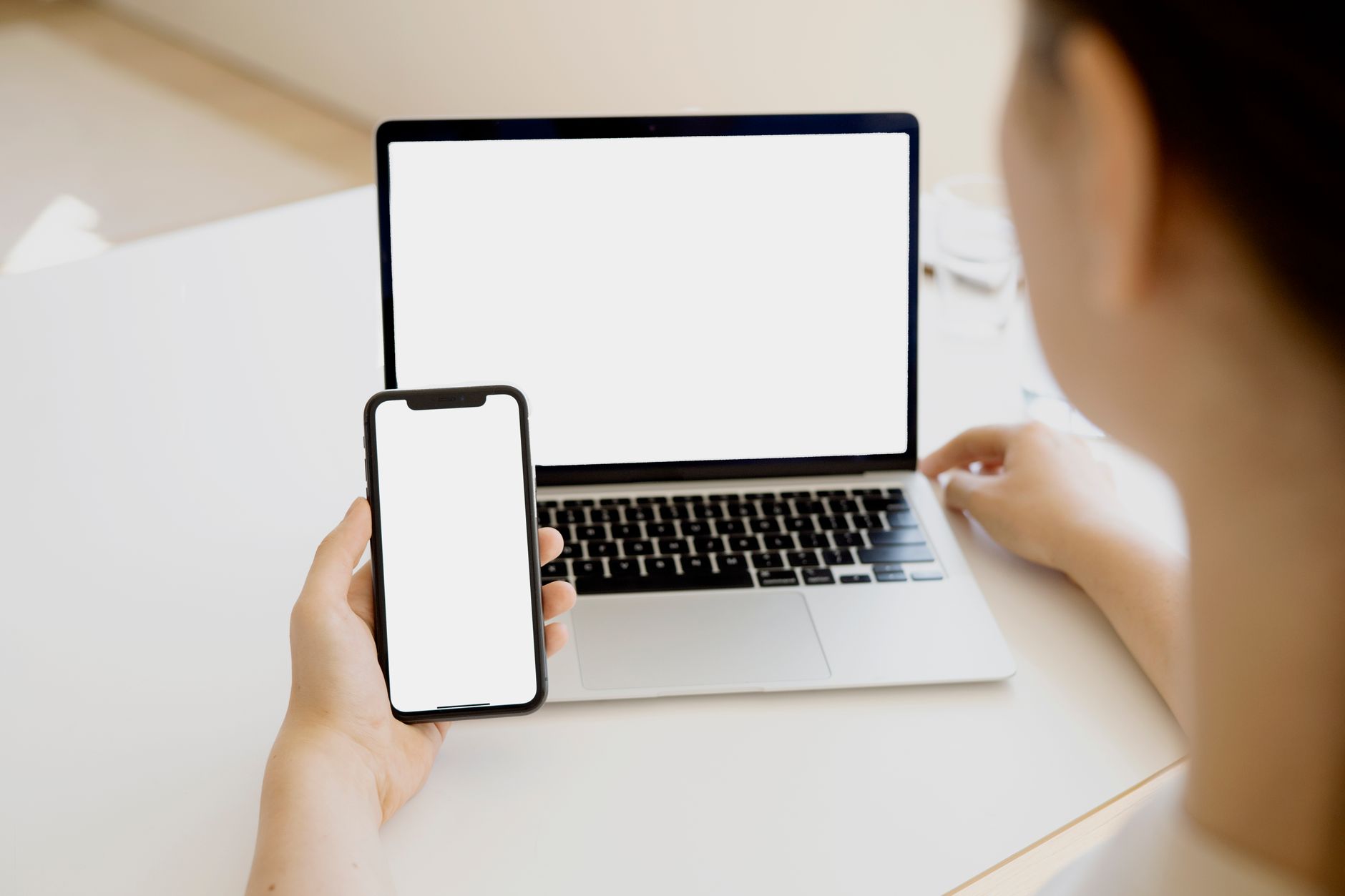
Photo by Hanna Pad on Pexels
Copyright note: The image showcases a practical, real-world setup where a phone and laptop cooperate in one workspace, aligning with the guidance in this section.
Links used in this section are for context and practical reference. They illustrate common approaches and tools creators use to blend phone and laptop workflows across ecosystems.
Conclusion
A smart, two-device workflow speeds up content creation while boosting quality. Start with planning on the laptop, capture with the smartphone, edit on the laptop, and review on the phone before publishing from either device. This approach keeps ideas moving, reduces file shuffling, and lets AI and cloud tools handle repetitive tasks so you can focus on storytelling.
Key steps to recap include setting 2–3 core formats, using a central cloud hub, and keeping a simple, repeatable folder structure. Pair phone driven capture with desktop level edits for a cohesive final product that travels well across platforms. Embrace a single cloud service per project and test screen mirroring for fast previews when speed matters.
If you’re ready for a tangible win, try a one week workflow test using the steps above. Track your speed, capture quality, and publish consistency, then share your results and learnings with the community.
There Is a Frequency That the Wealthiest Families Have Used for Generations and Most People Will Never Know It Exists
>>> Open the Door <<<
