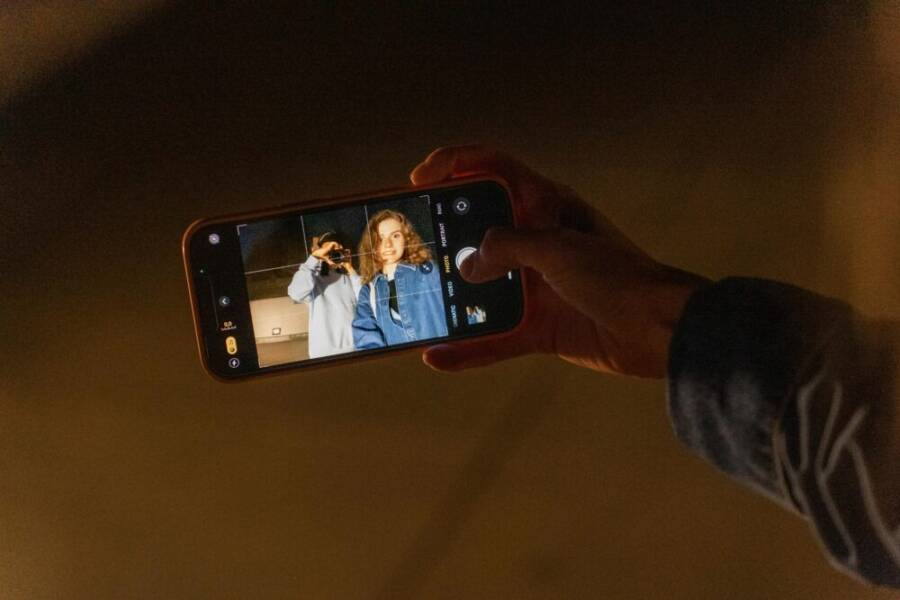
Can your indoor photos look bright and crisp like outdoor shots without heavy editing? This post shares practical steps to fix common indoor photo struggles using your phone, so you get solid results fast. You’ll learn the best phone camera settings for indoor photos that work in real rooms, not just on bright sidewalks.
Indoor lighting, motion, and color are tougher than they seem. With simple tweaks, you can prevent blur, reduce color casts, and keep details sharp in every shot. This guide focuses on quick changes you can make today to improve your indoor photography with smartphone cameras.
Here’s the plan you can follow now: set up good light, choose the right exposure and white balance, and use stabilization tricks that fit your space. You’ll finish with a practical routine for mastering low light phone photography and building confidence behind the lens.
Indoor photography deep dive: why getting the right phone camera settings matters
Indoor photography tests a phone camera in ways outdoor shots rarely do. Mixed lighting, aging bulbs, and window glare can throw off color, exposure, and sharpness in a single frame. By dialing in the right settings, you gain consistent results without heavy editing. This section breaks down why these choices matter and how to test them quickly in real rooms.
Understanding indoor light and how it affects phone cameras
Indoor light is rarely uniform. You’ll encounter three main sources:
- Window light adds a soft, directional glow that can warm or cool depending on the time of day.
- Incandescent or warm LED bulbs emit a yellowish cast that makes skin tones look orange or flat.
- Cool fluorescent and daylight-balanced LEDs lean blue, which can wash out reds and skin tones.
White balance (WB) and exposure respond differently to each source. WB attempts to map colors so whites look neutral. If you shoot under warm bulbs, automatic WB may push everything toward blue to compensate, leaving your subject looking unnatural. Conversely, cool light can push warmth into skin tones if WB isn’t set correctly. Exposure governs how bright or dark the image is, and it can interact with lighting in surprising ways. Too bright and you blow out highlights; too dark and facial details vanish in shadows.
Simple tests you can run now:
- Switch between warm and cool WB presets and notice how skin tones shift. If a portrait looks too yellow, try a cooler WB.
- Observe shadows as you adjust WB. Some rooms reveal unnatural color casts on faces; a different WB can balance that out.
- Use manual WB or a Kelvin setting if your phone allows it to dial in a precise temperature that matches the light source.
For deeper context on exposure and white balance in smartphones, see practical explanations like “About exposure, white balance and smartphones” and white balance guides from photographers and enthusiasts. As you experiment, you’ll start to recognize which light sources you should favor or compensate for in your setup. About exposure, white balance and smartphones • Cellphone Photography: All About White Balance • Understanding White Balance in Photography
Common indoor photo errors and easy fixes
Indoor shooting often trips us up in seconds. Here are the most common issues and practical fixes you can apply right away.
- Yellow skin tones or blue skin shadows — Fix by adjusting WB to a neutral or slightly cooler setting. If skin still reads off, try a different preset or manually dial Kelvin temperature.
- Blurry subjects — Stabilize with a steady stance, lean on a wall, or use a small tripod or monopod. If motion blur is unavoidable, increase shutter speed or enable a brief exposure boost only when light allows.
- Underexposed faces — Use exposure compensation or tap to lock focus and then drag exposure up. This keeps faces bright while preserving shadows elsewhere.
- Camera shake from hand pressure — Turn on grid lines to help keep the subject level and steady your grip. A quick breath control technique can help center the shot before you press the shutter.
Fast pre-shoot checks to keep in mind:
- Enable grid lines to frame eyes in the upper third of the frame.
- Tap to focus on the subject, then adjust exposure by swiping up or down on the screen if your device supports it.
- Try a quick test shot and review it at full size. If faces look flat or color feels off, tweak WB and exposure and shoot again.
A simple plan to approach indoor photos in 3 steps
Adopt a tiny, repeatable workflow that fits any room. This keeps you efficient and consistent, even in awkward lighting.
- Assess light and choose white balance
- Look at how the light hits the subject. If the room looks pinkish or orange, switch to a cooler WB; if it looks greenish or blue, warm it up slightly.
- Start with a neutral WB, then experiment with warm and cool presets to see what delivers natural skin tones.
- If your phone supports a Kelvin scale, try setting it around 3200K for warm ambient lighting or 5200K for daylight-like conditions.
- Set exposure and stabilization
- Lock focus on the subject, then adjust exposure to ensure facial detail isn’t lost in highlights or shadows.
- Add stabilization techniques. Hold still, brace against a surface, or use a small tripod or phone mount. If hands shake, enable a short burst mode to capture a sharp frame.
- Shoot and review
- Take a quick look at the image and check skin tones, shadows, and color balance. If anything looks off, tweak WB or exposure and retake.
- Create a compact checklist you can reference between shots: light source, WB, exposure, stabilization, and a final review.
Tips to keep the workflow handy:
- Keep a tiny notepad or a notes app checklist. Rapidly confirm light source, WB choice, and exposure before every shot.
- Practice a 3-step cycle in different rooms to build familiarity. You’ll recognize patterns quickly and waste less time adjusting settings.
Where to start is often the hardest part. With a simple routine, you can unlock consistent, publish-ready indoor photos. For more on white balance strategies in real rooms, see external guides that break down the basics and offer practical tips.
- About exposure, white balance and smartphones
- Cellphone Photography: All About White Balance
- Understanding White Balance in Photography
By sticking to a straightforward three-step plan, you can improve your indoor shots dramatically. The goal is to make small, repeatable adjustments that become second nature over time. As you practice, your phone becomes a versatile tool that handles mixed lighting gracefully rather than fighting it.
Core phone camera settings you should adjust indoors
Indoor photography can feel tricky, but a few core settings make a big difference. This section focuses on practical, quick adjustments you can apply right away to improve sharpness, color accuracy, and overall balance in dim rooms. You’ll see how to use exposure, shutter speed, white balance, and HDR to your advantage without overthinking every shot. And yes, your smartphone is the right tool for this task.
Exposure and ISO basics
Exposure value (EV) is the combination of shutter speed, aperture (where available on phones), and ISO that determines how bright your image appears. In practice, you control exposure by adjusting brightness on the screen or using exposure compensation if your phone supports it. A correct exposure ensures facial details stay visible without washing out highlights or crushing shadows.
- ISO and noise: ISO amplifies the signal from the sensor. In dim light, raising ISO helps capture more light, but it also introduces more noise. The goal is to keep ISO as low as possible while maintaining a visible, clean image.
- Low light strategies: When the room is dim, start by dialing down the ISO. If the picture is too dark, increase exposure rather than ISO whenever possible, and only raise ISO after you’ve stabilized the shot.
- Auto vs manual exposure: Auto exposure is fine for quick snapshots, but you gain control with manual exposure when the scene has mixed brightness or backlighting. Portrait lighting, for instance, often benefits from a slightly lower exposure to keep skin tones natural, then a touch of exposure compensation to bring back detail in the eyes.
Quick tips you can apply now:
- In portrait lighting, set a modest exposure to protect skin tones, then adjust exposure up a notch if the face looks flat.
- In cluttered backgrounds, a slightly higher exposure can reveal details in the subject while background elements stay soft.
For deeper context on exposure and white balance in smartphones, see guides that explain how to balance these elements in real rooms. Examples include practical explanations of exposure, white balance and smartphones, plus approachable white balance tips:
- https://andreabianco.eu/blog/2018/02/25/about-exposure-white-balance-and-smartphones/
- https://www.portablecity.net/cellphone-photography-all-about-white-balance/
- https://greatbigphotographyworld.com/white-balance/
In real life, you’ll test adjustments quickly. Take a shot, review at full size, and see if skin tones read natural or if color casts appear. The goal is a reliable baseline where you can reproduce consistent results across similar indoor setups.
Shutter speed tips for sharpness
Shutter speed controls how long the sensor sees the scene. A fast shutter freezes motion and reduces blur, while a slower shutter can capture more light when you’re steady or when you use a tripod.
- Faster speeds: Use 1/250 s or faster for moving subjects like kids, pets, or bustling interiors. In dim rooms, you may need even faster speeds if the subject is moving or you’re shooting handheld with a busy background.
- Slower speeds: 1/60 s to 1/125 s works when you can stabilize the shot. A steady hand, bracing against a wall, or using a small tripod can make slower speeds workable without blur.
- Practical ranges for indoors:
- Portraits with a static subject and indoor lighting: 1/125 s to 1/200 s.
- Family scenes with mild movement: 1/100 s to 1/160 s.
- Low light on a tripod: 1/4 s to 1/15 s, then crop if needed.
- Testing speeds: Start at a middle value like 1/100 s, then try 1/200 s and 1/60 s to compare sharpness. Review the shots on your phone screen or a larger display to see if movement or blur is visible.
Practical workflow:
- If you’re shooting a person who isn’t moving much, you can push for a slightly slower shutter with good stabilization to capture more detail in the environment.
- For dynamic scenes, prioritize speed to keep the subject crisp, even if the background goes slightly softer.
If you want additional context on practical shutter speed choices in low light for phones, look at guides and discussions about indoor photography in real-world settings. For example, communities and tutorials discuss balancing shutter speed with noise and stabilization techniques to keep images sharp in dim spaces.
- Reddit discussions on ISO tips for low-light photos and moving subjects https://www.reddit.com/r/photography/comments/1isn8im/iso_tips_for_taking_good_quality_lowlight_photos/
- Canon’s tips for low-light photography https://www.canon.ie/get-inspired/tips-and-techniques/low-light-photography/
- Pro insights on low-light phone photography https://photogpedia.com/low-light-phone-photography/
- A practical note from a photography group on exposure and shoot-habits https://www.facebook.com/groups/beginnersphotographygroup/posts/9105784179469433/
How you approach shutter speed often depends on whether you’re using stabilization. If you don’t have a tripod, favor faster speeds and higher ISO to preserve sharpness. If you have a steady surface, you can experiment with longer exposures to reveal more ambient detail without overly noisy results.
White balance and color accuracy
White balance (WB) is how cameras interpret colors under different light. The aim is to make whites look white and skin tones look natural, no matter the room’s lighting.
- Presets and customization: Start with a neutral WB preset. If the room feels too orange from tungsten bulbs, try a cooler preset. If the scene looks too blue, warm it up slightly. Some phones let you dial Kelvin temperatures for precise control.
- Skin tones: Natural skin tones come from balancing the light source with your camera’s WB. A slight tilt toward cooler or warmer WB can correct a cast without making the entire scene look odd.
- Gray reference check: If you have a neutral gray card or a gray reference in the frame, compare it to your subject’s skin tone. If gray does not look neutral, adjust WB and reframe.
A quick way to get it right:
- Shoot a quick test frame with the room’s main light source and compare two WB presets. Choose the one that renders skin tones most naturally.
- If you can, switch to a manual WB or Kelvin setting to dial in the exact temperature that matches your light source.
For additional reading on white balance in photography, you can explore guides that explain the concept and offer straightforward advice:
- https://andreabianco.eu/blog/2018/02/25/about-exposure-white-balance-and-smartphones/
- https://www.portablecity.net/cellphone-photography-all-about-white-balance/
- https://greatbigphotographyworld.com/white-balance/
Quick-checks to keep skin tones natural:
- Look for a yellow or orange cast on faces under warm bulbs. If present, cool WB slightly.
- If faces appear blue under mixed lighting, warm WB a touch until the skin looks natural.
- When possible, use a gray card to confirm accurate white balance in complex lighting.
HDR and noise control
HDR can help when you have bright windows and darker interiors in the same frame. It blends multiple exposures to preserve detail in both highlights and shadows. However, HDR isn’t always the best choice for every indoor scene.
- When HDR helps:
- Rooms with bright windows where you want to keep interior details.
- Scenes with mixed lighting, where highlights on faces risk clipping while you still want environment details.
- Possible downsides:
- Ghosting occurs when moving subjects are present during the HDR capture.
- Longer processing time means you’ll wait a moment before the shot saves.
- Some phones produce unnatural results if the algorithm overcorrects.
A simple approach to HDR:
- If your subject is still and the windows are bright, enable HDR and review the result. If skin tones look flat or you notice halos around bright areas, try standard (non-HDR) mode for the next shot.
- For quick, candid indoor shots, turn HDR off and rely on standard exposure to avoid ghosting.
Managing noise in low light:
- Use a modest increase in ISO only after stabilizing the frame. Avoid cranking ISO too high, which can introduce grain that distracts from facial detail.
- Use exposure compensation rather than pushing ISO. A slight brighten can preserve details without adding noticeable noise.
If you want more hands-on guidance, a few reputable sources discuss HDR behavior and noise management in indoor settings. These perspectives help you decide when to switch HDR on or off and how to handle noise when light is scarce:
- https://www.canon.ie/get-inspired/tips-and-techniques/low-light-photography/
- https://photogpedia.com/low-light-phone-photography/
In practice, develop a simple toggle habit: scan the scene, decide if the highlights are at risk, and switch HDR on or off based on the subject movement and light balance. Then review the shot and adjust as needed for the next frame. This quick cycle saves time and yields more consistent indoor photos that look natural.
If you’d like to read more about practical HDR usage in real rooms, explore sources that cover real-world scenarios and show how HDR can help without complicating the workflow.
- Practical low-light and HDR tips https://www.canon.ie/get-inspired/tips-and-techniques/low-light-photography/
- Low Light Phone Photography: The Best Settings and Pro Tips https://photogpedia.com/low-light-phone-photography/
By applying these core settings—exposure and ISO control, smart shutter speeds, thoughtful white balance, and careful use of HDR—you’ll build a reliable indoor photography routine. Your photos will look more natural, sharper, and more accurate to what you see. And with a little practice, you’ll find a workflow that fits any room and lighting condition.
Phone features and modes that maximize indoor shots
When you’re shooting indoors, a few smart features and modes can dramatically improve your results. This section highlights practical ways to use night modes, portrait options, and RAW or Pro controls across brands. The goal is to help you capture natural skin tones, sharp details, and balanced exposure without a mountain of post-processing.
 Photo by Anastasiya Badun
Night mode and low light tricks
Night or night-like modes are designed to lengthen the camera’s exposure in dark scenes while reducing noise. How they work varies by brand, but the practical result is similar: brighter foregrounds and preserved shadows without turning the image into a flat, overprocessed mess.
- Samsung Galaxy: Night mode typically engages automatically in very low light. It blends multiple frames to reduce noise and smooth shadows, while trying to keep skin tones natural. For best results, keep still and avoid moving subjects while the shutter stacks frames.
- iPhone: Night mode uses a longer, optimized exposure with image stacking behind the scenes. It shines when you have still subjects or a tripod. If the skin tones look over-smoothed, try a shorter exposure by using a tripod or placing the phone on a stable surface.
- Google Pixel: Night Sight captures multiple frames with careful processing to minimize blur and color shifts. Hold the phone steady and wait for the shutter to finalize; the result often preserves more texture in fabrics and skin.
Tips to maximize results and avoid common pitfalls:
- Keep the phone still. Even a slight shake can create ghosting during multi-shot processing.
- Use a stable surface or tripod when possible, especially for portraits or still-life setups.
- Be mindful of skin tone smoothing. If the mode over-smooths, switch to a standard or a longer exposure trick and adjust later in editing.
- For scenes with bright windows, use Night mode selectively. On some devices, it may brightens the background while your subject remains too cool. A quick test shot helps you decide.
External reads to deepen your understanding:
- Samsung Night Mode basics: Nightography and practical usage. Read more here: https://www.samsung.com/uk/mobile-phone-buying-guide/samsung-night-mode-camera/
- General night photography tips for smartphones: https://www.cnet.com/tech/mobile/use-my-pro-tips-for-your-best-ever-night-photos-using-any-phone/
- Pixel Night Sight guidance: https://support.google.com/pixelcamera/answer/9708795?hl=en
Key takeaway: Night modes are powerful when you’re patient and still. If a subject is moving, consider a faster option or a separate shot without the night mode to preserve motion.
Portrait mode and depth in dim spaces
Portrait modes simulate depth by blurring the background, helping your subject pop in indoor lighting. The effect works best when the lighting creates a clear subject separation, but it can stumble on edges and halos in challenging rooms.
- How to optimize: Position your subject away from bright windows or strong background lights to reduce haloing and edge artifacts. A softer, directional light source from the side often yields the most natural separation.
- Edge detail and halos: Expect occasional soft edges around hair or sunglasses. If halos appear, try lowering the background blur level or switching to a standard photo, then apply blur in post-processing.
- Depth tricks: Place the subject a comfortable distance from the background (roughly 2–3 feet). This distance amplifies natural depth and reduces background noise in cheaper lenses.
- Lighting placement: Soft, side lighting is ideal. If you have a window light, angle the subject at a 45-degree angle to the light source to sculpt facial features.
Practical tips:
- Use a laterally placed light source to avoid flat, front-lit portraits.
- If your room has mixed lighting, adjust white balance first, then enable Portrait mode to ensure skin tones stay natural.
- Test different focal lengths if your phone offers multiple portrait lenses. A longer focal length can compress the background for a more cinematic look.
For further reading on how portrait features behave in indoor lighting across devices, these guides offer useful context:
- Samsung portrait behavior in mixed light: https://www.samsung.com/us/explore/photography/what-is-nightography-your-guide-to-the-basics/
- General tips on portrait lighting and depth: https://www.portablecity.net/cellphone-photography-all-about-white-balance/
Key takeaway: Portrait mode is a powerful tool indoors when you manage light placement and subject distance. Watch for edge quality and halo artifacts, and don’t rely on it in extremely cluttered backgrounds.
RAW and Pro modes on iPhone and Android
RAW captures give you unprocessed sensor data, letting you adjust exposure, white balance, and color with maximum flexibility in post. Pro modes add finer control over ISO, shutter speed, and focus, which can be a big win for tricky indoor scenes.
- When to shoot RAW: Indoor scenes with mixed lighting or backlighting benefit from RAW. It preserves more detail in shadows and highlights, but editing is essential to unlock that data.
- Post processing: RAW files require editing in apps like Lightroom or Snapseed. A quick color balance, exposure fix, and noise reduction can dramatically improve results.
- File size and workflow: RAW files are larger and take longer to transfer and edit. Plan for more storage and time on post processing.
- iPhone vs Android: iPhone offers RAW via ProRAW or standard RAW in newer models, while Android phones vary by brand. Some devices allow RAW capture alongside standard JPEG through a single toggle.
Practical approach:
- Start with RAW on scenes with high contrast or backlighting. Keep a quick baseline edit, then decide if you want to process further.
- For casual quick shots, a non-RAW mode often suffices. You can still adjust white balance and exposure after the shot, but with less latitude than RAW.
Helpful links for deeper dives:
- Practical explanations of RAW and editing workflows: https://www.canon.ie/get-inspired/tips-and-techniques/low-light-photography/
- Low-light phone photography insights including RAW usage: https://photogpedia.com/low-light-phone-photography/
Final thought: RAW unlocks the most control for indoor shots, but it requires time and an editor. If speed matters, use standard formats and save RAW for scenes you know you’ll manually adjust later.
Images and additional context share practical how-to steps and visual cues you can apply in real rooms. Use the guidance above to build a consistent indoor photography routine that fits your space and device.
External links quoted above provide additional perspectives and brand-specific tips to reinforce the core approach. By staying mindful of light direction, stabilization, and the balance between speed and control, you can consistently capture sharp, natural indoor photos with your phone.
Practical setup and shooting techniques for different indoor scenarios
Indoor photography with a phone can feel tricky, but a few practical setups and shooting techniques make a big difference. This section breaks down real-world scenarios you’ll encounter at home and in small spaces. Each sub-section gives you concrete positioning, light sources, and camera settings to keep faces bright, textures sharp, and scenes balanced. Think of this as a portable playbook you can pull out before every indoor shoot.
Dim living room portraits
In a dim living room, the goal is to illuminate faces without washing out details or creating color casts. Start by shaping light with small, easy-to-find sources and bounce light off white surfaces to soften shadows.
- Positioning: Place the subject at arm’s length from a light source. If you have a lamp, keep it at a 45-degree angle to the face to sculpt cheekbones and avoid flat lighting. A second, lower lamp behind the camera can fill in shadows subtly.
- Light sources: Use a small lamp or LED puck as the primary light. If possible, bounce light off a white wall or ceiling to create a gentle, wraparound glow. A white sheet of paper or a white poster board works in a pinch.
- Camera settings: Start with a neutral white balance and a modest exposure. Keep ISO as low as possible for clean skin tone. If your portrait looks flat, nudge exposure up slightly only on the face. Use a shutter speed between 1/125 and 1/200 s to minimize handshake, especially if you’re handheld.
- Practical tips: Turn on grid lines to align eyes along the upper third and avoid harsh shadows. If you’re dealing with a warm bulb, try a cooler WB preset or a Kelvin around 5200K to bring skin tones back to natural.
Mini example: A coffee table lamp on the left, a white wall to bounce light, and the subject seated at a comfortable distance. Shoot a quick frame, review skin tones, adjust WB toward neutral, and retake if the face looks too orange or blue.
For deeper guidance on white balance and exposure in real rooms, see practical explanations like “About exposure, white balance and smartphones” and white balance guides from photographers and enthusiasts.
- https://andreabianco.eu/blog/2018/02/25/about-exposure-white-balance-and-smartphones/
- https://www.portablecity.net/cellphone-photography-all-about-white-balance/
Backlit scenes near windows
Window light can be beautiful, but it often creates silhouettes if the camera points toward the source. The trick is to meter for the subject and balance the exposure so the face remains visible.
- Meter for the subject: Use spot metering or tap-to-measure on the person’s face. If your phone supports exposure locking, lock the exposure on the face first, then reframe.
- Balancing exposure: If the window is very bright, you may need to drop overall exposure a notch to prevent the background from blowing out. Then add light to the subject with a reflector or a small fill light.
- Fill light: A portable LED panel or a white bounce card can lift shadows on the face. Place the fill at about 30–45 degrees to the subject to avoid flat lighting.
- Camera settings: Consider a lower ISO to keep noise down and a modest shutter speed to reduce motion blur. If available, enable a low light or night mode only when the subject is still enough to benefit from the longer exposure.
- Practical tip: A simple sheet or poster board can bounce window light onto the subject, creating a flattering, natural look without adding a visible lamp.
Organic link ideas: For brand-neutral house lighting examples and practical tips on window light, explore sources that discuss how to balance window light with interior lighting while keeping skin tones natural.
- Samsung Night Mode basics and practical usage: https://www.samsung.com/uk/mobile-phone-buying-guide/samsung-night-mode-camera/
- General night photography tips for smartphones: https://www.cnet.com/tech/mobile/use-my-pro-tips-for-your-best-ever-night-photos-using-any-phone/
Group shots and stability tips
Group shots raise the bar for depth of field, focus, and stability. The bigger the group, the more you need a plan to keep everyone sharp without sacrificing composition.
- Stabilization options: If you have a small tripod, use it. If not, stabilize your phone on a solid surface or lean against a stable object. A monopod can also help, especially in limited spaces.
- Focusing strategy: Tap to focus on a mid-face area of the group and lock focus if your device supports it. A slight rear-curtain exposure can help preserve ambient light in the background.
- Depth and arrangement: Space people in a staggered line or two rows to keep faces visible. Ask taller people to stand in the back and shorter ones in front.
- Shutter speed and timing: Use a faster shutter speed (about 1/100 to 1/200 s) if there is movement. For very still moments, you can go down to 1/60 s if you’re confident in stabilization.
- Timer and voice capture: Use the timer to avoid camera shake from pressing the shutter. If your device supports voice commands or quick gestures, use them to reduce blur from finger movement.
Practical suggestion: If you’re shooting in a living room with mixed lighting, bring a small, portable light source for the group to ensure even lighting across faces. A soft bounce off a white surface reduces harsh shadows.
Helpful reads that expand on group lighting and stability:
- Portrait lighting and depth in mixed light
- General tips on indoor group photography setup
Food and close ups
Close-ups and food shots demand texture, color accuracy, and controlled lighting to avoid glare while revealing fine detail.
- Focus and distance: Use close focusing to maximize texture. Place your subject at a comfortable distance to keep the entire scene sharp, especially if you’re using a macro-like mode or a zoom lens.
- Lighting balance: Aim for even lighting to reduce harsh shadows. A soft, diffused light source works best. If you don’t have a diffuser, bounce light off a white surface to create a gentle glow.
- Color and texture: Boost texture by avoiding overly flat light. Side lighting or a gentle backlight can bring out the surface details without washing color.
- Glare management: For glossy foods, angle the light to minimize direct reflections. A little diffuse light will reveal the sauce and glaze without harsh hotspots.
- Quick steps for even lighting: Use two light sources at 45-degree angles from the subject, bounce light off a white card to soften shadows, and keep the light level consistent across the plate.
Practical example: A plate of pasta photographed with a small lamp on the left, a white board on the right to bounce light back, and the dish angled to capture the sheen of olive oil. Review the frame and adjust light balance for natural, appetizing tones.
For readers who want to explore more about texture and color accuracy in indoor shots, consider reading up on HDR usage and noise control to see how these tools affect close-ups.
- Canon low-light photography tips: https://www.canon.ie/get-inspired/tips-and-techniques/low-light-photography/
- Low-light phone photography insights including RAW usage: https://photogpedia.com/low-light-phone-photography/
Key takeaways for this section:
- Dim rooms benefit from controlled bounce light and directional fill to keep faces lively.
- Window light is beautiful but tricky; meter for the subject and add fill to avoid silhouettes.
- Stability is king for group shots; a small tripod or solid surface makes a big difference.
- Close-ups thrive on even lighting and careful control of glare.
External links are included to deepen understanding and provide brand-specific context as you tailor setups to your device. For further reading and practical demonstrations, explore the linked resources as you practice in real rooms.
External reads and brand-guided tips you can consult:
- Samsung Night Mode basics: https://www.samsung.com/uk/mobile-phone-buying-guide/samsung-night-mode-camera/
- General night photography tips for smartphones: https://www.cnet.com/tech/mobile/use-my-pro-tips-for-your-best-ever-night-photos-using-any-phone/
- Pixel Night Sight guidance: https://support.google.com/pixelcamera/answer/9708795?hl=en
These practical setups give you a clear, repeatable approach to indoor shooting. Use them as a baseline, then adapt to your space. With consistent practice, you’ll capture sharper faces, richer textures, and better color balance in any indoor scene.
Editing, color accuracy, and keeping your photos natural
In indoor photography, the final look often hinges on quick, thoughtful editing that preserves natural skin tones and true color. The goal is to correct casts, tame noise, and keep details intact without turning your shot into an over-processed image. This section walks you through fast white balance tweaks, responsible noise reduction and sharpening, and reliable export and color management practices. You’ll come away with a practical editing workflow you can apply to most indoor scenes.
White balance editing quickly
White balance (WB) is where many indoor photos either shine or fall flat. A fast editing routine helps you neutralize color casts after capture so skin tones look natural and scenes feel true to life.
- Start with a neutral WB baseline. If the room feels too warm, shift toward cooler presets; if it reads blue, warm it up slightly.
- Use Kelvin where available. A range around 5200K to 5700K is a good starting point for mixed indoor lighting; adjust in small steps until whites look white and skin looks natural.
- Watch for color casts on skin. If faces appear orangey under tungsten, dip a notch toward blue. If faces look gray or green, push toward warmer tones.
- Quick checks: compare two WB presets side by side and pick the one that renders natural skin tones. If your editor supports a grayscale reference, use it to verify neutral whites in the frame.
- Handy editing tools: many editors offer a WB brush or eyedropper. Use the eyedropper on a neutral gray area or a white patch in the image to automatically balance the rest of the scene.
Practical tip: for fast results, try a single snapshot with a neutral WB, then a second version with a cooler balance. Choose the one that presents skin tones most naturally. For deeper exploration on white balance in real rooms, see practical guides that explain WB choices and quick fixes. Example sources include discussions on exposure and white balance for smartphones, plus beginner-friendly white balance tips.
- Snapseed (Photo Editor) on Google Play or App Store offers robust WB controls.
- Google Play: Snapseed
- App Store: Snapseed: Photo Editor
- Reader-friendly overviews of white balance concepts and real-world application
If you want to broaden your WB toolkit, consider trying a gray reference in tricky rooms and comparing how each WB setting renders it. Small tweaks can keep your indoor portraits looking fresh without a single harsh cast.
Noise reduction and sharpening
Noise control and sharpening are a balancing act. Apply light noise reduction to soften grain in low light, but avoid overdoing it, or you’ll lose texture and natural skin detail. Sharpen only enough to recover edge clarity without amplifying noise.
- Apply light noise reduction as a first step after a shot in dim rooms. A gentle pass helps smooth uniform backgrounds and facial skin without losing micro-texture.
- Avoid over sharpening. Excessive sharpening creates halos around edges and can exaggerate noise in shadow areas. A subtle, targeted sharpening usually yields the most natural result.
- Compare before and after. Toggle between the original and edited versions to ensure skin tones stay natural and textures remain believable.
- Focus on key areas: eyes, lips, and hair lines often benefit most from sharpening while keeping the rest of the frame quiet.
- When to skip it: if the photo already looks clean from the sensor and stabilization, skip sharpening to preserve a natural look.
Practical workflow:
- Start with a light noise reduction pass, then apply a light sharpening pass. Review at 100% zoom to verify texture in skin and fabric remains lifelike.
- If you’re working with RAW files, you’ll have more latitude to adjust noise and sharpness without compromising color accuracy.
For readers seeking deeper guidance on HDR usage, RAW workflows, and noise control in indoor shots, see practical resources that discuss how noise and sharpening interact in real-world scenes. Brand-agnostic articles on low-light editing provide actionable steps you can apply across apps.
- Practical low-light and HDR tips
- Canon low-light photography tips
- Low-light phone photography insights including RAW usage
When you balance noise reduction with sharpening, your indoor portraits stay smooth without losing personality. The result should be clean and natural, with details preserved in faces and textures.
Export and color management
Exporting with the right color profile and resolution ensures your photos look consistent whether they’re viewed online or in print. A straightforward export routine helps you avoid surprises on different screens and devices.
- Choose the right file formats: JPEG for most web use, TIFF or high-quality JPEG if you need print-ready files. RAW files are great for editing, but they aren’t ideal for quick web uploads.
- Set resolution appropriately: 72–150 PPI is typical for web use, while print projects usually require 300 PPI or higher. If you’re unsure, export two versions: a web-optimized JPEG and a print-ready TIFF or large JPEG.
- Color profiles: sRGB is the safest choice for web and broad device compatibility. If you’re preparing images for print, use Adobe RGB or ProPhoto RGB only if your printer supports it and you plan a color-managed workflow. When in doubt, stick with sRGB for consistency.
- Soft proofing: if your editing app supports soft proofing, test how the image will look in different devices or on a specific printer. This helps you avoid unexpected shifts in color in the final output.
- Metadata and compression: embed color profile metadata and avoid excessive compression. A modest compression keeps file size reasonable without sacrificing noticeable detail.
- Web optimization tips: resize images to the target display size before upload to keep loading times fast and preserve sharpness. Use progressive JPEGs if your platform supports them for a smoother loading experience.
Practical example: for a gallery post, export a 2048-pixel-wide web JPEG in sRGB with moderate sharpness and a print-ready TIFF in Adobe RGB for future prints. Keep the originals in RAW or a high-quality lossless format for future edits.
Bridge to real-world workflows: many editors provide straightforward one-click exports that balance speed and color accuracy. If you frequently switch between devices, establish a standard export preset for web and a separate one for print. This keeps your workflow consistent and reduces color surprises when your photos reach different screens or pages.
Productivity note: if you shoot across multiple devices, consider syncing color management settings via cloud presets or a central workflow guide. This keeps your color intent consistent across iPhone, Android, and any editing apps you use.
External references for deeper color management concepts and practical export practices can help you refine your routine. Look for authoritative guides on WEB color spaces, print color workflows, and device-specific considerations to broaden your understanding and keep your publishing pipeline smooth. For example, explore reliable sources that discuss RAW workflows and professional exporting practices, as well as reviews of popular editing apps.
- Practical explanations of RAW and editing workflows
- Low-light editing insights for phones
With a consistent export and color management process, your indoor shots will look right on every platform. The goal is to maintain color fidelity and detail from capture to publish, so your audience sees the scene as you intended.
External links for deeper learning and device-specific guidance:
- Snapseed: Photo Editor on Google Play
- Snapseed: Photo Editor on App Store
- The Best Photo Editing Apps for Android and iOS
These steps create a clean, repeatable editing routine that preserves natural skin tones and accurate colors. By combining quick WB edits, careful noise control, and solid export practices, you’ll produce indoor photos that look true to life across web and print.
Conclusion
Mastering indoor phone photography comes down to a few reliable settings and a steady routine. By balancing white balance, exposure, and stabilization, you can keep skin tones natural and textures sharp even in mixed lighting. The practical plan we covered keeps your workflow repeatable, so you spend less time editing and more time shooting with confidence. A light, deliberate approach with your smartphone pays off in consistent, publishable images.
Key steps you can try this week
- Set a neutral white balance first, then test cooler and warmer tweaks to find natural skin tones.
- Use exposure compensation to brighten faces without clipping highlights in the background.
- Stabilize your shot with a firm stance, a wall brace, or a small tripod when possible.
- Try Night mode or HDR selectively depending on subject movement and window lighting.
- Shoot RAW when scenes have strong backlight or high contrast; edit later for maximum control.
Quick start checklist for indoor photos with a smartphone
- Check light direction and place the subject off to one side for dimension
- Tap to focus on the subject and lock exposure if available
- Compare two white balance presets and pick the most natural skin tones
- Keep ISO as low as possible; raise exposure rather than ISO in dim rooms when you can
- Use a stable surface or tripod for low light shots
- Review at 100% to judge skin tones, color balance, and detail
If you have questions or want feedback on a shot, drop a comment with details about your device and room. For device specific guidance, see tailored guides for popular models and apps.