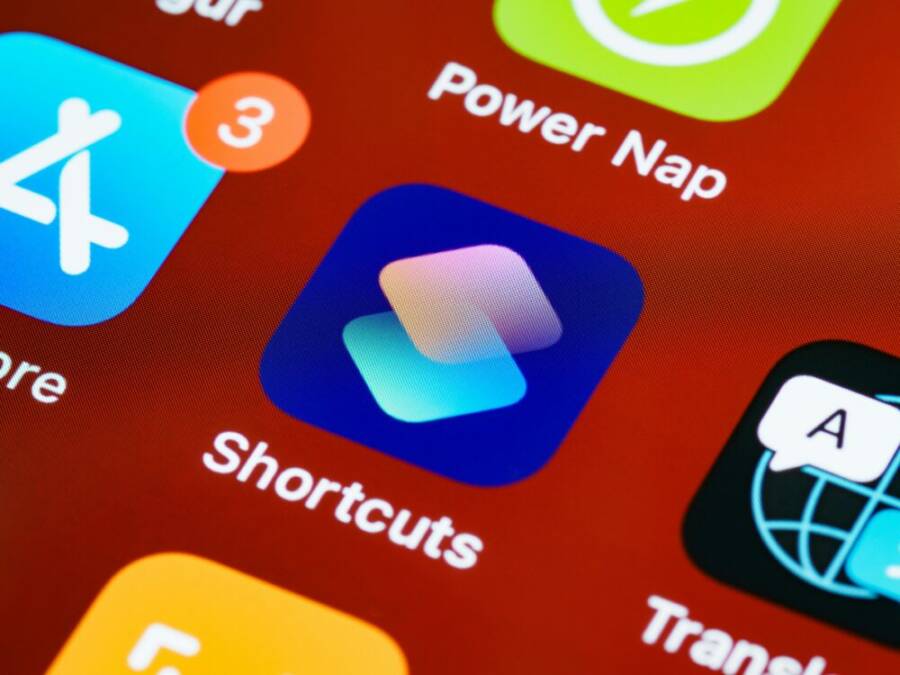
Curious how a few taps can handle chores on your phone without babysitting each step? The Shortcuts app makes simple automations feel like a personal assistant in your pocket, turning routine taps into one smooth flow. In this guide, we’ll show you practical, easy ways to get more from your iPhone with familiar, friendly steps.
What you’ll learn is practical, not perfect. We’ll cover the basic building blocks of automation, plus real examples you can try today. Expect clear, bite sized tips that fit into a busy day and make your phone work just a little smarter for you.
With iOS 26 bringing smarter automation through Apple Intelligence, you’ll see smarter suggestions and context aware actions that make creating shortcuts faster. We’ll keep everything grounded in real use, from turning on Do Not Disturb for focus time to quick actions for common tasks. Ready to try one quick automation now and feel the difference?
Why automate simple tasks on your phone
Automating small, repetitive actions on your iPhone saves time, mental energy, and reduces the chance of mistakes. Shortcuts turns routine taps into one smooth flow, so you can focus on what matters. Below are practical, easy-to-implement ideas that help you feel the difference right away. This section breaks down why automation matters, how it streamlines daily tasks, and how to start small with reliable, repeatable results.
 Photo by https://www.pexels.com/@brettjordan
Save time with fewer taps
Automation shines when it reduces the number of taps needed to finish a task. Instead of opening multiple apps, hunting for settings, and typing messages, you can trigger several actions with one shortcut. For example:
- Turn off Wi-Fi at a set hour and re-enable it when you’re done with work or class.
- Send a preset message to a contact or a group with a single tap, perfect for confirming plans or sharing quick updates.
- Open a map to a commonly visited location with one tap, such as your daily commute or a favorite coffee shop.
These small wins accumulate. You gain back minutes each day, and your phone feels less like a device you babysit and more like a helpful assistant. Shortcuts makes this feel natural, not like you’re coding your life. The goal is simple: fewer taps, less thinking, faster results. For casual users, this means you can complete tasks faster and with less mental load, freeing bandwidth for real-life tasks.
To start, pick a task you perform several times a week and sketch a one-tap flow. In the Notes app, you might assemble a quick shopping list by tapping once to create a note, add items, and save. In Messages, you could craft a standard reply and send it to a group with one tap. Your phone becomes a little smarter without demanding a big time commitment to learn. For more context on practical time savings, see discussions from other Shortcut users who share time-saving automations and ideas. Link: 5 iPhone Automations That Save You Hours Every Week
Get more done across apps with one command
A single shortcut can coordinate actions across multiple apps, unlocking a smoother workflow than jumping between apps. Think of a travel planning shortcut that gathers essential details in one place. Here’s how a cross-app shortcut might work:
- In Notes, collect destination ideas and dates.
- In Messages, draft a quick update to travel partners.
- In Maps, pin the day’s destinations and set a preferred route.
- In Calendar, create reminders and reservations tied to the trip.
This cross-app capability saves time and ensures consistency. You won’t duplicate information or forget a detail because everything comes together in one flow. Setting this up is straightforward:
- Open Shortcuts and choose Create Shortcut.
- Add actions from multiple apps (Notes, Messages, Maps, Calendar).
- Configure inputs and outputs so data flows from one action to the next.
- Run the shortcut and adjust as needed.
A relatable scenario: you’re planning a weekend trip. You pull in dates, pull together a destination list, and attach reminders for bookings. The shortcut gathers everything, prompts you for missing details if needed, and ends with a ready-to-review summary. It’s an example of how a single command can orchestrate several apps, saving time and reducing decision fatigue. For more ideas on cross-app automation, check insights from other users and their setups. Link: 5 iPhone Automations That Save You Hours Every Week
What’s new with Shortcuts on iOS 26
iOS 26 brings stronger automation with Apple Intelligence, making Shortcuts smarter without needing deep technical know-how. The new Use Model action lets you tap into AI capabilities right inside your shortcuts, handling tasks like text summaries, information organization, and data analysis. It’s not about a single flashy feature; it’s about smarter flows that adapt to your needs.
Key ideas to imagine:
- Use Model action helps you convert long notes into concise highlights for a meeting or class.
- Smarter text handling means you can clean up messages, draft replies, or extract important details from a chat with less manual effort.
- More actions and better on-device processing speed reduce waiting times when creating or running shortcuts.
In practical terms, this means you can build a shortcut that analyzes your daily notes and creates a compact briefing for your day, or automatically summarize a stack of emails you’ve saved as a draft. Apple Intelligence enhances both how you create shortcuts and how they behave in real life. If you want a deeper look at the new AI-powered actions and what they can do, explore examples and explanations in trusted sources about iOS 26 Shortcuts and AI in Shortcuts. Link: New Shortcuts Features with Apple Intelligence
Practical tips to start today
- Pick two tasks you do daily and create one shortcut for each. Start small, then expand.
- Use a preset message for quick updates to family or teammates.
- Map out your typical routes and eager destinations to automate opening Maps with the right location.
- Keep your shortcut names simple and meaningful so you remember what each one does.
If you want to see more real-world examples and user experiences, you’ll find a range of practical ideas and setups in community posts and tutorials. For more inspiration, you can explore additional stories and tips about the Shortcuts app. Link: 5 iPhone Automations That Save You Hours Every Week
Image gallery: quick-start ideas
- Quick tap to enable Do Not Disturb for focus time, so you stay in the zone during study or work sessions.
- One-tap preset message to coordinate with teammates or family.
- One-tap map route to your most visited places for efficient planning.
Photo by Brett Jordan on Pexels
What’s new with Shortcuts on iOS 26 (continued)
Apple Intelligence opens doors to smarter automation without complicated steps. You can imagine creating a single shortcut that collects appointment details from your calendar, drafts a summary in Notes, and sends a quick reminder to a friend via Messages. The value lies in how AI handles repetitive parts of the task, leaving you with a clean, finished result.
If you’re curious about how others use these capabilities, you can search for practical uses and experiences shared by iPhone users. The broader community often reveals efficient patterns that fit a busy lifestyle. Link: Automations and Shortcuts: Save time and improve productivity
By embracing simple automations, you turn your iPhone into a more capable partner. You’ll save time, reduce cognitive load, and enjoy a smoother, more predictable daily routine. In the next sections, we’ll explore concrete, app-spanning shortcuts you can build today and how to tailor them to your day-to-day needs.
Getting started with Shortcuts
Shortcuts on iPhone helps you turn everyday tasks into quick taps or quick voice commands. It sits at the intersection of automation and convenience, letting you stitch together actions from different apps into a single flow. This section lays out where to find the app and its Gallery, how to build your first shortcut, and a simple primer on actions and variables. By the end, you’ll feel ready to experiment with tiny automations that save time and mental energy.
Find the Shortcuts app and Gallery
The Shortcuts app is built into iOS, but if you don’t see it on your Home screen, swipe down and search for “Shortcuts.” Once opened, you’ll land in your personal library of shortcuts. The Gallery tab is your starting point for ready-made automations. It showcases short, practical automations you can customize to fit your routine.
- Browse by category: Morning routine, Productivity, Travel, and more. Pick something that resembles a task you already perform.
- Install or copy shortcuts: Tap a shortcut you like to view its actions. You can add it to your library with a single tap. You can also duplicate it to modify it without altering the original.
- Safety and privacy tips: Only enable or install shortcuts from trusted sources. Apple provides privacy settings you should review before adding anything from outside the Gallery. For example, you can adjust who can run your shortcuts and what data they can access. See basic privacy settings in Shortcuts to get started, including Private Sharing and related controls. If you plan to use shortcuts that involve sensitive data, review location, contact, and message permissions before enabling them in settings. https://support.apple.com/guide/shortcuts/adjust-privacy-settings-apd961a4fc65/ios
Tips to customize safely:
- Start with trusted templates from the Gallery and tailor them to your needs.
- Read the action list before enabling a shortcut to know what data will be accessed.
- Turn on privacy protections like requiring confirmation before running a shortcut that uses sensitive data. For deeper settings, explore Advanced Privacy and security settings in Shortcuts. https://support.apple.com/guide/shortcuts/advanced-shortcuts-settings-apdfeb05586f/ios
If you want to see how other users structure their shortcuts and protect their data, you can find practical discussions in the community. For example, a few posts cover privacy-aware shortcuts and how to open security preferences directly from Shortcuts. https://www.reddit.com/r/shortcuts/comments/1gc7u3t/ultimate_antitheft_privacy_shortcut_for_apps/
To help you plan your first steps, consider starting with a quick, safe pick from the Gallery, then duplicating and tweaking it for your needs. Apple’s own guide also explains how to create a custom shortcut from scratch, which is a great next move after you’ve explored the Gallery. https://support.apple.com/guide/shortcuts/create-a-custom-shortcut-apd84c576f8c/ios
Create your first shortcut easily
A beginner-friendly shortcut can be as simple as opening a map to a familiar place or sending a status message with one tap. Here’s a tiny, practical example you can replicate:
- Example: “Open Map to Home”
- Open Shortcuts and tap Create Shortcut.
- Tap Add Action, then choose Maps.
- Select Open URLs or Show Directions and enter the address labeled Home.
- Name the shortcut (for example, “Open Map to Home”).
- Test it by tapping the shortcut tile or saying, “Hey Siri, open Map to Home.”
- Example: “Send Quick Status”
- Create a new shortcut.
- Add action: Messages, then choose Send Message.
- Enter the recipient and a preset status like “Running late.”
- Add a final action to Show Result or a notification.
- Name and test. Then add the shortcut to your Home screen for one-tap use or trigger it with Siri.
Running from the home screen or via Siri is straightforward. You can place the shortcut on your Home Screen by tapping the share button in the shortcut editor and selecting Add to Home Screen. For quick hands-free control, say “Hey Siri, [shortcut name]” and your iPhone will execute the flow. If you want a guided walk-through, Apple’s introductory guides cover the exact steps to create a custom shortcut. https://support.apple.com/guide/shortcuts/intro-to-shortcuts-apdf22b0444c/ios
Begin with two very small tasks. Then, as you gain confidence, you can combine actions from multiple apps into a single shortcut. For extra ideas and examples, check a hands-on guide that shows a range of beginner-friendly shortcuts and how to adapt them for daily use. https://thesweetsetup.com/ios-shortcuts-guide/
To make your first shortcut feel valuable quickly, keep its purpose obvious. Short names help, and you’ll soon start caching reliable patterns you can reuse again and again. If you want to see how others arrange their first shortcuts, this collection is a solid starting point. https://support.apple.com/guide/shortcuts/create-a-custom-shortcut-apd84c576f8c/ios
Understand actions and variables
At the core of Shortcuts are actions. An action is a single step the shortcut performs, like “Open App,” “Send Message,” or “Get Directions.” A shortcut is just a sequence of such actions. When you chain actions, you create a workflow that runs from start to finish without any taps beyond the initial trigger.
- Example of a simple two-action shortcut: Open Maps to a specific place, then show a summary note in Notes.
- More actions create richer flows: fetch data, format it, and present results, all in one go.
Variables are placeholders that store data for use within a shortcut. They let a single shortcut adapt to different inputs. For example, you can treat a place name as a variable and reuse the same shortcut to navigate to various locations by changing the variable input.
- Use a variable to hold a city name and feed it into a Maps action to open directions.
- Use a variable to customize a message: the same shortcut can send updates to different people by changing the recipient input.
Keeping explanations simple helps you build confidence quickly. If you want to dig deeper into how variables work, a beginner reference helps map out the basic concepts and show practical examples. For a quick primer on creating, editing, and running shortcuts, Apple’s guide is a solid starting point. https://support.apple.com/guide/shortcuts/intro-to-shortcuts-apdf22b0444c/ios
If you’re curious about privacy implications when using actions that involve personal data, Apple provides detailed settings you can adjust to keep control of what data your shortcuts access. A practical privacy reference helps newcomers keep safety in sharp focus as they experiment. https://support.apple.com/guide/shortcuts/adjust-privacy-settings-apd961a4fc65/ios
By understanding actions and variables, you unlock the building blocks you’ll use again and again. Start with a straightforward two-step flow, then experiment with adding a variable or two to see how it changes the results. If you want a structured path, follow the introductory tutorials that walk you through creating your first shortcuts and expanding from there. https://support.apple.com/guide/shortcuts/intro-to-shortcuts-apdf22b0444c/ios
What’s next
- Build a couple of tiny, dependable automations you’ll use daily.
- Add one cross-app shortcut to sync data between apps you rely on.
- Explore how iPhone’s built-in privacy controls impact what shortcuts can do for you.
If you’d like, I can tailor these examples to your typical day, like a morning routine or commute needs. We’ll map out precise steps you can copy and tweak.
External resources cited in this section provide practical steps and safety guidance to help you.
- Create a custom shortcut on iPhone or iPad. https://support.apple.com/guide/shortcuts/create-a-custom-shortcut-apd84c576f8c/ios
- Intro to Shortcuts on iPhone and iPad. https://support.apple.com/guide/shortcuts/intro-to-shortcuts-apdf22b0444c/ios
- iOS Shortcuts Guide resource. https://thesweetsetup.com/ios-shortcuts-guide/
- Privacy settings for Shortcuts. https://support.apple.com/guide/shortcuts/adjust-privacy-settings-apd961a4fc65/ios
- Advanced privacy and security settings. https://support.apple.com/guide/shortcuts/advanced-shortcuts-settings-apdfeb05586f/ios
Practical automations you can try today
Automations don’t have to be complicated to make a real difference. In this section, you’ll find three practical shortcuts you can set up today to save time, reduce repetitive taps, and keep your day moving smoothly. Each example focuses on a common daily need and shows clear steps you can follow. As you try these, your iPhone will start feeling more like a helper than a gadget. You might even notice your smartphone becoming a little more intuitive with your routines.
Morning routine that checks weather and calendar
A simple morning shortcut can pull in today’s weather and surface your day’s events in one glance. This keeps you prepared without opening multiple apps first thing.
- Get Weather Forecast: Start by adding the Get Weather Forecast action. Set the location to the current device location so you always see current conditions.
- Find Calendar Events: Add Find Calendar Events for today. You can filter by time or calendar to show just what you need this morning.
- Show Result: Use Show Result or Quick Look to display the weather summary and the day’s events in one screen.
- Run it at wake or on tap: Configure the shortcut to run automatically when you wake the phone, or place a Home Screen widget or Siri command like “Morning snapshot” for manual triggering.
Tips to maximize usefulness:
- Use a concise weather line, such as “Today: sunny 72, PM shower chance 20%.”
- Include a short calendar digest like “Meetings at 10 and 2, lunch at noon.”
- If you want to explore similar setups, see discussions about morning routines and shortcuts collected by other users. For more ideas, check this practical roundup: 5 iPhone Automations That Save You Hours Every Week.
Helpful link references:
- Intro to Shortcuts and basics of creating a morning summary shortcut: https://www.reddit.com/r/shortcuts/comments/1mkpi98/i_created_a_morning_summary_shortcut_that_tells/
- Practical beginner guide to morning routines with apps and shortcuts: https://www.originalmacguy.com/how-to-jump-start-your-day-by-setting-up-a-morning-routine-with-apps-widgets-and-shortcuts-on-your-ipad/
How this translates to smartphone everyday life:
- You start your day with a single glance at weather and plans, rather than hopping between apps.
- If your schedule changes, you can re-run the shortcut to refresh the view without re-tapping multiple times.
- You can later expand this with a transit ETA or a to-do list pulled from Reminders.
Quick replies and fast calls
Speed matters when you need to coordinate with family or teammates. A one-tap shortcut can send a preset message or dial a favorite contact, keeping you in motion without pulling up apps.
- Text action: Create a Messages action with a preset message like “Running late, be there soon.” You can tailor the text for different people or groups.
- Choose a contact: Use the Add to Contacts action or select a specific contact from your list.
- Quick trigger: Add the shortcut to your Home Screen as a tile or set up a Siri phrase like “Ping my team” to trigger it hands-free.
- Test and refine: Run the shortcut to verify the message or call goes out as expected, then adjust the recipient or text as needed.
Practical tips:
- Keep messages short and friendly to ensure quick readability.
- If you frequently need to call someone, consider a separate shortcut that starts a call directly with a single tap.
- For extra safety, enable a confirmation step if you are sending sensitive information.
External references you can explore for setup ideas:
- Apple’s guide on creating contacts and working with Shortcuts: https://support.apple.com/guide/shortcuts/create-contacts-apd9cf19a736/ios
- Community discussion on creating a “Quick Contact” or “Call” shortcut: https://www.reddit.com/r/shortcuts/comments/dc12hb/create_contact_with_shortcuts/
Why this works well in real life:
- A tiny action replaces several taps, so you stay in the moment and don’t lose momentum.
- It’s easy to customize for your actual contacts and typical messages.
- You can add a quick trigger on the home screen or summon it with Siri for hands-free use when you’re driving or multitasking.
Photo and media automations
Photos and videos are perfect for quick organization without manual dragging and sorting. A practical shortcut can save shots to a specific album, or even assemble a quick slideshow for sharing with friends.
- Save to Album: Add an action to Save to Album and pick a target album like “Favorites” or a trip-specific folder.
- Show Result: Use Show Result to confirm the photo successfully saved, or to preview the slideshow before sharing.
- Test with a sample photo: Pick a recent shot and run the shortcut to ensure the photo lands in the right album and the slideshow behaves as intended.
- Variations you can try: Create a “Today’s Highlights” album and a slideshow that cycles through your best shots from the day.
Step-by-step setup:
- Create a new shortcut and add the “Get Latest Photos” action.
- Add the “Save to Album” action, selecting the destination album.
- Add “Show Result” or “Play Slideshow” to verify the result.
- Test with a sample photo and adjust the album name as needed.
Practical testing tip:
- Use a recent photo to verify the flow works as expected, then try a longer sequence that builds a quick reel from several images.
External references for further inspiration:
- A practical guide to iPhone shortcuts for photos and media: https://thesweetsetup.com/ios-shortcuts-guide/
What to do next:
- Create a second shortcut that automatically creates a weekly recap using your favorite photos, with a simple slideshow ready to share.
Incorporating these automations into your day is about small, repeatable wins. Each shortcut you set up is a tiny bit of extra bandwidth that compounds over time, helping you move through tasks with less friction. You’ll learn what works best for you by testing and refining, then layering in more actions as you become comfortable.
If you’d like more hands-on ideas and tested templates, these resources offer practical starter shortcuts and best practices:
- Intro to Shortcuts on iPhone and iPad: https://support.apple.com/guide/shortcuts/intro-to-shortcuts-apdf22b0444c/ios
- Create a custom shortcut from scratch: https://support.apple.com/guide/shortcuts/create-a-custom-shortcut-apd84c576f8c/ios
Note: As you experiment, keep a simple naming scheme and organize shortcuts by use case. A well-labeled library makes it easy to find the right automation when you need it most. If you want, I can tailor these examples to your daily routine and provide exact steps you can copy and paste into Shortcuts.
Smart shortcuts with AI and safety tips
Smart shortcuts powered by AI can turn your iPhone into a more capable assistant. They help you rewrite text, summarize long notes, and generate ideas with minimal taps. This section covers practical AI features inside Shortcuts, how to handle text with tone and summaries, and the essential safety practices to protect your data as you automate. Think of it as a quick guide to making your smartphone work smarter without sacrificing privacy or simplicity.
AI features in Shortcuts you should know
Inside Shortcuts, the Use Model action taps into Apple Intelligence to run AI tasks directly on your device. You don’t need to send data to the cloud for every request, which keeps processing fast and private. Here’s how it helps in plain terms.
- Text rewriting: Feed a paragraph into a Use Model action and ask for a rewrite in a friendlier tone or a more formal style. It’s handy when you’re polishing messages or notes without changing the meaning.
- Quick summaries: For long articles, meeting notes, or emails, you can request a concise summary. The result fits into a single screen or a quick note in your preferred app.
- Idea generation: Stuck on a prompt or topic? Ask the AI to brainstorm ideas, headlines, or talking points. It gives you a starting set you can refine.
- On-device speed: Many Use Model actions run on-device, so you get faster responses and more control over what data is used. This is especially useful when you’re on the move and need quick results from your phone.
A simple starter setup can be as easy as a two-step shortcut: collect some text, then run Use Model with a prompt like “Summarize this in three sentences.” If you want to see how others are applying this, there are real-world examples from the Shortcut community. For context on how Apple frames Use Model and its capabilities, see Apple’s guidance on using the AI tools inside Shortcuts. Use Apple Intelligence in Shortcuts on iPhone
For inspiration on what other users build with Use Model, the community shares a range of patterns from rewriting to summarizing. This Reddit thread highlights practical uses and prompts that surface useful outputs. Has anyone made a useful shortcut using Apple Intelligence?
If you want a deeper dive into foundational models in Shortcuts, a recent read explains how Use Model fits into the bigger picture and what you can expect from on-device AI actions. Using Apple’s Foundational Models in the Shortcuts App
Key takeaway: Start with small, practical prompts. The simplest use cases—rewrite, summarize, brainstorm—demonstrate immediate value without complexity. You can layer more AI tasks as you grow comfortable with the workflow. For ongoing learning, follow practical discussions about AI in Shortcuts and sample use cases. Experimenting with Apple’s AI models inside Shortcuts
Text handling and summarization inside shortcuts
Text handling in Shortcuts goes beyond plain copy and paste. You can adjust tone, extract key points, and create shareable summaries from longer texts. Here are practical ways to use these features in everyday tasks.
- Tone adjustment: Tell the AI to rewrite a note or message in a softer, more confident, or more formal voice. This helps when you’re replying to a boss or sending a client update.
- Summarization: Convert a lengthy article or meeting notes into a few bullet points. It’s perfect for a quick briefing to teammates.
- Key-point extraction: Pull out the core ideas or decisions from a long email so you can respond with a focused message.
A straightforward example: you have a long meeting note. You paste it into a Shortcuts input, request a three-bullet summary, and the shortcut returns the essentials—date, decisions, and next steps. Then you can paste that into a chat, email, or task manager with one tap.
- Sample shortcut flow: Get text input → Use Model with a prompt to summarize → Show Result or Copy to Clipboard → Paste into Messages or Notes.
- Practical tip: Keep prompts simple and explicit to avoid extraneous details. For example, “Summarize in three bullets” tends to produce tighter outputs.
If you want a deeper understanding of how Apple’s Writing Tools work with AI in Shortcuts, Apple’s guide on writing tools shows how you can summarize, proofread, and tune tone with a tap. Use Writing Tools with Apple Intelligence on iPhone
A broader look at AI-powered shortcuts includes a roundup of popular ideas and templates. It’s a quick way to spark your own experiments. Top 5 iOS AI Shortcuts & Automations You Need to Try
To see how tone and style adjustments look in practice, search communities for examples where users tweak wording and style with Use Model. The results often show a direct before-and-after you can replicate. What cool ways are you using the shortcuts feature on your smartphone?
Privacy and safety when automating
Automation brings convenience, but it also invites consideration about data safety. Here are practical steps you can take to protect your information while you enjoy AI-powered Shortcuts.
- Review shortcut permissions: Before enabling a shortcut, check what data it will access. Only grant permissions you’re comfortable with.
- Avoid sensitive data in public shortcuts: Don’t embed personal identifiers, passwords, or secure details in shortcuts you share or run on devices that others can access.
- Test in a safe environment: Run new automations with non-sensitive data first. Confirm the outputs look right before integrating real information.
- Use on-device AI when possible: When the option exists, prefer on-device processing so data doesn’t travel to external servers.
Apple provides built-in privacy controls for Shortcuts that let you fine-tune what data can be accessed and when. If you’re enabling shortcuts that involve location, contacts, or messages, review these settings carefully. Adjust basic privacy settings in Shortcuts on iPhone and iPad
Security-minded readers can explore discussions about risks and best practices. It’s worth reading about potential risks and how to mitigate them. Unveiling the Hidden Potential and Risks of iOS Shortcuts
As you become more proficient, you’ll naturally build a habit of testing and validating every new shortcut. A well-maintained library with clear names and purpose helps prevent accidental data exposure. For broader context on permission granularity in newer iOS versions, see community discussions on Shortcut permissions. iOS 15 permissions are ridiculous overkill
Putting safety first doesn’t slow you down. It simply keeps your automation trustworthy and ready for daily use. If you want a quick primer on managing permissions and privacy while building shortcuts, Apple’s privacy settings guide is a solid starting point. Adjust basic privacy settings in Shortcuts
A practical takeaway: treat every new shortcut like a small app you install. Check what data it touches, test with non-sensitive inputs, and keep a clean, well-documented library so you can audit later.
External references for safety best practices and setup ideas:
- Apple’s privacy settings for Shortcuts: Adjust basic privacy settings in Shortcuts on iPhone and iPad
- Practical safety and risk discussion: Unveiling the Hidden Potential and Risks of iOS Shortcuts
- Community permissions discussion: iOS 15 permissions are ridiculous overkill
What to take away from this section: AI inside Shortcuts makes everyday tasks feel effortless. You can rewrite, summarize, and brainstorm with ease. Always pair these capabilities with careful data handling. A few safety checks now save trouble later and keep your digital life on track.
External resources you can explore to deepen your practice:
- Create a custom shortcut from scratch and learn the basics: Create a custom shortcut on iPhone or iPad
- Intro to Shortcuts on iPhone and iPad: Intro to Shortcuts on iPhone and iPad
- iOS Shortcuts Guide resource for beginners: iOS Shortcuts Guide
Two quick reminders as you start:
- Name shortcuts clearly so you can find them later.
- Keep the first automations tiny. Tiny wins compound into real time savings over days and weeks.
Conclusion
Small automations add up. By tackling two or three tiny shortcuts, your smartphone starts handling routine tasks with less effort from you. Try a starter shortcut today and notice how faster daily chores feel, from quick messages to a simple morning briefing. If you want to deepen your skills, keep exploring step by step guides and community ideas, and share your own experiments in the comments. Your everyday workflow will become smoother with each tiny win.