What If the Only Thing Between You and the Life You Deserve Is a Hidden Wealth Code Waiting to Be Activated
>>> Open the Door <<<

Ever try to read your phone outdoors or in a bright room and still see a dim screen even at full brightness? You’re not alone. This quick guide explains why that happens and how to fix it for both Android and iPhone users.
The usual culprits are automatic brightness, battery saver modes, and overheating. Your device may dim the display to save power, or the ambient light sensor and proximity sensors can misread your environment and reduce brightness. A software glitch or features like True Tone or Attention Aware can also make the screen look dim.
In most cases, you can regain comfortable visibility with a few quick checks. Turn off Auto-Brightness, disable low power modes when you need maximum brightness, and update your software. If the problem persists, restart your device, check sensor blockers like a case, and rule out heat or direct sunlight as the cause.
Check Auto-Brightness First to Fix Dim Screens
Before diving into deeper fixes, tackle auto-brightness first. When the feature misreads lighting or a sensor gets dirty, your screen can stay dim even at full brightness. Turning auto-brightness off temporarily helps you confirm whether the problem is sensor-related or a software setting. If disabling auto-brightness restores expected brightness, you can adjust manual levels with confidence or reset the setting to re-enable adaptive brightness later.
There Is a Frequency That the Wealthiest Families Have Used for Generations and Most People Will Never Know It Exists
>>> Open the Door <<<

Clean Your Phone’s Light Sensor
The ambient light sensor sits at the top front bezel, usually near the earpiece. It measures surrounding light to adjust brightness automatically. A tiny smear of oil, dust, or fingerprint residue can fool it and keep your display dim. Gently clean the area with a soft microfiber cloth, moving in small circular motions. Avoid pressing hard or using abrasive materials. After cleaning, test the sensor by covering it with your finger or a finger from a cloth; you should see the screen briefly dim as it detects darkness, then brighten when uncovered. If dimness persists, try the method described in this guide: Can I clean the Ambient Light Sensor?
Turn Off Battery Saver to Boost Screen Brightness
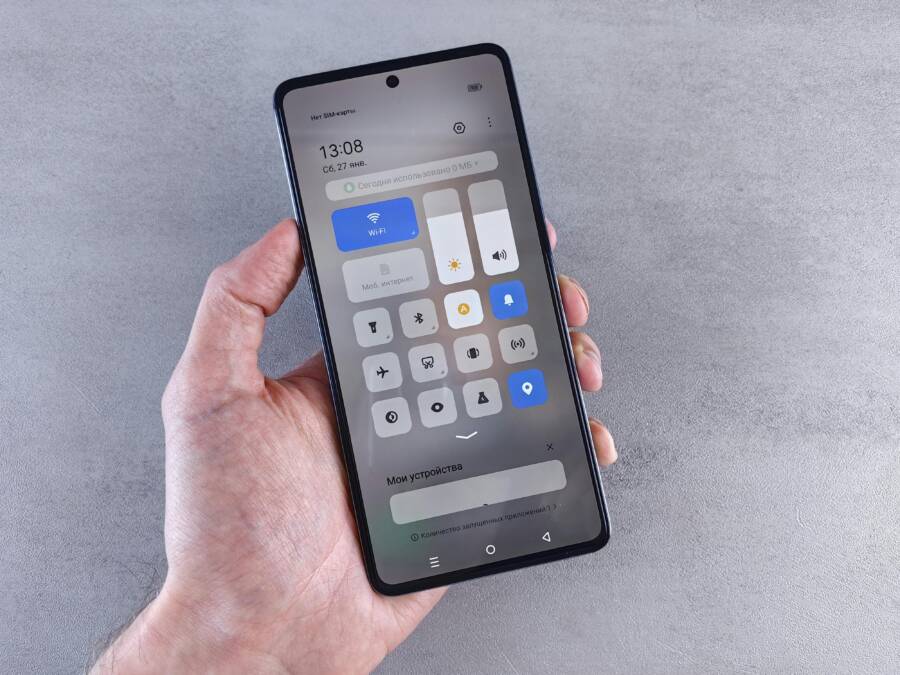
Battery saver modes are designed to squeeze every drop of life from a charge. But they can also cap your screen brightness to extend later use, leaving you with a dim display even when you want maximum visibility. If your phone looks washed out at full brightness, turning off battery saver is a simple, effective step. This section walks you through why battery saver affects brightness, how to disable it on both major platforms, and when you might actually want to keep it enabled.

Photo by Andrey Matveev on Pexels
Why battery saver lowers brightness
- Power management: Battery saver reduces background activity and can cap display brightness to reduce overall power consumption.
- Sensor-driven limits: Some devices pair battery saver with adaptive features that further restrict brightness in certain scenarios to conserve energy.
- Inconsistent thresholds: On some phones, brightness targets under battery saver may feel lower than you’re used to, even at the same slider position.
If you’ve noticed dimness when battery saver is on, and brightness returns to normal when you disable it, you’ve pinpointed the culprit. It’s a reliable cue to test a quick toggle as part of your troubleshooting routine.
How to disable battery saver on iPhone and Android
- iPhone:
- Open Settings > Battery.
- Turn off Low Power Mode.
- If you still see dimming, check True Tone and Night Shift settings, as they can affect perceived brightness under certain lighting.
- For persistent dimming, a quick restart can help reset brightness behavior.
- Source guidance: Apple discussions cover auto-dimming and related settings that can interact with brightness in various conditions. For example, see discussions about auto-dimming behavior and related topics here: https://discussions.apple.com/thread/256050985
- Android:
- Open Settings > Battery > Battery saver (or Power saving mode).
- Toggle off to restore full brightness control.
- Some devices include a separate Adaptive brightness toggle; disable it if you want manual control at all times.
- If you use a device with One UI or similar, you may find an auto-dim option inside display settings that interacts with battery saver. Android Authority explains how these settings impact brightness on different devices: https://www.androidauthority.com/turn-off-auto-brightness-iphone-3390442/
If you’re unsure which path to take, a quick search for your model’s exact steps often yields precise menus. For example, Samsung users can stop auto dimming via their display settings in One UI 7 and newer: https://www.androidauthority.com/one-ui-7-auto-dim-setting-3522661/
When to keep battery saver on versus off
- Keep it on when you’re away from a charger for a long period and brightness needs to be balanced with battery life. It helps ensure the phone lasts through the day in mixed use.
- Turn it off when you’re reading in bright light, gaming, or watching videos and you need every lumen your display can deliver. The goal is comfort and clarity, not just longer battery life.
Quick troubleshooting checklist
- Turn off Low Power or Battery Saver for a test run.
- Increase brightness to the maximum level and observe if the screen remains consistently bright.
- Disable adaptive or auto-brightness temporarily to check if the dimming is tied to sensor input.
- Inspect your case or screen cover: a bulky protector can shade the sensor or part of the display, affecting perceived brightness.
- Restart the device to clear any software glitches that might affect brightness control.
- Update the operating system if the issue started after a recent update.
If dimming persists after these steps, the issue may lie with the ambient light sensor, display hardware, or a software glitch. In that case, following up with a full sensor clean or checking for app-specific brightness overrides can help. For related sensor cleaning steps, see our guide on cleaning the ambient light sensor.
Related reads and expert guidance
- How auto-brightness can complicate brightness control and how to manage it on iPhone and Android. See discussions about auto-dimming behavior here: https://discussions.apple.com/thread/255695002
- General tips for turning off auto brightness across devices: https://www.asurion.com/connect/tech-tips/turn-off-auto-brightness-iphone-android/
- Practical steps to disable auto brightness on iPhone or iPad: https://www.androidauthority.com/turn-off-auto-brightness-iphone-3390442/
By confirming whether battery saver is affecting brightness, you can quickly decide the next steps. If the issue clears when the saver is off, you’ve found a straightforward solution. If not, you’ll have a clear path to investigate other causes without unnecessary guesswork.
Cool Down Overheating Phones for Brighter Displays
Overheating can dull your screen even when you set it to full brightness. A smart, calm cooldown helps protect the display and your battery while you regain visibility. In this section, you’ll learn practical, quick steps to prevent heat from robbing your screen of brightness and sharpness, along with a simple routine you can run any time you notice the phone getting warm. Think of it as a quick tune-up for your everyday companion, the smartphone.
Avoid Heat Traps Like Thick Cases
Thick or non breathable cases trap heat and block airflow, turning your phone into a small heater. Opt for a breathable design that vents heat away rather than locking it in. When you’re using the phone in direct sun or outdoors, remove bulky covers or switch to a lightweight case with good air circulation. If you need protection but don’t want heat buildup, look for cases with perforations or mesh panels that improve cooling.
A fast cooldown routine can prevent a dim display from sticking around. Move the device to a cooler spot, away from sunlight, and give it a minute or two to shed heat before you resume use. If you’re charging, unplug and let the phone rest in a shaded area while you complete a quick, heat-free charging session. This not only helps brightness recover but also extends the life of internal components.
For ongoing airflow, consider simple changes:
- Choose a slim, breathable case for everyday use.
- Avoid placing the phone on soft surfaces like pillows that can trap heat.
- Use a small fan or shade the device from direct sun when you’re outdoors.
If you want product ideas, check out breathable case options that emphasize cooling while protecting your device. For more on cooling-focused accessories, see the latest recommendations here: Best heat dissipation cases for smartphones.
Photo by Dương Nhân on Pexels
Photo by Dương Nhân
What If the Only Thing Between You and the Life You Deserve Is a Hidden Wealth Code Waiting to Be Activated
>>> Open the Door <<<
If your phone still runs hot after these adjustments, consider a short rest period between heavy tasks. Let the device cool for a few minutes, then resume. Keeping heat in check helps your display stay bright and responsive when you need it most. For readers curious about more cooling strategies, you can explore broader guides on preventing overheating in warm weather here: Keep Your Phone From Overheating When the Temperature Spikes.
Disable Night Features and Update Software
When your screen looks dim at full brightness, the culprit is often a night mode feature, adaptive brightness behavior, or a pending software update. This section covers a simple, effective quick-fix: restart the device and verify that the latest software is installed. These steps reset temporary glitches and can restore normal brightness levels without diving into deeper settings. If your device still misbehaves after updating, you’ll have a clear path to more targeted fixes.
Restart and Update for Quick Glitch Fixes
A straightforward restart clears background processes that might drag brightness control down. Here’s a fast, reliable sequence you can use on most smartphones:
- Power off completely, then wait 15–30 seconds.
- Turn the device back on and let it finish booting.
- Open Settings and check for available software updates; install if any are listed.
- After updating, restart again to ensure all new files initialize properly.
- Reassess brightness at full light; if it still dims, try a quick force restart if your model supports it.
Why this works is simple: many dimming issues come from momentary software glitches or outdated code that mismanages brightness sensors. A clean restart closes those glitches and reinitializes drivers that control the display. Keeping software up to date ensures you have the latest brightness improvements and bug fixes from Apple or Google. For iPhone users, a force restart can be a particularly quick reset when normal reboot doesn’t help: https://support.apple.com/guide/iphone/force-restart-iphone-iph8903c3ee6/16.0/ios/16.0.
If dimming persists, it may be tied to sensor behavior or night mode settings. See conversations about auto-dimming and related topics here: https://discussions.apple.com/thread/256050985. For Android users, ensure you’ve installed the latest firmware and check for any brightness-related fixes in your vendor’s update notes: https://support.google.com/pixelphone/answer/7169926?hl=en. If you suspect a broader app or feature interaction, you may also review guidance on disabling blue light filters that could affect perceived brightness: https://www.androidpolice.com/enable-disable-blue-light-filter-android/.
Know When Hardware Issues Need Pro Repair
Even with careful troubleshooting, some brightness problems point to hardware faults rather than software quirks. If your device dims at full brightness after ruling out software settings, it’s a strong sign that a professional repair is in order. This section helps you decide when to call in an expert, what issues are most likely hardware related, and how to approach the repair process with confidence.
When to suspect hardware over software
If you’ve methodically tested all software angles—disabling auto brightness, turning off battery saver, updating the OS, and performing restarts—and the screen remains dim, hardware suspicion rises. Hardware problems often show up as:
- Irregular dimming patterns, such as a consistent baseline dimness regardless of brightness slider.
- Uneven brightness across the display, with parts of the screen darker than others.
- Persistent dimness after an obvious impact or exposure to heat or direct sun.
- Failure to brighten when ambient light changes, even with sensor access unobstructed.
In these cases, a repair technician can diagnose whether the issue is a faulty backlight, a degraded display panel, a loose or damaged connector, or a GPU/display driver hardware fault that software alone cannot fix.
Common hardware culprits behind dim screens
- Damaged or aging backlight: Over time, the backlight or its driver can lose brightness, leading to a dim display even at high settings.
- Faulty display connector or motherboard issue: A loose cable or a failing socket can prevent power from reaching the screen properly.
- Screen or panel damage: Dropping the phone or pressure from a case can cause micro-cracks or pressure points that reduce brightness.
- Temperature-related hardware faults: Repeated overheating can affect the display driver circuits, causing temporary or lasting dimming.
- Water or moisture exposure: Seepage can corrode contacts or affect the display chain, producing dimness or color shifts.
Not every symptom means a full screen replacement is needed. A technician can determine if a targeted repair, such as reseating connectors or replacing a backlight, suffices.
What a professional repair can fix
A reputable technician can address several hardware issues that cause dim screens, including:
- Replacing a faulty backlight or LED assembly.
- Reconnecting or replacing loose display cables and connectors.
- Replacing the entire display assembly when the panel is damaged beyond simple fixes.
- Calibrating the display driver hardware and ensuring proper liquid crystal or OLED gate control.
- Addressing heat-related damage to display circuits with component-level restoration or replacement.
If you’re facing a hardware issue, you’ll want a technician who can test the whole display chain, not just the screen surface. A thorough diagnostic saves time and money by pinpointing the exact component needing attention.
How to evaluate a repair service
- Look for certified technicians with a clear warranty policy on parts and labor.
- Ask for a written diagnostic first and a price range before any work begins.
- Check reviews that mention brightness or display quality after service.
- Confirm the turnaround time and whether the shop can test brightness under normal use after repair.
- Inquire about the use of genuine or equivalent parts and the impact on any existing warranty.
If you want a reliable reference for how repairs are discussed in the industry, you can explore professional guidance on display issues and repair considerations here: https://repaircentrevic.com.au/news/phone/why-phone-screen-dark-full-brightness/
Quick signals you should book a pro diagnosis
- Dimness persists after software resets and all standard tweaks.
- You notice horizontal or vertical dark bands across the display.
- The device overheats while charging or during brightness testing.
- The screen flickers or shifts brightness when you apply pressure near the edges.
If you’ve confirmed a hardware path, don’t delay. A pro diagnosis helps you avoid chasing software fixes that won’t solve the root cause, and it protects the longevity of your device.
Getting back to a bright, reliable display
Once you’ve identified a hardware issue that requires pro repair, plan the next steps:
- Gather your device’s model, purchase date, and any prior repairs.
- Back up data if possible before repair, especially if a full screen assembly is being replaced.
- Obtain a written quote and warranty terms for parts and labor.
- Choose a service that uses manufacturer-approved parts when available.
For more context on how hardware and software interact in display performance, you can review related guidance on diagnosing display issues and the role of sensors here: https://ongofix.com/article/25/software-glitches-or-damaged-screen-how-to-diagnose-s23-ultra-display-issues
Thousands of People Were Struggling With Money Until They Discovered This One Ancient Secret Hidden in Sound
>>> Unlock It Now <<<

Related reads and expert guidance
- A practical look at how hardware faults can mimic software problems, and why a professional diagnosis matters: https://repaircentrevic.com.au/news/phone/why-phone-screen-dark-full-brightness/
- Insights into determining when a screen replacement is necessary versus a smaller repair: https://www.ifixit.com/Answers/View/154297/Replaced+Screen+now+working+but+very+Dim+any+ideas+please
If you’re unsure whether to pursue a repair, a quick assessment by a reputable service can save you time and prevent further damage. Pro repairs may be the fastest route to restoring full brightness and keeping your device performing at its best.
Conclusion
Dim screens at full brightness usually come from a few reliable causes. By following the steps in order, you can quickly restore visibility without guesswork and without tools beyond your smartphone and its built in controls. A steady pattern of fixes helps you stay confident in your device’s display performance.
- Turn off Auto or Adaptive Brightness to verify sensor behavior.
- Disable any night mode features that affect color or brightness, then test at full brightness.
- Stop battery saver or power saving modes and recheck brightness levels.
- Check for overheating and cool the device if needed before retesting.
- Restart the phone and install any available software updates.
- If the issue persists, consider a hardware check for backlight, connectors, or the display panel.
Keep in mind that some dimming can be normal under extreme heat or after long exposure to static images, but it should resolve with these steps. Regular maintenance helps preserve a bright, readable display: keep your ambient light sensor clean, avoid heavy cases that trap heat, and perform periodic software checks. If you’ve tried the steps in order and still see dimness, share your experience in the comments so others can benefit from your exact model and setup. Your smartphone’s display performs best when you treat it to that routine care.
She Pressed Play on a Strange Audio Track and Within Days Her Financial Reality Started Shifting in Ways She Could Not Explain
>>> See How It Works <<<
