Picture this: You’re on a crucial work call, but the other person keeps saying, “I can’t hear you.” Your words vanish into thin air, and frustration builds fast.
This problem hits millions of smartphone users every day. It turns simple chats into ordeals. Common culprits include a blocked mic or speaker, software glitches, Bluetooth mix-ups, low volume settings, network problems, and background apps hogging audio.
Don’t panic. Most fixes take just minutes and need no tech skills. You’ll get your voice back loud and clear.
In this guide, we break it down step by step. First, quick checks for hardware blocks and settings. Then, software tweaks and app closes. Next, network tips and Bluetooth resets. We cover iPhone and Android fixes too.
By the end, you’ll know exactly why people can’t hear you on phone calls and how to stop it for good. Let’s dive in and solve this now.
Check Your Phone’s Basic Settings First
Before diving into deeper fixes, start with a quick check of the basics. A lot of hearing issues on calls come down to simple settings that got bumped or forgotten. This section focuses on two practical checks you can perform in minutes: boosting the in-call volume on both iPhone and Android, and turning off Bluetooth connections that might be routing audio to the wrong device. Think of these steps as the first line of defense to restore clear audio on your next call.
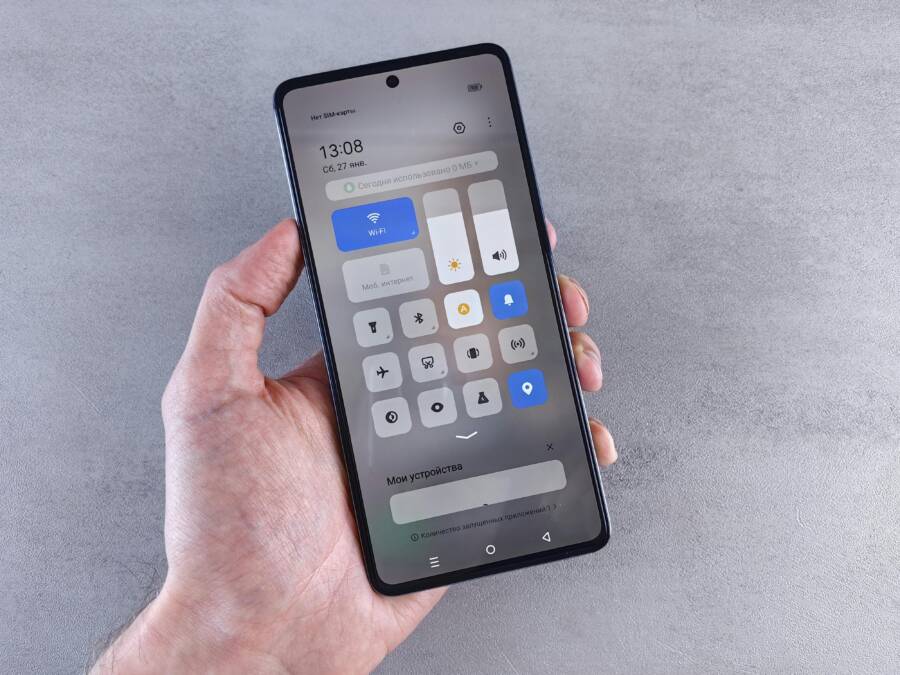
 Photo by Andrey Matveev
Turn Up the Call Volume
When you’re in a call, the easiest fix is often the simplest: raise the volume. On iPhone, use the physical volume buttons on the side during a call to increase or decrease the speaker or earpiece volume. If the button press feels off or the level stops rising, open Settings > Accessibility > Audio/Visual and check the Phone Noise Cancellation setting, then adjust the Headphone Accommodations if needed. On Android, press the volume buttons during the call, then tap the three-dot menu and select Increase call volume or use the on-screen slider. If you still struggle, go to Settings > Sound & Vibration (or Sound) and locate the Call Volume slider to fine-tune. A safe target is about 70–80% of full volume for daily calls; staying within this range reduces distortion and listener fatigue. For iPhone users, you can also verify that the earbuds or car system aren’t set to a separate volume limit. If you frequently rely on Bluetooth accessories, confirm they aren’t applying a lower ceiling than the phone itself. For official guidance on iPhone volume controls, see Apple Support’s guide on adjusting the volume on iPhone. For Android, Google’s help center covers general volume, sound, and vibrate settings.
- Apple: Adjust the volume on iPhone
https://support.apple.com/guide/iphone/adjust-the-volume-iphb71f9b54d/ios - Android: Change volume, sound, & vibrate settings
https://support.google.com/android/answer/9082609?hl=en
Turn Off Bluetooth Connections
Sometimes audio is routed through a Bluetooth device instead of the phone’s own speaker or earpiece. This is especially common with car systems and wireless earbuds. Start by checking your Bluetooth list while on a call:
- iPhone: Open Settings > Bluetooth and look for any devices showing as connected. If a car system or headset is connected, tap the device and choose Disconnect or Forget This Device to prevent automatic reconnection. Reconnect only when you need it.
- Android: Open Settings > Connected devices > Connection preferences > Bluetooth, then review paired devices. Tap the gear icon next to a device to disconnect or forget it. You can also toggle Bluetooth off entirely if you’re not using any accessories.
After disabling or disconnecting, place a test call to confirm the audio now comes through clearly from the phone itself. If you frequently switch between devices, consider creating a quick routine to verify the active audio path at the start of each call.
- iPhone Bluetooth stopping auto-connect to cars and headphones: How to stop auto connect
https://discussions.apple.com/thread/255163014 - How to disable auto-connect for Bluetooth devices (general guidance)
https://learn.microsoft.com/en-us/answers/questions/2157521/how-to-disable-auto-connect-for-specific-or-all-bl
Clean and Inspect Your Phone’s Mic and Speaker
A clear voice on calls starts with clean, unobstructed mic and speaker paths. Debris, moisture, or user habits can muffle or distort sound. This section walks you through a practical, safe approach to inspect and clean your phone’s mic and speaker, plus quick checks you can perform before you jump to deeper fixes. Think of it as a routine maintenance tune-up for your daily smartphone conversations.
Inspect for obvious blockages and signs of wear
Start with a visual and listening check. Look at the mic holes and speaker grilles. If you see dust or lint, or if you notice a muffled or crackling sound during a voice note or call, there’s a good chance debris is the culprit. A soft brush or a gentle puff of air can reveal whether obstruction is the issue. Avoid inserting sharp objects or liquids; these can push debris deeper or damage delicate components.
While you’re inspecting, also check the area around the microphone and speaker for any case or screen protector that seals the ports or redirects sound. Some third party accessories fit too snugly and gradually cover the holes, especially on older devices. If you detect vibration or rattle when you tap the phone, there might be loose hardware that needs professional attention.
Practical tip: perform a quick sound test by recording a short clip and playing it back. Notice if the audio quality changes between the built in mic and an external microphone you’ve used recently. This helps you determine whether the problem is with the mic, the speaker, or the overall audio path.
- Quick test ideas:
- Record a short voice memo with the phone upright, then switch to speaker mode and compare.
- Make a call and compare the other person’s clarity when you hold the phone to your ear vs. using speakerphone.
- If you’ve used a Bluetooth device recently, test with Bluetooth off to confirm the path.
For structured guidance on cleaning and maintaining smartphone audio, see reputable sources that cover safe techniques and common mistakes. For example, Consumer Reports outlines best practices for cleaning the speakers and charging port without harming hardware. They also emphasize using gentle methods and avoiding moisture near sensitive components. Read more about safe cleaning methods here: How to Clean Your Smartphone’s Charging Port and Speakers. https://www.consumerreports.org/electronics-computers/cell-phones/how-to-clean-smartphone-charging-port-and-speakers-a2505681935/
Clean safely and effectively
If your inspection reveals debris, clean it using non-abrasive tools and minimal moisture. A soft-bristled brush, a dry microfiber cloth, or compressed air can dislodge particles from the speaker grills and mic openings. For stubborn dust, you can use a small amount of isopropyl alcohol on a microfiber swab, but apply it very sparingly and avoid dripping liquid into the holes. Let the area dry completely before testing again.
Avoid DIY hacks that push debris further in, bend or deform the grills, or apply heat. The goal is to remove material without stressing the protective seals or internal circuits. After cleaning, recheck with a short audio test to confirm improvement. If you still hear muffling or if the sound path feels uneven, consider a professional inspection, especially if you notice distortion at higher volumes.
If you prefer step-by-step visuals, you can follow practical guides that show safe cleaning techniques for both iPhone and Android devices. For a general how-to on cleaning a phone speaker, see five simple methods to clean a phone speaker. https://www.wikihow.com/Clean-a-Phone-Speaker
When to seek professional help
Most mic and speaker issues are fixable with basic cleaning and setting adjustments. If cleaning doesn’t restore clarity, there are other underlying causes to consider:
- Hardware wear: Microphones can degrade over time from repeated mic exposure to dust or moisture.
- Water damage: Humidity or liquid exposure can corrode contacts inside the mic or speaker module.
- Internal connection problems: A loose flex cable or imperfect seal can lead to intermittent audio.
If you suspect any of these, schedule a quick diagnostic with a certified technician or your device’s official service center. Before you go, back up your data. A service appointment may involve hardware checks that could affect your stored information.
Reliable online resources offer guidance on identifying when a professional assessment is warranted. For instance, discussions around clearing out speaker holes and assessing damage can help you decide when a DIY fix isn’t enough. See the Apple support discussion on clearing out speaker holes for real-world tips and warnings. https://discussions.apple.com/thread/255018795
Quick maintenance checklist
Keep your mic and speaker in good shape with a simple routine you can repeat weekly or after heavy use:
- Inspect: Look for visible debris and test audio paths by recording and playing back a short clip.
- Clean: Use a soft brush or microfiber cloth, keep moisture away, and avoid sharp objects.
- Test: Make two quick calls or voice notes to compare mic and speaker performance in different scenarios (earpiece, speaker, and Bluetooth).
- Protect: Use a case with proper openings and avoid covering grills with pads or stickers.
- Review: If you notice persistent issues, consider a professional assessment sooner rather than later.
By keeping the mic and speaker clean and unobstructed, you reduce the chances of muffled calls and ensure your voice travels clearly to the other end. For ongoing care, pair these steps with the general volume and Bluetooth checks described earlier. If you want to read more about safe cleaning practices, Consumer Reports offers practical insights that stay out of the danger zone for hardware. https://www.consumerreports.org/electronics-computers/cell-phones/how-to-clean-smartphone-charging-port-and-speakers-a2505681935/
Additional guidance from reputable how-tos can help you visualize the process. For example, a popular step-by-step guide on cleaning a phone speaker provides straightforward methods that are easy to follow. https://www.wikihow.com/Clean-a-Phone-Speaker
If you want to hear real-world experiences and tips from other users, check out discussions where people share what worked and what didn’t when clearing debris from speaker holes. https://discussions.apple.com/thread/255018795
Summary: a clean mic and speaker path reduces muffled voices, improves call clarity, and minimizes the need for more invasive fixes. Regular checks and careful cleaning keep your conversations crisp, whether you’re using a smartphone for work, personal calls, or quick voice messages. And as you fine-tune the basics, you’ll have a stronger foundation for the more advanced steps that follow in this guide.
Fix Software and App Problems on Your Phone
When calls go wrong, the issue isn’t always the network. Software glitches, misbehaving apps, or settings that quietly grab the microphone can all sabotage your voice on the other end. This section covers practical steps you can take to stabilize your phone’s software and keep apps from hijacking audio. Think of your phone as a tiny symphony: if one instrument goes out of tune, the whole performance suffers. The goal here is to restore that harmony quickly and without technical fuss.
Restart and Update Your Device
A full restart clears out temporary bugs that creep in after app updates, notifications, or background tasks. It resets the operating environment and forces apps to reload clean state, which often fixes odd audio behavior during calls. Start by rebooting your phone completely. On iPhone, hold the side button and either volume button, then slide to power off. After it shuts down, wait a moment and turn it back on. On Android, press and hold the power button, choose Restart, and confirm. If the restart doesn’t resolve the issue, check for updates. Software updates patch known bugs, improve audio drivers, and tighten mic permissions. For iPhone, go to Settings > General > Software Update. On Android, open Settings > System > Advanced > System update or simply search for “Check for updates” in Settings. Keeping your device current reduces the chance of lingering glitches and ensures compatibility with your favorite calling apps. For official guidance on iPhone volume controls and updates, see Apple Support. For Android updates, see Google Help’s update guidance.
- Apple: Adjust the volume on iPhone
https://support.apple.com/guide/iphone/adjust-the-volume-iphb71f9b54d/ios - Android: Change volume, sound, & vibrate settings
https://support.google.com/android/answer/9082609?hl=en - Android: Check & update your Android version
https://support.google.com/android/answer/7680439?hl=en
Close Apps That Block the Microphone
Sometimes a background app keeps the microphone busy, even when you’re not actively recording. This can quietly mute your voice on calls or cause choppy audio. Start by listing the apps that recently used the mic or have persistent permissions. On iPhone, double press the home button or swipe up to view the app switcher, then swipe away mic-hogging apps. On newer iPhones, swipe up and hold to reveal the app switcher and swipe away. On Android, open Settings > Apps & notifications > App permissions > Microphone, and revoke mic access from any app that shouldn’t listen all the time. If you suspect a specific app, disable its microphone permission temporarily and test a call. If the problem disappears, you’ve identified the culprit. If not, you can keep permissions restricted or uninstall the app.
- GroovyPost: I Turn Off Microphone Access to Apps on My Phone to Stop Them from Listening
https://www.groovypost.com/howto/disable-microphone-access-apps-phone/ - PSafe: How To Prevent Apps From Using Your Microphone
https://www.psafe.com/en/blog/prevent-apps-using-microphone/ - DroidSome: How do I stop apps from using my microphone on Android?
https://www.droidsome.com/how-do-i-stop-apps-from-using-my-microphone-on-android/
This approach avoids the trap of background surveillance and keeps your calls clear. If you frequently switch between Bluetooth accessories, you might also want to verify that the active audio path is the phone itself when you’re testing. For broader privacy controls, see discussions on iPhone mic permissions and Safety Check features.
- CNET: Quickly Stop Your iPhone Apps From Accessing Your Location, Microphone and Camera
https://www.cnet.com/tech/services-and-software/quickly-stop-your-iphone-apps-from-accessing-your-location-microphone-and-camera/
Handle Network and Advanced Call Issues
Network quality and advanced call settings often determine whether your voice makes it to the other end clearly. If basic fixes don’t fix the problem, it’s time to examine how calls travel over your carrier’s network, whether VoLTE or Wi‑Fi Calling is involved, and whether other devices are interfering. This section walks you through practical steps to diagnose and resolve one‑way or choppy audio and provides quick paths to more in‑depth guidance when needed.
Check your network conditions and call path
Voice quality hinges on a reliable path from your device to the recipient. Start with a simple assessment of your current network conditions:
- Test several calls in different locations to see if the issue is location specific.
- Note whether the problem occurs with all numbers or just one contact.
- Check signal strength on your device. If you’re in a weak area, moving to a spot with stronger reception often fixes one‑way audio.
Real‑world factors like network congestion can cause packets to arrive out of order, which leads to one speaker being quiet or sounding distant. If you notice consistent issues during peak hours, it may be a temporary network strain. For a technical overview of one‑way voice issues and practical fixes, see Cisco’s troubleshooting guide. https://www.cisco.com/c/en/us/support/docs/voice/voice-quality/5219-fix-1way-voice.html
Review VoLTE and Wi‑Fi Calling settings
Many modern phones rely on VoLTE or Wi‑Fi Calling to carry voice data. Misconfigurations in these features can create one‑way audio or dropped calls. Take these checks seriously:
- Ensure VoLTE is enabled in your carrier settings and device preferences.
- If you primarily use Wi‑Fi Calling, test a call over cellular to see if the issue persists.
- Switch between VoLTE and Wi‑Fi Calling to identify which path works best in your area.
If you’re unsure how to toggle these features, carrier support pages and device manuals provide step‑by‑step instructions. For a broad look at VoIP and call path issues, see OnSIP’s troubleshooting guide. https://info.onsip.com/voip-troubleshooting-guide
Advanced troubleshooting for one‑direction or no‑audio calls
When basic checks don’t locate the culprit, dive into advanced diagnostics. These steps help distinguish between network, device, and app sources:
- Run a controlled test with Bluetooth off and the phone on speaker mode. Compare results to when the earpiece is used.
- Disable any recent system or app updates temporarily to see if a new software change caused the issue.
- Check whether the problem is limited to a single contact or all numbers. If it’s contact‑specific, the issue might be on the recipient side or their carrier.
- Consider a temporary network reset. This can clear misconfigurations that accumulate over time.
For more in‑depth VoIP and enterprise call quality issues, Nextiva offers a practical walkthrough of common VoIP problems and fixes. https://www.nextiva.com/blog/voip-troubleshooting.html
When to escalate to your carrier or device maker
If you still can’t hear yourself after trying the above, it’s time to involve more support:
- Contact your mobile carrier to check for outages, signaling problems, or account-level settings that could affect voice paths.
- If the problem appears tied to a specific device, visit an official service center or your device’s manufacturer support page for diagnostics.
- Share the exact symptoms and the steps you’ve tried. Providing a concise history helps the support team pinpoint the cause faster.
Carrier networks face ongoing challenges as traffic grows and technology shifts. Recent guidance notes how congestion and reliability gaps can surface as more calls move to cloud or third‑party systems. If you’d like a high‑level overview, see Cisco’s one‑way voice guidance and a general VoIP troubleshooting resource. https://www.cisco.com/c/en/us/support/docs/voice/voice-quality/5219-fix-1way-voice.html
Quick testing routine you can use before every call
A short pre‑call check can save you hours of frustration. Run this routine:
- Confirm the active audio path: ear speaker, speakerphone, or Bluetooth device.
- Do a quick internal test: record a short memo, then play it back to ensure your mic is picking up sound clearly.
- If you use Bluetooth, disconnect and reconnect the device to reset the link.
- Move to an area with stronger signal if possible.
A reliable audio path is the foundation of clear calls. If the issue tends to pop up in certain apps, consider temporarily reinstalling or updating those apps. For broader guidance on app behavior and mic permissions, see reputable resources on app mic access and privacy settings. You can also review a practical guide focused on common call issues and how to fix them quickly. https://www.cellphonerepair.com/resources/blog/ How to Fix Phone Sound Issues on an iPhone or Android
Real‑world tips to prevent future problems
- Keep your device software up to date. Updates often include audio driver fixes.
- Regularly review Bluetooth devices you’ve paired and remove old ones you no longer use.
- Use a sturdy case that doesn’t block microphone openings and ensure ports stay clean.
- If you frequently rely on Wi‑Fi Calling, choose a stable network with strong Wi‑Fi signal and avoid crowded networks when possible.
In practice, most one‑way audio issues come down to a mix of network path, device settings, and the occasional app interaction. By approaching the problem in layers—from simple path checks to advanced diagnostics—you can restore reliable voice transmission and keep conversations flowing.
External resources for further reading and context:
- Troubleshooting one‑way voice issues (Cisco). https://www.cisco.com/c/en/us/support/docs/voice/voice-quality/5219-fix-1way-voice.html
- VoIP troubleshooting overview (OnSIP). https://info.onsip.com/voip-troubleshooting-guide
Takeaway: A quick network and path audit combined with careful VoLTE/Wi‑Fi Calling settings often resolves the majority of call audio problems. If the issue persists, a carrier check or device diagnostics are the next best steps.
Conclusion
If you can’t be heard on calls, you’re not alone and the fix is usually within reach. A clear path is to follow the fixes in order, because each step builds on the last and stops the problem at its source.
Checklist of key fixes to try now
- Increase call volume and check for silent modes or Do Not Disturb.
- Disable Bluetooth to rule out audio routing to a different device.
- Restart your phone and install any pending software updates.
- Close background apps that might monopolize the microphone.
- Test the mic and speaker with a quick audio recording and a call to compare results.
- If you rely on Wi Fi Calling or VoLTE, toggle these features and test again.
- Reset network settings if the issue persists.
When to visit a repair shop
- If cleaning and settings changes do not restore clarity, or you hear muffled or distorted sound at higher volumes.
- If the microphone or speaker grills show damage, or you notice loose parts after a drop.
- If issues occur across multiple apps and it affects both calls and recordings.
This problem is fixable, and most people recover normal calling quality with a careful, methodical approach. By sticking to the steps above you’ll regain reliable conversations on your smartphone and avoid chasing symptoms. If you’ve found a solution that worked for you, share your experience in the comments to help others.