
Smartwatches with cellular capability are convenient, but when calls don’t go through, it can be frustrating. If your watch can receive notifications but won’t place calls, the issue usually sits between the watch and your phone plan, not the hardware alone. This guide walks you through clear, practical steps to diagnose and fix the problem so you can reclaim hands free communication.
If you’re using an Apple Watch or a Wear OS device, many of the same ideas apply. The key is to verify the carrier settings, confirm the wearable’s cellular plan is active, and ensure the devices are properly linked. By following these steps, you’ll uncover where the snag is and know exactly what to do next.
What it means when your watch can’t call When a smartwatch can’t place a call, there are a few common culprits:
- The watch lacks an active cellular plan or eSIM provision
- The watch and smartphone aren’t set up to share calling capabilities
- Network settings on the phone or watch are misconfigured
- Carrier or account restrictions block wearable calling
- Firmware or software on either device needs an update
Understanding these touchpoints helps you approach the problem without guessing. The fix is usually a mix of confirming the plan, adjusting settings, and reestablishing the link between your watch and phone.
Check if your wearable has an active cellular plan Activation and plan status are the backbone of wearable calling. Start here to rule out the most common blockers.
- Confirm carrier support for wearables: Not every carrier offers service for watches, and some markets have limited options. Check your carrier’s website or call support to verify that your device type is supported.
- Verify the plan is attached to the watch: In many cases you must add the wearable to your account and assign a separate line or eSIM to the watch. If you don’t see a wearable line listed, the watch can’t place calls on its own.
- Ensure the eSIM is provisioned correctly: If your watch uses eSIM, your carrier should show an active profile for the watch. If the profile is pending or inactive, calls won’t route through the watch.
- Check data and voice allowances: Some plans earmark data without voice capability for wearables. Make sure your plan includes voice calling for the watch, not just data.
- Confirm the watch has a separate number or a shared line option: Depending on the carrier, you may need a distinct number for the watch or a shared calling plan that allows the watch to act as a secondary device.
Image you can rely on when thinking through this step
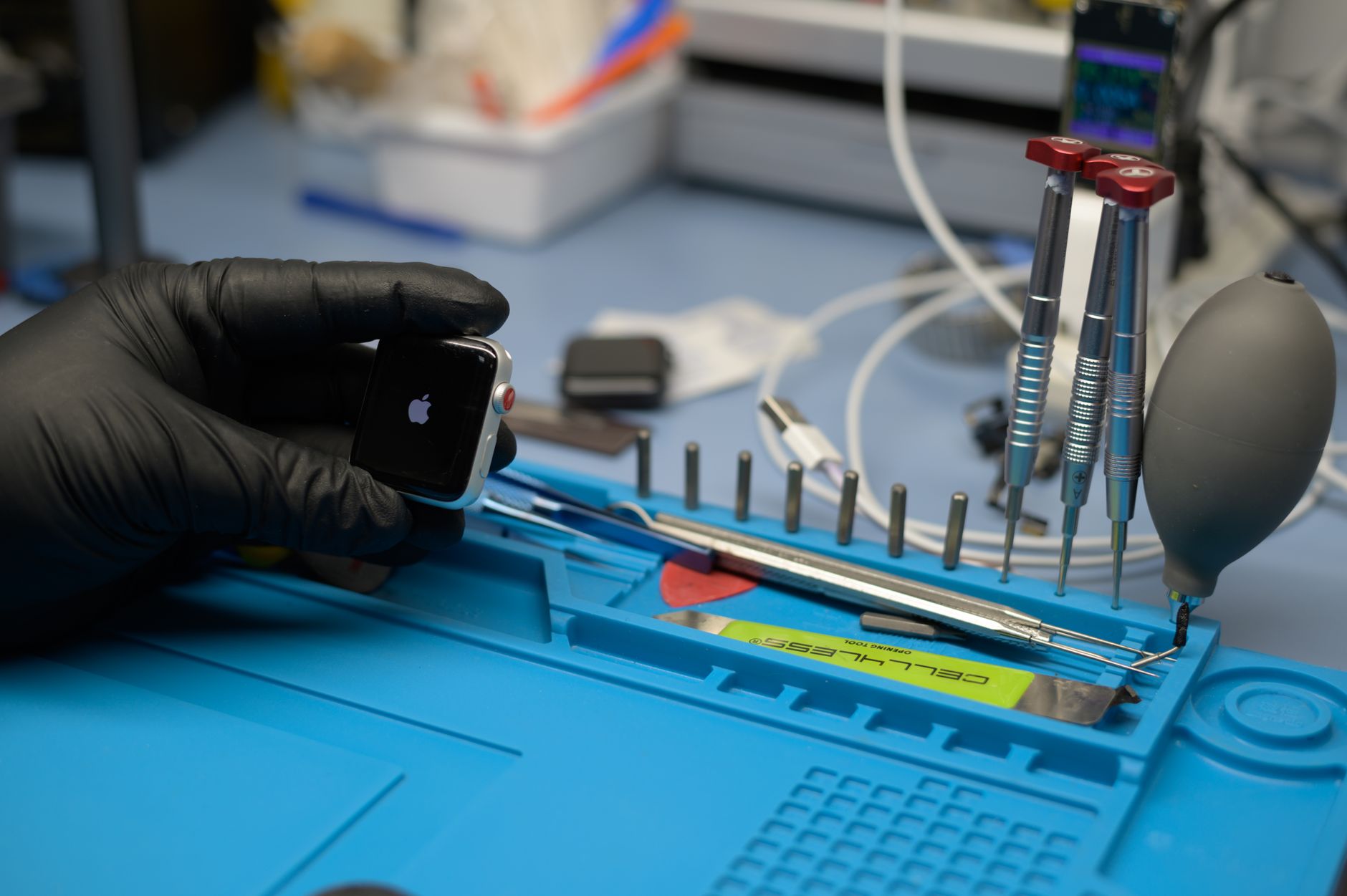 Photo by Miguel Galaz
https://www.pexels.com/@miguel-galaz-2969450
Photo by Miguel Galaz
https://www.pexels.com/@miguel-galaz-2969450
Verify your watch and smartphone settings With the plan in place, the next step is to ensure the devices are configured to use that plan for calls. This is often where people run into simple misconfigurations.
- Enable cellular on the watch: On most watches, there’s a toggle in the companion app or the watch settings to turn on cellular. Make sure it’s active and not in a restricted state.
- Confirm number sharing or line control on the phone: Some setups require you to enable calls on other devices or to allow the watch to use the phone’s line. Look for a setting like Calls on Other Devices or Line Sharing and ensure it’s enabled for your watch.
- Set the default calling device when needed: If your watch can hand off calls, you may need to specify the preferred device for outgoing calls in the phone’s settings. This ensures a call placed from the watch routes correctly.
- Check airplane mode and network mode: A simple toggle can fix many issues. Turn on airplane mode for ten seconds, then turn it off to refresh the radio modules. Ensure you’re connected to a working cellular network.
- Confirm time and date accuracy: If the clock is off by more than a few minutes, some carriers may have trouble validating your device for service. Sync the time automatically if possible.
Network and coverage checks If settings look right but calls still fail, the issue may be in how the watch talks to the network.
- Check signal strength on both devices: A weak signal on either device can prevent calls from establishing. Move to an area with better coverage and try again.
- Test in different locations: If the watch works in one building but not another, the problem might be local network congestion or indoor coverage limitations.
- Verify Roaming and International settings: If you’ve traveled recently, roaming controls on the watch or phone could block calls. Make sure roaming is allowed where you are and that the watch is not locked to a region where service isn’t active.
- Update roaming data profiles on the watch: Some wearables pull network data from the phone; ensure both devices share up-to-date profiles as needed by your carrier.
Reconnect and recheck pairing If the plan and settings look correct, reestablish the link between watch and phone. A clean connection can clear stubborn glitches.
- Re-pair the devices: Remove the watch from the phone’s Bluetooth pairing, then pair again from scratch. This resets the link for voice routing and app handoffs.
- Refresh the connectivity stack on both devices: After pairing, restart both devices. A simple reboot can clear stuck processes that block calling.
- Check for known software issues: Some updates introduce temporary glitches. Look for recent OS or app updates and see if there is a known fix or a patch from the manufacturer.
Carrier and account specifics that matter If the problem persists, it’s time to consider carrier specifics and account configuration.
- Update carrier settings on the phone and watch: Carrier settings contain the rules that govern how devices connect to the network. Install any available updates.
- Confirm your account has active services for wearables: Some accounts require you to enable wearable calling at the tier level or during a billing cycle. If the option isn’t visible, contact support to enable it.
- Check for service outages or maintenance windows: A temporary network issue can affect all wearable calls. Check your carrier’s status page or social channels for notices.
- Review any restrictions on the account: Parental controls, security blocks, or spending limits can impact how calls are routed from a wearable. If you notice blocks, adjust them or talk to customer service.
When to escalate to support There are moments when you should seek help rather than guessing. If you’ve completed the steps above and still can’t place calls from the watch, consider these triggers for direct support:
- The watch shows full signal but still can’t place calls
- Calls ring through to voicemail or fail with a network error
- The wearable’s “phone number” on the plan page is missing or shows as inactive
- Updates do not resolve the issue and your carrier confirms no outages
- The problem occurs on multiple networks or in several locations
What to tell a support agent If you reach out to customer service, sharing specific details helps speed the resolution.
- Model and OS version of your watch and smartphone
- Your carrier plan name and whether the watch has its own line or shares a line
- Steps you’ve already tried and the results
- Any recent changes to the account or device that preceded the issue
A practical, end-to-end checklist you can keep
- Verify wearable cellular plan is active and provisioned
- Ensure the watch is enabled for calls and has its own number or is on a line-sharing plan
- Confirm the watch and phone settings for calling, including sharing options
- Refresh network settings and reboot both devices
- Re-pair watch and phone and re-check carrier updates
- Check for outages and verify roaming rules
- Contact the carrier if the problem persists
If you want a quick reference, here is a compact checklist you can print or save on your phone. Each item takes only a minute or two to verify.
- Active wearable plan: yes or no
- Watch calls enabled: yes or no
- Line sharing or separate number: correct configuration
- Cellular on watch: yes
- Pairing status: intact
- Carrier settings updated: yes
- Network signal strong: yes
- Outages: none reported
A practical example to illustrate the process A user in a city reports that their Galaxy Watch cannot place calls. They verify their carrier supports wearables and confirms the watch has an active eSIM with a separate line. They check the watch’s settings and find that Calls on Other Devices is disabled. After enabling it, they re-pair the watch with their phone, restart both devices, and test a test call. The call connects immediately. In this case, the root cause was a missing enablement in the device’s calling sharing settings, not a hardware or network problem.
Why things fail and how to avoid common mistakes A few pitfalls recur across many households. Avoid them to save time.
- Don’t assume the issue is hardware. More often it’s a settings or plan problem.
- Don’t ignore carrier updates. They can fix hidden routing issues on the network side.
- Don’t skip re-pairing after updates. A fresh connection helps the system recognize the wearable as a calling device again.
- Don’t test in a single location. Coverage varies and a problem area can mask a broader issue.
Putting it all together The key to fixing watch calling problems lies in a structured approach. Start with the status of the cellular plan and provisioning for the watch. Then confirm the right settings on both devices. If the problem remains, reboot and re-pair, and finally check with the carrier for any account or network issues. This methodical path minimizes guesswork and speeds up a real solution.
Conclusion When your smartwatch won’t call via your phone plan, you have a reliable playbook to follow. Start with plan activation, then confirm device settings, refresh connections, and reach out to your carrier if needed. Most issues resolve after one or two coordinated checks. If you’ve walked through these steps and still can’t make calls, you’re likely facing a carrier or firmware issue that requires expert help. Share your experience below or tell us which step helped you most. Your insight could save someone else a few minutes of frustration.
Photo by Miguel Galaz https://www.pexels.com/@miguel-galaz-2969450