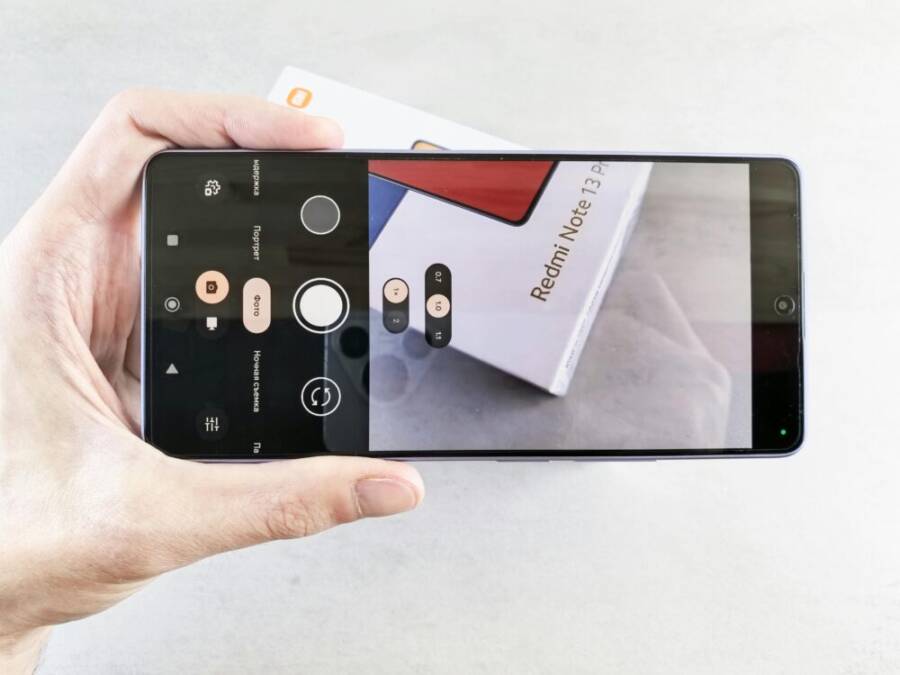
Can you really turn your smartphone into a studio on a desk at home? The answer is yes, with smart planning and a few simple tweaks. In this post you’ll learn a practical setup, affordable gear options, and quick editing tips that deliver real results.
You don’t need expensive gear to get professional looking photos and videos. With clean audio, soft lighting, and steady shots, your smartphone can rival much of what a camera offers. We’ll cover a step by step setup you can implement tonight.
By the end you’ll know how to optimize every moment from shooting to editing. Expect actionable checklists, quick wins, and real world examples that fit a budget and a busy schedule. If you’re aiming for high quality content from home, this guide is for you and your smartphone will carry the load.
Light like a pro at home to elevate every shot
Small changes to your lighting can make a huge difference. This section shows you practical, affordable ways to light your photos and videos like a pro, using natural light, inexpensive gear, and smart placement. You’ll learn how to structure light for flattering skin tones, reduce harsh shadows, and create a consistent look across different rooms and times of day.
Use natural light to your advantage
Natural light is free and flattering when used correctly. Start by positioning yourself near a window where the light enters softly. If the sun is high and direct, it can create harsh shadows and overexposure, so avoid shooting with direct sun hitting your subject. Instead, let the light come from the side or 45 degrees in front of you for a gentle, even glow.
If the sunlight is too strong, soften it with a simple diffuser. A thin white curtain, sheer fabric, or a white bedsheet can turn bright sun into a clean, wraparound light. Hang the diffuser between the window and your subject, giving the light a more even spread without hotspots. Reflections can also help; a white wall opposite the window or a white card placed at a 45-degree angle can bounce light back toward your face, filling shadows naturally.
Reflections matter. If you see unwanted glare on the eyes or clothes, adjust the angle of the diffuser or move a little to change how the light bounces. A small white foam board or a plain white sheet of cardboard works great as a quick reflector. Propping it a few inches from the subject will redirect light where you need it most, softening shadows and preserving detail. For best results, shoot during the early morning or late afternoon when the light is wide and gentle. If your space lacks a large window, use the same approach with a bright, white wall as your bounce surface. For more practical ideas, see how photographers use reflectors and diffusers in everyday setups.
Tips at a glance
- Place the subject facing the window for soft, even light.
- Diffuse direct sun to avoid harsh lines.
- Use white surfaces to reflect light back onto the subject.
- Keep the diffuser and reflector within arm’s reach for quick tweaks.
To deepen your understanding, explore guides on reflectors and diffusers. They explain how tiny changes in angle or distance can transform a shot. A practical guide on natural light control also covers waiting for the right moment and working with multiple light sources for balance. See a reliable guide here: https://www.adorama.com/alc/reflectors-and-diffusers-guide/
Add affordable artificial lighting that works
You don’t need to break the bank to get studio-like light. A budget-friendly ring light or compact LED panels can deliver clean, soft light that flatters most skin tones. When choosing, focus on size, brightness, color temperature, and ease of mounting or setup.
Color temperature affects mood and realism. In most cases for videos and selfies, aim for 5000K to 5600K for a daylight look. For warmer, cozier footage, switch to around 3200K to 4000K. Many entry-level lights offer adjustable temperature, which saves you from buying separate warm and cool sources.
Placement matters just as much as the light itself. For a flattering look, position the light slightly above eye level and angled down toward your face. This setup reduces under-eye shadows and smooths imperfections. If you’re using a ring light, keep it centered with the lens for a clean, even halo. For panels, one key light on the subject and a second, lower-powered fill light on the opposite side creates balanced, natural-looking coverage.
Quick setup ideas
- Desk or small room: clamp a compact LED panel on a shelf or monitor stand at about 45 degrees to your face. Add a second, smaller panel or a lamp with a diffuser on the opposite side as a fill.
- Portable options: a clip-on ring light for a phone offers fast, reliable illumination for on-the-go shoots.
For budget options, consider these trusted, widely recommended products. A few top picks include budget ring lights and compact LED panels that fit into small spaces without sacrificing light quality. Learn more about the best options for small studios here: https://www.techgearlab.com/topics/electronics/best-ring-light and https://www.digitalcameraworld.com/buying-guides/the-best-led-light-panels
Lighting placement for photos and videos
Three-point lighting is a simple framework that works well for beginners. It uses three light sources to shape the subject and separate them from the background without creating flat images.
How to set it up in a tiny space
- Key light: this is your main source. Place it at about 45 degrees to one side of the camera and slightly above eye level.
- Fill light: this light softens the shadows created by the key light. Place it on the opposite side, at a lower intensity, and at about the same height.
- Back light (or hair light): position behind and above the subject, aimed at the back of the head or shoulders. This light helps separate the subject from the background and adds dimension.
Tips to avoid harsh shadows
- Keep lights out of frame and away from direct reflection on glossy surfaces.
- If shadows are too strong, add a diffuser on the key light or lower its output.
- Use a white reflector or foam board on the shadow side to bounce light back in softly.
Background lighting matters too. A softly lit background reduces contrast and keeps attention on the subject. If you have a second light, place it to illuminate the backdrop gently, or aim a small LED panel toward a light-colored wall to create a subtle glow. A white board or foam core can also help you control spill and keep the background looking clean.
If you want more ideas on fine-tuning natural and artificial light together, a quick read on natural light control provides practical steps for timing, diffusion, and reflectors. You can find helpful guidance here: https://digital-photography-school.com/5-tips-for-controlling-natural-light/
Key takeaways
- Start with a simple three-point layout to create depth.
- Diffuse, bounce, and balance light to avoid harsh shadows.
- Use a white surface to brighten the space without adding color casts.
These practical lighting principles will help you achieve consistently sharp, well-lit content with your phone at home. As you practice, you’ll discover the exact placements that work for your space and style, turning everyday daylight into reliable studio light. For quick reference, keep a small diffuser and a white card nearby, and test different angles to see what flatters you most.
Make your phone camera act like a pro with smart settings
Turning your phone into a capable mini studio starts with smart, practical settings. This section breaks down the core controls you should understand and how to use them in real life. You’ll learn when to use manual modes, how to keep colors true, and what choices deliver the best balance between quality and file size. Think of these as the knobs you twist to match the scene, not as a mystifying tech overload.
Enable Pro or manual controls when available
Smartphones offer different levels of control. When Pro or manual mode is available, you gain direct access to ISO, shutter speed, and focus. Here’s how to think about each:
- ISO: This is the camera’s light sensitivity. In bright, well-lit scenes, keep ISO low (around 100–400) to avoid grain. Raise ISO only when light drops, but expect more noise as you go higher.
- Shutter speed: This controls how long the sensor is exposed to light. Fast speeds (like 1/1000) freeze motion. Slow speeds (1/15 or slower) blur motion for a sense of movement. Adjust based on subject motion and lighting.
- Focus: Use manual focus when depth or precise focus matters, such as macro shots or low light. If your phone supports focus peaking, turn it on to see which parts are sharp.
If Pro mode isn’t available, you can still get closer to professional control with apps like Lightroom that simulate some of these controls. They can help you manage exposure, shadows, highlights, and color even if the built-in camera app is basic. For quick reference, you’ll often find these options labeled as “Manual,” “Pro,” or “M” within the camera app or third-party apps like ProShot or Open Camera. See how others describe using Pro Mode and its limits here: https://www.theprincientist.com/smartphone-camera-settings/ and more on pro mode usage: https://www.samsung.com/ae/support/mobile-devices/how-to-use-the-cameras-pro-mode-on-samsung-galaxy-phones/
Photo by Andrey Matveev on Pexels
 Credit: Photo by Andrey Matveev
- Pro tip: If you’re unsure, start by setting ISO to 100–200 in good light, then adjust shutter speed to control motion. Lock exposure if the scene shifts between bright and dark frames. Some phones let you tap and hold to lock exposure and white balance; use that to prevent sudden jumps in brightness as you move.
To explore practical takes on manual controls, check out guides that compare auto and pro modes and explain the core terms. See one practical overview here: https://www.progradedigital.com/master-key-photography-concepts-iso-shutter-speed-and-depth-of-field/
Dial in white balance and exposure for true colors
Consistent white balance makes colors look natural across scenes and times of day. Locking exposure helps your video or photo stay steady instead of jumping between bright and dark frames. Here’s how to approach this:
- Set white balance for your light source:
- Direct sun at 5000–5600K gives a clean daylight look.
- Warm indoor lights around 2700–3000K lean toward a cozy, yellow tone.
- Overcast skies hover near 6000–7000K for a cool, neutral look.
- Lock exposure: Tap and hold on the subject to lock exposure (and sometimes white balance) if your camera supports it. This keeps brightness consistent as you move or change angles.
- Skin tones: For people, aim for a color temperature that preserves natural skin tones. If skin looks pink or washed out, adjust WB slightly toward warmer or cooler until it reads true.
If you’re unsure about the exact settings, you can start with a neutral WB preset and adjust from there. For a quick read on locking white balance and exposure, see: https://discussions.apple.com/thread/256146875 and related discussions about practical locking methods: https://www.reddit.com/r/ShotWithHalide/comments/1fy7ow6/lock_or_unlock_white_balance_and_exposure/
Photo by Andrey Matveev on Pexels
Credit: Photo by Andrey Matveev
- Quick tip: If you’re shooting skin tones for tutorials or talking-head videos, test a few frames with WB set to daylight and then to a warm indoor setting to see which looks most natural for your subject.
To deepen your understanding of white balance and exposure control, explore practical articles on how to balance light sources and stabilize color: https://discussions.apple.com/thread/256146875
Choose the right resolution and frame rate for your goal
Resolution and frame rate shape how your final piece feels and how shareable it is. Here’s a simple comparison to help you decide:
- 4K vs 1080p:
- 4K delivers more detail and room to crop, but creates bigger files and may require more processing power.
- 1080p is lighter on file size and widely compatible with most platforms, streaming smoothly on slower connections.
- Frame rates:
- 24 fps gives a cinematic feel with subtle motion.
- 30 fps suits talking head and how-to videos with natural motion.
- 60 fps captures fast action smoothly and is great for tutorials with quick movement or sports-like visuals.
For practical use:
- Social posts and quick tutorials: 1080p at 30 fps is a solid baseline.
- Short films or cinematic clips: consider 4K at 24–30 fps to balance quality and file size.
- File size considerations: higher resolutions and frame rates produce larger files, so factor in storage, upload times, and platform limits.
- Future-proofing: shooting in 4K where possible gives you flexibility for future playback on larger screens.
Real-world guidance from current best practices suggests matching your frame rate to the content style and keeping an eye on export settings to preserve details when compressing for the web. See a recent take on frame rates and resolution here: https://www.vdocipher.com/blog/video-frame-rate/ and guidance on social media settings: https://www.facebook.com/groups fx3andfx30owners/posts/1553028886107628/
Photo by Andrey Matveev on Pexels
Credit: Photo by Andrey Matveev
- Quick decision guide: if you plan multiple cuts or outsized text overlays, 1080p 30fps is reliable. For nature or fast action, 4K 30fps can capture more detail for later cropping.
To help you pick confidently, here are a couple of concise references on resolution and frame rate choices for different goals: https://www.quora.com/Should-I-publish-my-YouTube-videos-at-720p-60-FPS-or-4k-30-FPS and https://www.reddit.com/r/NewTubers/comments/1cgbua3/how_did_you_choose_the_right framerate_24_25_vs_30/
Keep it steady with focus and stabilization
Sharp, steady footage comes from a solid setup and smart focus choices. The goal is to minimize shake and ensure your subject stays crisp. Here are practical routes:
- Stabilization options:
- Tripod or small desk stand provides a rock-solid base.
- A handheld gimbal or smartphone stabilizer smooths motion for walking shots.
- If you must shoot handheld, steady yourself against a solid surface and use both hands for control.
- Autofocus vs manual focus:
- Autofocus is fine for casual shots, but it can hunt in low light or when the subject moves in and out of focus.
- Manual focus gives you control for precise moments, macro shots, or when the scene has multiple depth planes.
- Locking focus:
- Lock focus before recording, especially when the subject will move or when you’ll change composition during the shot.
- If your phone supports back-button focus or focus lock, use it to keep subjects consistently sharp.
For everyday setups, a lightweight tripod and a small LED panel can make a big difference. If you want a quick overview of focus locking and stabilization techniques, take a look at guides on autofocus control and manual focus locking: https://digital-photography-school.com/3-ways-to-get-better-control-of-autofocus/ and https://www.gizbeat.com/12121/manual-focus-lock-and-fixing-continuously-auto-focusing-problems/
Photo by Andrey Matveev on Pexels
Credit: Photo by Andrey Matveev
- Pro tip: Use a small tripod for near-constant angles, and keep the phone warm to avoid auto shutoff during long shoots.
In short, these settings give you reliable, studio-like results from a phone. With practice, you’ll know exactly how to position yourself and your camera for the best look in any room. For more on stabilization and focus techniques, see: https://www.diyphotography.net/best-camera-app-for-android/ and https://digital-photography-school.com/3-ways-to-get-better-control-of-autofocus/
Sound that sounds studio quality
Turning a phone into a mini studio is not about chasing perfection. It’s about smart choices that stack up to studio-level clarity in real world scenarios. In this section, you’ll learn practical ways to pair a phone with reliable mics, tame room acoustics, and keep monitoring tight so your recordings feel polished from the first take.
External microphones you can pair with a phone
A compact mic can drastically improve your audio without complicating your setup. Here are affordable options that work well with a phone, along with quick compatibility checks:
- Lavalier (lavalier) mics: Tiny clip-ons that keep the mic close to the talent for clear voice capture. Look for USB-C, Lightning, or 3.5mm TRRS adapters to match your device. Many lavs come with a simple adapter, making them a strong, cost-effective upgrade for talking-head videos or interviews.
- Compact shotgun mics: These directional mics focus on the speaker and reject much of the ambient noise. They’re great for on-the-go shoots or moving subjects. Check for a plug-in power requirement and the correct adapter for your phone.
- Connection types to know:
- TRRS 3.5mm mics work with phones that still include a dedicated headset jack or with adapters.
- USB-C mics plug straight into most newer Android devices.
- Lightning mics connect directly to iPhones that support that port.
- Quick compatibility checks:
- Confirm your phone supports the mic’s connection type or has the necessary adapter.
- Check if the mic requires plug-in power and whether your phone provides it.
- Wind protection is essential for outdoor shoots. A furry windscreen or a small foam cover can save your audio from wind rumble.
If you’re starting out, a small lavalier with a USB-C or Lightning adapter can deliver immediate improvements without major setup changes. For a quick guide to popular picks across budgets and needs, here are a few reputable sources to explore: a range of lavalier and compact mics, plus cross-platform compatibility notes, can be found in practical buyer guides. Movo VXR10 and related compact mics and Rode VideoMic Me Mini for iOS. For broader options, check out professional retailers listing lavalier mics, USB-C, and Lightning compatible kits: Lavalier Microphones at BH Photo. If you want a modern, cross-compatibility pick, see a roundup of wireless and wired mics for all budgets: Top wireless lavalier mics – May 2025 picks. For a broader overview of mobile mics, this Engadget guide is helpful: The best mobile microphones for 2025.
Wind protection matters most outdoors. A simple windscreen is often enough to cut wind noise while preserving voice clarity. If you shoot outside, keep a lightweight windscreen in your kit and test a quick setup before rolling.
Reduce echoes and background noise at home
The room you record in can either help or hurt your sound. Small, inexpensive changes often yield big gains in voice clarity and overall warmth. Here are practical steps you can take to quiet the room without turning your home into a dedicated studio:
- Soft furnishings: Add a couch, cushions, and throws. These materials absorb sound more than bare walls, cutting reflections.
- Rugs and curtains: A big area rug and heavy curtains on windows greatly reduce high-frequency echoes, especially in small rooms.
- Quick-visit options: If you need a fast upgrade, temporary sound blankets or foam tiles placed strategically can lower reverb without a long-term commitment or heavy cost.
- Placement matters: Position the mic away from hard surfaces and toward a less reflective area. A corner with a soft sofa often works well for voice recordings.
- Practical trade-offs: If you can’t outfit the full space, use a portable setup like a folding screen with a blanket draped over it or stack blankets to dampen reflections.
For more ideas on affordable sound dampening, you can explore practical tips from home design and audio communities. A few useful starting points include sound-dampening ideas that blend aesthetics with effectiveness and inexpensive DIY solutions: Not Ugly Sound-Dampening Hacks To Quiet the Noises in Your Home. If you’re comfortable with smaller, transient measures, you’ll find helpful advice in quick-read guides that compare curtains and panels for echo reduction: Reduce Echo in Home Office: 14 Cheap & Easy Solutions. For community feedback on practical setups, explore conversations about adding soft surfaces and blankets: Reductions in microphone reverb in a room.
If you want a more thorough approach, consider temporary acoustic panels or heavy drapes that dampen sound more effectively than thin curtains. A good rule of thumb is to treat the first reflection points on walls behind and to the sides of your mic. This helps reduce flutter echoes and keeps dialogue clear. For broader guides on room tuning, you can read practical tutorials that cover diffusion with simple, effective materials: 5 sound-dampening tips for natural rooms.
Key takeaways
- Soft surfaces absorb, hard surfaces reflect. Create a balanced mix of both.
- Start with curtains and a rug; add blankets or foam tiles if needed.
- Treat early reflection points for the biggest gains in voice clarity.
These tweaks turn a standard living space into a voice-friendly zone. With a few well-placed soft items and a mindful mic setup, your audio will sound far more professional in everyday home shoots. When you’re ready, you can expand your setup with portable panels and more robust acoustic treatments as your budget allows.
Monitor audio levels to avoid peaking
Keeping audio levels in the safe zone protects you from distortion and ensures your content sounds clean across devices. Here’s how to monitor effectively while you record:
- Use headphones: Plug in closed-back headphones to listen in real time. This isolates you from the loud room and helps you hear nuances you might miss otherwise.
- Watch the meters: Keep an eye on the input levels in your camera or recording app. Aim for a steady average around -12 to -6 dB, with occasional peaks not exceeding -3 dB.
- Test before the shoot: Run a quick 10–15 second clip at the start to confirm levels. If you see red on the meter, back off the gain or move the mic closer to reduce noise and hiss.
- Consistency matters: If you switch scenes or settings, re-check levels. A quick test clip saves you from redoing the shoot later.
A practical approach is to record a short test segment and listen critically with headphones. If you’re unsure about the exact levels, many apps provide built-in meters and safe ranges you can follow. For additional reading on setting and maintaining levels, you can consult guides that discuss balancing exposure and audio together: Video frame rate and quality guidance and platform-specific guidance on social settings: [Facebook creators’ guide to video settings](https://www.facebook.com/groups fx3andfx30owners/posts/1553028886107628/). For general camera workflow and level management, you might find insights in practical tutorials like this: Pro camera mode basics.
Quick tips
- Do a trial run with a short clip before the main shoot.
- Keep your monitoring path clean by avoiding wireless interference if possible.
- Use a dedicated headphone amp if your device’s headphone output sounds thin at high levels.
Following these steps will help you keep your audio clean and pressure-free. Quiet rooms, smart mics, and disciplined monitoring all work together to deliver studio-like sound from a phone at home. The more you practice, the more natural these habits will feel as part of your standard filming routine. For quick reads on dialing in levels and testing techniques, consider practical guides that compare auto and pro modes and discuss real-world listening checks: Practical manual controls and listening tests.
Editing and post production to polish like a studio
Turning raw footage from your phone into polished studio-ready content happens in the edit. This section lays out practical, repeatable steps to bring consistency, clarity, and a professional finish. You’ll learn a simple color workflow, audio polish, and export checks that ensure your video looks great on any platform. Think of this as the finishing brushstroke that makes your home shoots feel intentionally produced rather than improvised.
Quick color correction and consistency
Color is more than looks; it’s readability. A repeatable workflow helps you balance exposure, white balance, and contrast across clips so your video feels cohesive from start to finish.
- Start with a neutral baseline: set exposure so that midtones sit around the 40–60% range on your editor’s histogram. This keeps highlights from blowing out and shadows from crushing detail.
- Normalize white balance first: pick a frame with a neutral gray or white reference if your footage includes one. If you don’t have that, use your editor’s WB tool to bring skin tones and objects to a natural, consistent look across clips.
- Tackle contrast and lift shadows only as needed: increase overall contrast modestly to add depth, then lift shadows to preserve detail in darker areas. Avoid overdoing it; flat footage is easier to read on small screens.
- Create a simple look you reuse: save your adjustments as a preset or a look. Apply it to new clips to maintain a consistent mood without redoing every adjustment.
- Confirm across devices: if possible, preview on a phone, tablet, and desktop to verify the look holds up in different environments.
A practical reference for color workflows and quick corrections can be found in CapCut’s color correction resources. See: https://www.capcut.com/resource/photo-color-correction. For broader color correction tools you can try online, CapCut’s other guide is useful: https://www.capcut.com/resource/best-online-color-correction-tools. If you want a deeper dive into diffusion and light control that affects color perception, this article offers useful context: https://www.adorama.com/alc/reflectors-and-diffusers-guide/
Quick tip: keep a consistent color target in your projects. If you shoot in mixed lighting, your color grader will thank you for a stable reference frame. A small, neutral gray card kept on set can save you hours in post.
Edit audio and keep voices clear
Clear audio is the unsung hero of studio-like content. Good audio editing is a three-part process: remove noise, shape the tone, and ensure the spoken voice sits at a comfortable level with video synchronization intact.
- Basic noise reduction: apply a light noise reduction pass to reduce steady hiss without muffling the voice. Use a subtle amount that leaves the voice bright and understandable.
- EQ for clarity: roll off very low frequencies that carry rumble, then lightly boost presence around 2–4 kHz to improve intelligibility. Avoid harsh boosts that make voices sound nasally.
- Volume matching: when you have multiple clips or sound sources, normalize them so the perceived loudness stays steady. Aim for a consistent dialogue level across sections.
- Syncing audio to video: ensure your external mic aligns with lip movements frame-for-frame. If you notice drift, trim or stretch slightly in the timeline to bring them back into sync.
- Keep natural speech levels: avoid aggressive compression that makes every syllable sound flat. Gentle compression can even out dynamics without sounding processed.
For practical audio workflows with mobile-friendly editors, you can check guidance on how to add sound in iMovie and similar apps: https://www.capcut.com/resource/add-sound-in-imovie. If you’re exploring free tools that grow with you, see cap cuts and other beginner-friendly editors, including top picks here: https://shortsninja.com/blog/best-free-video-editing-software-for-beginners/. For a broader take on CapCut and related mobile editing workflows, review this community discussion: https://shortvids.co/video-editing-software-under-100/. If you want a deeper overview of audio workflows, this guide offers practical steps you can apply across apps: https://www.progradedigital.com/master-key-photography-concepts-iso-shutter-speed-and-depth-of-field/
Quick check: always do a quick 10–15 second test clip with your audio chain in place. Listen on headphones and watch the video for lip-sync accuracy and natural vocal tone. A calm, well-balanced mix helps your audience focus on your message rather than the sound quality.
Export with the right settings for sharing
Export is your final quality gate. The goal is to preserve detail while keeping file sizes friendly for social platforms and fast web playback. Use a workflow that matches your goal, audience, and distribution channel.
- Choose the right resolution and frame rate: for social and common websites, 1080p at 30 fps is typically sufficient. If you need closer to cinema-like detail or plan to crop later, 4K at 24–30 fps makes sense.
- Bitrate matters: a steady bitrate prevents stuttering or artifacts during playback. For 1080p, a target bitrate around 8–12 Mbps is a solid baseline; for 4K, 25–60 Mbps depending on motion complexity can work well.
- Codec choices: H.264 remains widely compatible and easy to share. If your editing tool supports it, H.265 offers better compression for the same quality, at the cost of longer encoding times on some devices.
- Audio settings: keep stereo, 44.1 kHz or 48 kHz, and a bitrate around 192–256 kbps for clean voice and music tracks.
- Quick pre-publish check: skim the exported file to confirm visuals and sound are in sync, and verify captions, if used, display correctly.
For platform-specific guidance, you can review recent discussions on frame rate and export settings. See guidance here: https://www.vdocipher.com/blog/video-frame-rate/. If you’re focused on social media, review tips tailored to sharing here: https://www.facebook.com/groups fx3andfx30owners/posts/1553028886107628/. A broader take on choosing resolution and frame rate for different goals is also helpful: https://www.quora.com/Should-I-publish-my-YouTube-videos-at-720p-60-FPS-or-4k-30-FPS and https://www.reddit.com/r/NewTubers/comments/1cgbua3/how_did_you_choose_the_right framerate_24_25_vs_30/
Before you publish, run a final check on a mobile device. Make sure captions are readable, the thumbnail looks appealing, and the file size fits the platform limit. A clean export that plays smoothly will keep viewers engaged and reduce the need for re-uploads.
Key takeaways
- Establish a repeatable color and exposure baseline to keep clips cohesive.
- Treat audio with the same care as video; clean, balanced sound elevates your entire production.
- Export with platform-friendly settings and perform a quick, final check before publishing.
With these post-production habits, your home shoots feel like they were polished in a studio. As you practice, your editing rhythm will sharpen, and your smartphone will continue to deliver more confident, compelling content for your audience.
External resources cited in this section offer practical, beginner-friendly guidance you can apply right away:
- CapCut color correction resources: https://www.capcut.com/resource/photo-color-correction
- CapCut color correction tools comparison: https://www.capcut.com/resource/best-online-color-correction-tools
- Add sound in iMovie guide: https://www.capcut.com/resource/add-sound-in-imovie
- Free editing software options: https://shortsninja.com/blog/best-free-video-editing-software-for-beginners/
- CapCut and pro mode guidance: https://www.progradedigital.com/master-key-photography-concepts-iso-shutter-speed-and-depth-of-field/
Conclusion
A phone can deliver studio like content at home when you focus on lighting, sound, and editing. Start with a simple three point lighting setup, a modest external mic, and a stable shot to establish your baseline. Then refine exposure, white balance, and color in a quick edit to keep a cohesive look across clips.
Try a small, complete shoot this week. Plan a short talking segment, shoot in a quiet room with soft light, capture clean audio, and finish with a basic color correction and level check. You’ll be surprised how far a phone can take you when you practice and stay consistent.
If you need a quick win, set up a single scene, film with 1080p at 30 fps, and apply a repeatable edit look. Your audience will notice the clarity and flow. Share your results and keep iterating—your smartphone is a capable tool when you treat it like a real camera.