Imagine you’re on the go and suddenly need a passport copy, a tax receipt, or a signed contract stored on your phone. It’s incredibly convenient to have documents at your fingertips, but that convenience comes with real risk. This post shows how to keep what matters safe, easy to access, and recoverable if a phone is lost or damaged.
The goal is simple: you want to store documents on your phone safely so they’re protected from theft, malware, or accidental exposure, yet still ready when you need them. The core idea is to use encrypted storage, reliable backups, and careful management of access. With the right setup, a single device can serve as a secure digital vault rather than a risky store of sensitive files.
Here’s what you’ll learn: practical steps to secure documents on a smartphone, how to implement robust backups, and best practices for cloud security and offline storage. You’ll finish with a clear workflow that keeps important files private, organized, and recoverable, no matter what happens to your device.
Store Documents on Your Phone: Choose safe storage options for your phone
When you keep sensitive documents on your device, security should come first. This section breaks down three practical options to protect files on your phone: local encrypted storage, cloud backups with strong safeguards, and digital vault apps for an extra layer of defense. Each option has its own role in a complete protection strategy, so you can mix and match based on your needs and risk tolerance.

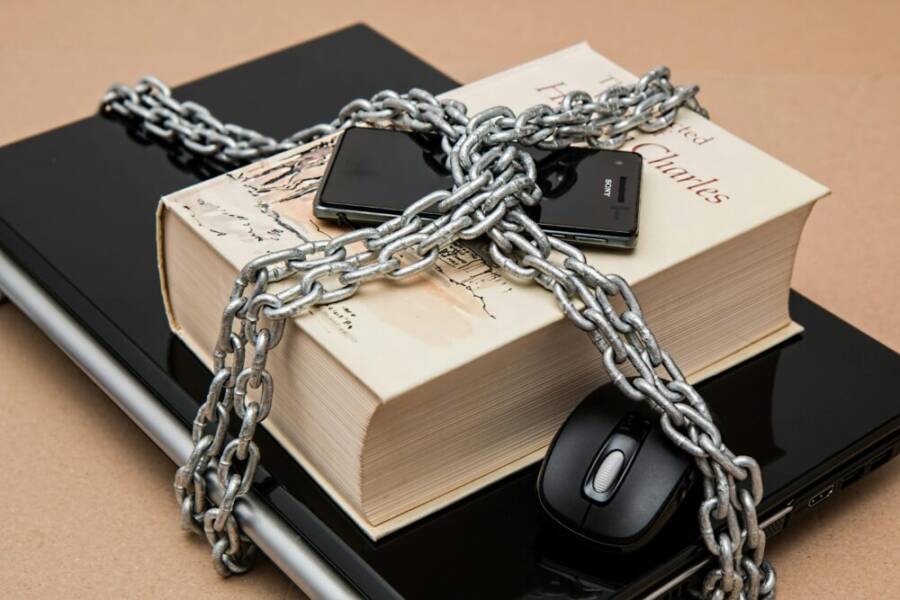
Photo by Pixabay
Local encrypted storage on your phone
Local encryption keeps your files safe even if your device is lost or stolen. The core idea is simple: the data on your phone is scrambled so that it can only be read with the correct key. When you lock your screen and protect apps with a passcode, you add a second layer that stops people from casually pulling files off the device.
Key protections to enable
- Device encryption: This turns your device into a locked vault. On iPhone, encryption is built into iOS and starts automatically when you set a passcode. On most Android devices, enable full disk encryption in settings if it isn’t already active by default.
- Screen lock: Use a strong passcode or biometric unlock (fingerprint or face ID). A longer passcode and a recent biometric setup make guessing attacks harder.
- App-level protection: Add passcodes or biometric unlock for apps that store documents. This keeps sensitive files private even if you share the device with someone else.
Practical steps to enable
- iPhone:
- Set a strong passcode: Settings > Face ID & Passcode (or Touch ID & Passcode) > Turn Passcode On.
- Ensure Encrypt iPhone backup is enabled in Finder or iTunes when backing up locally.
- Turn on two-factor authentication for your Apple ID to protect access to iCloud backups.
- Add Face ID or Touch ID for quick, secure access to sensitive apps.
- Android:
- Go to Settings > Security > Encrypt device (or Secure startup on some models).
- Set a strong screen lock under Settings > Security & location > Screen lock.
- Use biometric unlock where available and enable app-specific locks for sensitive apps.
Why it matters
- Encryption protects data at rest. If your phone is lost, a thief can’t read files without the decryption key.
- A strong screen lock and app passwords prevent unauthorized access even when the device is physically present.
- Local encryption doesn’t rely on a network; it’s immediate protection for everyday carry.
If you want to dive deeper into how device encryption and protection work, see Apple’s overview on encryption and data protection and Google’s guidance on device encryption and security basics. For concrete steps, these official resources cover setup and best practices:
- Apple: Encryption and Data Protection overview
- Apple: Use two-factor authentication for your Apple Account
- Apple: Turn on and set up iPhone
External references:
- https://support.apple.com/guide/security/encryption-and-data-protection-overview-sece3bee0835/web
- https://support.apple.com/guide/iphone/use-two-factor-authentication-iphd709a3c46/ios
Cloud backups and their safety
Cloud backups offer a safety net when a device is lost, damaged, or wiped. They ensure you can recover documents quickly without carrying a second device. The key is to pair cloud backups with strong authentication and robust encryption so your data stays private in transit and at rest.
What to look for in cloud storage
- Strong passwords and two-factor authentication (2FA): A simple password isn’t enough. Use 2FA to add a second layer of defense.
- Encryption in transit and at rest: Your data should be encrypted while it travels to the cloud and while it sits there.
- Reputable providers: Choose providers with transparent security practices and clear data handling policies.
- Regular backup options: Enable automatic backups so new documents are protected without manual steps.
Best practices to implement
- Enable 2FA on your cloud account and use a unique, long password or a password manager to store it.
- Ensure backup is automated and scheduled to run at least daily or after major changes.
- Consider encrypting sensitive files before uploading, then store the encrypted versions in the cloud. This adds an extra layer of security even if a provider’s encryption is compromised.
- Review device linking and account recovery options so you can regain access if you’re locked out.
When cloud backups truly shine
- They protect against physical device loss and damage. Your files live in the cloud, ready to restore to a new device.
- They simplify collaboration. If you need to share documents with trusted colleagues, cloud storage can provide controlled access.
- They support multiple devices. Your documents stay in sync across your phone, tablet, and computer.
Useful safeguards drawn from official security guidance emphasize creating a strong security posture:
- Use a trusted provider with transparent security practices.
- Turn on backup encryption at rest and in transit where available.
- Regularly audit access permissions and remove old devices from your account.
For further guidance, you can consult official instructions on enabling encrypted backups and securing accounts:
- Apple: About encrypted backups on your iPhone, iPad, or iPod touch
- General guidance on two-factor authentication and account security
External references:
- https://support.apple.com/en-us/108353
- https://support.apple.com/guide/iphone/use-two-factor-authentication-iphd709a3c46/ios
- https://support.apple.com/guide/security/encryption-and-data-protection-overview-sece3bee0835/web
Digital vault apps for extra security
A digital vault acts as a dedicated, separate container for highly sensitive documents. Think of it as a fortified safe inside your phone. A vault app keeps your files isolated from the rest of your file system, often with its own encryption and recovery options.
Where a vault fits in
- Separation of duties: Keep sensitive documents apart from general files to minimize exposure if your phone is compromised.
- Controlled access: Vault apps typically require a separate master password or biometric unlock, plus can limit sharing.
- Offline access and recovery: A good vault supports offline access to stored documents and reliable recovery if you forget your master password.
Choosing the right vault app
- Encryption at rest and in transit: Ensure the app encrypts files on the device and uses secure channels when syncing with any cloud service.
- Offline access: You should be able to open documents without an internet connection.
- Easy recovery: Look for clear recovery options, such as a secure recovery key or seed phrase.
Tips for secure vault usage
- Master password: Use a long, unique master password. Don’t reuse it for other apps or services.
- Biometric unlock: Enable fingerprint or facial recognition for quick access without sacrificing security.
- Regular backups: Schedule periodic backups of vault contents to a secure location, whether on-device or in the cloud, with strong encryption.
- Audit and prune: Periodically review what’s stored in the vault and remove anything unnecessary or outdated.
If you’re unsure which vault apps meet these criteria, search for trusted reviews that compare encryption standards, offline access, and recovery options. When choosing, prioritize apps with transparent security practices and positive user feedback.
External considerations
- Always verify the app’s permissions and data handling policies before installation.
- Consider pairing a vault with device-level encryption and a strong screen lock for layered protection.
Images and further reading
- A visual of a digital vault concept can help readers grasp the separation and protection concept. Use an image that shows a secure, locked interface within a phone to illustrate how vaults operate.
- For readers who want a hands-on setup, look for step-by-step walkthroughs from reputable sources that demonstrate enabling encryption, setting up a vault, and testing recovery.
By combining local encryption, thoughtful cloud backup practices, and a dedicated vault app, you create a multi-layered defense for your documents. This approach reduces risk if a single line of defense fails and keeps your important files accessible when you need them.
Capture and organize documents on your phone
Capturing and organizing documents on your phone is more than just snapping a photo. It’s about getting clear, legible scans, naming them for quick retrieval, and keeping everything neatly organized so you can find what you need in seconds. In this section, you’ll learn practical scanning tips, simple naming conventions, and a smart folder structure that works whether you’re shredding paper clutter or saving receipts on the go. Think of your phone as a portable filing cabinet that you can secure with encryption and backups.
Scan documents clearly
Clear scans are the foundation of a reliable digital document workflow. Use these practical tips to capture readable, professional-looking scans every time.
- Lighting matters: Use bright, indirect light. Avoid harsh shadows across the page. If possible, stand in front of a window or use a soft lamp to minimize glare.
- Flat documents, clean edges: Place the document on a flat surface and keep the camera parallel to the page. This reduces distortion and makes edge detection easier.
- Minimal shadows and background: A plain, light-colored background helps the app distinguish the document from surroundings.
- Edge detection and cropping: Enable edge detection if your scanner app offers it. Crop to the exact page to remove unnecessary borders.
- Multi-page scans: For receipts, contracts, or reports with several pages, use the multi-page scan feature. It saves time and keeps related pages together.
- Save as PDF when possible: PDFs preserve formatting and are widely portable. If you must use images, compress them to keep file sizes manageable.
If you’re new to mobile scanning, try apps that guide you through the process. For iPhone users, Notes can scan documents and export as PDF, while Android users can use Google Drive or Dropbox to scan on the go. You can also check reputable guides that compare scanning features across popular apps to find the best fit for you. For a hands-on how-to, see resources that walk you through lighting, cropping, and saving scans as PDFs with step-by-step screenshots. You’ll find solid strategies for both iPhone and Android platforms, including automatic edge detection and easy sharing options.
- For iPhone users: scan documents with the built-in Notes app and export as PDF.
- For Android users: the Google Drive or Dropbox apps provide reliable scanning features with edge detection.
External references:
- https://www.dropbox.com/resources/how-to-scan-documents
- https://support.google.com/drive/answer/3145835?hl=en&co=GENIE.Platform%3DAndroid
- https://travel.state.gov/content/dam/visas/PDF-other/Scan_Documents_Smartphone_Accessible_July2025.pdf
Name and tag for quick search
A clear naming convention and thoughtful tagging turn a cluttered library into a fast, reliable search experience. Consistency beats cleverness in the long run, so set simple rules you can apply every time you save a document.
- Simple naming convention: Use the date, document type, and a brief descriptor. For example, “2025-11-29_Passport_Copy.pdf” or “2025-11-Receipt_TaxYear2024.pdf.”
- Include essential details: If a file relates to a project, client, or event, add a short tag or keyword. Example: “2025-11-29_Invoice_ClientAcme_Q4.pdf.”
- Tagging for quick search: Use tags like “Taxes,” “Contracts,” “Receipts,” “Passport,” or “Warranty.” Tags help you filter results without digging through folders.
- Keep file names readable: Avoid long strings of numbers or filler terms. Use hyphens or underscores to separate components and improve readability.
A practical approach is to adopt this three-part structure: date, document type, and descriptor. Then attach 1–2 relevant tags in the file’s metadata if your app supports it. This combination makes it easy to locate files later, even if you don’t remember the exact file name.
If you’re unsure how to implement a smooth naming system, start with a simple template and adjust as you go. For inspiration, look at official guides that walk through organizing files for quick retrieval on mobile devices. For example, you can follow steps that highlight consistent naming and tag usage across iPhone and Android ecosystems.
External references:
- https://www.dropbox.com/resources/how-to-scan-documents
- https://support.apple.com/guide/iphone/use-two-factor-authentication-iphd709a3c46/ios
- https://support.apple.com/en-us/108353
Organize into folders and albums
A well-structured folder system keeps your documents easy to navigate and reduces the time spent searching. Design a folder hierarchy that mirrors your life and work, then keep it consistent across devices.
- Start with broad categories: Important Docs, Personal, Work, Finances, Travel, Healthcare.
- Create subfolders by category: under Finances, have Receipts, Tax, Invoices, Warranties; under Travel, have Tickets, itineraries, Maps.
- Use consistent naming inside folders: a document in Finances could follow the pattern “YYYY-MM-DD_Category_Description.pdf.”
- Keep a small core set of high-use folders: Always-visible top-level folders minimize “friction” when you need a file fast.
- Regular housekeeping: Schedule a quarterly prune to delete duplicates, outdated files, and things you no longer need.
A reliable folder structure sets the stage for faster backups and smoother cloud syncing. When you move documents into folders, the path becomes a natural memory aid. You’ll know at a glance where to look for a receipt, a contract, or a travel itinerary.
If you want a ready-made blueprint, start with this example structure and adapt as needed:
- Important Docs
- Personal
- Work
- Finances
- Receipts
- Invoices
- Tax
- Travel
- Itineraries
- Tickets
- Maps
- Health and Insurance
- Miscellaneous
For more hands-on ideas, explore guides that compare how different apps handle folders and albums, so you pick a solution that matches your workflow. These sources offer practical tips on naming, tagging, and folder strategies to speed up access across devices.
External references:
- https://support.google.com/drive/answer/3145835?hl=en&co=GENIE.Platform%3DAndroid
- https://www.dropbox.com/resources/how-to-scan-documents
You now have a clear workflow for capturing, naming, and organizing documents on your phone. This approach makes it easy to recover important files when you need them, while keeping your data protected and neatly arranged. If you’re ready, you can apply these practices to your daily routine and see how quickly your mobile document management becomes second nature.
Protect your documents from threats
Your documents are valuable. They can reveal sensitive finances, contracts, travel plans, and personal identifiers. Protecting them on a phone means layering defenses that stop thieves, malware, and careless mistakes from turning a small mishap into a big problem. This section focuses on practical, proven steps you can take now to shield your files, while keeping them accessible when you need them.
Strong device security
A solid base is essential. Start with a strong PIN or password, enable biometrics, and turn on auto lock. These basics form a robust shield that makes it harder for anyone to access your data if your phone is lost or stolen. Think of it as a lock on a door and a camera on the hallway; together they deter intruders and slow any attempt to break in.
Key protections to enable
- Device encryption: This turns your phone into a locked vault. On iPhone, encryption is built in and starts when you set a passcode. On most Android devices, enable full disk encryption in settings if it isn’t active by default.
- Screen lock: Use a long, unique passcode or biometric unlock such as fingerprint or face ID. Stronger codes and up-to-date biometrics raise the bar for attackers.
- App-level protection: Add passcodes or biometric locks for apps that store documents. This prevents casual access if someone borrows your phone.
Practical steps to enable
- iPhone:
- Set a strong passcode in Settings > Face ID & Passcode (or Touch ID & Passcode) > Turn Passcode On.
- Enable iPhone backups encryption in Finder or iTunes when backing up locally.
- Use two-factor authentication for your Apple ID to protect access to iCloud backups.
- Add Face ID or Touch ID for quick, secure access to sensitive apps.
- Android:
- Go to Settings > Security > Encrypt device to ensure full device encryption.
- Set a strong screen lock under Settings > Security & location > Screen lock.
- Use biometric unlock where available and enable per-app locks for sensitive apps.
Why this matters
- Encryption protects data at rest. If your phone is lost, a thief cannot read files without the decryption key.
- A strong screen lock plus app passwords prevent unauthorized access even when the device is physically in someone else’s hands.
- Local encryption works offline, delivering immediate protection for everyday carry.
For deeper reading, official guidance on encryption and data protection helps. For example, you can explore:
- Apple: Encryption and Data Protection overview
- Google: Set screen lock on an Android device
External references:
- https://support.apple.com/guide/security/encryption-and-data-protection-overview-sece3bee0835/web
- https://support.google.com/android/answer/9079129?hl=en
Cloud backups and their safety
Cloud backups provide a safety net if a device is lost, damaged, or wiped. They let you recover documents quickly without carrying a second device. The trick is to pair cloud backups with strong authentication and strong encryption so your data stays private in transit and at rest.
What to look for in cloud storage
- Strong passwords and two-factor authentication (2FA): A simple password isn’t enough. Use 2FA to add a second layer of defense.
- Encryption in transit and at rest: Your data should be encrypted during transfer and while stored on the provider’s servers.
- Reputable providers: Choose providers with transparent security practices and clear data handling policies.
- Regular backup options: Enable automatic backups so new documents are protected without manual steps.
Best practices to implement
- Enable 2FA on your cloud account and use a unique, long password or a password manager.
- Ensure backups run automatically, ideally daily or after major changes.
- Consider encrypting sensitive files before uploading, then store the encrypted versions in the cloud. This adds an extra layer of security even if a provider’s encryption is compromised.
- Review device linking and account recovery options so you can regain access if you’re locked out.
When cloud backups shine
- They protect against physical device loss and damage. Your files stay available in the cloud for restoration on a new device.
- They simplify collaboration. If you need to share documents with trusted colleagues, cloud storage can provide controlled access.
- They support multiple devices. Your documents stay in sync across your phone, tablet, and computer.
Guidance from official security resources emphasizes strong protections:
- Use a trusted provider with transparent security practices
- Turn on backup encryption at rest and in transit where available
- Regularly audit access permissions and remove old devices
External references:
- https://support.apple.com/en-us/108353
- https://support.apple.com/guide/iphone/use-two-factor-authentication-iphd709a3c46/ios
Digital vault apps for extra security
A digital vault acts as a dedicated container for highly sensitive documents. It’s like a fortified safe inside your phone. Vault apps keep your files isolated from the rest of your file system, often with their own encryption and recovery options.
Where a vault fits in
- Separation of duties: Keep sensitive documents apart from general files to minimize exposure if your phone is compromised.
- Controlled access: Vault apps typically require a separate master password or biometric unlock, and can limit sharing.
- Offline access and recovery: A good vault supports offline access to stored documents and reliable recovery if you forget your master password.
Choosing the right vault app
- Encryption at rest and in transit: Ensure the app encrypts files on the device and uses secure channels when syncing with any cloud service.
- Offline access: You should be able to open documents without an internet connection.
- Easy recovery: Look for clear recovery options, such as a secure recovery key or seed phrase.
Tips for secure vault usage
- Master password: Use a long, unique master password and don’t reuse it elsewhere.
- Biometric unlock: Enable fingerprint or facial recognition for quick access without sacrificing security.
- Regular backups: Schedule periodic backups of vault contents to a secure location, whether on-device or in the cloud, with strong encryption.
- Audit and prune: Periodically review stored items and remove anything unnecessary or outdated.
If you’re unsure which vault apps meet these criteria, search for trusted reviews that compare encryption standards, offline access, and recovery options. When choosing, prioritize apps with transparent security practices and positive user feedback.
External considerations
- Always verify the app’s permissions and data handling policies before installation.
- Consider pairing a vault with device-level encryption and a strong screen lock for layered protection.
Images and further reading
- A visual of a digital vault concept can help readers grasp the separation and protection concept.
- For hands-on setup, look for step-by-step guides that demonstrate enabling encryption, setting up a vault, and testing recovery.
By combining local encryption, thoughtful cloud backup practices, and a dedicated vault app, you create a multi-layered defense for your documents. This approach reduces risk if a single line of defense fails and keeps your important files accessible when you need them.
Plan for loss or theft and how to recover
Losing a device or having it stolen can disrupt access to important documents. The goal here is practical, actionable steps you can take now to minimize risk and speed up recovery. Start with encrypted backups, then know exactly what to do if your phone goes missing, and finally keep a fallback plan with paper copies for essential documents. This multi-layer approach lets you recover quickly while keeping data private and protected.
Backups that survive device loss
Encrypted backups, both in the cloud and offline, form the backbone of a rapid recovery. If your device disappears, you want to recreate access to your files without exposing them to prying eyes. Put simply, a robust plan is a mix of strong encryption, regular testing, and convenient restore options.
- Encrypted cloud backups: Choose a provider that offers end-to-end encryption or at least strong encryption in transit and at rest. Enable automatic backups so new documents are protected without manual steps. Use a strong, unique password and 2FA for the cloud account.
- Offline copies: Maintain an encrypted local backup on a trusted computer or external drive. This protects you if you’re offline or if cloud access is compromised. Ensure the encryption method is strong and that you store the key or passphrase separately from the device.
- Test backups periodically: Regularly verify you can restore from both cloud and offline backups. Try a mini-restore on a second device or a test file to confirm that encryption, file integrity, and accessibility work as expected.
A practical testing approach is to perform a quarterly restore check. Restore a recent document to a different device, verify the file opens properly, and confirm you can access the original metadata. It’s a quick sanity check that saves headaches when you truly need the data.
For further reassurance, consult official guidance on encrypted backups and authentication practices from credible providers. See the linked resources for concrete steps and verification tips:
- Cloud backup guidance for secure access and recovery
- Two-factor authentication and account security best practices
External references:
- https://support.apple.com/en-us/108353
- https://support.apple.com/guide/iphone/use-two-factor-authentication-iphd709a3c46/ios
 Photo by Kelvin Valerio
What to do if your phone is lost or stolen
If your phone goes missing, act fast but calmly. A few targeted actions can lock down your accounts, prevent data exposure, and keep your documents safe. The focus is to cut off unauthorized access and enable a swift recovery path.
- Lock accounts and devices now: Sign out of sessions on essential services from another device. Change passwords for critical apps and services, especially banking, email, and cloud storage.
- Enable device tracking: Use Find My iPhone or Find My Device to locate, lock, or erase the phone remotely if needed.
- Remotely wipe if necessary: If the device is likely to be in the wrong hands, remotely erase all data to prevent leaks.
- Change passwords for important services: Update credentials for email, cloud storage, and any apps that hold sensitive documents.
- Notify contacts as needed: Let colleagues or employers know if shared documents or access were compromised, and revoke access where possible.
Having a preplanned list makes this process faster. After you secure accounts, set up a new device with the same backups and restore sensitive files from encrypted backups. If you use cloud storage with strong access controls, you can regain access quickly on a replacement device.
External guidance from credible sources can help you tighten the steps and ensure you don’t miss critical actions:
- Guidance on securing accounts after device loss
- Tips for remote wipe and device management
External references:
- https://support.apple.com/en-us/108353
- https://support.apple.com/guide/iphone/use-two-factor-authentication-iphd709a3c46/ios
Paper copies and physical safety
Even in a world of digital wallets and encrypted storage, paper copies of essential documents still matter. They serve as a fallback if devices are unavailable or inaccessible. The key is to keep paper copies in a safe, controlled location and to know when paper backups are a prudent addition.
- Keep essentials in a safe place: Store copies of critical items such as passports, insurance policies, and emergency contacts in a secure, accessible safe or lockbox.
- Limit what’s printed: Only print documents that you truly need in hard copy. Too many papers create clutter and risk if the box is compromised.
- Use paper as a backup plan: In a disruption scenario, having a small set of essential documents in paper form can speed up restoration of services, especially where digital verification is slow or unavailable.
- Control distribution: Keep a record of who has access to physical copies and rotate papers as needed to avoid outdated or sensitive information lingering in unsecured places.
A well-balanced approach blends digital and physical backups. Paper copies should supplement, not replace, encrypted digital storage. For readers who travel or work offline often, a small envelope with essential documents kept in a locked drawer is a practical safeguard.
Images and further reading
- A visual reminder of safe handling and storage of important documents can help readers grasp the concept quickly.
- If you want hands-on guidance, look for checklists from reputable sources that walk through secure handling and storage of vital papers.
Photo by Pixabay
By following these steps, you create a robust plan that keeps your documents protected and recoverable whether you keep them digitally, on paper, or in both formats. This multi-layer approach reduces risk and speeds recovery when the unexpected happens.
Conclusion
Storing important documents on your smartphone safely comes down to three layers: encrypted local storage, reliable cloud backups, and a dedicated vault when you need extra protection. Implement these steps now: enable device encryption and a strong screen lock on your phone, turn on encrypted cloud backups with 2FA, and consider a digital vault for your most sensitive files. Start with one change today and test your setup later to confirm you can access and restore files without hassle, using your smartphone as a secure digital vault. If you’re ready to level up, apply the full multi layer plan and share how it improves your everyday productivity.