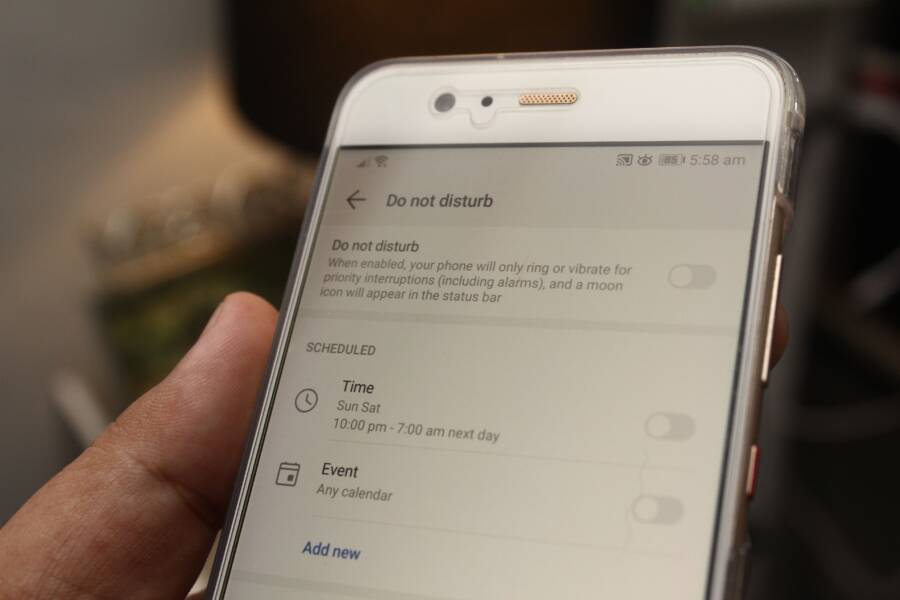
Your smartphone screen flicker or brightness shift is almost always a software glitch rather than a hardware failure. This issue typically happens when the ambient light sensor misreads indoor lighting, causing the display to adjust erratically as it attempts to compensate for your environment.
You can fix this problem by adjusting your display settings or disabling the automatic brightness feature entirely. Because these fluctuations often stem from software calibration errors, a few quick configuration changes usually restore a stable viewing experience.
The following steps will show you how to regain control over your screen settings so your display stays exactly as bright as you want it.
Why Your Smartphone Brightness Keeps Changing
Modern displays rely on sophisticated automation to match your environment. Your smartphone uses a dedicated ambient light sensor, usually positioned near the front-facing camera or the top speaker, to measure surrounding light levels. This sensor sends data to the operating system, which then dictates how much power to send to the display backlight. When these components work in harmony, the experience is invisible and helpful. Problems arise, however, when the sensor receives conflicting data or interprets the environment in a way that does not match your visual needs.
How Light Sensors Get Confused
The relationship between your light sensor and your screen output relies on constant, high-speed sampling. The sensor checks the intensity of light around you many times per second. It then transmits this information to the processor to determine if the screen should be brighter or dimmer. If you are in a room with standard incandescent lighting, this process is usually smooth and stable.
Issues often appear when you use certain energy-efficient light bulbs. Some LED and fluorescent bulbs emit light in rapid pulses that occur too quickly for the human eye to notice, but they are fast enough to trigger a high-end smartphone sensor. If the light source cycles on and off at a frequency that matches or interferes with the sampling rate of the sensor, the phone may perceive an inconsistent environment. As a result, the sensor sends erratic signals to the display controller, forcing the screen to jitter between different brightness levels as it attempts to adjust to light changes that do not actually exist.
Software Bugs and Sensor Sensitivity
Sometimes the hardware functions exactly as intended, but the software controlling it makes poor decisions. Smartphone operating systems include complex algorithms that define how the screen should react to specific lux levels. If an update changes these calibration parameters, your device might become overly sensitive to even minor shifts in light. You might notice the screen dimming because a cloud passed over a window or because your hand slightly blocked a light source for a split second.
These software-based issues typically stem from a mismatch between the sensor data and the display driver. You can often distinguish this from a hardware fault by observing the behavior of the brightness slider. If the slider moves on its own while you are in a room with steady, natural light, the software calibration is likely the culprit. Manufacturers occasionally release updates to refine these sensitivity levels, but until a patch arrives, you are often forced to deal with a device that reacts to changes that are not visible to your eyes. Identifying this as a software quirk rather than a broken sensor is important because it means the fix is usually found in your settings menu rather than at a repair shop.
Simple Steps to Stop Automatic Brightness Fluctuations
Manually locking your display brightness prevents the inconsistent shifts that occur when your smartphone misinterprets ambient light. Whether you use Android or iOS, disabling the automated software triggers is a straightforward process that restores control over your visual environment. Once you toggle these settings, your screen will remain at the level you choose until you decide to change it again.
Disabling Adaptive Settings on Android
Android devices manage brightness through a feature called Adaptive Brightness. While menu layouts change slightly depending on the manufacturer and the version of the operating system, the setting is typically located within the primary display preferences.
Open the Settings app on your smartphone.
Select the Display menu.
Look for the Adaptive Brightness toggle.
Tap the switch to turn it off.
If you cannot locate the option in the main display menu, use the search bar at the top of the Settings app and type Adaptive Brightness. Most modern Android versions prioritize this setting for easy access because many users prefer consistent backlighting. After you turn this off, your manual brightness slider will become the sole controller for your screen intensity. You can now adjust the slider to your preferred brightness, and the device will ignore external light sensors when determining display power.
Adjusting Auto-Brightness on iPhone
Apple hides the Auto-Brightness setting deep within the Accessibility menu rather than placing it alongside the standard display options. This configuration prevents accidental activation while ensuring the user remains aware of their accessibility choices.
Open the Settings app on your iPhone.
Scroll down and tap Accessibility.
Select Display & Text Size.
Locate the toggle for Auto-Brightness at the bottom of the list.
Tap the switch to disable it.
Once this feature is turned off, the brightness slider in your Control Center functions as a manual control. You can access this slider at any time by swiping down from the top-right corner of your screen. Because the iPhone no longer attempts to optimize for ambient light, the display will retain the exact level you set. This change is permanent until you manually return to the Accessibility menu to re-enable the feature. If you find your screen still dims during heavy tasks, check your Battery settings to see if Low Power Mode is forcing a temporary brightness reduction.
Advanced Fixes for Persistent Brightness Issues
If disabling automatic brightness does not stabilize your display, the culprit is often buried deep in the system configuration. Software corruption or outdated calibration files can force your smartphone to ignore your manual settings and continue fluctuating. These advanced methods aim to flush out those errors and restore complete control over your hardware.
Clearing Display Preferences
Sometimes, the operating system holds onto corrupt cache data that overrides your manual settings. When your smartphone persists in changing brightness despite your best efforts, resetting the display or system configuration is the most effective way to wipe the slate clean. This process removes broken calibration profiles without deleting your personal photos, apps, or messages.
On Android devices, you should look for the Reset App Preferences option within your system menu. While this does not wipe your phone, it returns all system-level settings to their factory defaults. Many users find this clears out the ghost settings causing display jitters. For iOS users, navigate to the Transfer or Reset iPhone menu and select Reset All Settings. This action is powerful because it specifically targets system configurations, including display and accessibility profiles, effectively removing any corrupted files that might be confusing the sensor logic.
If you remain hesitant to reset your entire system, consider clearing the cache of the System UI app if your specific Android interface allows it. Often, this system-level component manages the visual output and power management features of your screen. Clearing its cache removes temporary instructions that may be dictating incorrect brightness levels. After performing these resets, restart your smartphone to ensure the system reloads the default display profiles correctly.
Testing for Hardware Failures
If you have already cleared your software settings and the display continues to shift, the ambient light sensor itself might be physically failing. You can confirm this with a simple test using your phone’s behavior as a diagnostic tool. Your smartphone relies on a small, precise sensor to interpret the world, and a failure here often manifests as a stuck or unresponsive brightness level.
Start your test in a dark room where the brightness should naturally be at its minimum. Use a flashlight to shine a beam directly onto the area near your front-facing camera or top speaker. In a healthy device, the screen should respond within a second or two by increasing its intensity to match the new light source. If the display remains dim despite direct, intense light, the sensor is likely not detecting the input.
Repeat the process by covering the sensor area with your finger while in a bright environment. If the screen fails to dim or does not react at all, you have identified a hardware bottleneck. This kind of physical failure is rare, but it explains why no software toggle seems to work. If you confirm the sensor is unresponsive through these tests, contact the manufacturer or a repair professional. A hardware failure of this nature requires a physical component replacement rather than a software adjustment.
When to Contact Professional Support
Software troubleshooting often resolves screen brightness issues, but hardware failure requires expert intervention. You should contact professional support if standard diagnostic steps fail to restore consistent display performance. Recognizing when a problem exceeds your control prevents unnecessary frustration and stops you from damaging internal components during repair attempts.
Recognizing Irreparable Hardware Damage
Most brightness fluctuations originate from software calibration or ambient light sensor confusion, yet physical damage occasionally compromises the system. If you dropped your smartphone or exposed it to liquids, internal connections might be loose or corroded. Sensors that remain unresponsive after a full system reset or factory data restore typically indicate a permanent hardware failure.
You should reach out to the manufacturer or an authorized service provider if your device shows these specific signs:
The screen brightness remains completely black or stuck at maximum intensity regardless of manual input.
Physical impact points or cracks appear near the camera housing or light sensor array.
The display flickers with visible colored lines or static that persist through a system restart.
Moisture or debris is clearly trapped behind the glass near the top of the smartphone.
Warranty and Authorized Repair Considerations
Professional repair centers possess the specialized tools required to calibrate sensors and replace display modules without compromising your warranty. Attempting a DIY repair on a modern smartphone often voids your remaining coverage, leaving you responsible for the full cost of future malfunctions. Authorized technicians use official replacement parts, which is important for maintaining the original color accuracy and touch sensitivity of your display.
Check your manufacturer warranty or extended protection plan before you pay for an out-of-pocket repair. Many companies provide a simplified claim process through their official websites or mobile apps. When you contact support, have your serial number ready and describe the specific steps you already performed, such as disabling auto-brightness or clearing the system cache. This information helps the technician identify the issue faster and determines if the repair qualifies for standard warranty coverage.
If your smartphone is no longer under warranty, ask the service center for a diagnostic estimate before authorizing any work. Some shops charge a nominal fee to open the device and confirm the exact cause, which helps you decide if a professional repair is cost-effective or if replacing the device is a better financial choice.
Conclusion
Most brightness fluctuations on your smartphone are purely software-related. You can stop these annoying shifts by disabling adaptive or automatic brightness settings in your device menu. This simple change restores consistent control over your display and prevents sensors from reacting to minor indoor light variations.
You are fully capable of diagnosing and fixing these display issues yourself without professional help. Once you lock your preferred brightness level, your screen will remain steady and reliable. If you encounter further problems after testing these settings, you can perform a system reset to clear out any lingering software errors.