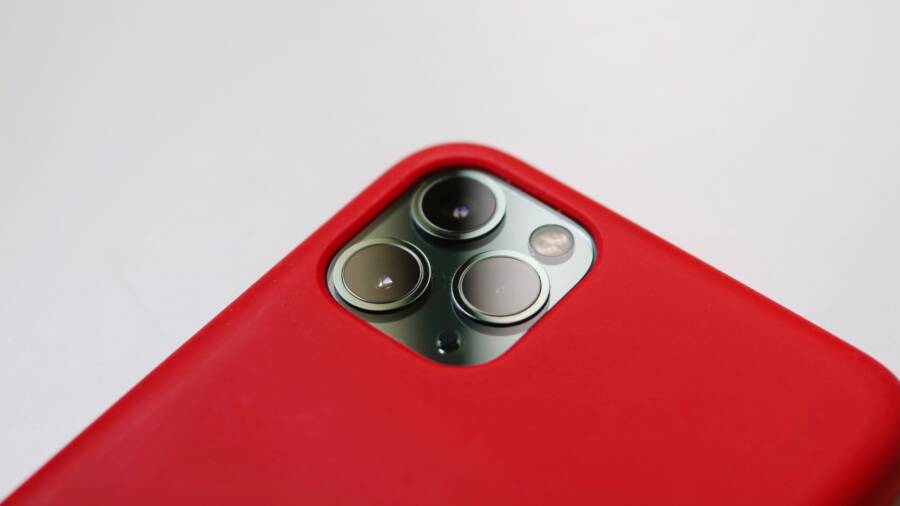
Accidental camera launches often happen because of sensitive lock screen shortcuts or button combinations. You can stop this behavior by adjusting your smartphone system settings or using a protective case that keeps buttons from getting pressed in your pocket.
Frustrating moments occur when you pull your device out to check a message, only to find the camera app active and draining your battery. Modifying your notification or lock screen preferences prevents these unwanted triggers without compromising your access to essential features.
Learn how to manage your device settings to keep your camera closed until you actually need it.
Why Your Camera Keeps Opening Unexpectedly
Accidental camera activations often stem from the way modern hardware and software prioritize speed over prevention. When your camera app opens without your input, it usually means a physical or virtual trigger was activated during transit. Understanding these triggers allows you to modify your habits or device settings to stop the behavior.
The Role of Gesture Controls and Shortcuts
Smartphone manufacturers design quick-launch shortcuts to ensure users never miss a fleeting photo opportunity. Most Android and iOS devices feature a double-press action on the power button or a swipe gesture on the lock screen to bypass the passcode and open the viewfinder instantly. While these features are convenient for capturing a scene in seconds, they lack the resistance required to distinguish between an intentional user action and incidental contact.
Hardware buttons, such as the power key, often sit flush with the frame of the device. If your grip shifts or if the phone rubs against objects inside a bag, the sensor registers the pressure as a deliberate input. Screen-based shortcuts are even more susceptible to errors because static electricity or accidental skin contact can simulate a swipe. If the screen wakes up in your pocket, the camera gesture becomes active and vulnerable to any further contact.
Double-press triggers: Many devices interpret two rapid clicks of the power button as a request to launch the camera immediately.
Lock screen swipes: Icons placed at the corners of a display respond to light pressure, which is common when a screen is active against fabric.
Sensitivity issues: Certain screen protectors reduce the accuracy of touch input, causing the display to interpret random pressure as a swipe.
Disabling these gestures in your system settings is the most effective way to eliminate accidental launches. Check the advanced features or lock screen menus on your smartphone to find options for camera quick-launch. Turning these off removes the shortcut entirely, meaning you must unlock the device before taking a photo.
When Physical Pressure or Hardware Issues Are to Blame
Hardware-related triggers usually involve external forces that compress the buttons or buttons that have lost their physical resistance. A tight-fitting case is a common culprit here. If the case material is stiff or poorly aligned with the cutouts, it can exert constant pressure on the power button or volume rockers. Over time, this pressure causes the button to become overly sensitive or stuck in a semi-pressed state.
Fabric friction also plays a significant role. When you slide your smartphone into a tight pocket, the material pulls against the side buttons. If the fabric is thick or abrasive, it might exert enough force to register a double-click or a prolonged hold. You can test your button sensitivity by removing the protective case and checking if the camera still launches while the phone is handled normally. If the issue stops once the case is off, you should replace the cover with one that offers better clearance around the buttons.
Debris buildup: Small particles of dust or lint can get lodged around the button edges, holding them in a compressed position.
Case alignment: Use a case with recessed buttons to create a buffer against accidental presses in your pocket.
Button feedback: A healthy button provides a tactile click; if yours feels mushy or lacks a distinct response, it might be damaged or obstructed.
If you suspect hardware failure, clean the area around the power button with a soft, dry cloth or a bit of isopropyl alcohol on a cotton swab. Clearing out debris prevents the button from sticking, which often resolves the issue without requiring professional repairs. If the button remains unresponsive or overly sensitive despite cleaning, a repair shop may need to replace the physical switch to restore standard function.
How to Disable Camera Shortcuts in Your Phone Settings
Preventing your smartphone from launching the camera in your pocket starts with adjusting your system settings. By taking control of these software shortcuts, you eliminate the triggers that cause your device to activate the viewfinder during transit. Each operating system provides specific menus to manage these quick-launch functions, allowing you to prioritize peace of mind over instant photo access.
Adjusting Settings on Android Devices
Most Android smartphones include a shortcut that triggers the camera when you press the power button twice in rapid succession. This feature is a common culprit for accidental launches when your device brushes against fabric or other objects. You can usually disable this behavior through your system settings to ensure the camera only opens when you manually tap the app icon.
Open the Settings app on your smartphone.
Select the menu labeled Advanced features, Gestures, or System.
Locate the option titled Press twice, Quick launch camera, or Double-press power button.
Toggle the switch to the off position.
Some manufacturers place this setting within the Lock screen or Display menus instead. If you have trouble finding it, use the search bar at the top of the Settings app to look for the word camera or button. Turning off this feature forces you to unlock your screen before the camera interface appears, which effectively removes the risk of pocket-based activations. You might find that your device settings require a restart to apply these changes fully.
Managing Lock Screen Features on iPhone
Apple includes a dedicated camera icon on the iPhone lock screen to grant instant access to the shutter. While this icon is a permanent fixture of the user interface, you can limit its functionality through the Screen Time settings to prevent unauthorized or accidental use. Because you cannot remove the icon entirely, restricting the app access provides a stable solution for users who frequently trigger the camera.
Navigate to Settings and select Screen Time.
Tap on Content & Privacy Restrictions and ensure the toggle is turned on.
Select Allowed Apps and locate the Camera toggle in the list.
Turn the Camera toggle off to restrict access to the application.
When you disable the camera through these restrictions, the app disappears from your lock screen entirely and remains inaccessible until you toggle the setting back on. If you prefer to keep the camera enabled but want to reduce the risk of accidental swipes, focus on managing your lock screen layout. You can also disable the Raise to Wake feature in Display & Brightness settings to prevent the screen from activating when you move your smartphone. This prevents the lock screen from lighting up and responding to accidental touches while the phone stays in your pocket or bag.
Physical Fixes to Prevent Accidental Touches
Software settings offer significant control, but physical barriers often provide the most reliable defense against accidental camera launches. Your smartphone remains a collection of buttons and glass, which makes it vulnerable to external pressure while tucked away in a pocket or bag. Adding a layer of physical protection changes how your device interacts with its environment, effectively blocking the accidental triggers that software alone cannot stop.
Selecting the Right Protective Case
Most standard cases allow buttons to sit flush with the exterior, which leaves them exposed to the fabric of your pocket or the contents of your bag. You should look for cases that feature recessed button cutouts or protective covers that require deliberate effort to press. These designs act as a physical buffer, ensuring that simple friction or light contact does not depress the power key.
When you shop for a case, focus on the depth of the button protection. A case with a thick, raised bezel around the camera module and the power button provides the best defense. Avoid thin, skin-style cases that do not cover the side buttons, as these offer zero resistance to accidental activation. If your current case feels loose or flimsy, it is likely allowing debris to slide under the edges and push against the buttons.
Modifying Your Carrying Habits
The way you position your device inside your clothing or bag impacts how often the camera launches without your permission. Tight pockets apply constant pressure to the frame of your smartphone, which increases the likelihood of a button-related trigger. If you find your phone screen active when you pull it out, try storing it with the screen facing away from your leg. This simple adjustment prevents skin contact and reduces the chance that fabric will interact with the display.
Consider the other items you carry alongside your phone as well. Keys, coins, or charging cables often shift inside a pocket and press against the side buttons. You can organize your bag or pockets to keep the phone in a dedicated, empty compartment. Removing external pressure sources eliminates the main cause of accidental button engagement, regardless of how sensitive your device settings are.
Cleaning and Maintenance
Debris like lint, sand, and dust often builds up around the physical buttons on your smartphone over time. This buildup creates a constant, low-level pressure that keeps the switch in a semi-engaged state. When the button is already under stress, even a minor touch causes it to register a full click, which triggers the camera.
You should clear this area periodically to maintain proper tactile response. Use a soft-bristled brush or a can of compressed air to remove loose particles from the button crevices. If the buttons feel sticky or unresponsive, a small amount of isopropyl alcohol on a cotton swab helps dissolve oils and grime. Keeping these components clean ensures that every press you make is intentional and that the device does not ghost-activate while sitting idle.
Common Questions About Camera Shortcuts
Many smartphone owners wonder why their device activates the camera at inconvenient times. Understanding how these features interact with your daily habits helps you regain control over your hardware. Below are answers to frequent concerns regarding camera shortcuts and unintended activations.
Can I change the specific button combination for the camera?
Most manufacturers lock the quick-launch trigger to a specific action, such as a double-press of the power button. You usually cannot remap this to a different combination because the system firmware reserves it for immediate access. If you find yourself triggering the camera frequently, disabling the function entirely remains the most reliable path. Check your system settings under gestures to see if your model offers alternative shortcuts that you might find less prone to accidental contact.
Will turning off shortcuts affect my ability to take photos quickly?
Disabling these shortcuts requires you to unlock the smartphone before accessing the camera app. While this adds one step to your workflow, it prevents battery drain and accidental photos taken while the device is in your pocket. You can still access the camera within a second or two by tapping the icon on your home screen once the device is unlocked. If you frequently capture candid moments, consider placing the camera app in your dock so it stays visible on every page.
Does a phone case cause these accidental launches?
Poorly designed cases are a major source of ghost-touch activations. A case that lacks proper spacing around the power button acts as a lever, pressing the switch when you grip the smartphone or slide it into a bag. You can verify this by removing your case for a day; if the camera stops launching on its own, your case is the primary culprit. Look for models with recessed buttons or defined gaps that prevent fabric from exerting pressure on the sensors.
What should I do if the camera still launches after changing settings?
If you have disabled all shortcuts and removed the protective case, but the camera still launches, a hardware sensor issue might be responsible. Debris trapped under the power button or moisture near the contacts can trigger a false signal. Try these steps to isolate the problem:
Use a clean, dry brush to gently sweep away dust from the edges of the buttons.
Inspect the screen for pressure marks that might register as phantom swipes.
Restart the smartphone to clear any software glitches that might simulate a launch command.
Contact the manufacturer support line if the behavior continues after you perform a factory reset.
Persistent activation often points to a worn internal switch that requires professional repair or component replacement.
Conclusion
Accidental camera activations are a common frustration for smartphone users. You can stop these unwanted triggers by modifying your system shortcut settings or upgrading to a protective case that keeps physical buttons recessed.
Test these methods one by one to see which solution works best for your specific daily habits. Whether you disable double-press features or rearrange your pocket storage, you have the tools to ensure your camera stays off until you are ready to shoot.