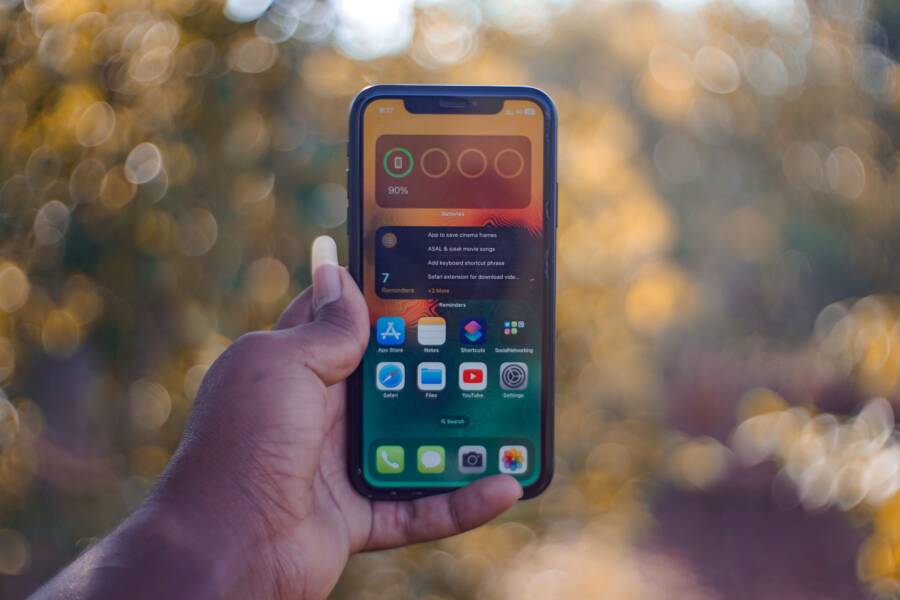
Your smartphone keeps switching to dark mode because of a scheduling conflict or an active battery saving feature, not because of a hardware malfunction. You can usually stop this behavior by checking your display settings for an automatic schedule or disabling power-saving modes that override your preferences.
Most modern devices include software that manages color schemes to save battery life or reduce eye strain at night. If your settings appear correct, one of these automated protocols likely remains active in the background.
The following steps will help you identify the specific setting causing these unwanted changes on your device.
Common Reasons Your Smartphone Theme Won’t Stay Light
When your interface suddenly shifts into a dark color scheme despite your preference for a light theme, the culprit is often a hidden software automation. Modern operating systems prioritize power efficiency and eye comfort, which leads them to trigger visual changes based on variables you may have configured previously. If you find your smartphone repeatedly reverting to dark mode, you likely have a scheduled task or a battery optimization protocol fighting your manual settings. Identifying these triggers requires a quick tour through your display configuration menus.
Checking Your Scheduled Appearance Settings
The most frequent cause for a theme that refuses to stay light is an active schedule. Both iOS and Android include built-in tools that force the interface to toggle based on the time of day. When these features are enabled, the system automatically switches to dark mode at sunset and returns to a light theme at sunrise. You might also have a custom schedule that triggers at specific hours regardless of ambient light levels.
To disable these triggers on an iPhone, open your Settings app and tap Display and Brightness. Look for the Automatic toggle under the Appearance section. If this switch is active, your device will follow the schedule you have set. You can simply turn off the Automatic toggle to lock your theme to your chosen appearance.
On Android devices, the menu path varies slightly depending on the manufacturer, but the logic remains the same. Open your system settings and select Display. Look for a setting labeled Dark theme or Theme. If you see an option for Schedule, tap it and ensure it is set to None or Off. Some versions of Android use a Sunset to Sunrise toggle, while others allow you to set specific start and end times for the dark mode transition. Disabling these options prevents the operating system from overriding your display preferences throughout the day.
How Battery Saver Modes Influence Display
Battery management tools are the second most common reason your theme won’t stay light. When your smartphone reaches a low charge level, the operating system initiates a power-saving mode to extend your remaining usage time. One of the primary actions these modes perform is switching your display to dark mode. Because dark pixels require less energy on modern OLED screens, the system uses this color shift to squeeze every extra minute of battery life from your device.
If you notice your theme reverting to dark mode only when your battery is low, this power-saving feature is working as intended. To stop this behavior, you must adjust your battery settings. On iOS, check if Low Power Mode is enabled in your Battery settings. If you keep this mode active, your device may prioritize power savings over your visual theme preferences. Similarly, on Android, navigate to your Battery or Device Care menu. Find the setting for Power saving or Battery saver and verify whether it includes an automatic toggle for the dark theme.
You can often exclude the display from power-saving restrictions by adjusting these settings individually. If you prefer to keep a consistent light theme at all times, consider turning off the automatic battery saver triggers. Keeping a close watch on these two areas—automated schedules and battery management protocols—will solve almost every instance of an interface that refuses to stay in light mode.
Simple Steps to Lock in Your Light Theme
Achieving a consistent light theme on your smartphone requires more than just toggling a single switch in the main settings menu. While system-wide preferences dictate the general appearance of your interface, secondary automation features and individual application settings often override your manual choices. You must address these hidden layers to prevent your device from reverting to dark mode unexpectedly.
Turning Off Automated Display Schedules
Most modern smartphone displays include built-in scheduling tools designed to adjust colors based on the time of day. When these features remain active, the device monitors local sunset and sunrise data to trigger a theme swap automatically. If you prefer a static light interface, you need to deactivate these internal timers.
On an iPhone, navigate to the Settings app and select Display and Brightness. Look for the Appearance section and locate the Automatic toggle. If this switch is green, your device is actively watching the clock to change your display mode. Tap the switch to turn it off, which forces the interface to remain in its current state.
Android devices provide similar controls, though the specific labels change depending on the manufacturer. Open your settings menu and go to the Display section. Find the entry for Dark theme or Theme settings. If you see an option labeled Schedule, tap it to view your current configuration. You should set this to None or Off to stop the system from forcing a switch when the light changes outside. By clearing these schedules, you prevent the operating system from making visual decisions for you.
Overriding App Specific Dark Mode Settings
System-wide settings do not always dictate the appearance of every application installed on your smartphone. Many platforms include independent themes that ignore your device preferences entirely. If you notice your screen turning dark only when opening specific apps, you are likely dealing with an internal setting managed within that software.
Social media platforms, email clients, and news readers frequently contain their own appearance menus. To fix this, you should check the settings inside each affected app:
Open the application that keeps switching to dark mode.
Locate the settings or profile menu, usually found behind a gear icon or your profile picture.
Look for a section labeled Display, Theme, or Appearance.
Change the selection from System Default or Dark to Light.
Some apps use a toggle that forces a dark interface regardless of your phone settings to save battery or maintain a specific brand aesthetic. If an app lacks a specific setting for themes, it may not support a light mode at all. Checking these individual menus ensures your preferred visual style persists across your entire device experience.
Troubleshooting Persistent Theme Glitches
Sometimes, your display refuses to behave even after you disable schedules and battery savers. When your smartphone settings seem correct but the theme continues to flip, you are likely dealing with deep-seated software conflicts or external overrides. These glitches usually stem from outdated firmware or hidden software layers that demand more attention than standard menu toggles.
Updating Your Software for Better Control
Operating system bugs often cause display logic errors. When the system code governing your theme encounters a conflict, it may ignore your manual settings or revert to a default state during background tasks. Manufacturers release frequent updates to address these specific software glitches, which often restore proper functionality to your display configuration.
You should always verify that your smartphone runs the latest available software version. Head to your system settings, look for Software Update or General, and check for pending installations. A simple update often patches the underlying code that causes theme flickering or unauthorized mode switching. If you notice your screen changing colors without your input, an update might be the immediate fix you need to stabilize the interface.
Checking Third Party Launcher Conflicts
Customization apps and third-party launchers for Android frequently include their own theme engines that bypass system-wide settings. If you installed a custom interface or icon pack, that software might contain a conflicting color scheme rule. These tools often manage their own schedules to match your chosen aesthetic, effectively fighting the primary settings of your smartphone.
To determine if a launcher is the cause, you should temporarily revert to the default system launcher. You can find this setting under the Home or Apps menu in your general configuration. Once you switch back to the stock experience, observe your device for a day to see if the theme remains stable. If the issue disappears, you know the custom launcher is the source of the conflict. You can then check the settings within that launcher to adjust its specific theme triggers or consider using a different application that respects your system-wide preferences.
Comparing Default and Automatic Display Features
Your smartphone relies on specific display protocols to manage color themes. Understanding the difference between default manual settings and automatic features clarifies why your screen changes unexpectedly. When you select a theme manually, you establish a baseline preference. In contrast, automatic features represent an active monitoring system that shifts your display based on external data or system states.
Understanding Default Manual Settings
Manual settings are the foundation of your interface appearance. When you select Light mode in your display menu, the operating system holds that state until you provide a new instruction. This preference stays active regardless of ambient light levels or time of day.
Manufacturers design these settings to give you total control over the visual output of your smartphone. If you prefer a static interface, keeping your device in this manual mode is the most reliable path. It prevents the system from making decisions based on hidden logic or background variables. You can verify your current state by opening your display menu and confirming that all scheduling toggles remain in the off position.
How Automatic Display Features Work
Automatic features function as a secondary layer that overrides your manual preferences. These systems observe specific triggers to decide when to activate dark mode or light mode. Most modern operating systems use two primary methods to manage these transitions:
Time-based triggers: The system uses local sunrise and sunset data to toggle the theme automatically. This ensures your display matches the lighting conditions of your environment throughout the day.
Contextual triggers: Power-saving protocols activate dark mode when your battery drops below a set percentage. This action reduces the energy consumption of your screen to extend your device usage.
Table 1 highlights the key differences between these two modes to help you identify which setting is currently active on your device.
Why Automatic Features Override Your Choices
Automatic display features take precedence because they integrate with deeper system architecture designed for efficiency. When your battery reaches a critical level, the system treats dark mode as a power-saving tool rather than a visual preference. This override is intentional, as the software prioritizes device longevity over your aesthetic choices.
Similarly, scheduling tools are often enabled by default during the initial device setup. If you do not visit the display settings after buying a new smartphone, these automated timers remain active. You must manually disable these protocols to regain full control over your theme. Once you turn off the automatic schedules and configure your battery settings, your device will honor your manual preference consistently.
Conclusion
Most persistent display issues originate from automated scheduling tools or background battery-saving protocols. You can resolve these inconveniences by disabling automatic theme transitions and checking individual application settings to ensure they respect your global preferences.
Taking control of your smartphone display settings allows you to maintain a consistent visual experience without unexpected interruptions. Simple adjustments to your system configuration usually stop these glitches and provide the permanent light theme you prefer.