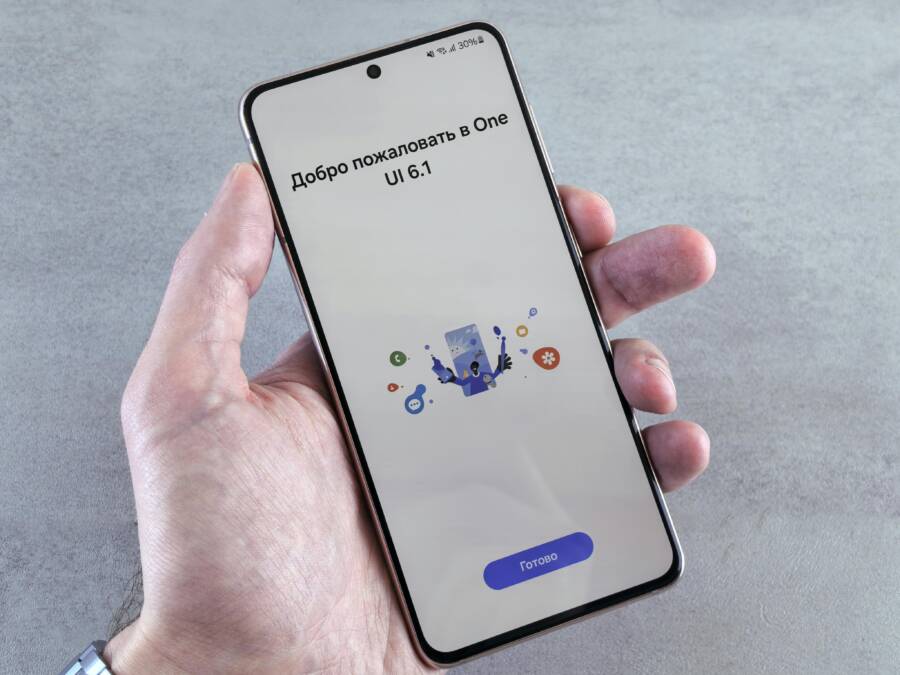
Android smartphones include native support for guest and secondary user profiles, which lets you maintain separate data environments on one device. iPhones do not offer multi-user profiles, but they provide alternative privacy tools like App Lock and Screen Time to control access.
Setting up these profiles keeps your personal apps, photos, and accounts hidden when you lend your phone to a friend or family member. It also provides a clean workspace if you use the same smartphone for both work and personal tasks.
The following sections explain how to configure these privacy settings on your device.
How to Set Up Guest Mode and User Profiles on Your Smartphone
Managing access on your device is a smart way to protect your privacy. Android phones allow you to create distinct spaces for other people. This feature ensures your personal data remains private while letting others use your hardware. By separating accounts, you prevent unauthorized access to your emails, photos, and personal applications.
Creating a new user profile step by step
You can set up a secondary profile for family members or long-term guests. Each user profile gets its own storage space, custom wallpaper, and independent app settings. Follow these steps to configure a new user on your smartphone:
- Open the Settings app on your device.
- Tap on the System menu, which is usually located near the bottom of the list.
- Select Multiple Users to see your current configuration.
- Toggle on the switch that says Use multiple users.
- Tap on Add user and confirm the action when prompted.
- A setup wizard will start immediately. Hand the device to the new user so they can sign in with their own Google account.
Once the setup finishes, the new user manages their own apps and data. You can switch between profiles by pulling down the notification shade and tapping the user icon. Your private files stay protected because each profile remains encrypted within its own dedicated partition.
When to use the temporary Guest account
The Guest account is a perfect tool for short-term interactions. Use this mode when a friend needs to borrow your phone for a quick call or when a child wants to play a game. The Guest account provides a clean, temporary environment that does not sync your personal accounts.
When the guest finishes their task, you can wipe their activity immediately. Open the same Multiple Users menu and select the Guest profile. Tap the Remove guest option to delete all files, browser history, and app progress created during that session. This quick action ensures that no traces of their usage remain on your smartphone.
Using this feature regularly prevents accidental exposure of your private data. It is a simple habit that keeps your information safe during every handoff.
Privacy and Security Alternatives for iPhone Users
Apple does not support multi-user profiles on the iPhone. While this design choice prioritizes a single, secure environment, it creates friction when you need to share your smartphone with others. You can still maintain high security standards by using native iOS features to restrict access and protect your private information.
Using Guided Access to lock your screen
Guided Access is a powerful tool when you need to hand your device to someone else for a specific task. This feature restricts the user to one application and prevents them from navigating to your home screen or switching apps. You also retain the ability to disable hardware buttons or touch input in specific areas of the screen.
Follow these steps to set up Guided Access on your smartphone:
- Open your Settings app and navigate to Accessibility.
- Scroll down to find Guided Access and toggle the switch to the on position.
- Tap Passcode Settings to set a unique numeric code or enable Face ID for ending the session.
- Open the application you want the guest to use.
- Triple-click the side button (or the Home button on older models) to trigger the setup menu.
- Select Options in the bottom left corner to toggle features like volume control, touch, or keyboards.
- Tap Start in the top right corner to initiate the lockdown.
The device will now remain within that application until you triple-click the button again and enter your passcode. This method works well for letting children play games or allowing a guest to look at a single photo.
Managing app access with Screen Time
Screen Time serves as an effective alternative to secondary user profiles by hiding or restricting specific applications. By setting up Screen Time passcodes, you can lock down sensitive apps like your email, banking tools, or social media. This creates a barrier that prevents guests from accessing your private data even if they have your device unlocked.
You can configure these limits through your settings menu:
- Go to Settings and tap on Screen Time.
- Select Use Screen Time Passcode and create a four-digit PIN that differs from your main device unlock code.
- Tap App Limits and then select Add Limit.
- Choose the categories or specific apps you want to restrict.
- Set the time limit to one minute for the apps you want to keep inaccessible.
Once the time limit expires, the app icons will dim and require your unique passcode to open. This effectively puts your most sensitive information behind a secondary wall of security. Since your guest does not know this code, they cannot bypass the restriction to view your private messages or financial records. This approach keeps your smartphone content tidy and secure without needing a formal guest profile.
Choosing the Best Security Method for Your Needs
Selecting the right security approach depends on how often you share your smartphone and what specific information you want to protect. Your choice balances user convenience with the level of isolation required for your files. Whether you prioritize a complete partition of data or simply need to limit access to a few specific apps, understanding your options helps you maintain control.
Which system keeps your data safer
Android creates physical separation through user profiles. This method works like having two separate computers on a single device. When you create a new profile, the system carves out a unique storage partition. The second user cannot see your apps, photos, or documents because the Android operating system treats them as two distinct environments. If you want a complete barrier between your personal life and a borrower, this setup is the standard.
Apple takes a different path by focusing on app-level control rather than system-wide separation. You cannot create a second user account on an iPhone. Instead, you keep data safe by locking individual apps and restricting navigation. Guided Access and Screen Time tools provide granular control over what a guest can touch or view.
Consider this comparison to determine your preference:
Android is more secure if you want to ensure your apps and personal accounts stay hidden from other users. Because the secondary user has their own login, they cannot reach your data from the settings menu or file browser. However, iPhone security is often easier to manage for quick, one-time tasks. Using Screen Time to lock banking and mail apps prevents access to your most private information without needing to reconfigure the entire device. Your security strategy depends on whether you value total data silos or targeted access control.
Frequently Asked Questions About Sharing Your Smartphone
Sharing a mobile device often raises concerns about privacy, data integrity, and potential performance issues. Addressing these common questions helps you manage access to your smartphone without compromising your personal information or security.
Can a guest see my private messages or photos?
When you use the built-in multi-user features on Android, your personal data remains hidden from other profiles. Each user profile operates within its own encrypted storage space on the smartphone. This means a guest cannot access your text messages, gallery, or private browser history while logged into their own environment or a Guest account.
If you use an iPhone, the situation is different. Because Apple does not support multiple user accounts, you must rely on tools like Guided Access or App Lock. These features prevent the user from leaving a specific app, which keeps them away from your private photos and messages. Always ensure you activate these restrictions before handing over your device.
Does sharing my device slow down performance?
Adding multiple users can impact your smartphone performance if the internal storage is nearly full. Each profile stores its own cache, temporary files, and downloaded applications. If your device has limited memory, these separate environments might compete for system resources.
You can minimize this impact by following these tips:
- Delete unused guest profiles as soon as the session ends.
- Limit the number of secondary users on devices with low storage capacity.
- Avoid installing resource-heavy games or apps on secondary user profiles.
Is there a risk of a guest changing my settings?
Secondary user profiles typically restrict access to critical system settings. While a secondary user can change their own wallpaper, notification sounds, or display brightness, they cannot modify your primary account preferences. They lack the administrative rights to change your lock screen passcode, remove your Google account, or alter sensitive security configurations.
If you are using a Guest account on Android, the system is even more restrictive. Guests generally cannot make changes that persist after the session ends. Once you delete the guest profile, any settings they adjusted return to their default state.
How do I stop a guest from making in-app purchases?
You can prevent unauthorized spending by adjusting your payment settings before sharing your smartphone. For Android users, head to the Google Play Store settings within your main profile. Ensure that biometric or password authentication is enabled for all purchases. This setting applies across the device and prevents a guest from buying apps or making in-game purchases on your account.
iPhone users should review their Screen Time settings. You can restrict the ability to install or delete apps and make in-app purchases through the Content & Privacy Restrictions menu. By setting a unique passcode for these restrictions, you maintain total control over your digital wallet even when the phone is not in your hands.
Conclusion
Whether you choose Android user profiles or iPhone access restrictions, the ultimate goal is privacy for your personal data. Each system provides a way to maintain boundaries when you share your hardware with others.
You now have the tools to manage your information effectively on any modern smartphone. Secure your device today to gain peace of mind every time you hand it to a friend or family member.
Modern data security relies on these small, deliberate habits. Stay mindful of your settings as your mobile needs change over time.