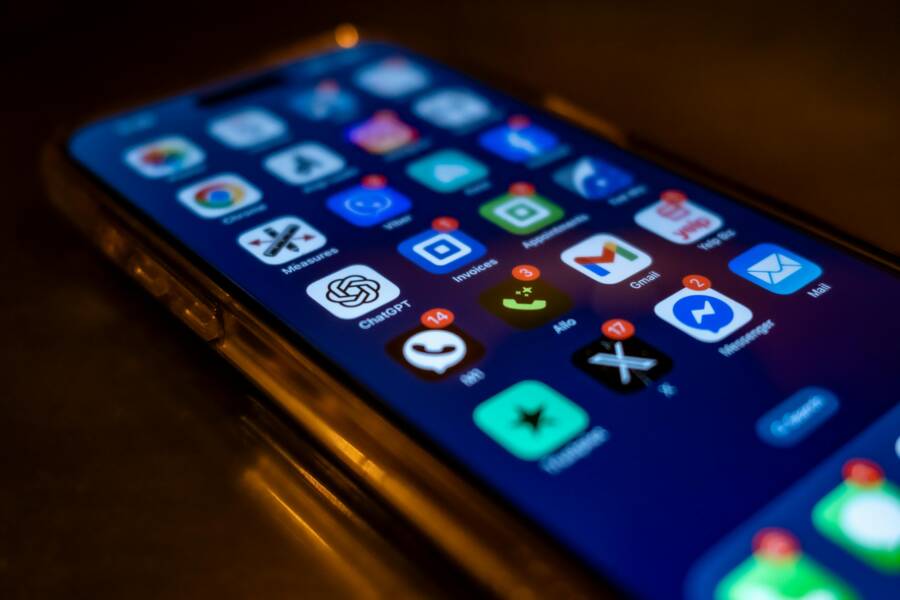
You can keep your smartphone updated safely by creating a backup of your data and checking your available storage before you begin. While software updates are necessary to protect your device from security threats and improve performance, many people delay them for fear of bugs or broken features.
A few simple preparation steps allow you to install the latest versions with confidence. You don’t need to fear the update process if you know how to manage your device correctly. This guide shows you how to keep your phone and apps running smoothly without running into technical problems.
Why Regular Updates Protect Your Smartphone
Software updates act as a vital shield for your smartphone. Manufacturers and app developers issue these patches to repair security holes that hackers might otherwise exploit to access your private data. When you ignore an update, you leave your device open to known vulnerabilities that malicious actors search for daily. Keeping your software current stops these threats before they can impact your personal information or device integrity.
Closing Security Vulnerabilities
Most updates contain fixes for specific security flaws discovered since the last release. Hackers often identify weak points in popular operating systems or apps, then create small programs to slip through these gaps. If your system runs an older version, these bad actors know exactly how to bypass your defenses. A quick update fills these gaps, effectively locking out potential intruders who hunt for unpatched devices.
Improving System Performance and Stability
Updates do more than just block external threats. They frequently remove code bugs that cause your smartphone to lag, overheat, or crash unexpectedly. Developers often refine how the software uses your battery and processor during these cycles. As a result, your device runs faster and more reliably after a successful update. You gain a smoother experience while simultaneously keeping your hardware in peak condition for a longer period.
Protecting Your Sensitive Personal Information
Your smartphone stores a massive amount of personal data, including photos, financial records, and private messages. Security patches serve as the primary line of defense for this digital vault. If a hacker gains entry through an outdated app, they could potentially copy your contacts, track your location, or intercept your passwords. Regular updates provide the necessary armor to keep your sensitive details under your control.
Installing these updates maintains the integrity of your device. By staying current, you minimize the risk of data leaks and ensure that your smartphone hardware works efficiently with the latest software requirements. Consistent maintenance prevents small issues from becoming major problems that compromise your digital security.
How to Prepare Before You Hit the Update Button
Preparation prevents data loss and minimizes frustration during system upgrades. A few minutes spent managing your files and storage capacity ensures your smartphone remains functional throughout the process. When your device has enough room and a secure copy of your information, you avoid common errors that stop installation mid-way.
Backing Up Your Important Data
Creating a backup preserves your photos, contacts, and messages if something goes wrong during an update. You have two primary methods to store this information safely. Cloud backups automatically sync your data to remote servers over the internet. This approach is convenient because it happens in the background, though it often requires a paid subscription once you exceed free storage limits.
Local backups involve connecting your smartphone to a personal computer using a cable. You then use software provided by the device manufacturer to save a full image of your data onto your hard drive. This method is free, fast, and does not depend on your internet connection speed. Having a copy in either location makes the entire update process worry-free, as you can restore your settings instantly if the system experiences a glitch.
Clearing Space for a Smooth Install
Insufficient storage is the leading cause of failed updates on almost any smartphone. Your device needs extra room to download the update package and extract the installation files before it replaces the old system code. If you receive a low space alert, you must prune your existing content to proceed.
Start by identifying the apps that consume the most storage. Many phones include a settings menu that lists apps by size, which helps you spot unused software that you can remove. Videos and high-resolution photos also take up significant room. You should move these files to a cloud service or an external drive to free up capacity quickly. Removing unnecessary temporary files or cache data from your web browser also provides a small but helpful boost in available storage. Following these steps creates the environment your device needs for a successful installation.
Steps for Updating Apps and Systems Without Glitches
Updating your software protects your data and improves how your hardware functions. While the process often feels intimidating, you can manage these changes through your app store settings or by following specific protocols during system upgrades.
Managing App Updates from Your Store
You can control how your smartphone handles app updates by visiting the application store settings on your device. Most users choose to enable automatic updates to save time and maintain the latest features without manual effort. This setting allows your phone to download and install new versions while you sleep or while the device stays idle.
Automatic updates offer several benefits for the average user:
- You stay protected against security flaws without remembering to check for patches.
- The interface stays current with the latest design improvements from developers.
- Your apps remain compatible with the newest version of your operating system.
However, automatic updates also have drawbacks. Occasionally, a new version might introduce a bug or change a favorite feature that you prefer in its original state. If you rely on specific apps for critical work, you might prefer to update manually.
To manage your preferences, open the store app and look for the settings menu. You can toggle automatic updates off if you want full control. When you choose this manual route, check the updates section regularly to see which apps have pending changes. This gives you the freedom to review release notes before committing to a new download.
Running System Updates Successfully
System updates change the core software of your smartphone and require a steady environment to install correctly. The most important rule for a successful update is maintaining power. Your device should have at least 50 percent battery life, though plugging the phone into a charger is the safest approach. If your battery dies while the system is writing new files, you risk corrupting the operating system and losing access to your data.
Follow these simple rules to keep the installation stable:
- Always connect to a reliable Wi-Fi network to avoid data charges or interrupted downloads.
- Keep the device plugged into a wall outlet during the entire update process.
- Avoid turning off or restarting the phone while the screen displays an update or loading bar.
If you suspect an update is stuck, avoid forcing an immediate restart right away. Sometimes the process takes longer than expected while the phone optimizes files. Wait at least 30 minutes to see if the progress bar moves or the screen changes. If the device remains unresponsive after this time, perform a force restart by holding the power button until the manufacturer logo appears. A modern smartphone typically recovers from a failed update attempt by reverting to the previous stable version. If you still encounter problems, check the official support website for your phone model for specific recovery steps.
What to Do If an Update Causes Problems
Most updates install without issue, but you might occasionally encounter a device that runs slowly or freezes after an installation. A malfunctioning update rarely means your hardware is broken. Instead, it usually signals a minor software conflict or a temporary cache issue that you can fix with a few manual steps.
Perform a Forced Restart
A frozen or glitchy smartphone often responds well to a forced restart. This process clears the temporary memory and forces the operating system to reload its core services. Every manufacturer uses a slightly different button combination, so check the official support page for your specific model if you are unsure. A forced restart does not delete your personal files, photos, or contacts. It simply stops the current hung process and gives the system a fresh start.
Clear System Cache Files
If your smartphone continues to behave strangely, old system data might conflict with the new software. Most Android devices allow you to wipe the system cache partition from a recovery menu. This action removes temporary files used by the operating system without touching your apps or personal documents. If you use an iPhone, you might consider offloading and reinstalling problematic apps to clear their local cache. This often resolves performance issues that occur after a major system shift.
Check for Follow-up Patches
Developers often release small, secondary updates shortly after a major launch to fix bugs reported by users. If you notice a specific feature is missing or an app keeps crashing, check your settings menu for additional system updates. These rapid fixes frequently address the exact problems you are experiencing. You can also visit the official app store page for the problematic application to see if the developer has posted a note about a known bug or a fix that is currently in progress.
Restore to a Previous State
In rare cases, an update might break essential features for your daily work. If you have a recent backup created before the update, you can restore your smartphone to that previous state. Be aware that this process usually involves resetting the device to factory settings, which wipes all current data. Only use this method if you have a verified, recent backup saved on your computer or in the cloud. This provides a clean slate and returns your device to a stable, working configuration.
Final Tips for Maintaining Your Device Health
Routine upkeep keeps your smartphone running reliably long after you finish the update process. You prevent common performance issues by managing your files and hardware habits alongside software versions. Consistent attention to these details reduces the need for frequent factory resets and keeps your battery life predictable.
Monitor Battery Performance
Batteries degrade naturally over time, but you can slow this process by practicing good charging habits. Avoid leaving your phone plugged into a charger for extended periods once it reaches 100 percent. Extreme temperatures also damage internal cells, so keep your device out of direct sunlight or freezing cold environments. Most modern operating systems include a setting to view your battery health percentage. Check this menu every few months to see if your hardware requires a replacement soon.
Manage Background Applications
Apps running in the background often consume memory and processing power without your knowledge. You save battery and improve system responsiveness by closing programs you no longer use. Many smartphones have a built-in manager that shows exactly which apps drain the most energy. Review this list regularly and uninstall software that you no longer need. This simple action keeps your system lean and ensures important tasks get the resources they need to perform well.
Keep Your External Hardware Clean
Physical maintenance complements your software health. Dust and debris inside your charging port can prevent a solid connection, leading to failed updates or slow charging speeds. Use a soft, non-conductive tool like a wooden toothpick to gently remove lint from the port. You should also wipe your screen and body with a microfiber cloth to remove skin oils and dirt. Clean hardware interacts better with cables and accessories, helping you maintain a stable connection during future software installations.
Schedule Regular Reboots
A simple restart clears out temporary memory leaks and stops misbehaving background processes that drain your resources. Many people leave their phones on for weeks at a time, but a quick power cycle once a week keeps everything fresh. This brief break allows your operating system to reinitialize core services and clear out temporary cache files. Incorporating this habit into your weekly routine is an easy way to prevent small glitches from growing into major performance problems.
Summary of Best Practices
Maintaining a healthy smartphone requires a mix of digital and physical habits. Follow these steps to maximize your device lifespan:
- Check your battery health settings every three months.
- Remove unused apps to reclaim storage and memory.
- Clean your charging port with a dry, non-conductive tool.
- Restart your phone once a week to refresh the operating system.
- Store your phone away from extreme heat or cold.
Applying these tips ensures your device stays responsive and secure between major updates. Consistent minor adjustments prevent the frustration of a lagging phone while protecting your sensitive information.
Conclusion
Updates keep your smartphone secure by patching vulnerabilities that hackers exploit to steal data. You prevent most technical failures by backing up your files and ensuring your device has enough storage before you begin.
The risks of leaving software outdated far outweigh the occasional annoyance of a bug. Once you finish your first update using these preparation steps, you will see how simple the process is.
Enable auto-updates in your settings to stay protected without any extra effort. This habit is the best way to keep your phone fast and safe for the long term.