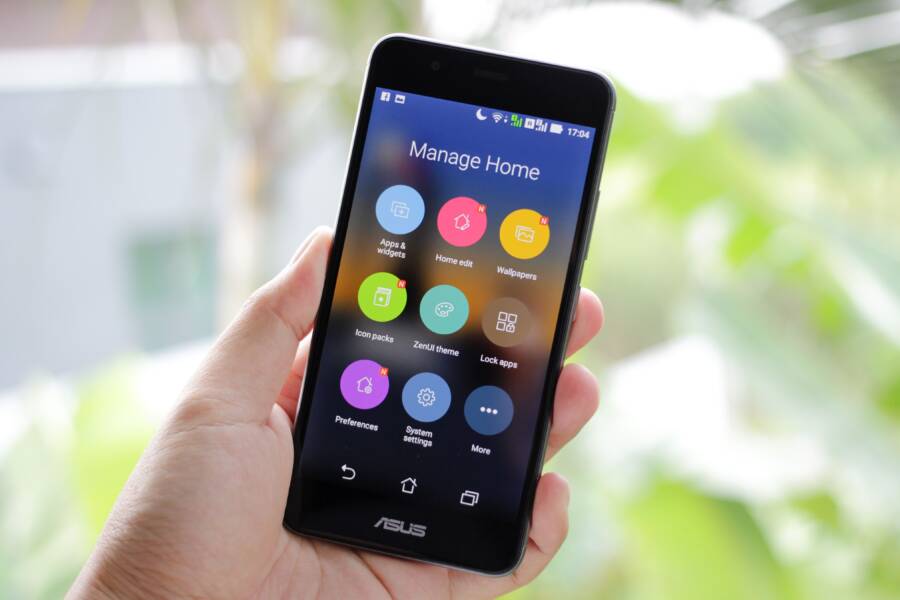
When your smartphone forgets app permissions, software glitches, restricted background settings, or outdated system software are the usual culprits. It is a communication error within the system, not a sign of broken hardware.
You can fix this by clearing cache data or resetting preference settings to restore default behavior. Once you address these configuration errors, your apps will reliably save your access choices again.
Check your permission settings or system updates to resolve this frustration today.
Quick Fixes to Try First on Your Smartphone
When your smartphone forgets app permissions, the solution is often simpler than you think. You do not need technical expertise or complex diagnostic tools to resolve these glitches. Minor software hiccups frequently cause the operating system to lose track of what access you granted to your apps. Addressing these common issues first saves time and keeps your device running smoothly.
Performing a Hard Restart
A hard restart forces your smartphone to shut down and power up completely. Unlike a standard reboot, this action clears the temporary memory and cache files that store your recent activity. If a background process creates a conflict with your permission settings, a hard restart often resolves the interference by flushing out corrupted data.
The exact steps vary by device, but the general procedure is consistent across most hardware:
Press and hold the power button and the volume down button at the same time.
Keep holding them until the screen goes black and the manufacturer logo appears.
Release the buttons once the device begins its boot sequence.
This process does not delete your personal files, photos, or messages. It simply resets the active system state to clear out minor errors. After the phone finishes restarting, check your permission settings again to see if your changes persist. If the problem remains, the issue might stem from outdated software rather than temporary cache conflicts.
Updating the Operating System and Apps
Outdated software is a common cause of permission conflicts on any smartphone. Developers release updates to fix bugs, improve security, and ensure apps communicate properly with your system. If your operating system is behind, it might struggle to manage permission requests accurately, leading to apps that reset their access preferences automatically.
To fix these conflicts, check for pending updates in your settings menu. For system software, navigate to your phone settings and look for a section labeled System Update or Software Update. Install any available packages to ensure your device runs the latest version of its operating system.
Next, open your app store to refresh your applications:
Open your app store icon and tap on your user profile or the menu button.
Select the option to manage apps and devices to see a list of available updates.
Choose to update all apps, or look specifically for the apps that are forgetting their permissions.
Running the most recent versions of your apps ensures they use current programming protocols. This removes friction between the app and your operating system, helping your smartphone retain the permission choices you make for your digital tools. Consistent updates keep your device secure and maintain the integrity of your privacy settings.
Checking System Settings and Permission Managers
Managing app access requires a firm grip on your smartphone settings. Sometimes, the operating system aggressively controls permissions to protect your privacy, which creates unexpected behavior. You can often stop your phone from forgetting app permissions by adjusting specific system-level configurations.
Disabling Auto-Revoke Permissions
Modern smartphone operating systems include a feature called auto-revoke permissions. This setting automatically removes access rights from apps you have not used for several months. While this is helpful for privacy, it can cause problems if you rely on specific apps sporadically.
When your phone resets these permissions, you might assume there is a system bug. In reality, the software is simply following the active security policy. If you prefer to maintain permanent access for your apps, you can turn off this feature.
Follow these steps to disable auto-revoke permissions on most Android devices:
Open the Settings app on your smartphone.
Tap on Apps or Application Manager.
Select the app you want to keep permissions for.
Look for an option labeled App Permissions or Unused App Settings.
Toggle the switch off for “Pause app activity if unused” or “Remove permissions if app is unused.”
Once you disable this setting, your smartphone will stop stripping permissions during periods of inactivity. This is a common solution for apps that use location services or camera access only on rare occasions.
Managing Background Data and Battery Restrictions
Aggressive battery optimization is another primary cause of permission loss. Some smartphone manufacturers implement strict power-saving modes that kill background processes to extend battery life. If an app relies on a background process to verify your stored permission data, these system-level closures can disrupt that connection.
When the system force-closes these processes, the app may lose its cached state. This forces the app to request permissions again the next time you open it. You can prevent this behavior by adding your essential apps to a battery optimization whitelist.
To stop your smartphone from killing these background processes, use these settings:
Navigate to Settings and select Battery or Device Care.
Tap on Battery Usage or Background Usage Limits.
Choose the option for Never Sleeping Apps or Battery Optimization.
Select the specific app from the list and set it to Unrestricted or “Don’t Optimize.”
By changing these settings, you allow the app to run background tasks without system interference. This stability helps the application retain your granted access preferences. Most users find that excluding core apps from battery management fixes persistent permission reset issues immediately. If the problem continues after these adjustments, consider checking for specific permission manager tools provided by your device manufacturer.
Troubleshooting Corrupt App Data and Cache
When a smartphone behaves erratically or frequently forgets your saved preferences, corrupt data is often the hidden cause. Apps generate temporary files, known as cache, to speed up performance. Over time, these files can become damaged or conflict with new software updates. When the system reads this bad data, it may default to a restricted state or lose your permission settings entirely. Correcting this usually requires a direct cleanup of the app environment.
Clearing Cache Versus Clearing Storage
Understanding the difference between cache and storage is vital before you start troubleshooting. Both options appear in your application settings, but they produce very different results for your data.
Cache files are temporary. They include things like saved images, search history, or loading assets that help an app open quickly. When you clear the cache, your smartphone deletes these temporary items to force the app to generate fresh, clean versions. This action never touches your personal data or login status. It is a safe, quick way to fix minor glitches or lag without changing your user experience.
Clearing storage is a more permanent step that resets the app to its original, out-of-the-box state. When you select this option, the system deletes your account information, saved settings, and local database files. The app will act as if you just installed it for the first time. You will need to log back in and re-configure your preferences after this process.
Consider these differences before you choose your path:
Clearing cache removes temporary assets to fix slow performance or minor display errors.
Clearing storage acts as a factory reset for the app, erasing all user-specific data.
Only choose the storage option if clearing the cache fails to resolve your permission issues. Since this method deletes your internal app data, ensure you have backups of any important information, such as offline documents or saved progress, before proceeding. Most permission-related conflicts clear up once the app has been forced to rebuild its configuration from scratch.
When to Consider a Full Factory Reset
A factory reset is the final option for a smartphone that consistently forgets app permissions despite all other troubleshooting attempts. This process erases every scrap of data and returns the device to its original factory state. It removes deep-seated configuration errors or corrupted system files that standard fixes cannot reach. Only perform this action if you have exhausted every other method, as it requires significant setup time afterward.
Backing Up Your Smartphone Before You Reset
Before you wipe your device, you must secure your personal files to prevent permanent loss. A factory reset deletes all photos, contacts, message histories, and app data currently stored on the internal memory. Follow these steps to ensure a safe transition:
Sync your photos and videos to a cloud service like Google Photos or iCloud to keep your media safe.
Back up your contacts and calendar data by ensuring they sync with your primary email account in your settings menu.
Export any critical offline documents or files to an external drive or a secure cloud storage folder.
Note your login credentials for important apps because you will need to re-enter them once the phone restarts.
Initiate a full system backup through your device settings menu to capture system preferences and app lists.
Verify that your backup is complete before you start the reset process. You can check your cloud dashboard from a computer to confirm that your files appear there. Once you confirm the data is safe, navigate to your settings and select the factory reset option. Your smartphone will take a few minutes to clear the storage and reboot. After it powers on, you can restore your data from your cloud backup to regain your previous setup.
Conclusion
Fixing a smartphone that forgets app permissions usually requires minor adjustments to your system settings. Most issues stem from battery optimization, outdated software, or auto-revoke privacy features. You can often restore normal behavior by clearing the app cache or disabling aggressive power-saving modes.
If these steps fail to work, a full factory reset serves as a final software solution. Please remember to back up your data before you initiate this process. If the phone still fails to remember permissions after a total reset, the problem might involve deeper firmware or hardware damage. In that case, visit an authorized service center for a professional inspection. You can regain control over your device privacy settings with just a little patience and these simple steps.