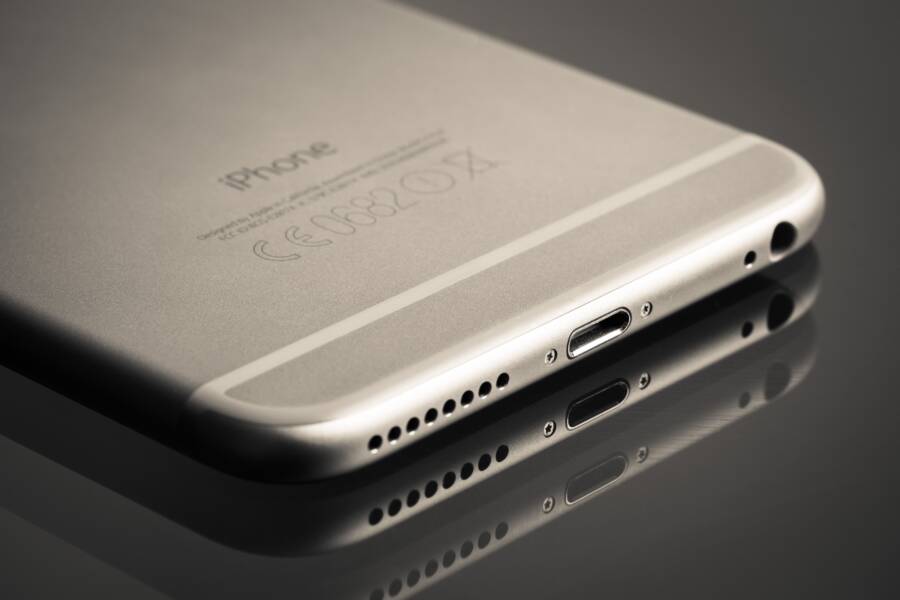
When your smartphone stops fast charging, the culprit is almost always an incompatible cable, a faulty power brick, or debris lodged inside the charging port. You can resolve most of these issues at home by performing a quick physical inspection or swapping out your accessories for verified, high-quality components.
This guide provides a straightforward path to identifying exactly why your device has slowed down. Follow these steps to restore full charging speeds to your smartphone today.
Quick Checks to Rule Out Simple Mistakes
Before you assume your smartphone hardware is failing, perform a few basic checks. Most charging issues stem from loose connections or settings that prioritize battery health over speed. Following these initial steps saves you time and prevents unnecessary service trips.
Is Your Wall Charger Powerful Enough
Many people use old power bricks from older devices without realizing their limitations. Fast charging requires a specific amount of power, typically measured in watts. A standard USB adapter often provides only 5 watts of power, which is insufficient to trigger fast charging on a modern smartphone.
You should look for a Power Delivery (PD) adapter to guarantee high-speed charging. These chargers communicate with your device to provide the exact voltage and current needed. If your wall adapter does not support the PD standard or lacks the necessary wattage output, your phone defaults to standard, slower speeds. Check the small print on your charger to confirm its output rating. You need at least 18 watts, though many newer phones require 25, 30, or even 45 watts to reach peak speeds. If your charger falls below these requirements, it cannot supply enough energy to activate the rapid charging feature.
Checking Settings That Limit Charging Speed
Modern software includes features designed to prolong the lifespan of your lithium-ion battery. These settings often cap the charging speed or limit the maximum charge capacity. If your smartphone feels like it is stuck in slow motion, the system might be trying to protect the battery chemistry.
Check your device settings for options such as Optimized Battery Charging, Adaptive Charging, or Battery Protection modes. These features often learn your daily habits and delay full charging until you likely need the phone. Some modes also limit the intake of power during the final phase of a charge cycle to reduce heat. If you need a fast boost during the day, temporarily disabling these settings can restore full speed. Remember to turn them back on later, as they remain effective tools for preventing long-term battery degradation. Look specifically in the Battery or Device Care section of your settings menu to locate these toggle switches.
Inspecting Your Hardware for Physical Damage
Before you blame internal software or settings, check your physical hardware for signs of wear. Dirt inside the charging port often creates a barrier that prevents a solid electrical connection. Similarly, cables that appear intact on the outside may suffer from broken internal wires. These physical issues prevent your smartphone from completing the handshake required for fast charging.
Safely Cleaning the USB-C Port
Your charging port acts as a magnet for pocket lint, dust, and debris. Over time, this material packs into the bottom of the port. It pushes against the sensitive pins, preventing the charger from seating properly. Because the pins transfer power and data, even a small obstruction disrupts the connection.
To clean the port, turn off your smartphone first. You need a source of bright light and a non-conductive tool. A wooden toothpick works well for this task. Plastic dental picks are another safe option. Avoid metal objects like paper clips, as they easily scratch the pins or cause a short circuit.
Gently insert the toothpick into the charging port. Use a scooping motion to pull out any trapped lint. Take your time and do not apply heavy pressure against the walls of the port. After removing the visible debris, use a can of compressed air to blow out remaining particles. Hold the can upright and use short, controlled bursts. Once the port looks clear, reconnect your charger to see if the fast charging icon returns.
Spotting Frayed or Damaged Cables
Cable failure is a common reason for charging speeds to drop without warning. While the outer rubber sheath often looks perfectly fine, the copper wires inside can snap or fray. This damage restricts the flow of current. When the wires cannot deliver full power, your smartphone drops back to a slower charging standard to remain safe.
Inspect the entire length of your cable for kinks, bites from pets, or exposed wires. Pay extra attention to the areas near the connectors. If the cable feels loose or bent at an odd angle near the plug, the internal connection is likely failing. Even if the cable powers the device slowly, it may no longer support the high wattage required for rapid charging.
Test your device with a different, high-quality cable if you suspect your current one is damaged. Borrow a cable from a friend or use a spare that you know works with another device. If your phone charges rapidly with the new cable, you know the original one is at fault. Discard damaged cables immediately, as they create a fire risk or damage your charging port over time.
Understanding Compatibility and Power Protocols
Charging your smartphone requires more than just a plug and a cord that fit together. Modern charging is a complex conversation between the charger and the battery inside your device. If this conversation fails, your phone defaults to a basic, slow charge rate to stay safe. Understanding these protocols helps you pick the right gear and avoid unnecessary charging frustration.
Why Proprietary Chargers Matter
Many smartphone manufacturers design their own charging standards to push faster speeds than industry norms. These proprietary systems often rely on specific hardware inside the official charger. When you use a third-party cable or power brick, your phone may fail to verify the hardware. Even if a third-party cable claims to support fast charging for other devices, it might lack the specific pin configuration required for your particular brand.
The charging process involves a digital handshake. Your phone sends a signal through the data lines to the charger. It asks for a higher voltage or current to boost speed. If the charger cannot understand this signal because it uses a different protocol, it falls back to a universal, slower power output.
Consider these common reasons why proprietary chargers perform differently:
Official chargers often use modified USB pinouts to manage heat and safety during rapid power delivery.
Third-party accessories sometimes lack the internal chips necessary to mimic these unique manufacturer handshake protocols.
Using a mismatched cable forces your phone to ignore its fast-charging mode, resulting in longer wait times.
The Role of Power Delivery Standards
To solve the mess of mismatched chargers, the industry adopted USB Power Delivery, commonly called USB-PD. This standard creates a universal language for devices to negotiate power. When you plug your smartphone into a USB-PD charger, both items compare their capabilities. They agree on the most efficient voltage and current they both support. This ensures your device receives the maximum safe power without risking battery health.
Programmable Power Supply, or PPS, is a vital advancement within the USB-PD standard. It allows for tiny, real-time adjustments to the voltage during a charging session. This prevents heat buildup by keeping the power delivery precise as the battery level increases.
Most modern Android and iOS devices rely on these standards to function properly:
USB-PD provides a stable, safe foundation for high-wattage charging across different brands.
PPS technology offers granular control, which keeps your phone cooler while it charges at high speeds.
Using a charger that supports both USB-PD and PPS is the most effective way to guarantee peak performance for your hardware.
When your equipment supports these open standards, the charging experience becomes much more reliable. Your smartphone identifies the charger, negotiates the best rate, and restores power rapidly. If you notice slow speeds, check if your accessories support these universal protocols rather than relying on older, legacy hardware.
Troubleshooting Software Glitches
Sometimes, your smartphone faces software errors that disrupt the communication between the battery and the charger. These glitches prevent the device from requesting or accepting the high-voltage power needed for fast charging. If your physical hardware is clean and undamaged, a software conflict is the likely cause.
Restarting and Updating Your Device
A simple reboot often resolves temporary power management bugs. When you turn your smartphone off and back on, the operating system clears its temporary memory and restarts background processes. This action forces the phone to re-establish the charging handshake with your power brick. If a background app or a stuck service hangs during the initial connection, a restart clears that interference.
In addition to a reboot, check for pending software updates. Manufacturers frequently release patches that improve charging compatibility and efficiency. These updates fix known bugs that might cause the system to misidentify your charger. Follow these steps to check for pending software updates on your device:
Open the Settings app on your smartphone.
Look for the System or Software Update menu.
Select the option to check for updates.
Install any available packages and restart your device again.
Keeping your software current ensures your device knows how to talk to the latest fast-charging standards. If a recent update caused the problem, check the manufacturer support site to see if others report similar issues. Sometimes, a subsequent patch follows quickly to fix these unintended regressions.
When to Consider a Factory Reset
A factory reset is a final step for cases where deep software corruption prevents your phone from charging properly. This process wipes all data and settings, returning the smartphone to its original state. Use this only after you test the device with multiple known-good chargers and cables. If the phone still refuses to fast charge after a reset, you likely face a hardware failure that requires professional repair.
Before you proceed, back up your photos, contacts, and important documents to a cloud service or a computer. A reset permanently removes everything on your device. Once the backup is secure, navigate to the reset menu in your settings. Select the option to erase all data, which is often labeled as a Factory Data Reset.
After the device reboots, set it up as a new phone without restoring your previous apps immediately. Test the fast charging functionality right away. If the phone charges at the expected speed, a corrupted app or setting was the original culprit. You can then restore your data, though you should remain cautious about which apps you reinstall. If the fast charging still fails, the problem exists within the charging port controller or the battery management circuit. In this scenario, contact the manufacturer or a repair shop to discuss hardware diagnostic options.
Conclusion
Most fast charging issues originate from three simple factors. Always prioritize checking your charger wattage first, keeping the charging port clear of debris, and using certified cables. These steps fix the majority of common power issues for a smartphone.
If you confirm your cables and chargers work with other devices, yet your phone still fails to charge at high speeds, a hardware fault is possible. You should contact the manufacturer or a repair professional to inspect the internal battery management system. Following these troubleshooting steps saves time and helps you identify if the device needs service.