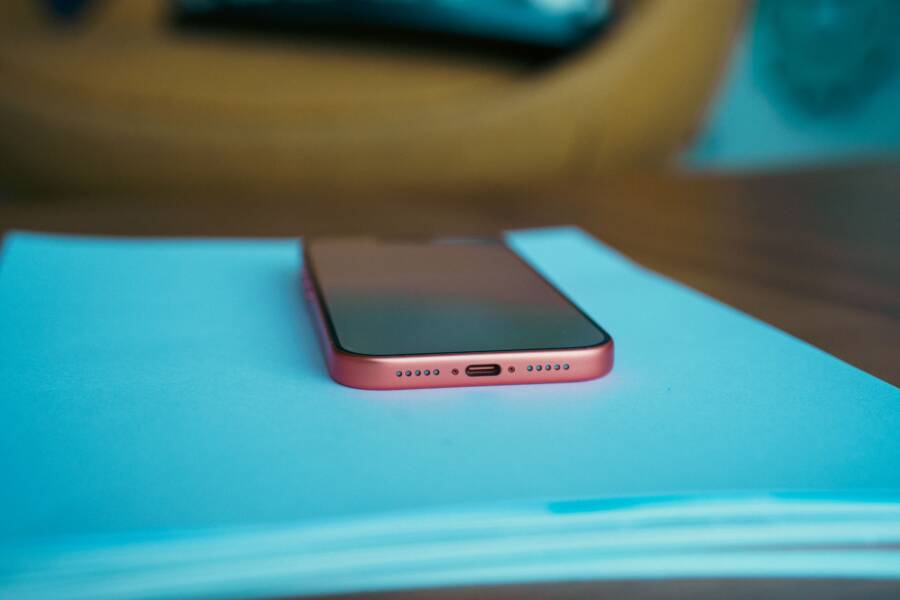
USB tethering failure is usually caused by outdated drivers, faulty cables, or incorrect software settings. You can resolve most connection problems in under five minutes.
This guide provides troubleshooting steps for your smartphone and computer to help you restore your internet access. Follow these instructions to identify the specific cause and apply the correct fix today.
The Basics of USB Tethering and Why It Fails
USB tethering transforms your smartphone into a portable modem. It provides a stable internet connection to your computer through a physical cord. When the setup works, it offers faster speeds and lower latency than most wireless hotspots. However, several factors can break this connection. Hardware limitations or software blocks often stop the computer from recognizing the device. Identifying the root cause requires a systematic approach to your equipment and settings.
Checking Your Hardware Connections
A common reason for tethering failure is a faulty or incompatible cable. Many USB cables bundled with smartphones are charging-only models. These cables lack the internal wires necessary to transfer data between devices. You must use a high-quality data cable to establish a bridge. If you see your device charge but the computer shows no new network hardware, the cable likely restricts data transfer.
Physical ports on your computer also cause connection errors. Dust or debris inside a port can prevent a solid connection. You should move the cable to a different USB port to rule out a damaged socket. Direct ports on the motherboard, located on the back of a desktop computer, usually provide more power and stability than front-panel ports. Avoid using USB hubs or extension cables during initial troubleshooting. These accessories frequently introduce signal loss that interrupts the tethering handshake. Always connect your smartphone directly to a high-speed port to ensure consistent communication.
Common Software Conflicts to Look For
Software settings often block the tethering handshake even when your hardware is perfect. Most operating systems require the device to be in a specific mode for data sharing. You must unlock your phone screen and confirm that it is set to provide tethering or modem services. Some devices revert to charge-only mode automatically if the connection is idle for too long.
External software also creates barriers for tethering. Third-party firewalls and active VPN clients often intercept or drop new network connections for security reasons. These tools may view the tethered connection as a potential risk and block the traffic entirely. You should temporarily disable your firewall or VPN to see if the internet connection resumes. Additionally, outdated network drivers on your computer can fail to recognize the smartphone as a valid network interface. Check your device manager to see if the tethering adapter shows a warning icon or error status. Updating or reinstalling these drivers often fixes persistent connectivity drops.
Steps to Troubleshoot Your Smartphone Settings
When physical connections appear solid, software configurations often remain the primary hurdle. Many users encounter situations where the USB tethering toggle in their system menu remains greyed out or fails to initiate a data bridge. Resolving these issues involves navigating through specific menu paths to verify that your service plan and internal configurations allow for external data sharing.
Verifying Mobile Hotspot Permissions
Mobile carriers often include specific restrictions on tethering to manage network traffic. Some entry-level or limited data plans exclude tethering as a standard feature, effectively disabling the toggle within your smartphone settings. Before you assume the hardware is broken, verify that your account includes active tethering or hotspot capabilities. You can check this by logging into your carrier website or mobile application to review your current plan details.
Sometimes the software requires a carrier-specific profile update to recognize tethering commands. You should check if a pending system update exists, as these packages frequently fix bugs related to service permissions. If your plan is correct but the option remains unavailable, try switching to a different access point name (APN) if your carrier provides multiple settings. Incorrect APN entries often prevent the modem from establishing an upstream connection to the internet.
Toggling Network Preferences
If you have confirmed your carrier permissions, the next logical step is to reset your network settings. This process clears saved Wi-Fi passwords, Bluetooth pairings, and VPN configurations. While this sounds aggressive, it is often the quickest way to resolve hidden connectivity bugs that block the USB bridge on your smartphone. The system essentially forgets all previous network states and restores the default factory parameters for data transmission.
To perform this reset, follow these steps:
Open the Settings app on your device.
Navigate to the System or General Management menu.
Select the Reset or Reset Options category.
Choose the option to reset network settings and confirm your choice.
Your device will restart once the process finishes. After the reboot, reconnect your cable and navigate back to the tethering menu. Many users find that this clean state allows the computer to detect the device interface immediately. If you previously had custom DNS or proxy settings, you will need to re-enter them once the connection is stable. This method avoids the need for a full factory reset, keeping your personal files, photos, and apps safe during the troubleshooting process.
Solving Computer Driver and Configuration Issues
When your computer fails to recognize your smartphone, a driver or configuration error is often the culprit. Modern operating systems rely on specific software instructions to communicate with connected hardware. If these files are corrupted or missing, your device won’t establish a tethering link. You can fix most of these issues by manually managing your network adapter settings in the system control menus.
Updating USB Network Drivers
The Windows Device Manager acts as the command center for all hardware connected to your computer. If your smartphone appears with a yellow warning icon, the computer knows something is plugged in but lacks the correct instructions to interact with it. Updating or reinstalling these drivers forces the computer to re-evaluate the connection and load the proper communication protocols.
Follow these steps to refresh your driver software:
Right-click the Start button and select Device Manager from the list.
Expand the section labeled Network adapters or Portable devices.
Look for your smartphone model or a generic entry like Remote NDIS Compatible Device.
Right-click that specific item and select Update driver.
Choose the option to search automatically for drivers.
If the automatic search fails, repeat these steps but select Browse my computer for drivers. Choose Let me pick from a list of available drivers on my computer. Select the USB RNDIS Adapter from the list and click Next. This forces the system to install a compatible driver that standardizes how your smartphone communicates over USB. If the issue persists, select Uninstall device, unplug the phone, and plug it back in to trigger a fresh driver installation.
Configuring Network Adapter Properties
After you confirm the drivers are active, you must ensure the computer treats the tethering connection as a valid network source. Sometimes the operating system disables the adapter automatically to save power or avoid conflicts with your primary Wi-Fi connection. You can check this status through the Network Connections panel to verify that the link is active.
Use this process to review your adapter configuration:
Press the Windows key, type View network connections, and press Enter.
Find the icon representing your USB tethering connection.
Check if the icon appears greyed out, which indicates the adapter is currently disabled.
Right-click the icon and select Enable if it is inactive.
Double-click the icon to view the Status window and confirm that the computer is sending and receiving packets of data.
If the connection shows as Enabled but still lacks internet access, right-click the adapter and select Properties. Ensure the Internet Protocol Version 4 (TCP/IPv4) box is checked. Click Properties inside that menu and confirm that both Obtain an IP address automatically and Obtain DNS server address automatically are selected. This setup allows your smartphone to assign the correct network address to your computer, completing the handshake required for shared internet access.
When to Contact Your Carrier for Support
You should reach out to your mobile carrier when you exhaust all local hardware and software fixes. If your smartphone settings are correct and your computer drivers are up to date, the issue often stems from your account status or network restrictions. Contacting support becomes necessary when you cannot resolve service-level barriers on your own.
Identifying Carrier-Side Service Blocks
Mobile providers sometimes place restrictions on data sharing that interfere with your ability to use a smartphone as a modem. If your data plan lacks tethering support, the connection will fail regardless of how many times you restart your devices. You should verify your plan details through the carrier mobile app or their official website to ensure mobile hotspot access is active.
Some carriers require a specific feature flag to be enabled on their end for your account to authorize USB tethering. If your account shows the feature as active but it still fails, the carrier might need to perform a network refresh for your specific device. This process clears temporary hangups in their system that prevent your phone from authenticating as a tethering modem.
Troubleshooting Network Configuration Errors
If you suspect the problem relates to your carrier, gather specific details before you call them. Mention that you have already tested your data cable and confirmed your computer recognizes the hardware. Providing this information prevents support staff from guiding you through basic steps you have already completed.
Ask the representative to confirm these three items:
Whether your current data plan officially supports USB tethering.
If there are any regional network outages impacting data transmission.
If they can push an updated Access Point Name (APN) configuration to your smartphone.
You can often fix persistent issues by requesting that the carrier refresh your connection to their towers. This action forces your phone to re-establish its handshake with the network, which sometimes corrects mismatched protocol settings. Keep your account PIN or security verification details ready to speed up the support process when you speak with a representative.
Conclusion
Most USB tethering issues stem from simple hardware faults or outdated device drivers. Verify your cable status, update your network adapters, and check your carrier plan permissions to restore your internet connection.
If your smartphone remains unable to share data, perform a full restart on both your computer and your phone. This power cycle acts as the ultimate reset for misconfigured network states. If these steps do not resolve the problem, contact your service provider to ensure your account authorizes external data sharing.