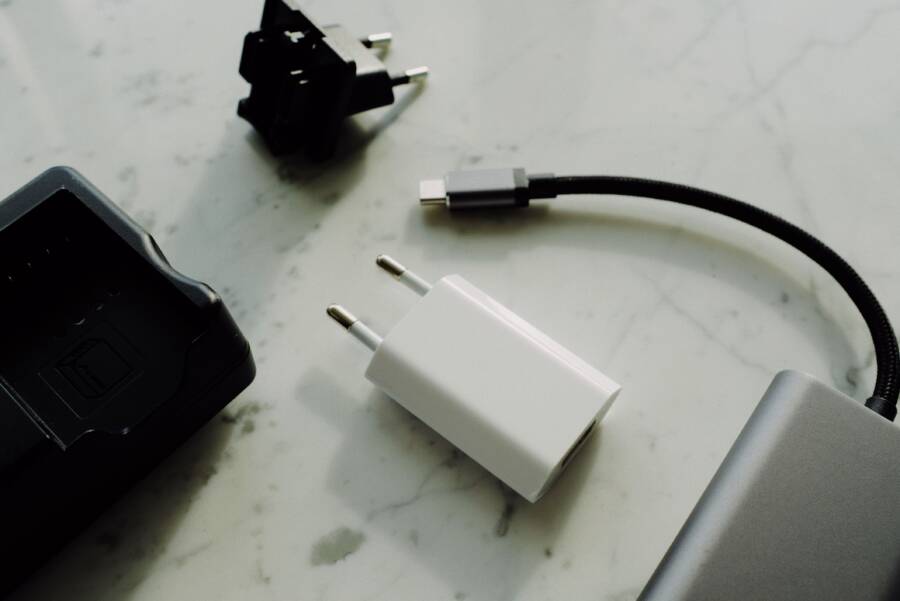
When your smartphone charges on a computer but refuses to draw power from a wall outlet, the fault rarely lies with the phone itself. This issue usually stems from a mismatch in power delivery standards, a faulty wall adapter, or damaged cables.
Computers typically provide a steady, low-voltage current that is forgiving to minor hardware inconsistencies. Wall chargers, however, often rely on specific signaling protocols to deliver higher power, and even a small malfunction in this communication causes the charging process to stop.
Checking your equipment now will help you determine if the issue is a simple accessory failure or a more complex power delivery problem.
Understanding the Power Difference Between Wall Adapters and Computers
Your smartphone expects specific signals when you plug it into a power source. While a wall adapter and a computer USB port both output electricity, they communicate with your device in different ways. This interaction determines whether your phone charges at full speed, slowly, or not at all.
How Power Delivery Standards Impact Charging
Modern charging relies on a handshake between the charger and your smartphone. When you connect a cable, both devices exchange digital signals to verify compatibility. This process ensures the charger sends the correct voltage and current without damaging your battery.
Many chargers use standards like USB Power Delivery (PD) or proprietary fast-charging protocols. These systems allow the charger to bump up the voltage beyond the standard 5 volts if the phone requests it. The phone effectively tells the adapter, “I can handle higher power,” and the adapter responds by adjusting its output.
If the internal communication hardware in a wall adapter malfunctions, it might fail to complete this handshake. Some phones refuse to draw any power when they cannot confirm the charger is safe. This mismatch often results in the phone ignoring the wall outlet entirely, even if the adapter appears to work with other devices.
Why Computer USB Ports Offer a Baseline Current
Computer USB ports operate differently than specialized wall chargers. Most computer ports follow the basic USB standard that provides a low, steady current by default. They are designed for data transfer and peripheral support, so they prioritize stability over charging speed.
Because these ports do not always require a complex handshake to begin providing power, they act as a reliable fallback. A smartphone usually defaults to a standard 500mA or 900mA charge when it detects a basic connection. This low-power mode is often enough to trickle-charge the device even when smart-signaling features are ignored.
You can view the computer as a safe, universal power source that ignores the advanced requirements of fast charging. If your smartphone recognizes a computer connection but stays dark when using a wall outlet, the problem is likely in the signaling chip of your wall charger. Testing a different wall adapter usually resolves this conflict by providing a fresh start for the connection handshake.
Quick Fixes for Wall Charger Connectivity Issues
When your smartphone charges from a computer but ignores your wall outlet, the fault is often simple to identify. Most power issues stem from a mismatch between the charger hardware and the specific power requirements of your device. Testing your components individually helps you bypass complex troubleshooting by narrowing the search to the specific point of failure.
Testing Different Wall Outlets and Adapters
You should first verify that the wall outlet itself functions correctly. Plugs in older homes sometimes lose tension, which prevents the metal prongs from making a solid connection. Try moving your charger to a different outlet in another room. If the phone starts charging immediately, the original wall socket likely has a loose connection or a tripped breaker.
If the wall outlet works fine, focus your attention on the charging brick. Power adapters often contain internal fuses or circuitry that wear out over time. If you have another compatible adapter available, plug your cable into that unit to see if the charging icon appears on your smartphone screen.
Follow these steps to isolate the hardware conflict:
- Move your charger to a different wall outlet to rule out house wiring issues.
- Swap your current wall brick for a known working adapter from a different device.
- Observe if the phone vibrates or displays a charging icon after the switch.
If the device charges with a different adapter, your original brick is likely faulty or incompatible with your phone. You can discard the damaged unit, as these internal components are rarely serviceable.
Inspecting Your Charging Cable for Damage
A damaged cable often behaves unpredictably because of the way USB standards operate. Computer ports provide a low-power connection that requires minimal signal integrity to function. Wall chargers, however, require high-speed data handshakes to negotiate fast-charging voltages. If your cable has internal wear, it may fail to complete this communication, causing the phone to reject the connection entirely.
Examine the length of your cable for visible signs of distress. Fraying near the connector ends is a clear indicator of broken internal wiring. You should also inspect the connector tip for bent pins or small bits of debris, such as lint or dust, trapped inside the port. Even a tiny piece of non-conductive material blocks the delicate contact points needed for a wall charger to initiate a high-power cycle.
If you suspect damage, replace the cable before assuming your smartphone battery or charging port is broken. A simple cable swap solves most connectivity issues because it restores the full data pathway necessary for the charging handshake. Always use a high-quality, certified cable to ensure the adapter communicates properly with your hardware.
Checking Your Phone for Software or Port Obstructions
Physical debris or software errors often interfere with the charging process. These issues frequently prevent a smartphone from detecting the handshake signals required by wall adapters. Identifying these blocks helps restore power flow when your device ignores standard wall outlets.
Removing Debris from the Charging Port
Pocket lint, dust, and dirt accumulate inside your charging port over time. These small particles often sit at the base of the port and create a barrier between the cable pins and the internal contacts. Because wall chargers require a precise data connection to start the power cycle, even a minor obstruction causes the phone to reject the charge.
You can safely clean the port using a few simple tools and a steady hand. Avoid using metal objects, as these can scratch the delicate pins or cause a short circuit that permanently damages your phone.
- Turn off your device to prevent potential short circuits during the cleaning process.
- Use a thin wooden toothpick or a non-conductive plastic dental pick to gently scrape the bottom of the port.
- Work in small sections, pulling the debris out toward the opening rather than pushing it deeper.
- Apply short bursts of compressed air to dislodge any remaining dust particles.
- Inspect the port with a flashlight to ensure all foreign material is gone.
A clean port ensures the cable seats firmly against the charging pins. If the cable feels loose or fails to click into place, check for any stubborn debris remaining in the corners.
Managing Software Glitches with a Restart
Software errors sometimes freeze the power management controller inside your smartphone. This internal system manages how the phone receives electricity and coordinates the initial connection with your charger. When this controller enters a buggy state, it may fail to respond to the specific voltage protocols sent by a wall adapter.
A simple restart forces the operating system to reload its power management drivers and re-evaluate the connection. It acts as a hard reset for the logic that monitors the charging port.
Restarting is an effective step because:
- It clears temporary background processes that might conflict with hardware sensors.
- It forces the device to perform a fresh handshake with the power source.
- It stops any power-saving modes that prioritize battery health over charging speed.
If your phone still fails to charge after a reboot, consider a forced restart. This process triggers an immediate power cycle, bypassing the software interface entirely to clear persistent glitches. If the device recognizes the charger after the reboot, a software conflict was the primary cause of the failure.
When to Replace Your Charging Equipment
You should replace your charging accessories as soon as they show signs of physical wear or intermittent performance. Waiting until a cable snaps or a charger stops working entirely often leads to frustration during a busy day. Regularly checking your gear helps you identify failing components before they cause potential damage to your smartphone battery.
Recognizing Signs of Wear and Tear
Visual inspections reveal most hardware problems before they result in a total power failure. Look closely at your charging cable for any exposed metal, crimped sections, or frayed plastic casing. Cables endure significant stress from daily bending, twisting, and pulling. If the outer insulation splits, the internal wires lack necessary protection and eventually break.
Check the connector ends for oxidation, which appears as dark or discolored spots on the metal pins. Corrosion often builds up if you frequently charge your smartphone in humid environments like bathrooms or near open windows. A corroded connector prevents a solid electrical connection. This lack of contact causes the device to reject the power source entirely, even if the adapter remains functional.
Identifying Internal Hardware Failure
A wall adapter might look perfect on the outside while the internal transformer degrades. Electronic components inside these units gradually wear out due to heat cycles and electrical surges. If your smartphone charges slowly, vibrates intermittently, or fails to register a connection at the wall outlet, the adapter is likely failing.
Pay attention to these red flags that indicate you need a new charger:
- The charging brick feels abnormally hot to the touch even when not actively charging a device.
- The smartphone screen flickers or stops charging when you move the cable slightly.
- The wall adapter makes faint buzzing or clicking sounds during operation.
- Your device charges normally through a computer but remains unresponsive with this specific wall unit.
These behaviors signal that the internal circuitry can no longer maintain a steady voltage. Using a faulty charger puts your device at risk of receiving inconsistent power, which degrades battery health over time. Investing in a high-quality, certified replacement eliminates these risks and restores reliable, safe charging speeds for your smartphone.
Summary of Troubleshooting Steps
You can solve most smartphone charging issues by following a clear, logical sequence of tests. Start with the easiest hardware checks before moving to software resets or equipment replacements. This structured approach helps you pinpoint the exact cause without wasting time on unnecessary repairs.
Hardware Verification Process
Begin by eliminating external factors that prevent your smartphone from pulling power. A simple connection issue often hides behind a complex symptom. Follow these steps in order to isolate the faulty component.
- Test your current setup in a different wall outlet to rule out house wiring problems.
- Swap your charging cable with another known working unit to check for internal wire breaks.
- Replace your wall adapter with a different one to see if the charging brick failed internally.
- Clean the charging port of your device to remove compressed lint or debris that blocks metal contacts.
System and Software Assessment
If your hardware passes these checks, a software glitch might prevent your smartphone from accepting power. Persistent background processes sometimes confuse the power management controller inside the device. You can force the system to re-evaluate the connection through a few simple actions.
- Restart the device to reload all hardware drivers and reset the charging sensor logic.
- Perform a forced reboot if the screen remains unresponsive to identify deep system freezes.
- Check the battery settings for any active power-saving modes that might limit intake from specific chargers.
If your smartphone still fails to charge after you complete these steps, the internal charging port or the battery itself might require professional repair. Always document which chargers and cables failed to work, as this information helps technicians diagnose the problem much faster.
Conclusion
Most charging failures happen because of damaged accessories rather than a defect in your smartphone. Checking your cables and power bricks first saves time, as these components often wear out or fail to negotiate proper power protocols.
Ensure your charging cables remain coiled or hung when not in use instead of bent or tied in knots. This simple habit prevents internal wire breakage and keeps your gear working longer.