Your smartphone is losing power because it draws more electricity than the charger provides. This happens when the device uses high-power features while connected to a low-output power source or a faulty cable.
Hardware failure, such as a degraded battery or a damaged charging port, also causes this issue. You can often fix this by identifying the power drain and replacing restricted components.
Confirming Power Intake Issues
Most modern devices display a charging icon even when the actual energy transfer is minimal. If your battery percentage drops while plugged in, the system is consuming energy faster than it accumulates. High screen brightness, active background apps, or intensive games often push power demands beyond the capacity of a standard wall adapter.
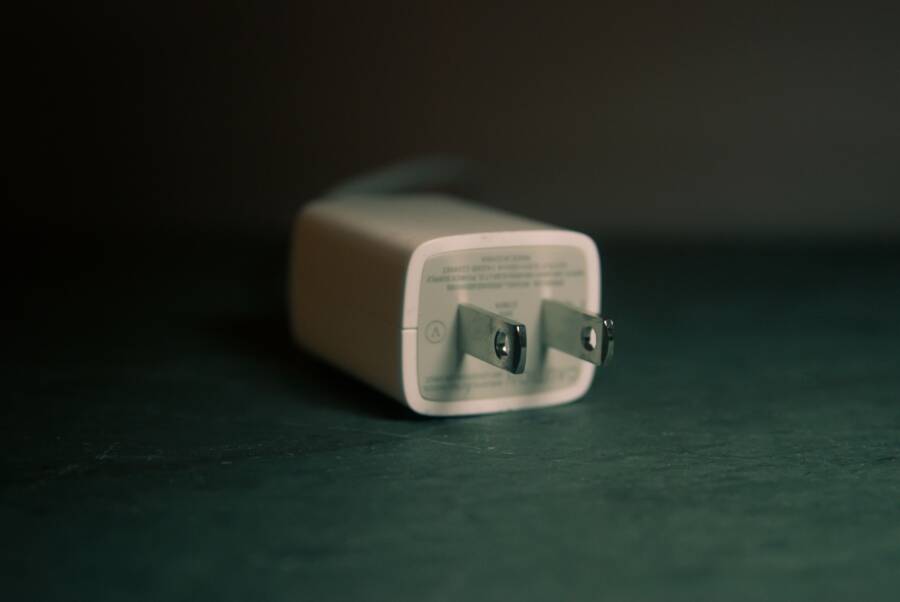
Check if you are using the original cable and adapter included with your hardware. Third-party chargers frequently fail to provide the necessary wattage for current devices. You should test a different outlet and a known working cable to rule out external power delivery problems.
Identifying Hardware and Software Causes
A damaged charging port often prevents a secure connection, leading to intermittent power flow. Inspect the port for dust or debris using a non-conductive tool like a wooden toothpick. Soft lint often prevents the charging cable from seating correctly.
Software updates occasionally contain bugs that impact how your phone manages power distribution. If your device feels unusually hot while plugged in, the system might intentionally throttle charging speeds to protect the internal battery from heat damage.
Replacing a faulty charging cable remains the most effective first step for most users. If the problem persists after verifying your accessories, the issue likely stems from battery degradation.
Steps to Restore Charging Efficiency
- Switch to a high-wattage power adapter to provide more input power.
- Close all background applications to reduce immediate power consumption.
- Clean the charging port carefully to ensure a solid electrical contact.
- Disable intensive features like high-frame-rate settings during charging sessions.
Frequently Asked Questions
Why does my phone get hot while charging?
Heat is a byproduct of energy conversion. When your phone runs heavy tasks during this process, the temperature rises, and the system slows the charging rate to prevent permanent damage.
Can a faulty software update cause this?
Yes, system bugs can lead to abnormal power consumption. Try restarting your phone or clearing the cache partition to resolve minor software glitches that interfere with power management.
If these steps fail to stop the battery drain, professional repair services might be necessary to replace a failing battery module. Always ensure your device remains updated to maintain optimal power efficiency.
Check Your Charging Hardware for Common Culprits
When your smartphone loses power during charging, the external components are often the primary cause. Charging requires a consistent flow of electricity, and any break in this path prevents your device from gaining energy. You must isolate your cables and wall adapters to determine if the hardware is failing to meet your device power requirements.
Inspecting Cables and Power Adapters
Your charging cable carries electricity from the wall to your device. Over time, internal wires inside the cable break due to frequent bending, pulling, or coiling. Look closely at the cable for exposed insulation, visible kinks, or bent connector pins. Even if the cable looks fine on the outside, the internal copper filaments might be damaged enough to restrict voltage.
Using official or certified chargers is vital for your smartphone health. Many cheap, off-brand adapters fail to deliver the stable wattage your device needs. They often fluctuate in power output, which tricks your phone into thinking it is charging when it is actually losing energy. Always check for a certification logo, such as MFi for Apple or USB-IF for Android, on your accessories. If you use a charger that came from an old, low-power device, it likely cannot keep up with the demands of a modern smartphone. Swap your current setup with a high-quality, certified alternative to see if the battery percentage begins to climb again.
Cleaning the Charging Port Safely
Pocket lint, dust, and dirt often build up inside the charging port of your smartphone. This debris acts as a barrier that prevents the charging cable pins from making a full, consistent connection. If you notice the cable feels loose or the charging indicator flickers, debris is the most likely reason.
You can remove this buildup without professional help if you proceed with care. Do not use metal objects like needles or paperclips, as these can easily short-circuit the sensitive pins inside the port. Follow these steps to clean the area:
- Power down your device completely to avoid potential electrical shorts.
- Use a wooden or plastic toothpick to gently scrape the bottom of the charging port.
- Move the tool in a circular motion to loosen packed lint or dust.
- Turn the phone upside down and tap it against your palm to let the loosened particles fall out.
- Inspect the port with a flashlight to ensure it looks clean before attempting to plug your cable back in.
Compressed air is another effective option for dislodging stubborn dust. Hold the nozzle at a slight angle and give the port short bursts of air. Never spray directly into the center of the pins, as high pressure can sometimes cause internal damage. Once the port is clear, the charging cable should click into place with a secure fit.
Identifying Power-Hungry Background Apps
Your smartphone consumes energy even when the screen is dark. Applications running in the background often perform tasks that drain your battery without your knowledge. When your device loses power while connected to a charger, these hidden processes are frequently to blame. You can identify these energy drains by reviewing your system usage data.
How to Use Battery Usage Settings
Modern mobile operating systems provide detailed reports on energy consumption. These settings show you exactly which apps have depleted your battery over the past 24 hours or the last week.
On an iPhone, go to the Settings app and select Battery. You will see a list of applications sorted by the percentage of battery they used. If you tap the bar icon, you can see how much time each app spent active and in the background. Pay close attention to apps showing high background usage, as these are the primary suspects during a slow-charging situation.
On an Android device, navigate to Settings and tap Battery or Device Care. Look for an option labeled Battery Usage or View Details. This screen displays a graph showing your battery drop over time. Below the graph, you will find a breakdown of apps by energy consumption. Identify any apps that seem disproportionately active compared to how often you actually open them.
If a specific app appears at the top of your list despite minimal use, it might be stuck in a loop or suffering from a software bug. Force-quitting these applications during a charging cycle stops the drain immediately. You should also consider checking for app updates in the App Store or Google Play Store to resolve known efficiency issues.
Managing Background Refresh and Location Services
Background activity helps apps stay updated, but it requires constant power. When your phone struggles to hold a charge, these features keep the processor and radio hardware active. Turning off these services saves power so more energy flows into your battery instead of fueling secondary processes.
Background App Refresh allows apps to download content while you are not looking at them. To disable this on iOS, go to Settings, then General, and finally Background App Refresh. You can turn it off entirely or toggle it for specific apps that do not need to update constantly. On Android, this is often managed through Data Usage or individual App Settings where you can restrict background data access.
Location services also cause significant power drain. Apps that track your location frequently wake up the GPS chip, which consumes a large amount of electricity. You can restrict this by going to your Privacy settings. Set apps to only access your location while you are actively using them. During emergency charging, turning off location services entirely in the Quick Settings menu stops this drain instantly.
These adjustments help prioritize power intake for the battery itself. You will notice your device charges faster once you stop the system from multitasking in the background. Consider enabling these features again only after your battery reaches a sufficient charge level.
Software Glitches and Battery Calibration
Software errors occasionally trick a smartphone into reporting incorrect battery levels. You might see the percentage drop rapidly or jump unexpectedly while plugged in. These issues often stem from corrupted cache files or outdated power management firmware. Resolving these glitches restores the accuracy of your battery meter and improves overall charging stability.
Restarting Your Device to Clear Cache
A simple reboot frequently solves minor software issues that interfere with charging. Your operating system runs dozens of background processes simultaneously. Sometimes, a process gets stuck or fails to release system resources, which forces the smartphone to work harder than necessary. This increased load consumes extra power and prevents the battery from accepting a charge efficiently.
When you restart your phone, the device clears temporary cache files and terminates hung processes. This action forces the operating system to reinitialize its power management drivers. Fresh drivers communicate more accurately with the battery control chip. If a bug was causing the device to report a false power drain, a reboot usually fixes the discrepancy within minutes of reconnecting the charger.
You should perform this restart while the phone is disconnected from any power source. After the device completes the boot sequence, plug it into your original, high-quality charger. If the battery percentage stabilizes, you have successfully cleared the stuck process that caused the conflict.
When to Consider a Professional Battery Replacement
Software fixes resolve many problems, but they cannot mend a physically worn-out component. Every lithium-ion battery has a limited lifespan, typically lasting two to three years of regular use. Chemical aging reduces the ability of the battery to hold a charge or maintain stable voltage. If you notice your smartphone regularly shuts down at 20 percent or continues to lose power even after software troubleshooting, the hardware likely needs replacement.
Check your device settings for a menu labeled Battery Health or Battery Status. Most modern systems provide an estimated maximum capacity percentage. A battery showing health below 80 percent often struggles to manage high-power tasks, especially during charging. These older cells frequently experience voltage drops that trigger random restarts or power failure during intense use.
Physical signs also indicate a failing battery. Look for slight swelling or warping on the back of the smartphone casing. If the screen appears to lift away from the frame, stop charging the device immediately and seek a professional repair shop. Replacing an aged battery restores the original runtime of the device and prevents further damage to the motherboard from unstable power delivery. Using an official service center ensures the new battery is compatible and calibrated for your specific model.
Optimizing Charging Habits for Better Battery Life
Managing how you charge your device daily prevents long-term battery degradation. Lithium-ion batteries function best when they stay within a specific charge range, usually between 20 and 80 percent. Consistently charging to 100 percent or letting the power drop to zero adds stress to the battery cells. Adopting smarter habits keeps your smartphone healthy for much longer than standard charging routines.
Best Practices for Daily Charging
The most helpful change you can make is avoiding overnight charging sessions. Leaving a device plugged in for eight hours keeps the battery at its maximum capacity for extended periods. This constant trickle-charging causes heat, which is the primary enemy of lithium-ion technology.
If you must charge overnight, use a smart plug with a timer to cut power after a few hours. Many modern devices also offer optimized charging settings that pause the fill process at 80 percent until right before you wake up. Using this feature prevents the battery from sitting at a high voltage state for hours on end.
Avoid using your smartphone for heavy tasks while it remains plugged in. High-demand apps, like games or video editors, generate heat on their own. When combined with the heat from charging, the internal temperature climbs quickly. This combination accelerates chemical aging inside the battery. Whenever possible, let the device sit undisturbed until it gains enough power for your needs.
Understanding Temperature and Power Cycles
Heat limits the lifespan of your battery more than any other factor. Aim to keep your smartphone in a cool, ventilated area while charging. Avoid leaving it in direct sunlight or on a soft surface like a bed, which traps heat inside the casing. If the device feels uncomfortably warm, disconnect the charger and let it return to room temperature.
Understanding battery cycles also helps you manage your expectations. A full cycle occurs every time you use 100 percent of your battery capacity. This does not have to happen all at once. If you use 50 percent today and 50 percent tomorrow, that counts as one cycle. Frequent, shallow charges are generally better for the battery than deep discharges.
Following these guidelines creates a more stable power profile for your hardware. You will notice that the battery holds a charge better over time when it operates in this balanced zone. Adjusting your daily routine requires minimal effort but delivers long-term results for the longevity of your smartphone.
Conclusion
Most power-related issues start with simple hardware failures. You should first test your smartphone with a known working cable and a high-output power adapter to eliminate potential delivery faults. This step solves the majority of charging conflicts without extra effort.
If the battery level continues to drop, review your background application usage to identify energy-hungry processes. Clearing system cache files or updating your software often restores balance to your power management system.
Seek professional repair services only if these initial steps fail to improve the situation. A degraded battery or a faulty charging port requires expert attention to ensure your device operates safely.