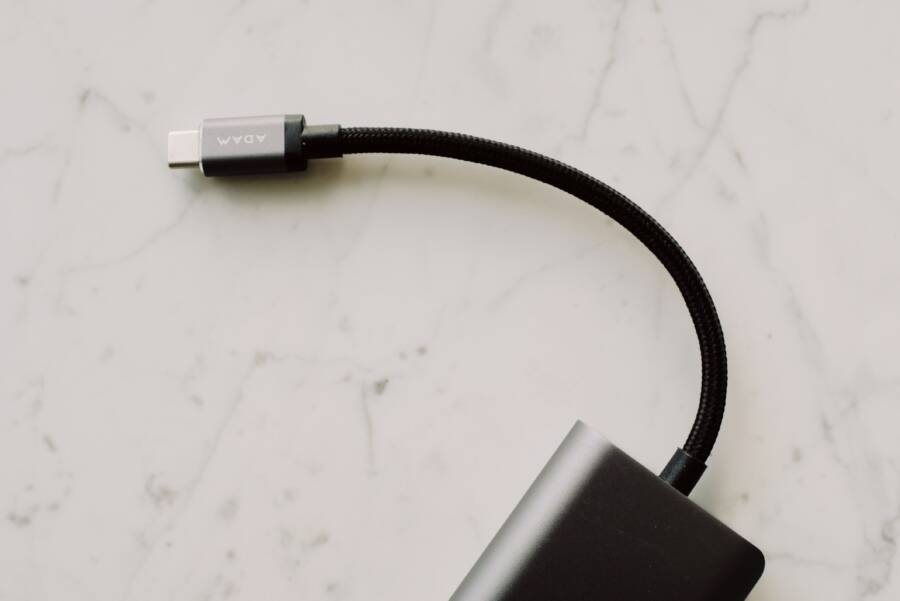
If your USB-C hub is not working with your smartphone, the issue is likely a software glitch, a dirty charging port, or a hardware incompatibility. These problems often prevent the device from recognizing the peripheral properly.
You can usually restore connectivity by cleaning debris from the port or checking for pending system updates. Follow the steps below to identify the exact cause and regain full access to your external accessories.
Basic Checks to Get Your Hardware Working
Before you assume your smartphone or hub has a serious defect, check the physical basics. Most connection issues stem from simple problems that require only a few minutes to resolve. Start your troubleshooting here to rule out common culprits that often go unnoticed during daily use.
Inspect the USB-C Port for Debris
Your smartphone port is a magnet for pocket lint and dust. Over time, these particles pack into the bottom of the opening, preventing the male connector of your hub from seating fully. Even a tiny layer of compressed fabric at the base keeps the pins from making solid contact.
Turn off your device to prevent potential short circuits.
Shine a bright light into the port to see if you spot any dark masses or debris.
Use a thin, non-conductive tool like a wooden toothpick to gently scrape the bottom of the port.
Work carefully to avoid damaging the delicate charging pins located in the center.
Tip the device so the port faces downward and tap it lightly against your palm to shake out any loose particles.
Never use metal needles or paperclips for this task. Metal tools conduct electricity and can easily scratch or snap the internal components of your smartphone. A wooden toothpick is firm enough to dislodge stubborn lint but soft enough to protect your hardware.
Verify Your Cable and Hub Quality
Many users assume all USB-C cables carry the same signals, but this is a common mistake. Some cables are designed only for charging, which means they lack the internal wiring needed for high-speed data transfer. If you use a basic charging cable that came with an inexpensive accessory, your hub might receive power but fail to communicate with the phone.
The hub itself also requires a minimum level of data throughput to function. Extremely cheap hubs often cut costs by omitting the necessary controller chips for video output or high-speed file transfers. If your hub works for basic tasks but fails during demanding operations, the internal circuitry might be inadequate for your specific needs.
Try testing the setup with a different cable that is known to support USB 3.1 or higher. If the hub functions correctly with another device, such as a laptop, the issue likely resides in the compatibility between the hub and your smartphone. Always look for certifications on the packaging to ensure the gear meets the standards your device expects.
Software Solutions for Connection Glitches
When your smartphone refuses to recognize a USB-C hub, software conflicts are often the root cause. A device might struggle to initialize a new peripheral because of temporary memory errors or outdated communication protocols. Addressing these software layers is usually faster than troubleshooting hardware, and you can perform these fixes yourself in just a few minutes.
Reboot and Update Your Smartphone
Restarting your device is the most reliable way to clear its short-term memory. Over time, your smartphone accumulates background processes that can interfere with how it talks to external hardware. When you perform a full reboot, the operating system kills these stuck processes and clears the cache that might be blocking the USB-C port from accepting a new connection.
Keeping your software updated is just as important for maintaining compatibility. Manufacturers regularly release patches that expand how the USB-C port interacts with third-party hubs. If you run an old version of your operating system, your phone might lack the necessary drivers to identify the hub’s specific chipset.
Save your open work and turn off your smartphone completely.
Wait about 30 seconds to allow the hardware to fully power down.
Turn the device back on and reconnect your USB-C hub.
Navigate to your system settings menu to check for pending firmware updates.
Install any available patches, then restart the phone once more to apply the changes.
Toggle Airplane Mode and Reset Settings
Minor glitches in the system software can occasionally freeze the USB-C handshake process. Toggling airplane mode is a quick way to force the smartphone to reset its internal radio and controller status. This simple action often clears out small bugs that prevent the system from registering a new device plugged into the port.
If the hub still fails to connect, you may need to reset your network or system settings. This process does not delete your personal files, but it does revert configurations like saved Wi-Fi networks and Bluetooth pairings to their default states. Clearing these settings removes any corrupted configuration data that might be interfering with your port’s ability to communicate with high-speed peripherals.
Access your settings menu to find the system management or general management section.
Look for an option labeled Reset or Reset Options.
Choose the specific option to reset network settings if available.
Confirm your choice and let the device restart automatically.
Once the phone reboots, try plugging the hub in again to see if the connection is active.
This reset forces the OS to re-scan its available hardware interfaces. Often, this is enough to wake up the USB-C port and allow it to recognize the hub as a valid accessory for data or power.
Understanding Compatibility and Power Requirements
Before you connect your USB-C hub, you must verify that your smartphone supports the necessary data standards. Many connection failures happen because the phone lacks the hardware configuration to talk to external accessories. Understanding how your device handles these signals will help you identify if the issue is a simple setting or a hardware limitation.
Check Your Phone for OTG Support
USB On-The-Go, or OTG, is the technology that allows a smartphone to act as a host device for peripherals. When a phone has OTG support, it can manage and power external accessories like flash drives, keyboards, and mice. Without this protocol, your device remains a peripheral rather than a host, which leaves the hub unable to establish a handshake.
Most modern flagships include OTG support by default, but cheaper or older models sometimes omit this functionality to reduce manufacturing costs. If your phone is several years old or sits at the entry-level price point, check the manufacturer website to confirm the port supports USB OTG. You can also install a free USB checking app from the app store to verify if your hardware detects the OTG controller properly.
If your smartphone lacks native OTG support, no amount of software updates or cable switching will fix the connection. In these cases, the internal USB controller simply cannot route the required data signals to your hub.
The Importance of External Power
USB-C hubs often bundle multiple functions into one small device, such as HDMI ports, SD card readers, and USB-A ports for thumb drives. These components consume significant electricity, and your smartphone has a limited power output through its port. If you try to run high-drain accessories like a portable hard drive or an external monitor without extra power, the connection will likely fail or drop repeatedly.
When the demand from your peripherals exceeds what your smartphone provides, the hub will either refuse to initialize or disconnect to protect the phone battery from an over-current event. To fix this, use a hub that features a power-delivery port. By plugging your phone charger into the hub, you provide a consistent stream of electricity that powers both the accessories and your device simultaneously.
Always check the power rating requirements on your external devices before connecting them. If you are attaching a mechanical hard drive, it will almost always require the stability of an externally powered hub. A powered setup acts as a bridge, giving your phone the electrical headroom to manage high-speed data transfers without starving the hub of necessary energy.
When to Contact Support or Replace Hardware
You should consider seeking professional help or replacing your hardware if basic troubleshooting steps fail to restore connectivity. While software resets and port cleaning resolve many issues, persistent failure often points to permanent damage within the device or the hub. Identifying the exact point of failure helps you decide whether to contact the manufacturer or invest in a new accessory.
Recognizing Internal Hardware Damage
Your smartphone relies on internal pins and controller chips to manage data flow through the USB-C port. If you notice physical signs of damage, software updates or settings resets will not fix the connection. A loose port that wiggles when you plug in the hub often indicates a broken solder joint on the internal motherboard.
Inspect the pins inside the charging port carefully under a bright light. If the pins appear bent, missing, or corroded, the port itself likely requires a professional repair. Corrosive buildup from liquid exposure can also permanently disable the data pins, even if the device still charges. Contact your manufacturer if the port is physically damaged, as repairing delicate internal components requires specialized tools.
When to Replace the USB-C Hub
Sometimes the issue exists entirely within the hub hardware rather than your phone. If your smartphone works correctly with other USB-C accessories, such as flash drives or headphones, the hub is the likely culprit. Hubs contain complex circuitry that can fail due to power surges, overheating, or manufacturing defects.
Consider replacing the hub if you notice these signs of failure:
The hub becomes excessively hot to the touch during simple data transfers.
Only specific ports on the hub, such as the HDMI port, consistently fail while others work.
The device works intermittently only when the cable is held at a specific, awkward angle.
Your smartphone fails to detect the hub entirely across multiple different devices or computers.
If the hub is under warranty, reach out to the manufacturer before discarding it. Many companies offer replacements if the internal controller stops functioning during normal use. However, if the hub is a budget accessory, the cost of shipping it back for repair often exceeds the price of purchasing a more reliable, high-quality replacement.
Knowing When to Consult Professional Support
If you have verified that your cable, hub, and port are physically sound, the problem might involve a deeper firmware conflict. Contact your smartphone manufacturer if you experience persistent USB connection errors despite running the latest software version. Provide them with specific details about the hub model and the symptoms you encounter.
Keep the following information ready to help support staff diagnose your smartphone issues faster:
The exact brand and model of the USB-C hub you are using.
A list of troubleshooting steps you have already attempted.
Whether the phone charges normally through the port without the hub.
Any error messages that appear on your screen when you connect the hardware.
Professional support agents can access proprietary diagnostic tools to check if your smartphone port is registering the hardware handshake at all. If their tests show the port is unresponsive to external signals, they may suggest a hardware service or a device replacement. Always back up your photos and important documents before sending your phone away for repair or inspection.
Conclusion
Most connection issues with a USB-C hub stem from simple physical obstructions or minor software glitches. Always check your smartphone port for lint or debris first, as this is the most common reason for a poor connection. Once the port is clear, perform a simple restart to refresh your system software.
If the hub still fails to respond, test it with another computer or tablet to determine if the accessory is faulty. If the hub functions elsewhere, verify that your phone supports USB OTG and provides enough power for your peripherals. Following these steps helps you isolate the cause and restore your device functionality.