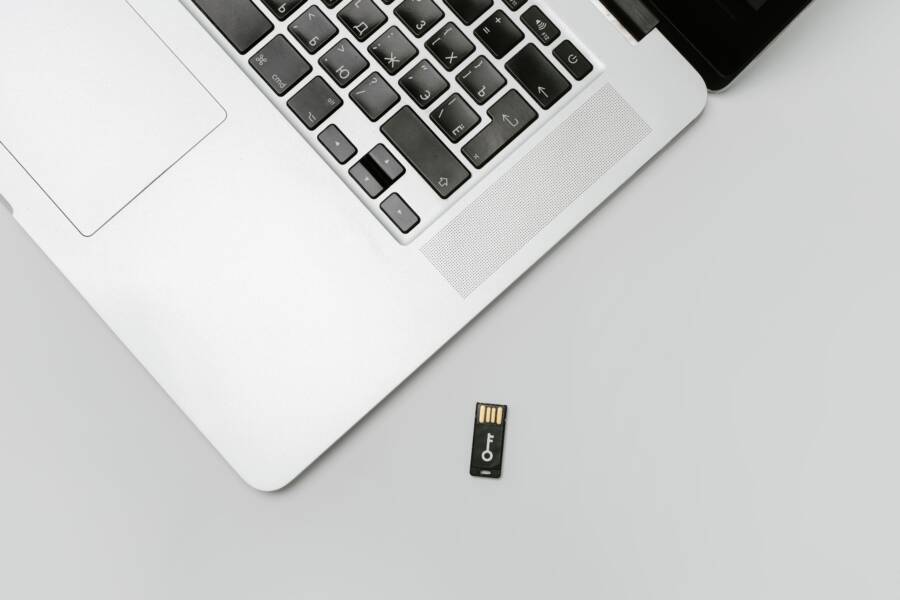
If your smartphone cannot mount a USB drive, you likely have a format compatibility issue, insufficient power, or a faulty adapter. Most phones require a specific file system like exFAT or FAT32 to recognize external storage devices.
These three factors account for the vast majority of connection failures. Understanding how your device communicates with external hardware will help you resolve the problem quickly. The following steps will guide you through testing each potential point of failure.
Initial Checks for Connection and Power Issues
Before you troubleshoot software settings or file formats, confirm that your hardware connection is physically sound. A loose fit or a lack of power often prevents a smartphone from detecting a USB drive. Start by inspecting the cable, the adapter, and the port on your device. Ensure the drive is fully inserted and the cable is secure. If you use a multi-port hub or a long cable, try connecting the drive directly to the phone with a short adapter. This setup reduces power loss and helps rule out faulty intermediate hardware.
Verifying USB OTG Compatibility
Not every smartphone supports the ability to talk to external storage devices. This feature, known as USB On-The-Go (OTG), must be built into the hardware and enabled by the manufacturer. If your phone lacks OTG support, it will never mount a drive, no matter which cable or adapter you choose.
You can verify compatibility by checking your manufacturer website or the original product box for the OTG label. Alternatively, download a free diagnostic app from the app store, such as USB OTG Checker. These applications scan your system configuration and provide a simple yes or no answer regarding your device capabilities. If the app reports that your smartphone does not support OTG, you must use a different device or transfer your files through a computer.
Cleaning the Charging Port Safely
Dust, lint, and debris often accumulate inside the charging port of a smartphone, which prevents a stable connection. Even a small amount of packed material can keep the USB plug from seating properly against the contact pins. This connection failure is common if you carry your phone in your pocket or a bag.
To clean the port, turn off your device first to prevent electrical shorts. Use a thin, non-conductive tool like a wooden toothpick or a plastic dental pick to gently scrape the bottom of the port. Avoid using metal objects, as these can scratch the pins or cause permanent damage to the delicate internal hardware. Shine a bright light into the port to see if you have successfully removed all the lint. Once the port is clear, plug your USB drive back in to see if the phone finally recognizes the external storage.
Solving Common File System and Partition Problems
Your smartphone manages data by talking to the USB drive through a specific language, known as a file system. If the smartphone and the drive do not share the same language, the device remains invisible. Most modern mobile operating systems support a limited set of these file systems to maintain stability and performance. When your drive uses an incompatible format, the phone ignores the hardware entirely or reports that the storage is corrupt.
Understanding Why File Formats Matter
A file system acts as the index for your data, telling the operating system where files start and end on the storage chip. If this index is written in a format your phone cannot read, you will not see your files.
FAT32: This is the oldest format and offers the highest level of compatibility. It works with almost any smartphone, computer, or gaming console. However, it cannot store individual files larger than 4 gigabytes, which makes it poor for high-definition video files.
exFAT: This format is the standard for modern portable storage. It removes the file size limit found in FAT32 while remaining compatible with most Android devices and computers. It is the best choice if you need to move large files between different systems.
NTFS: Windows uses this format by default. While powerful and secure, most smartphones lack the built-in ability to read or write to NTFS partitions. Connecting an NTFS drive to your phone usually results in a mount error or a prompt to format the drive, which would erase all your data.
If your drive was previously used only on a Windows computer, it is likely formatted as NTFS. Reformatting the drive to exFAT usually solves the problem without losing the ability to use the drive on your PC.
Reformatting Your Drive for Compatibility
You can change the file system of your USB drive using a standard computer. This process erases everything currently stored on the drive, so move your important files to a safe location before you start.
Connect the USB drive to your computer and open the file explorer.
Right-click on the drive icon and select the Format option from the menu.
Choose exFAT from the File System drop-down list. This format provides the best balance of size support and compatibility for your smartphone.
Set the Allocation Unit Size to Default if you are unsure of which value to pick.
Provide a name for the drive in the Volume Label field to make it easy to identify later.
Click the Start button to begin the process.
Wait for the computer to finish the format, then eject the drive safely.
After the computer finishes, plug the drive into your phone using the appropriate adapter. The device should now recognize the storage, allowing you to copy files or view your data. If the phone still fails to mount the drive, check the security settings of your phone to see if it requires manual permission for external storage access.
Troubleshooting Software Glitches on Your Device
Sometimes your smartphone recognizes the physical presence of a USB drive but fails to display any content. This issue often stems from temporary software conflicts rather than physical damage. Your phone operating system might experience a temporary hang, or the background process responsible for indexing storage might have crashed. You can resolve most of these glitches by using alternative management tools or clearing corrupted system data.
Using a Third-Party File Manager App
The native file explorer on your smartphone sometimes lacks the specific protocols needed to mount certain types of external storage. If your default app fails to detect the drive, you should try a third-party file manager. These applications often include their own drivers or specialized mounting routines that perform better than the system default.
You can find several free, high-rated options on the Google Play Store, such as Solid Explorer or Files by Google. These tools frequently bypass the restrictive permissions or bugs present in pre-installed manufacturer apps. Once you install a new file manager, open it and navigate to the sidebar menu. Look for an entry labeled USB Storage or External Drive. If the app detects the device, you will be able to access your folders and transfer files immediately. Many of these apps also provide better visual feedback, which tells you exactly why a mount attempt failed.
Clearing the Cache for System Storage Services
Your smartphone keeps temporary cache files to speed up the detection of external hardware. Over time, these files can become corrupted, which causes the system to block new drives from mounting. Clearing this data forces the operating system to re-scan your ports and rebuild the connection list from scratch.
To clear this data, open the Settings menu and navigate to the Apps or Application Manager section. You must tap the menu icon, usually represented by three dots in the corner, to enable the View System Apps option. Scroll through the list until you find a service labeled External Storage, Media Storage, or USB Settings. Tap on the entry and select Storage or Storage and Cache. Finally, tap Clear Cache. You should also select Clear Storage if the option is available, but be aware this may reset your recent file history. Restart your phone after you clear these files. Once the system reboots, plug in your USB drive again to verify if the smartphone can now mount the hardware.
Advanced Fixes When Simple Methods Fail
If your smartphone still ignores the USB drive after checking cables and file formats, you might deal with deeper system conflicts. These advanced steps target the low-level communication between your hardware and the operating system. You should perform these actions carefully because they interact with sensitive system settings.
Enabling USB Debugging for Better Communication
USB debugging is a developer setting that changes how your smartphone communicates with external hardware. It allows the operating system to send deeper commands to the USB port. This often bypasses restricted handshake protocols that prevent external drives from mounting.
Open your device settings and locate the About Phone section.
Tap the Build Number seven times until the phone shows a message that you are now a developer.
Return to the main settings menu and find the new Developer Options entry.
Scroll down until you see the USB Debugging toggle and turn it on.
Reconnect your USB drive to see if the device now recognizes the storage.
Some smartphones disable this feature automatically for security reasons. If the drive mounts successfully, remember to turn this feature off later to keep your device secure.
Resetting System Network and Connectivity Settings
Sometimes, internal settings for hardware interfaces become corrupted, leading to unresponsive ports. You can force the operating system to rebuild these connections by performing a system settings reset. This action does not delete your personal photos or apps, but it does erase saved Wi-Fi passwords and paired Bluetooth devices.
Navigate to your system management or backup and reset menu to find the reset options. Select the choice that says Reset Wi-Fi, Mobile, and Bluetooth. After the phone finishes the reset and reboots, plug in the USB drive again. The system will treat the connection as a new event, often triggering the recognition process that was previously blocked.
Testing with a Powered USB Hub
Your smartphone might lack the electrical current necessary to spin up or power a mechanical drive. A standard port on a phone provides limited power, while a powered USB hub uses an external wall adapter to supply the drive with energy. This setup ensures the USB drive stays active regardless of the phone power output.
Using a powered hub is a reliable way to rule out power delivery as the source of your mount failure. If the drive lights up and mounts when connected through the hub, you know your phone works but simply lacks the power output for that specific drive.
Quick Summary for Future Reference
Keeping your smartphone connected to external storage does not have to be a recurring mystery. When your device refuses to mount a USB drive, the solution often involves verifying basic hardware requirements or adjusting file system settings.
Essential Troubleshooting Checklist
If you find yourself stuck, follow these quick steps to identify the source of the issue. Most problems resolve within a few minutes if you systematically check each connection point.
Inspect the physical port for lint or debris, as small particles often block the contact pins.
Confirm your smartphone supports USB OTG by checking the manufacturer specifications or using a diagnostic tool.
Verify the file system of your USB drive is formatted to exFAT or FAT32, as Windows-based NTFS formats rarely work on mobile hardware.
Try a different cable or a direct adapter to rule out a faulty connection point.
Clear the cache of your system storage services through the app settings menu.
Comparison of File System Compatibility
Understanding how your smartphone views different formats helps you prepare your hardware correctly before a trip or a large file transfer. This table outlines which systems work best for mobile devices.
Using exFAT offers the most flexibility for those who frequently move data between a computer and a smartphone. If your drive is currently formatted for a Windows PC using NTFS, move your files to a computer first so you can reformat the drive to exFAT without losing data.
Final Proactive Steps
If you still face issues, consider using a third-party file manager app, as these often bypass manufacturer restrictions. You can also enable USB debugging in the developer options if your device settings seem overly restrictive. Always turn off developer settings after you finish the task to maintain your phone security. Following these steps ensures you can access your external files whenever you need them.
Conclusion
Consistent backups remain your best defense against data loss. Regularly copy important files from your smartphone and external drives to a secondary location or a cloud service to prevent unexpected disasters.
If you complete every troubleshooting step and your device still fails to mount the drive, the USB drive likely has a physical defect or corrupted internal storage. Hardware components can fail without warning, so you should test the drive on another computer to verify its integrity. You have the tools now to diagnose these issues, and hopefully, your files are accessible once again.