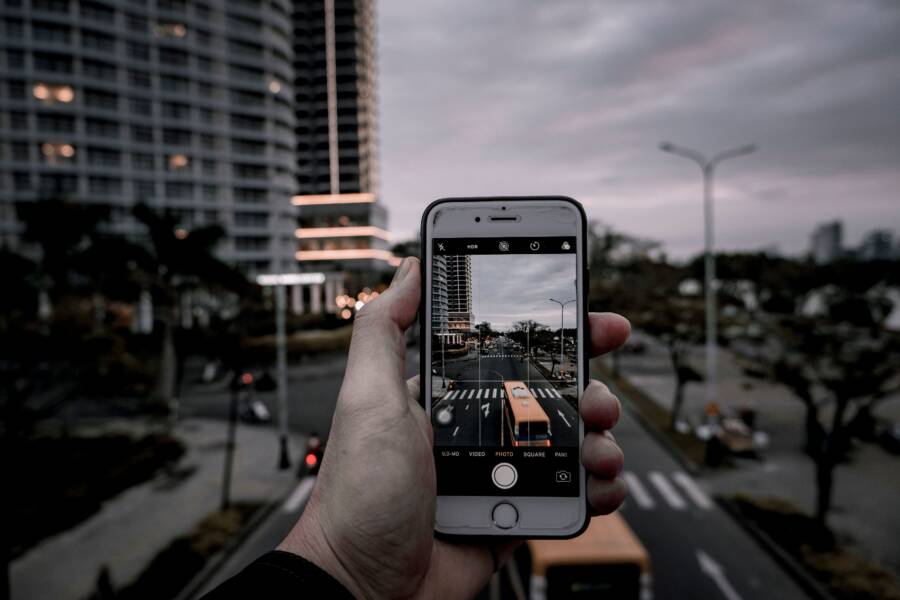
When your camera app crashes the moment you open it, your smartphone likely suffers from a minor software conflict, a permission error, or insufficient storage space. These technical glitches prevent the camera hardware from communicating correctly with your operating system.
You can often resolve these crashes by clearing your temporary data or restarting your device. Most users find that simple maintenance restores full functionality within a few minutes.
Follow the steps below to identify the specific cause of your camera failure and regain access to your photo library.
Simple Ways to Stop Camera Crashes on iPhone and Android
Software conflicts often cause your smartphone camera to freeze or shut down unexpectedly. These issues typically originate from background processes that prevent the camera hardware from initializing properly. You can resolve most of these technical hiccups by adjusting app settings or refreshing the system state.
Force Closing and Restarting Your Apps
When a camera app stops responding, a simple restart often clears the temporary errors holding it back. Force closing the application forces the system to dump the current session data and start fresh, which resolves many short-term glitches.
On an iPhone, you open the app switcher by swiping up from the bottom of your screen and pausing in the middle. Find the camera app, then swipe it upward off the screen to close it. For older models with a home button, double-click the button and perform the same swipe-up gesture.
Android devices use a similar process, though the interface varies slightly by manufacturer. Tap the square or three-line icon at the bottom of your screen to open your recent apps. Swipe the camera app away to close it, or tap the Close All button to clear your background activity. Once you have closed the app, wait a few seconds before reopening it to allow the processor to fully release the previous session.
Checking Camera Permissions for Specific Apps
Sometimes your smartphone camera crashes because it lacks the necessary security clearance to function. Apps require explicit permission to access your camera hardware, and these digital handshakes occasionally fail after system updates.
You can verify these settings by navigating through your privacy menus. On an iPhone, open your Settings app and scroll down until you see the Privacy and Security tab. Tap Camera to view a list of every app with granted access. If the toggle next to your camera app is off, tap it to re-enable access.
Android users should open Settings and select Apps or Applications. Find your camera app in the list, then tap Permissions. Ensure that the camera is listed under Allowed. If it is already enabled, try toggling it off and on again to reset the connection. This quick switch forces the phone to re-establish the link between the software interface and the lens hardware.
Clearing Cache and Data to Refresh App Performance
Temporary files often accumulate over time and lead to performance instability. Android users can manage these files directly to maintain smooth operation. Go to Settings, select Apps, and find your camera app in the list. Tap Storage, where you will see options to Clear Cache and Clear Data. Clearing the cache removes small, temporary files that might be corrupted. If the crashes continue, clear the data to reset the app to its original factory state.
iPhones handle this differently because the operating system limits user access to internal cache files. You cannot manually clear the cache for individual apps. Instead, you should offload or delete the app to refresh its files. Open Settings, tap General, and select iPhone Storage. Locate the camera app if it is a third-party tool, then tap Offload App to delete the software while keeping your data intact. Reinstalling the app from the App Store often fixes deeper internal errors that a standard restart cannot reach.
Advanced Troubleshooting for Persistent Camera Issues
If your camera app remains unresponsive after trying basic restarts and cache clears, deeper system conflicts are likely at play. Hardware and software must communicate through specific driver protocols to capture images. When these links break, a full system refresh or storage cleanup is often the only way to restore proper function on your smartphone.
Updating Your Smartphone Operating System
Manufacturers frequently release firmware updates that address compatibility problems between the operating system and camera hardware. These updates act as a bridge, fixing bugs that prevent the camera sensor from activating when you open the app. If your system software is outdated, the camera driver may struggle to interpret commands correctly, resulting in an immediate crash.
Check your settings menu to see if a system update is available for your device. If you see a notification for a new version, install it immediately. The update process typically replaces corrupted system files and patches known memory leaks that trigger app instability. Most smartphone models offer an automatic update feature that keeps these drivers current without your manual input.
Managing Storage Space to Keep Your Apps Running
Low disk space is a silent killer for camera app stability. When you trigger the shutter, your smartphone needs a buffer of free space to temporarily store image data before it is saved to the internal drive. If the storage capacity is nearly full, the app cannot find enough room to write these files, so it shuts down to prevent data corruption.
Clear space by removing unused applications, old videos, or large downloads to give your camera room to breathe. You can identify which files consume the most space through your storage management settings. Aim to keep at least 5 to 10 percent of your total storage free at all times. This small buffer ensures that the operating system has the necessary overhead to manage high-resolution photos and video files during active sessions.
When to Consider Hardware or Third-Party App Limitations
Sometimes, a camera crash is not a sign of a software glitch, but a clear indicator that a specific application or your hardware has hit its functional boundary. If your smartphone works perfectly in some situations but fails in others, the root cause often lies in software incompatibility or physical hardware stress. Identifying whether the problem stems from your phone settings, a faulty third-party app, or a physical sensor issue is the next logical step in your repair process.
Testing Your Hardware with the Native Camera App
Your first goal is to isolate whether the crash is system-wide or limited to one piece of software. Use the built-in camera app that came installed on your phone to run a quick diagnostic test. Because this native app interacts directly with the manufacturer drivers, it is the most reliable tool for checking if your hardware functions as intended.
Open the stock camera app and try to take several photos and videos in different modes, such as portrait or wide-angle. If the app functions without closing, your camera hardware is likely in good health. If the camera still crashes while using the native app, the issue exists within the system drivers or the hardware sensor itself. In that case, you might need to contact the manufacturer for a professional inspection. If the native app works fine, you have successfully confirmed that your phone hardware is working and the problem is isolated to a third-party application.
Checking for App-Specific Updates and Developer Support
Third-party camera apps often struggle when they fail to keep pace with new mobile operating system updates. Developers must constantly adjust their code to remain compatible with your smartphone hardware. If you frequently experience crashes while using a specific social media camera or a professional photo editing tool, check the App Store or Google Play Store for an update.
Look for the “What is New” section under the app listing to see if the developer recently released a patch for crash-related bugs. If the app is already fully updated, search the developer website or the store page for a support link. Many apps provide a way to report bugs directly to the team. Providing them with details about your specific smartphone model and the exact steps that trigger the crash helps them fix the issue in the next version. If you find that the app continues to fail despite your updates, consider using a different tool until the developer releases a stable version.
Common Questions About Camera Glitches
Users often face similar confusion when their smartphone camera stops working correctly. Many problems have simple explanations that do not require professional repair. If you understand why these common issues happen, you can fix them much faster.
Is my camera sensor broken if the app crashes?
Not necessarily. A crash usually points to a software conflict rather than a physical break. If your smartphone camera works in some apps but fails in others, the hardware is likely fine. You should test the native camera app first to confirm the sensor remains functional. If the built-in app opens without an error, a third-party application is the source of your trouble.
Why does my camera freeze after a system update?
Software updates occasionally change how the operating system interacts with your hardware drivers. Sometimes, the new version leaves behind old configuration files that conflict with the camera app. This mismatch causes the software to hang during initialization. You can often fix this by restarting the smartphone or clearing the app cache. In rare cases, you might need to wait for a secondary patch from the manufacturer to resolve the driver error.
Does a full storage drive cause camera crashes?
Yes, lack of storage space is a frequent cause of instability. Your camera needs free space to process images before they move to your permanent storage. If your phone has less than a few gigabytes of space left, the camera app may shut down to prevent data loss. Deleting large video files or unused apps creates the breathing room your smartphone needs to function.
Should I perform a factory reset to fix camera errors?
Only consider a factory reset as a final option. This process erases all your personal data, so it should be the last step after trying all other troubleshooting methods. Before you go that far, try these options:
- Restart your smartphone to clear temporary glitches.
- Update the camera app and your operating system.
- Check your privacy settings to ensure the app has camera access.
- Clear the cache or offload the app if your device allows it.
A reset is a nuclear option that wipes the slate clean, but it is rarely necessary for simple app crashes. Most users regain camera functionality by managing their storage or updating their software. If the camera still fails after a full reset, you likely have a physical hardware issue that requires professional repair.
Conclusion
Most camera crashes on your smartphone originate from minor software conflicts or limited storage space. By force closing the app, checking your permissions, or clearing out unnecessary files, you can usually restore full functionality within minutes.
Always keep your operating system updated to prevent future driver issues. A stable device needs regular maintenance to manage high-resolution photos and video processing smoothly.
If your camera continues to fail after trying these fixes, your device may require professional hardware inspection. Does your camera app crash only when you use specific features, or does it fail immediately upon opening? Share your experience in the comments to help other users identify similar patterns.