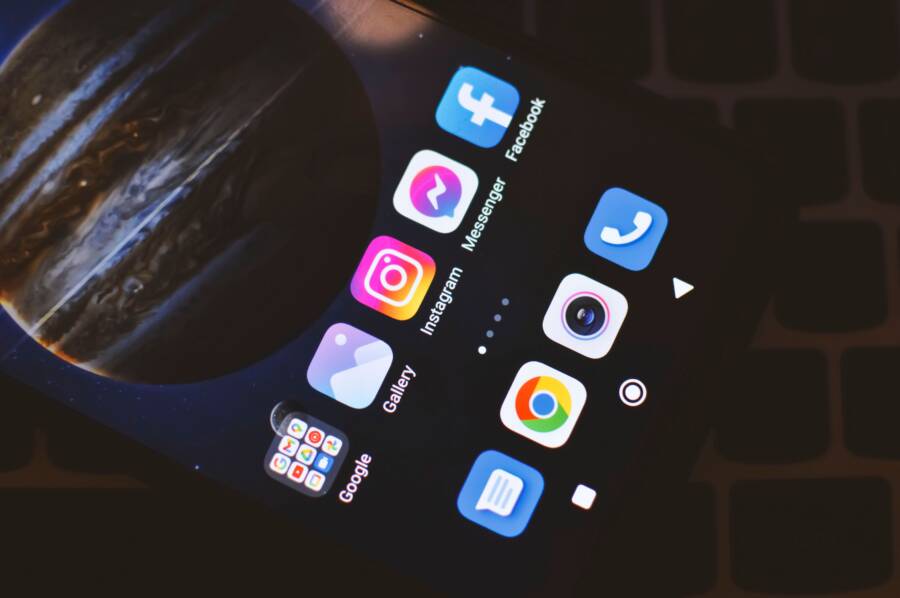
Blank images or grey boxes inside your apps are usually caused by a poor network connection, a corrupted app cache, or insufficient storage on your smartphone. You can often fix these display errors quickly by toggling your internet settings or clearing temporary app data.
This issue occurs on both iPhone and Android devices, but it rarely signals a permanent hardware failure. Most users resolve the problem by refreshing their connection or managing local storage files.
Follow these steps to restore your app images and get your device running properly again.
Quick Checks to Fix Image Loading Problems
When your smartphone refuses to display images, the culprit is often a simple communication breakdown between your device and the server. You can usually identify and resolve these display errors with a few basic adjustments. Before you look for complex software updates or hardware repairs, check your network and temporary system files.
Testing Your Internet Connection Strength
A weak or unstable internet connection prevents your apps from fetching high-quality image files. When images appear as grey boxes or fail to load entirely, your signal strength is the first thing to verify.
To determine if your connection is at fault, isolate the source by following these steps:
- Turn off your Wi-Fi in the quick settings menu to force the device to use mobile data.
- Open the affected app again to see if images load over your cellular signal.
- If images appear, your home or office Wi-Fi network likely has an issue.
- If images still fail to load, toggle your airplane mode on for ten seconds and turn it off again to reset the radio connection.
Sometimes, a congested public network prevents data from traveling fast enough for images to render. If switching to mobile data restores functionality, try restarting your router or switching to a different Wi-Fi channel later. This simple test confirms whether the problem exists within your service provider or your specific location.
Restarting Your Device for a Fresh Start
Temporary system glitches often disrupt how an app handles image rendering. A full restart clears your smartphone memory and forces all background processes to reload from scratch. This action frequently resolves minor bugs that prevent media from appearing correctly.
For most modern iPhones, quickly press and release the volume up button, then the volume down button. Immediately hold the side power button until the Apple logo appears on your screen.
If you use a modern Android smartphone, the steps are slightly different. Press and hold the power button for a few seconds until the power menu shows on your display. Select the restart option from the list. If your device remains unresponsive, hold the power button and the volume down button simultaneously for about ten seconds until the phone reboots.
A fresh restart clears the active cache and stops any background tasks that might block image data. Once the device boots up, open your apps to check if the images load as expected. If the issue persists, you may need to look at app-specific storage settings.
Managing App Cache and Storage to Restore Content
Apps often store temporary data like images and thumbnails on your device to help them load faster. Over time, these files can become corrupted or outdated, which prevents new images from appearing. Clearing this stored data forces the app to fetch fresh content directly from the server. This process is usually safe, as it only deletes temporary files rather than your personal settings, login information, or saved photos.
How to Clear Cache on Android Devices
Android offers a built-in feature to remove temporary files for individual apps without deleting the app itself. If you notice specific images are missing, start by checking the storage settings for that application.
- Open your phone Settings app.
- Select the Apps or Manage Apps menu to see a list of installed software.
- Find and tap on the specific app that is failing to load images.
- Select the Storage or Storage & Cache option.
- Tap the Clear Cache button to remove temporary files.
- Restart the app to see if the images load correctly.
If clearing the cache does not fix the issue, you can try selecting Clear Data or Clear Storage. This action resets the app to its original state, which requires you to sign in again. Only use this step if clearing the cache fails to resolve the blank image problem on your smartphone.
Refreshing iPhone Apps Through Reinstallation
Apple does not provide a direct button to clear the cache for individual apps. Instead, the operating system manages this storage automatically. If an app stops displaying images properly on your iPhone, you must remove the temporary data by reinstalling the app itself.
You have two main options to perform this reset:
- Offload the app: This removes the app files while keeping your documents and settings data. Go to Settings, then General, and select iPhone Storage. Find the app and tap Offload App. Reinstalling it afterward often triggers a clean download of missing image assets.
- Delete and reinstall: This is the most effective method for corrupted files. Press and hold the app icon on your home screen, tap Remove App, and confirm the deletion. Visit the App Store to download a fresh copy.
Deleting the app effectively wipes out the local cache files that cause rendering errors. Once you reinstall, the app creates new cache files upon launch. This fresh start often fixes broken image links and improves how the app interacts with your smartphone connection.
Checking System Settings That Block Image Downloads
Your smartphone has built-in tools to manage how it consumes data and protects your identity. While these features help preserve your monthly data cap and keep your browsing private, they often interfere with how apps load images. If you find your phone suddenly refuses to show pictures in your favorite social media or news apps, look at these specific system settings first.
Disabling Data Saver and Low Data Modes
Most modern smartphones include a feature designed to prevent apps from using background data. This setting effectively restricts how much information an app can pull from the internet while it sits in the background or even while you use it. When this mode is active, the system may block images entirely to save your bandwidth for essential text updates.
If you struggle to see images, you should check your data usage preferences:
- Android users can navigate to Settings, tap Network & Internet, and select Data Saver. Ensure this is turned off to allow apps full access to cellular data.
- iPhone users should open Settings, select Cellular, tap Cellular Data Options, and check if Low Data Mode is active. Turning this toggle off often allows images to load normally again.
Apps often struggle when these settings exist because the system treats high-resolution image assets as non-essential data. By disabling these constraints, you allow your apps to pull the necessary files from servers without interference. Remember to monitor your data usage manually if you worry about exceeding your monthly plan after making these changes.
Verifying App Permissions and VPN Interference
Privacy settings and security software often act as a wall between your smartphone and the content you want to view. A VPN redirects your traffic through a remote server, which can cause latency issues or block content delivery networks. When a server sees your traffic coming from an unusual location, it might restrict certain assets like images to prevent bot activity.
Follow these steps to determine if your security software causes the problem:
- Turn off any active VPN or security app temporarily.
- Force close the affected app and restart it to establish a direct connection.
- Check your system privacy settings to see if the app has permission to use cellular data.
- Disable any ad-blockers or content filters that might mistake image URLs for tracking scripts.
If images load immediately after you disable your VPN, the issue lies in the server’s response to your hidden location. Some apps perform better when you use a local server instead of one in a different country. Additionally, check your smartphone permissions to confirm that the app has authorization to access your network. These settings are often tucked away under the privacy or application management menus in your system preferences.
When to Update Your Software and App Versions
Outdated software creates compatibility gaps that often stop images from rendering correctly on your smartphone. Developers frequently release patches to fix bugs that block media playback or cause interface errors. Keeping your software current is the most reliable way to maintain consistent app performance.
Updating Individual Apps via App Store or Play Store
Individual app updates contain specific fixes for display issues or broken image links. Checking for these updates takes seconds and solves many common loading errors.
On an iPhone, follow these steps to update your applications:
- Open the App Store and tap your profile icon at the top of the screen.
- Scroll down to see a list of pending updates for your installed apps.
- Tap Update next to the specific app, or choose Update All to refresh everything at once.
Android users should use the Google Play Store to check for software patches:
- Open the Google Play Store app on your smartphone.
- Tap your profile icon at the top right corner.
- Select Manage apps and device to see which applications have updates available.
- Tap Update next to the app or choose Update All to apply all pending fixes.
If an app still fails to load images after you apply these updates, it might have a temporary bug the developer is currently investigating. You can also turn on automatic updates in your app store settings. This simple change allows your phone to download the latest versions whenever you connect to a charger and Wi-Fi.
Ensuring Your Smartphone Operating System is Current
Your smartphone relies on the underlying operating system to handle complex media tasks. When the system software becomes outdated, it may struggle to communicate with newer versions of your favorite apps. This mismatch causes errors, including blank screens where images should appear.
System updates often include critical security patches and driver improvements that keep your display hardware functioning well. Installing these updates creates a stable environment for all your installed applications.
To check for a system update on an iPhone:
- Open Settings and tap General.
- Select Software Update to see if a newer version of iOS is ready for download.
- Tap Download and Install if an update appears.
For Android devices, the steps are similar but vary slightly by manufacturer:
- Open your phone Settings.
- Tap System or About Phone.
- Select Software Update or System Update to check for the latest patch.
- If an update exists, follow the on-screen prompts to install it.
Always connect your device to a power source and a stable Wi-Fi network before starting a system update. This prevents the process from failing midway and ensures your files remain safe. Once your operating system is current, your smartphone will manage app data more effectively, which often restores missing images and improves overall speed.
Conclusion
Fixing missing images on your smartphone often starts with a simple network reset or by clearing temporary cache files. Most display errors resolve once you refresh your connection or remove corrupted app data.
If these steps fail to restore images, check for available software updates for your device or the specific app. Persistent issues might indicate a server-side problem with the app developer.
Reach out to the official support team for the app if the blanks remain after trying all troubleshooting steps. They can confirm if a known bug is affecting your account or device model.