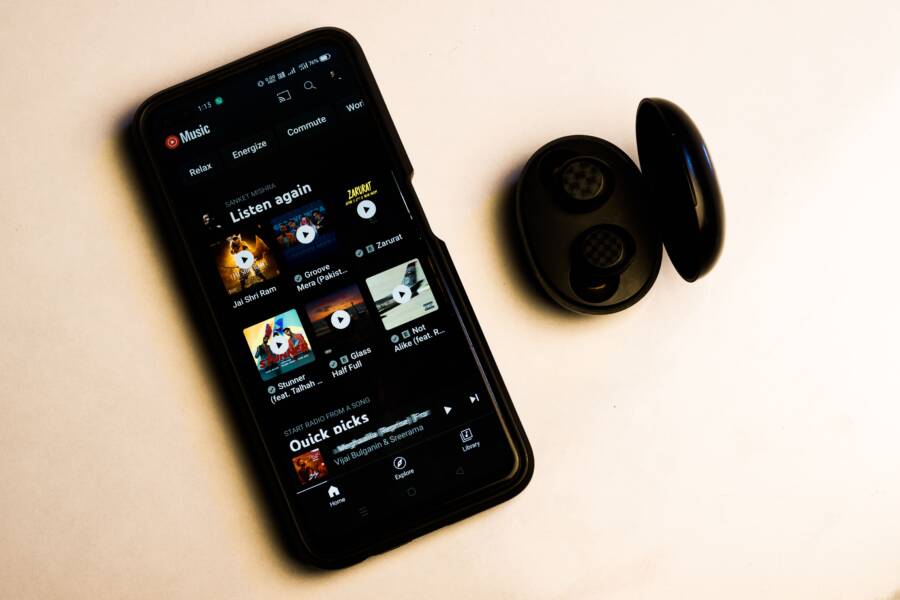
In-app audio issues on your smartphone typically stem from software glitches, accidentally muted settings, or restricted app permissions. You can often restore sound by checking your volume sliders, restarting the application, or verifying that the software has access to your microphone and media outputs.
These problems occur on both iPhone and Android devices, but they are usually easy to fix. You do not need technical expertise to identify the source of the silence. Follow the steps below to troubleshoot your audio and get your apps working again.
Quick Checks to Fix In-App Audio Instantly
Before you start digging into complex software settings, resolve most audio issues with a few simple physical and digital adjustments. You can usually restore sound by correcting your volume levels or disconnecting silent background connections. These immediate checks save time and often pinpoint why your smartphone audio is absent.
Check Your Physical and Digital Volume Levels
Smartphone audio is split into distinct channels, which often confuses users. Most modern devices maintain separate volume levels for your ringer, alarms, media, and notifications. Even if your ringer is loud enough to wake the house, your media volume might be set to silent.
Apps typically draw their sound from the media channel rather than the ringer channel. If you press your physical volume buttons while on your home screen, the phone might only adjust the ringer. Follow these steps to ensure your media volume is active:
- Open the specific application where you are experiencing silence.
- Press the physical volume up button on the side of your smartphone while the app is active.
- Look for the on-screen volume slider to confirm you are adjusting the media volume rather than the ringer.
- If a settings icon appears near the slider, tap it to view all volume channels and ensure the media slider is not muted.
Sometimes, an app has its own internal volume control. Always check for a speaker icon or a volume slider within the app interface. If you find the slider set to zero, slide it to the right to unmute the audio output.
Turn Off Bluetooth to Disconnect Hidden Devices
Wireless connections are a frequent culprit for missing in-app sound. Your smartphone may be paired with a pair of headphones left in another room, or perhaps a speaker hidden in your bag. If your device detects a Bluetooth accessory, it sends audio to that hardware instead of the built-in speaker.
This behavior occurs even if the device is not currently being used. Because your phone thinks you want to use the wireless peripheral, it keeps the audio stream directed away from you. Use this quick method to verify if a hidden connection is the source of the trouble:
- Swipe down or up to access your control center or quick settings menu.
- Tap the Bluetooth icon to disable the connection entirely.
- Test your app again to see if the sound returns through the smartphone speakers.
If the sound returns after you disable Bluetooth, you know a paired device was intercepting your audio. You can then re-enable Bluetooth and manually unpair or disconnect the specific accessory causing the conflict. Always check for this automatic routing whenever you find your device acting as if it is on mute.
Software Troubleshooting for iPhone and Android
Software conflicts are common causes for missing audio on your smartphone. When an application behaves unexpectedly, it often leaves a process hanging in the background, which blocks sound output. You can often resolve these issues by forcing the application to restart or verifying the permissions the app holds.
Force Close and Restart Your Apps
A full restart of the application clears the temporary memory the program uses. This action effectively flushes out minor bugs that stop audio signals from reaching your speakers.
On an iPhone with Face ID, swipe up from the bottom of your home screen and pause in the middle. If you have an iPhone with a home button, double-click the home button instead. Once the app switcher appears, find the problematic app and swipe it upward to close it. Open the application again to check if your audio works.
Android processes vary slightly by device manufacturer, but the general approach is identical. Open your recent apps screen by swiping up from the bottom or tapping the square navigation button. Swipe the app away to close it, or tap the close all button if you prefer. Reopen the app to see if the sound returns to normal. These simple steps force the software to reinitialize its audio engine and clear out any hung threads.
Check App Permissions for Audio Access
Your smartphone relies on a strict privacy model to protect your data. Each app requires explicit permission to access hardware components like your microphone or output speakers. If the app lacks these rights, it cannot process or play audio correctly.
To check these settings on an iPhone, open your Settings app and scroll down to locate the specific application. Tap the name of the app and review the list of toggle switches. Look specifically for the microphone permission. If it is turned off, tap the toggle to grant access. Some apps also require permission in the Privacy and Security menu under the Microphone sub-menu.
Android users should open their device Settings and navigate to the Apps menu. Select the relevant application and tap on Permissions. You will see a list of allowed and denied access rights. If the app is listed under the denied section, select it and choose Allow only while using the app. After updating these settings, force close the app as described previously to apply the changes. Verifying these permissions ensures the software is authorized to communicate with your device hardware.
When to Clear Cache or Reinstall the Application
Persistent audio issues on your smartphone often result from corrupted data or outdated temporary files. When simple restarts and volume checks fail, your next move involves cleaning up the background data that apps store to speed up performance.
You should consider clearing the cache or reinstalling an app if the sound remains distorted after you check your volume settings and permissions. A clean slate often resolves conflicts created by minor software errors or interrupted background updates.
Clearing Temporary Cache Files
Applications store temporary data to load faster during your next session. Over time, these files become corrupted, causing performance bugs that include missing or choppy audio. Clearing this cache forces the app to pull fresh, error-free data from the server.
On Android, you can clear this data without deleting your personal account info. Follow these steps to perform this reset:
- Open the Settings app on your smartphone and tap on Apps or Application Manager.
- Find the specific app experiencing audio issues from the list.
- Tap on Storage or Storage and Cache.
- Select Clear Cache to remove the temporary files.
The process for iPhone users differs because Apple handles file management differently. iOS does not provide a direct button to clear individual app caches. Instead, you can use the offload feature to keep your settings and data while resetting the app software.
To offload an app on your iPhone, follow this process:
- Open the Settings app and navigate to General.
- Tap on iPhone Storage.
- Locate the app from the list and tap on it.
- Select Offload App to remove the program files while keeping your documents and settings.
- Once the process completes, tap Reinstall App from the same menu to download fresh software.
Reinstalling the software completely is your final resort if offloading fails. This step removes every trace of the app, including corrupted configuration files that might prevent sound from playing. Before you delete the app, verify that your account data backs up to the cloud so you don’t lose progress or saved preferences. Once you reinstall the app from the store, it starts with default settings, which often clears out the underlying audio glitch.
System Updates and Hardware Considerations
Your smartphone relies on complex interactions between software and physical components to produce sound. When an application fails to play audio, the issue often stems from an outdated operating system or physical damage to the speaker hardware. Addressing these systemic factors ensures your device communicates effectively with every installed program.
Update Your Operating System
Software updates often include patches for audio drivers that manage how apps interact with your hardware. If your operating system is outdated, compatibility gaps can cause silent apps or distorted sound. A quick system check often resolves these hidden software conflicts.
To check for updates on an iPhone, open Settings, select General, and tap Software Update. If a version is available, follow the prompts to install it. Android users should navigate to Settings, choose System, and tap System Update or Software Update. After the installation completes, restart your smartphone to ensure all system services reload with the latest configurations. Regular updates are necessary because developers frequently adjust audio protocols to match new security standards or media frameworks.
Inspect the Speaker Hardware
Sometimes the silence is purely mechanical. Debris, dust, or moisture inside the speaker grill can block sound waves or cause the smartphone to register a hardware fault. If you notice muffled audio across all your apps, a physical inspection is necessary.
Start by looking at the speaker grill near the bottom or top of your device. Use a soft, dry brush to gently remove visible lint or dirt. Do not insert sharp objects into the openings, as this can puncture the delicate membranes protecting the internal speaker components. If your device recently encountered water, allow it to dry completely in a well-ventilated area before attempting to play audio again.
Monitor Battery Saver and Power Modes
Power management settings often throttle background processes to extend battery life, which can inadvertently silence certain app features. Some power-saving modes disable non-essential media playback or restrict background audio processing for specific applications.
If you have a strict battery saver mode active, turn it off to see if audio performance improves. Go to your settings menu and look for Battery or Power Saver options to verify the current status. For many users, toggling these settings off provides an immediate fix for apps that fail to stream sound. By keeping your battery settings balanced rather than restrictive, you help your smartphone manage audio tasks without interruption from power-limiting software.
Resolving Persistent Sound Issues
Fixing sound problems on a smartphone is usually a matter of systematic testing. You start with the most likely culprits and narrow down the possibilities until you find the specific setting or file causing the silence. Most users find that a simple restart or a quick adjustment to app permissions resolves the issue without needing professional support.
When to Seek Professional Support
Sometimes hardware failure prevents audio output regardless of your software settings. If you dropped the device recently, or if liquid exposure occurred, the internal speakers might be damaged. You can perform a quick check by testing audio across multiple apps and different modes, such as speakerphone calls versus media playback. If the sound remains absent during all tests, contact your manufacturer or a local repair center to inspect the hardware components.
Summary of Troubleshooting Steps
Keep this list handy whenever your app audio cuts out unexpectedly. Following these steps in order saves time and prevents you from changing settings that don’t need adjustment.
- Verify your media volume level while inside the app.
- Turn off Bluetooth to rule out hidden wireless connections.
- Force close the application to clear background errors.
- Check that the app has permission to access your microphone or speakers.
- Clear the app cache or perform a clean reinstall to remove corrupted temporary data.
- Install available operating system updates to patch driver conflicts.
Applying these fixes systematically helps you maintain a functional device. Most audio glitches on a smartphone are minor software hiccups that you can resolve in minutes. If you experience the same problem repeatedly with one specific app, check the developer support page for known bugs or wait for the next app update. Most developers fix common audio issues quickly once users report them.