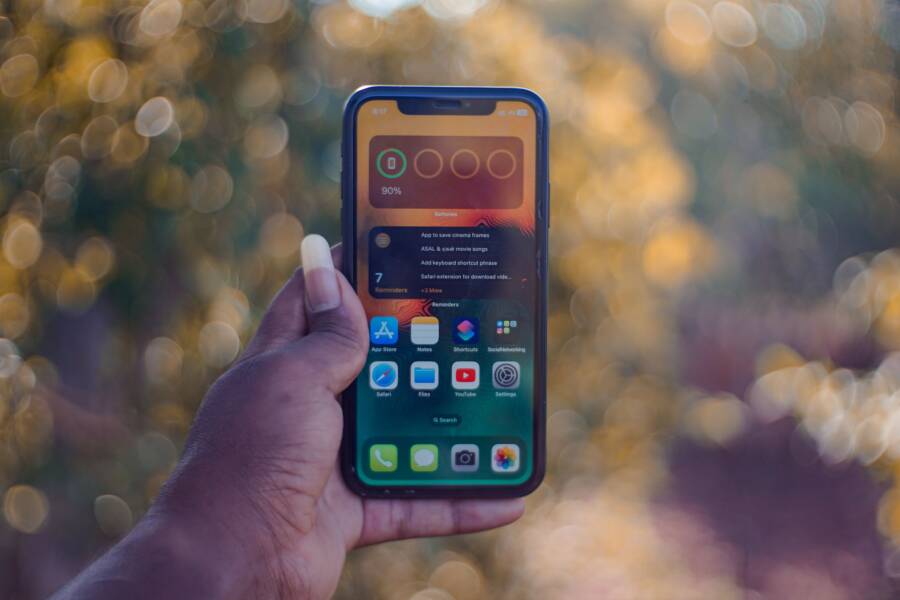
You see the “Your device is not compatible with this version” error because your smartphone hardware or software falls short of the app requirements. This happens when your operating system is too old, your processor lacks specific capabilities, or the developer intentionally restricts the app to newer models.
You can often bypass these restrictions by updating your system, using alternative installation methods, or modifying your device settings. Follow these steps to diagnose the issue and install the software you need.
Updating Your Smartphone Software and Operating System
Outdated software is a common culprit for app compatibility errors. Developers frequently build new features for the latest versions of iOS and Android. When your smartphone runs an older version, these apps cannot interact with the system files they need to function. Keeping your software current is often the fastest way to resolve crashes and installation blocks.
How to Check for System Updates
Most manufacturers include a dedicated section in the settings menu to manage system software. You can find out if a newer version is ready for your device with a few simple taps.
- Open the Settings app on your device.
- Scroll down and select the System or Software Update option.
- Tap on Check for updates or Download and install if a notice appears.
- Follow the on-screen prompts to finish the process if an update is available.
Always connect your smartphone to a stable Wi-Fi network before starting a download. System updates are often several gigabytes in size, and using mobile data might exhaust your monthly limit or trigger extra charges from your carrier. A reliable power connection is also helpful, as many devices require at least 50 percent battery life to begin the installation.
What to Do If No Updates Are Available
Sometimes, your smartphone will report that the software is already up to date, yet you still cannot install the application. This happens when the manufacturer stops supporting your specific model. Tech companies provide updates for a set number of years, after which they move on to newer hardware.
If your device no longer receives updates, you are effectively locked into the current software version. This status means you cannot access newer apps that require advanced system frameworks. While this situation is frustrating, it does not mean your device is useless. You can still look for older versions of apps, use web-based versions of services, or consider alternative software like custom ROMs if you possess the technical expertise. If the lack of updates prevents you from using essential tools, upgrading your hardware is often the most practical path forward.
Clearing App Store Cache and Data
When your smartphone struggles to download or update apps, a corrupted cache file often causes the problem. The App Store stores temporary data to speed up navigation and image loading. Sometimes, this saved information becomes outdated or conflicts with current server requests. Clearing these temporary files forces the system to fetch fresh data, which often resolves unexpected compatibility errors or installation failures.
Simple Steps to Refresh the App Store
Android users can manage individual app data directly through the system settings. This process targets the cache and stored configuration files of the Google Play Store app itself. Your personal files, photos, or other app data remain completely untouched during this refresh. Follow these steps to clear the information on your Android device.
- Open the Settings app on your smartphone.
- Select Apps or Application Manager from the list.
- Find Google Play Store in the list of all applications.
- Tap Storage or Storage & Cache.
- Select Clear Cache to remove temporary files.
- Select Clear Data or Clear Storage to reset the app settings.
- Restart your smartphone to apply these changes.
Once you restart your device, the app store will rebuild its cache from scratch. You might notice the store takes a few extra seconds to load images or lists the first time you open it. This behavior is normal because the system is downloading current information from the servers.
iOS handles these background processes differently, as the system manages cache maintenance automatically without user intervention. If you encounter errors on an iPhone, simply force-closing the App Store or restarting the device triggers a fresh connection attempt. In most cases, these manual steps clear the communication roadblocks that prevent successful installations on your smartphone.
Finding Alternatives When Your Device Is Truly Unsupported
When hardware limitations prevent you from installing an app, you do not have to accept defeat. Many developers create multiple ways to access their services without needing the latest native software. If your smartphone model is no longer compatible with a specific app, exploring these workarounds often provides the exact functionality you need.
Using Web Apps Instead of Native Applications
Most major services maintain a mobile website that replicates the experience of their native app. These web interfaces allow you to perform essential tasks like messaging, banking, or social media browsing directly through a browser. You can often save these sites to your home screen, which creates an icon that behaves much like a standard app.
Accessing these services via a mobile browser is a reliable alternative for an unsupported smartphone. Since the website runs on the server side, it does not rely on your phone’s specific software version or hardware capability to function. You gain access to the service without dealing with installation errors or update requirements.
To turn a website into a home screen shortcut, follow these steps:
- Open your browser on your smartphone.
- Navigate to the website of the service you want to use.
- Tap the browser menu button, which is often represented by three dots or an icon at the top or bottom of the screen.
- Select the option labeled Add to Home Screen.
- Confirm the name of the shortcut and tap Add.
This action places an icon on your home screen, allowing you to launch the site instantly. While the web interface may occasionally lack some advanced animations found in a native application, it usually provides full access to your account and data.
Searching for Lite or Legacy Versions
Developers occasionally release a version of their software branded as Lite or Go. These variants occupy less storage space and use fewer system resources than the full applications. They work well on older hardware because they prioritize performance and efficiency over graphical complexity.
You can often find these lightweight options by searching the app store for the name of the service followed by the word Lite. If a developer does not provide a specific lite version, you might look for legacy editions of the app. Some third-party archives host older installation files, known as APK files for Android, that support older versions of the operating system.
When you choose to install a legacy file from an external source, be aware of the following:
- Check the reputation of the website before downloading any file.
- Ensure your smartphone settings allow installations from unknown sources.
- Verify the file is intended for your device architecture to prevent stability issues.
Using a lighter version or an older, compatible release keeps your smartphone functional without requiring a hardware upgrade. This approach balances your need for current services with the realities of using an aging device.
Common Questions About App Compatibility
Users often encounter roadblocks when trying to install software on their devices. These compatibility errors usually stem from a mismatch between the app requirements and the capabilities of your smartphone. Addressing these issues begins with understanding why your specific model might receive a block notice from the store.
Why does the store say my device is unsupported?
The Google Play Store or Apple App Store checks your device hardware and software version against the requirements set by the developer. If your operating system is too old or your processor lacks specific features like a 64-bit architecture, the store hides the install button. Developers set these limits to prevent crashes and ensure a stable experience for their users. You might also find an app is restricted based on your geographic region or carrier settings.
Can I install apps from outside the official store?
Android users can download and install apps via APK files from third-party websites. This process, known as sideloading, bypasses the standard store checks for device compatibility. You must enable the install from unknown sources setting in your security menu to allow this. However, use caution when visiting third-party sites because they often host modified or malicious software. Only download files from reputable developer forums or verified app archives to protect your smartphone.
Does a custom ROM fix compatibility errors?
Installing a custom ROM allows you to run a newer version of Android on an older device that no longer receives official updates. If your current software version is the only reason an app refuses to install, a custom ROM often provides a solution. This method requires technical knowledge and carries the risk of damaging your device if the installation fails. Most people find that basic workarounds, such as using web apps, are safer than replacing the entire operating system.
What happens if I force an incompatible app to run?
Attempting to force an installation on a device that does not meet the minimum requirements rarely results in a functional app. You might see the application icon appear on your screen, but the program will likely crash during startup or fail to load essential services. This occurs because the app expects system files that do not exist on your older software or hardware. It is usually more efficient to seek a lite version or a browser-based alternative rather than fighting against these structural limitations.
Are all compatibility issues related to software?
While outdated software is a frequent cause, hardware limitations also play a significant role. Some apps require specific sensors like a gyroscope, a high-resolution camera, or a certain amount of RAM to perform correctly. Even if you update your operating system, your hardware might lack the components requested by the developer. In these scenarios, the app remains incompatible because your physical device does not possess the tools necessary to execute its core functions.
Conclusion
Resolving compatibility errors often boils down to three core actions. You should update your system software, clear the app store cache, and search for web-based alternatives if native files fail to install. These steps address the vast majority of installation roadblocks on your smartphone.
It is frustrating when an app refuses to run on your device. However, you can frequently regain access to essential services by using these workarounds. Focus on these simple fixes before assuming you must replace your hardware.