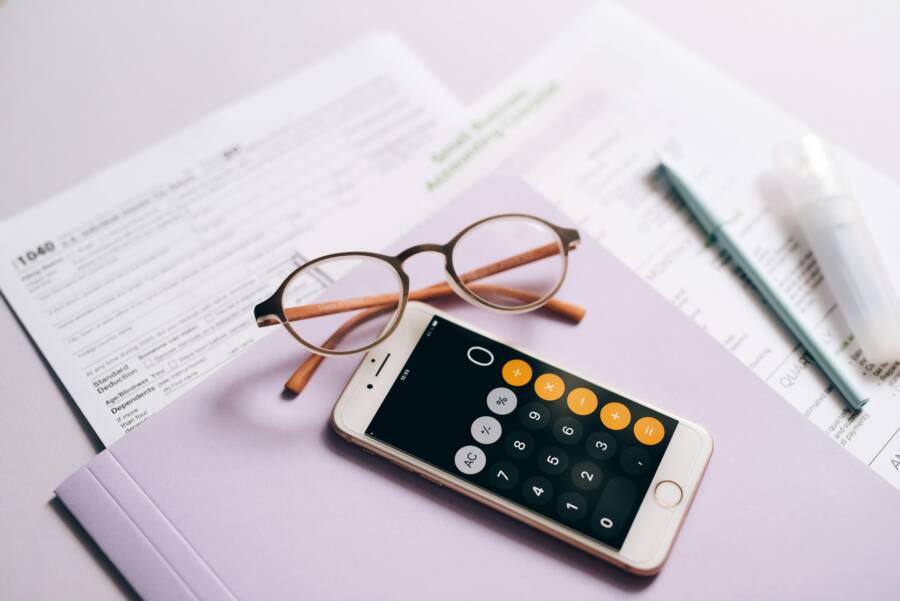
You can turn paper piles into tidy, searchable PDF files using the smartphone already in your pocket. This process clears your desk and helps you find specific documents in seconds.
Many people struggle with mountains of mail, receipts, and important records. Converting these physical sheets into digital files reduces stress because your paperwork remains safe and easy to access.
Follow these steps to learn how to scan, name, and store your documents. You will save time and keep your records in order with minimal effort.
Why You Should Use Your Smartphone to Digitize Files
Using a smartphone to capture documents is an efficient alternative to traditional flatbed scanners. You carry the necessary hardware in your pocket throughout the day, which means you can process paperwork immediately. This method eliminates the need for bulky equipment or trips to a copy center. You gain control over your personal records by managing them directly from your device.
Speed and Quality in Your Pocket
Modern smartphone cameras offer impressive resolution that matches the output of dedicated desktop scanners. These sensors capture fine text and graphics with high clarity, making every letter readable. Scanning apps use smart algorithms to detect page edges, adjust lighting, and correct perspective distortion automatically. Your device turns a tilted or dimly lit photo into a flat, professional-looking document in seconds.
The processing speed is a major advantage for busy users. You simply point the camera at a document, and the software handles the rest. Most apps provide real-time feedback, showing you exactly how the final file will appear before you save it. You can create a high-quality PDF, attach it to an email, or upload it to a cloud folder before you even leave your desk. This workflow saves time compared to waiting for a scanner to warm up or managing complex settings on a printer.
The Benefits of Going Paperless
Shifting to a paperless system reduces clutter and protects your home from unnecessary paper piles. Physical filing cabinets take up significant space and often become disorganized over time. When you store documents as digital files, you regain the floor space previously occupied by boxes of old receipts or tax forms. You also reduce your environmental footprint by minimizing the need for paper printing and physical storage supplies.
Finding a specific document becomes much faster when your files are organized on a phone or computer. You can use search features to find records by name, date, or category rather than flipping through physical folders. A digital archive stays organized indefinitely, provided you maintain a simple naming system. You can even back up your files to the cloud to prevent data loss. The following list summarizes why this transition is helpful:
- You save physical space by removing bulky folders.
- Search tools help you find specific information in seconds.
- Digital files are easy to back up and share with others.
- You avoid the damage or loss often associated with physical paper.
Storing your documents electronically provides a reliable way to manage your life. You have peace of mind knowing your important information is secure and ready whenever you need it.
Simple Steps to Turn Paper Scans into Clear PDF Documents
Producing high-quality digital files with your phone is a straightforward process when you prioritize proper technique. Clear scans depend on lighting, stability, and the right software tools. These factors determine how easily you can read, share, or search your documents later.
Mastering the Art of the Perfect Scan
Quality scans start with the environment. Find a well-lit area to avoid grainy images. Natural light from a nearby window works best because it provides even illumination across the page. Avoid harsh direct light, as it creates hotspots or glare on glossy paper that make text hard to read.
Place your document on a flat, solid surface with a color that contrasts with the paper. A dark desk helps the app detect the page edges accurately. If the paper is curled, use a heavy object or your hand to hold it flat while you capture the image. Avoid shadows by positioning yourself so your body or the phone does not block the light source.
Keep your hand steady while taking the photo. Modern smartphone cameras have image stabilization, but a still hand ensures the sharpest text. Align your camera lens parallel to the page to prevent perspective distortion. If you hold the phone at an angle, the app must stretch the image, which often reduces clarity.
Choosing the Right Scanning App
Your smartphone usually includes built-in scanning features. iPhone users can scan directly through the Notes or Files apps, while many Android devices include similar functions in the camera or Google Drive app. These built-in tools are excellent for quick, casual tasks. They handle basic edge detection and PDF conversion without requiring you to install new software.
Dedicated third-party apps provide more power if you scan documents often. Apps like Adobe Scan, Microsoft Lens, or Genius Scan offer advanced editing features. They often excel at cleaning up messy documents, removing coffee stains, or adjusting contrast on faded text.
Most professional-grade apps include Optical Character Recognition, known as OCR. This technology turns images of text into machine-readable data. OCR makes your PDF documents searchable. You can type a keyword from the document into your phone search bar to find the file immediately. Without OCR, your phone only sees a flat image, meaning you must manually name every file to find it later.
Dedicated apps offer more value if you manage a large volume of paperwork. If you only scan a document once or twice a month, the tools already on your smartphone are likely enough to keep your digital files organized and accessible.
How to Keep Your New PDF Files Organized for Good
Digital clutter happens quickly when you scan documents without a plan. You must establish a consistent routine to ensure your files remain useful months or years after you save them. A reliable system turns your smartphone into a high-powered filing cabinet that never runs out of shelf space.
Creating a Logical Filing System
You need a standard naming convention to keep files easy to identify at a glance. When you use the same structure for every document, your search results become accurate and fast. The best approach includes the date, the document type, and a brief description of the contents.
A format like YYYY-MM-DD-Type-Description works for almost every situation. For example, a utility bill scanned on October 15, 2023, becomes 2023-10-15-Utility-Electric-Bill. This sequence forces your operating system to sort files chronologically by default. You should avoid generic names like Scan01 or Document.pdf because they offer no clues about the actual content.
Here are a few naming examples to help you start your own library:
- 2023-11-01-Medical-Doctor-Visit-Records
- 2023-12-05-Tax-W2-Form-2023
- 2024-01-10-Insurance-Auto-Policy-Renewal
Once you name your files correctly, you should group them into folders that match your life categories. Create high-level folders for Finance, Health, Property, and Legal records. Add subfolders within those categories if you handle many documents for a single provider or project. Keep the structure shallow so you never need to click more than three times to reach a specific file.
Leveraging Cloud Storage and Syncing
Your smartphone provides the mobility to scan records, but cloud storage provides the safety to keep them forever. Using a service like iCloud, Google Drive, or OneDrive connects your documents to every device you own. When you save a scan to your chosen folder, the app syncs the file across your laptop, tablet, and phone automatically.
Automated backups protect your data against hardware failure or accidental loss. If you lose your phone, your files remain safe on the provider server. You just log into the app on a new device to recover your entire digital archive. Ensure you enable settings that allow the app to sync over cellular data if you frequently scan documents while away from home.
Check these settings to make your workflow more robust:
- Enable background sync: This ensures files move to the cloud without you needing to keep the app open.
- Turn on offline access: You can view your most important records even when you lack a network connection.
- Set up folder sharing: You can grant family members access to specific folders if you manage household records together.
Review your cloud storage space periodically to avoid hitting capacity limits. Many providers offer cheap monthly plans that accommodate thousands of high-quality PDF files. Treating your cloud storage as the primary home for your documents removes the need to rely on local phone storage alone. This redundancy is the most effective way to secure your personal data for the long term.
Frequently Asked Questions About PDF Management
Managing your documents effectively involves more than just capturing images. Many users have questions about keeping files safe or handling large amounts of data. These answers clarify how to maintain a productive and secure system on your smartphone.
How to Keep Sensitive Documents Secure
Storing private records on your device requires caution. You should treat your digital documents with the same care as physical paper files. First, set a strong passcode or use biometric locks like FaceID or fingerprint scanning to protect your smartphone. This prevents unauthorized access if you misplace your device.
Most modern scanning apps offer built-in security features. You can add a password to individual PDF files within the application. This adds an extra layer of protection even if someone gains access to your phone or cloud storage. Choose a unique, complex password for every sensitive file rather than reusing the same code.
Use reliable cloud storage providers to host your documents. Services like iCloud, Google Drive, and OneDrive provide high-level encryption for your data during transit and while stored on their servers. Enable two-factor authentication on these accounts to block unauthorized logins from other devices. This simple step is highly effective at preventing breaches. Finally, avoid uploading highly sensitive files, like social security cards or bank passwords, to public cloud folders unless you enable specific file-level encryption.
Handling Large Files and Scanned Books
Scanning entire books or thick manuals can create massive files that consume storage space quickly. You should adjust your scanning settings before you start a long project. Lower the resolution to 200 or 300 DPI for text-only documents, as this reduces file size without losing readability. Color scanning creates much larger files than black-and-white or grayscale modes. Use the grayscale setting whenever possible to save significant space.
Break long documents into smaller parts if you notice your phone struggling. Instead of scanning a 100-page book as one file, save it in chapters or sections of 20 pages. This makes the file easier to email or share later. Many scanning apps also allow you to compress files after you finish the scan. Look for a “compress” or “optimize” option in the export menu to shrink the file size before you save it to your cloud drive.
If you deal with many large documents, consider a dedicated file management app. These tools help you merge multiple PDFs or split them apart without needing a desktop computer. They help you keep your smartphone organized while ensuring your storage capacity remains manageable. Always delete blurry or accidental extra pages to keep your total document size small and efficient.
Conclusion
Your smartphone is a powerful tool for eliminating paper clutter. By capturing clear images and using consistent naming patterns, you turn stacks of physical documents into a searchable digital archive.
Effective organization relies on routine. Save your files in structured cloud folders to ensure they remain accessible across all your devices. This habit keeps your records secure while saving you time when you need information quickly.
Start by scanning your most urgent documents today to see how quickly your workspace clears. Consistent digital maintenance turns your device into a reliable partner for long-term personal productivity.