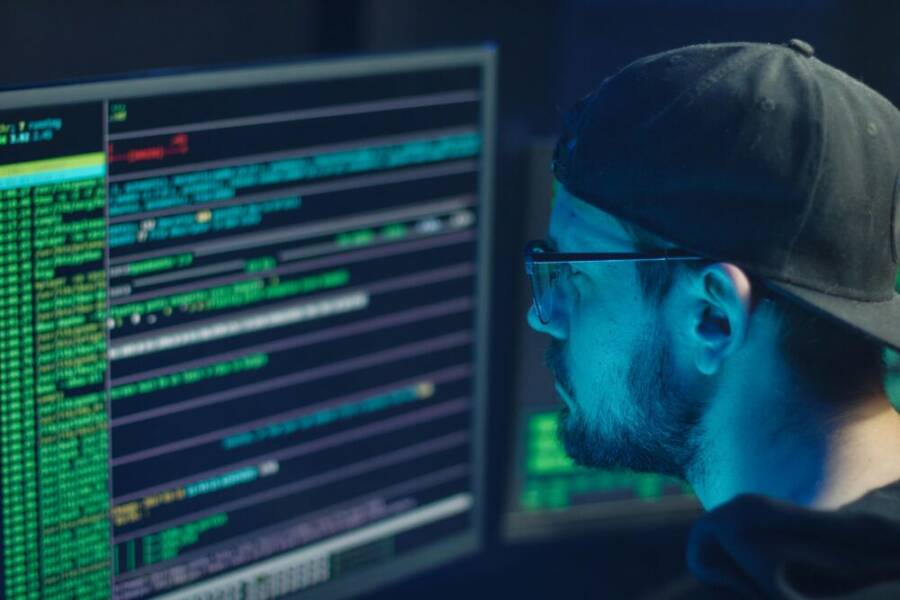
A quick story to start: a person opened their PayPal app on a borrowed smartphone and watched a hacker drain cash in minutes. It happened after a phishing link connected to the app and the attacker gained access from a compromised login. That moment made them realize how fragile mobile money can be.
Payment apps like PayPal, Venmo, and Cash App rely on your phone to guard every cent. When a phone is not protected, thieves have a direct path to your accounts, especially if they use weak passcodes, shady apps, or public WiFi. The main risks are theft of funds, phishing attempts that steal credentials, and malware that reads notifications or taps through security checks.
This guide shares clear, practical steps backed by real user reports and expert advice. You’ll learn how to harden your device, control app permissions, and spot risky behavior before it matters. We’ll cover everyday habits that make a big difference, from strong authentication to keeping software up to date. By the end, you’ll feel more confident protecting your smartphone and your money.
Spot the Top Threats to Your Mobile Payment Apps
Your phone sits between you and your money. When the device is unlocked and the apps are ready, a thief only needs a moment to turn your wallet into an empty purse. This section highlights the most common threats to mobile payment apps like PayPal, Venmo, and Cash App. Knowing how these threats work helps you spot risky behavior early and act fast to minimize damage. Each threat is followed by practical steps you can take right now to reduce your risk.
How Thieves Target PayPal on Stolen Phones
Thieves don’t need to crack complex security to grab your funds. They often rely on quick, low-friction methods that work in a hurry. A stolen or lost phone can give attackers rapid access to your PayPal account if security is weak or misconfigured.
- Guessing or bypassing simple locks: If your device uses a short PIN or a simple pattern, a thief can gain entry within seconds. Longer, unique passcodes and biometric options raise the barrier significantly.
- Accessing apps directly from the lock screen: Some devices show notifications and quick actions. If a thief can tap through to a payment app from a lock screen, money can move before you notice.
- Remote wipe and recovery considerations: If your device is remote-wipe friendly like many modern platforms, a thief might trigger protective actions. Timely use of remote wipe can prevent further access, but only if you act quickly.
- Unsecured authentication in apps: If your payment app relies on session tokens without re authentication, a thief who opens the app after gaining physical access may perform actions without re verifying identity.
- Public WiFi and automatic sign-in: Public networks can expose you to man-in-the-middle risks, especially if your device reuses credentials or keeps you signed in across sessions.
What you can do now
- Use a strong, unique passcode and enable biometric unlock as a backup.
- Turn off lock-screen quick actions that jumble notifications with apps.
- Enable remote wipe on your device and ensure your PayPal app requires re authentication after a period of inactivity.
- Review app permissions and disable auto sign-in or saved credentials for payment apps.
- Keep your OS and app versions up to date to close known gaps that attackers may exploit.
For further guidance on reporting identity theft and securing your account, see PayPal’s official security resources. PayPal’s identity theft guidance can be a helpful reference if you suspect unauthorized activity. How to Report Identity Theft to PayPal
Photo by Mikhail Nilov on Pexels
 Photo by https://www.pexels.com/@mikhail-nilov
Phishing Scams That Trick You into Sharing Login Info
Phishing remains one of the easiest ways for thieves to seize control of mobile payments. Attackers craft messages that look like legitimate notices from your bank or payment app. They lure you to a fake login page or a request to verify details.
- Fake links in texts or emails: A message may claim there’s unusual activity, a pending payment, or an urgent security flag. The link leads to a spoofed site that imitates the real PayPal or banking site.
- Odd or mismatched URLs: Look for minor inconsistencies in the domain, misspellings, or unexpected subdomains. Real banks and payment providers use official domains and security indicators.
- Requests for one-time codes: Some scams push you to share a two-factor authentication code or a password reset link. Attackers can use these to gain entry before you notice.
- Brand shiny objects: Alerts about account limitations or suspicious activity can be legitimate, but attackers mimic these prompts to create urgency.
Safe checks you can perform
- Always type the official URL into your browser or use the app directly from your device’s app store.
- Hover over links to preview the destination, and avoid links in unsolicited messages.
- Enable two-factor authentication with a hardware key or authenticator app rather than SMS codes.
- If in doubt, contact the provider directly through the official app or website.
Phishing is growing more sophisticated, but you can outsmart it with caution and routine checks. For a deeper dive into common phishing patterns and immediate steps, review credible security guidance and be wary of anything that feels rushed or personal. For reference, consider reputable security resources and real-world warnings from users who have faced phishing attempts on their own accounts.
Photo by Anete Lusune on Pexels
 Photo by https://www.pexels.com/@anete-lusune
Link references and further reading
- How to Protect Your Computer and Accounts. This resource emphasizes strong passwords and staying vigilant against credential theft. https://www.paypal.com/vg/webapps/mpp/security/online-security-guide
- Is Your PayPal Account Under Attack? 7 Red Flags You Can’t Ignore. A practical look at common attack signals and how to respond. https://www.cloaked.com/post/is-your-paypal-account-under-attack-7-red-flags-you-cant-ignore-and-what-to-do-next
- PayPal security reporting and identity theft resources. https://www.paypal.com/ar/webapps/mpp/security/report-identity-theft?locale.x=en_AR
Note: Always verify links before clicking and use official channels to report suspicious activity or unauthorized access. If you want more tailored safety steps, I can outline a personalized, step-by-step security routine for your typical smartphone usage patterns.
Strengthen Your Phone’s Built-in Security First
Your phone is the gateway to your money and your data. Strengthening the core defenses on the device itself makes every app, including PayPal and similar services, safer to use. This section covers two practical pillars: choosing the right lock screen and keeping software up to date. Both are quick to implement and pay off with fewer risky surprises.
Pick the Best Lock Screen Options for Quick Safety
Your lock screen is the first line of defense. Choosing the right method and setting it up correctly can stop most casual intruders before they get close to your apps.
- PIN: Pros — simple, fast to enter, works everywhere. Cons — short or simple PINs can be guessed; reuse across multiple apps can be risky.
- Pattern: Pros — quick to draw, familiar on many Android devices. Cons — patterns with obvious shapes are easier to guess; smudges on the screen can reveal the path.
- Biometrics (fingerprint, face): Pros — very fast, convenient, often more secure than a weak PIN. Cons — may fail in poor lighting or if you change appearance; some people disable biometrics for extra safety.
- Hybrid approach: Use biometrics for daily unlock and require a strong PIN or password as a backup. This gives you fast access with a solid fallback.
How to set up the best option for you
- Start with a strong base: choose a long PIN or robust password as the primary unlock method.
- Add biometrics as a convenience layer: enable fingerprint or facial recognition if your device supports it.
- Disable lock screen quick actions: some devices expose notifications and quick taps from the lock screen, which attackers can exploit.
- Test re-authentication: ensure sensitive apps, including payment apps, require re-authentication after a period of inactivity or when launching from a fresh unlock.
- Keep backups in mind: if you rely on biometrics, ensure a secure fallback method exists in case biometrics fail.
How to implement on common platforms
- Android: Go to Settings > Security or Lock screen > Screen lock. Choose PIN, Pattern, or Password, then enable biometrics as a secondary unlock if available. Turn off lock screen quick actions in the notification settings to minimize risk.
- iOS: Open Settings > Face ID & Passcode (or Touch ID & Passcode) and set a passcode with Face ID or Touch ID enabled. Consider enabling Require Passcode Immediately for sensitive apps.
Why this matters for PayPal and similar apps
- Strong, unique device access slows down attackers who grab a phone.
- Re-authentication prompts force attackers to re-enter credentials, buying you time to notice.
- Biometric options add convenience without sacrificing security, especially when paired with a good passcode.
For deeper guidance on screen locks and setup steps, see these reputable sources:
- How to Secure Your Phone: Mobile Security Apps & Tips from Android’s official guidance. https://www.android.com/articles/how-to-secure-android-phone/
- Set screen lock on an Android device from Google support. https://support.google.com/android/answer/9079129?hl=en
Images:
 Photo by indra projects
Keep Your Phone Software Fresh to Block New Risks
Regular software updates are your most reliable line of defense against fresh threats. Each patch fixes holes that attackers could exploit to access apps and data, including PayPal and other wallets.
What updates do
- Fix security holes: Patches close known vulnerabilities that criminals could use to bypass protection.
- Improve cryptography and checks: Updates often strengthen how apps verify you and protect data in transit.
- Enhance features with safer defaults: New versions may tighten permissions or require re-authentication for sensitive actions.
How to stay current
- Enable automatic updates: This is the simplest, most effective habit. For Android, turn on automatic system updates and app updates in the Google Play Store. For iPhone, enable automatic updates in Settings > General > Software Update, then turn on Automatic Updates.
- Monitor critical apps: Even with auto updates, check PayPal, banks, and security apps periodically to ensure their permissions and security settings are appropriate.
- Reboot after big updates: A quick restart ensures new security checks and background protections start clean.
Why updates matter for your money apps
- Fewer gaps between patches and your device mean attackers have less time to exploit a flaw.
- Updated apps enforce newer security policies, making unauthorized actions harder.
- Devices with current software reduce exposure to phishing, malware, and credential theft.
Practical tips to implement now
- Turn on auto-update for your entire device and for all apps when possible.
- If you notice an update requires more permissions than before, review them carefully and revoke anything you don’t need.
- Schedule a monthly quick audit: verify the latest version numbers for PayPal and your banking apps.
Pro tips from experts and official guidance
- Keeping your device and apps up to date is one of the simplest, strongest protections against phishing and malware that target payment apps.
- Regular re-authentication after inactivity adds a critical layer of defense against unauthorized use on a lost or stolen phone.
Helpful resources for staying secure
- How to Protect Your Computer and Accounts, a guide focusing on strong passwords and vigilant behavior. https://www.paypal.com/vg/webapps/mpp/security/online-security-guide
- PayPal security reporting and identity theft resources. https://www.paypal.com/ar/webapps/mpp/security/report-identity-theft?locale.x=en_AR
Images: Phishing and security awareness visuals can reinforce caution in daily use, though this section focuses on device hygiene over synthetic examples.
Photo credits
- Photo by Anete Lusune on Pexels
Link references and further reading
- How to Protect Your Computer and Accounts. https://www.paypal.com/vg/webapps/mpp/security/online-security-guide
- Is Your PayPal Account Under Attack? 7 Red Flags You Can’t Ignore. https://www.cloaked.com/post/is-your-paypal-account-under-attack-7-red-flags-you-cant-ignore-and-what-to-do-next
- PayPal security reporting and identity theft resources. https://www.paypal.com/ar/webapps/mpp/security/report-identity-theft?locale.x=en_AR
Note: Always verify links before clicking and use official channels to report suspicious activity or unauthorized access. If you want more tailored safety steps, I can outline a personalized, step-by-step security routine for your typical smartphone usage patterns.
Secure PayPal and Apps Like Venmo Step by Step
Your money sits in your pocket on your phone. A little friction can save hours of regret. In this section, you’ll get a clear, practical path to tighten security for PayPal, Venmo, Cash App, and similar services. We’ll cover two essential defenses you should enable now and a quick guide to using biometrics with smart alerts. Follow these steps and you’ll harden your defense without slowing down your everyday payments.
Turn On Two-Factor Authentication Right Away
Two-factor authentication (2FA) adds a crucial layer between your money and someone else. With 2FA, a thief can’t simply enter your password and take control; they’ll also need the second factor, usually a code from an authenticator app or a hardware key. Using an authenticator app is generally more reliable than SMS codes, which can be intercepted or SIM-swapped.
Step-by-step for PayPal and others
- Open the security or account settings in your payment app or service.
- Choose the option for 2-step verification or two-factor authentication.
- Select an authenticator app (TOTP) or a hardware security key as the second factor.
- Scan the QR code with your authenticator app or follow the on-screen setup.
- Enter the generated code to confirm and complete setup.
- Save backup codes in a safe place. If allowed, enable backup methods so you don’t get locked out.
Why authenticator apps are a strong choice
- They stay in your control. Codes never travel via text, reducing SIM-swapping risk.
- They work offline, so you don’t rely on carrier signals.
- They’re reusable across multiple services, so you can centralize security without juggling many keys.
Important notes and practical tips
- Turn on 2FA for each payment app you use, not just one.
- Keep a current backup method in case you lose access to the authenticator.
- Periodically review your 2FA settings after major app updates.
- If you’re new to 2FA, start with PayPal’s official guidance to follow the exact paths in your region: “What is 2-step verification” and turn it on using an authenticator app. You can review PayPal’s official 2FA guidance here: https://www.paypal.com/us/cshelp/article/what-is-2-step-verification-help167
For more context on 2FA setup and best practices, see PayPal’s formal guidance and related resources. This helps ensure you’re following the recommended flow for a secure setup that fits your device and region:
- What is 2-step verification? https://www.paypal.com/us/cshelp/article/what-is-2-step-verification-help167
Protecting your accounts with 2FA is one of the easiest, most effective moves you can make. It’s a small step with a big payoff, especially if you use mobile payment apps frequently on a smartphone. A quick setup now saves you headaches later.
Use Biometrics and Alerts for Extra App Locks
Biometrics add a discreet safety net for day-to-day access. With fingerprint or face recognition enabled, you can unlock your payment apps quickly without typing a password each time. Combine biometrics with transaction alerts, and you have a powerful early-warning system.
How to enable fingerprint or face for app access
- iOS: Open Settings, choose Face ID & Passcode, or Touch ID & Passcode. Ensure there is a strong device passcode in place. In the payment app, enable biometric unlock if offered.
- Android: Settings > Biometrics and security (or Lock screen) > Enable fingerprint or Face Unlock. In the payment app, turn on biometric unlock in the security or privacy section.
- In-app setup: Within PayPal, Venmo, or Cash App, locate Security or Access settings and enable biometric access. If the app requires re-authentication after a period of inactivity, leave that setting on.
Set transaction notifications and alerts
- Enable real-time alerts for purchases, transfers, and login attempts. Alerts help you catch unauthorized activity the moment it happens.
- Customize alert channels: push notifications are fastest, but you can also set email alerts if you want a secondary copy.
- Review alert sensitivity: some apps let you choose when to receive notifications, such as only for high-value transactions.
Why this matters
- Biometrics are convenient and hard to spoof compared with simple passwords.
- Alerts act like a security alarm, letting you react before funds leave your account.
- Together, they reduce the window attackers have to act after gaining access.
Practical tips
- If you share a device, ensure each user has their own login and your PayPal or similar apps remain locked when not in use.
- Regularly review which devices have access to your account and remove any you no longer recognize.
- Test your alerts after enabling them. Make a small test transaction to confirm you receive notifications promptly.
If you want a quick reference, you can explore PayPal and Venmo support sections for setting up biometrics and alerts:
- How to protect your PayPal account with security features (section on 2FA and biometrics) https://www.paypal.com/us/cshelp/article/what-is-2-step-verification-help167
- PayPal security reporting and identity theft resources https://www.paypal.com/ar/webapps/mpp/security/report-identity-theft?locale.x=en_AR
Smartphone security is a personal habit as much as a technical step. Keeping your device locked, staying on top of app permissions, and enabling these protections helps you stay one step ahead of threats. With two-factor authentication and biometric locks in place, you turn your smartphone from a potential risk into a solid line of defense for your money apps.
Build Daily Habits to Dodge Scams and Hacks
Protecting your money on the go starts with simple, repeatable actions you perform every day. Small habits add up to big safety gains for PayPal, Venmo, Cash App, and similar apps. You’ll learn practical steps you can adopt now, from secure connections to careful review routines. Think of it as a daily checklist you run before and after you use any mobile payment service. And yes, your smartphone is both your tool and your target, so building habits around it matters.
VPN basics, link checks
Public WiFi can turn ordinary browsing into a risk. When you sign in to your PayPal or other wallet apps on a crowded network, data can travel through untrusted channels. A simple habit can make a world of difference: use a trusted virtual private network (VPN) whenever you connect to public networks and verify every link you click before entering credentials.
- Why a VPN matters: A VPN creates an encrypted tunnel for your data. It helps shield your login details and financial information from prying eyes on shared networks. It’s not a magic shield, but it raises the bar enough to slow thieves and give you time to spot trouble. For a quick primer, see PayPal’s overview of how VPNs fit into online security. What is a VPN
- How to pick a trustworthy VPN: Choose a reputable provider with strong encryption, a clear no-logs policy, and transparent privacy practices. Avoid free services that may monetize your data. Use apps from official stores to reduce the risk of tampered software.
- Basic link hygiene on any device: Always type the official site or app name directly into your browser or use the app from its store. If a link lands you on a page that asks for credentials, stop and reassess. Hover previews can help you spot suspicious destinations before you enter information.
- Quick checks you can perform today:
- Confirm you’re on the legitimate PayPal or banking site by looking for the lock icon and valid certificate indicators.
- If a link arrives via text or email, don’t tap it. Open the app or a new tab and navigate there yourself.
- Enable two-factor authentication (2FA) in every payment app so even if credentials are compromised, a second factor blocks access.
- Real-world caution with public networks: If you must use public WiFi, connect to a VPN, avoid performing high-risk actions, and log out after you finish. For a discussion of safety on public networks, see credible guidance on securing payments over public WiFi. Possible to safely send money via Paypal on public wifi networks
Smartphone users who incorporate these checks consistently tend to spot phishing attempts sooner. A moment of skepticism can save hours of damage later. If you’re unsure about a link, don’t click. Instead, open the official app and review recent activity or messages from the provider directly.
- Practical example: You receive a message claiming unusual activity and urging you to verify credentials. Don’t follow the link. Open the PayPal app or go to the official site by typing the address into your browser. Check the last login locations and recent activity rather than reacting to the prompt.
- Extra tip: Keep your device’s security software up to date and consider a reputable security app that can scan for malign scripts and monitor unusual account activity in real time.
For a broader understanding of VPN basics and secure practices on mobile devices, you can also review PayPal’s guidance and general security resources:
- https://www.paypal.com/us/money-hub/article/what-is-a-vpn
- https://www.paypal.com/vg/webapps/mpp/security/online-security-guide
Photo by Mikhail Nilov on Pexels
Download from official stores, review statements
One quiet but powerful habit is to keep every finance app installed only from official stores and to review your statements regularly. Fake apps and carry-over permissions can open doors to data leakage or unauthorized transactions. Committing to this routine reduces risk significantly.
- Why official stores matter: App stores vet developers and enforce security checks. When you download from official sources, you’re less likely to install tampered or malicious software. This is an essential guardrail for smartphone users who rely on mobile payments every day.
- How to confirm you’re on the right app:
- Check the developer name listed in the store entry.
- Read user reviews for any red flags, such as frequent permission requests that seem excessive for a payments app.
- Compare install counts and the last update date to gauge legitimacy.
- Review your statements often: Set a recurring reminder to scan your PayPal, Venmo, or Cash App statements at least weekly. Look for unfamiliar transactions, small test charges, or quick transfers to new recipients. Early detection makes reporting easier and faster.
- What to do if you spot something odd:
- Pause further activity in the app and report the transaction to the provider immediately.
- Consider freezing or temporarily removing access to the app from affected devices.
- Update your credentials and run a security check on your device.
- A practical check routine you can adopt:
- Each time you install or update a payment app, skim the permissions requested and deny anything unnecessary.
- After every major update, review active sessions and devices linked to your account.
- Set up alerts for every high-risk action, such as large transfers or login attempts from unfamiliar devices.
In addition to these steps, keeping your device software current strengthens your defense. Regular updates patch vulnerabilities that could be exploited to access your apps. For a broader look at why updates matter, consult trusted guidance on mobile security and PayPal’s resources for staying safe online:
- https://www.paypal.com/us/cshelp/article/what-is-2-step-verification-help167
- https://www.paypal.com/ar/webapps/mpp/security/report-identity-theft?locale.x=en_AR
Photo by Anete Lusune on Pexels
Link references and further reading
- How to Protect Your Computer and Accounts. This resource emphasizes strong passwords and staying vigilant against credential theft. https://www.paypal.com/vg/webapps/mpp/security/online-security-guide
- Is Your PayPal Account Under Attack? 7 Red Flags You Can’t Ignore. A practical look at common attack signals and how to respond. https://www.cloaked.com/post/is-your-paypal-account-under-attack-7-red-flags-you-cant-ignore-and-what-to-do-next
- PayPal security reporting and identity theft resources. https://www.paypal.com/ar/webapps/mpp/security/report-identity-theft?locale.x=en_AR
Note: Always verify links before clicking and use official channels to report suspicious activity or unauthorized access. If you want more tailored safety steps, I can outline a personalized, step-by-step security routine for your typical smartphone usage patterns.
Conclusion
Protecting PayPal and similar apps on your phone comes down to a few clear steps you can take today. Use a strong passcode, enable biometrics, turn on 2FA with an authenticator, and keep your OS and apps up to date. Review app permissions and disable auto sign-in for wallet apps. Always download from official stores and verify links before you enter credentials.
Checklist
- Set a long passcode and enable biometric unlock.
- Turn on two factor authentication with an authenticator app.
- Require re authentication after inactivity for payment apps.
- Use a VPN on public networks and avoid risky links.
- Enable real time transaction alerts and review statements weekly.
- Keep your smartphone and apps updated; reboot after big updates.
Act now to lock in safer practices. A few minutes today can save hours of trouble later and brings real peace of mind when you pay with your smartphone. A final tip: back up essential data securely and validate your backup regularly so you can recover quickly if something goes wrong.
If you have proven tips or recent experiences with mobile payments, share them in the comments below. Your input helps others stay safer and smarter with their smartphone wallets.