A small beach shop owner packs up for a weekend escape and realizes the sun, waves, and a single phone can run the whole business. From taking orders to updating stock, everything happens with just one device in hand. The owner jokes that the phone is basically a portable store, a cash register, and a marketing hub all in one. It sounds like magic, but it’s simpler than it seems when you have the right tools.
You can build a working storefront with zero office space and no laptop in sight. With the right apps and habits, you handle orders, payments, customer messages, and even basic accounting from anywhere. This approach is affordable too, with low upfront costs and scalable options that fit a small budget. The idea is not speed alone, but steady progress that fits real life.
This post shows how to run a small business using only your phone and still stay organized, professional, and productive. You’ll see which tasks to tackle on the go, which apps to rely on, and how to keep customers happy without extra gear. The goal is practical, everyday steps you can implement right away.
Here’s what you’ll learn: how to set up a mobile workflow that covers sales, inventory, and marketing; how to automate routine tasks to save time; and how to manage finances with clear visibility. We’ll outline quick wins you can apply this week, plus longer term tweaks that scale as you grow. By the end, you’ll know how to keep your business running smoothly from the palm of your hand.
Set Up Your Business Basics Right on Your Phone
Running a small business from your pocket sounds like a bold claim, but it’s now a practical reality for many entrepreneurs. When you have the right setup on your phone, you can handle names, websites, payments, and customer communications without dragging a laptop around. This section guides you through two essential early steps: choosing and securing your business name and creating a simple online presence that looks professional on a phone screen. Both steps are fast to complete and crucial for establishing credibility with customers.
Find and Claim Your Perfect Business Name
Your business name is more than a label; it’s your first impression and a key part of how customers find you. Start by checking name availability quickly using free name checkers, then confirm there are no trademark conflicts that could slow you down later.
- Use a free name checker on your phone to see if your preferred names are available as domain names. A popular option is Namecheap, which provides an easy domain search and domain registration flow right from a phone app or mobile browser. This helps you verify that the exact business name you want is ready to be claimed online. For example, you can search for a domain like “yourbrandstore.com” and see if it’s available in seconds. If your ideal name is taken, try simple variations that preserve your brand’s feel, such as adding a location or product focus (e.g., “YourBrandStoreTX” or “YourBrandStoreShop”).
- Check trademarks to avoid conflicts. The USPTO app or website lets you search for existing marks that could block your use of a name in commerce. Keeping your name clear of conflicts reduces the risk of costly rebranding in the future.
- Tips for choosing a name that performs well in phone searches:
- Keep it short and easy to spell. Simplicity makes it easier for customers to search and remember.
- Use descriptive terms that hint at what you sell or the service you provide.
- Include a local cue if you primarily serve a specific area; this can improve local search results.
- Favor words with broad appeal and avoid niche jargon that may confuse people.
- Practical examples:
- Name example 1: ShorelineBooks & Brew — simple, memorable, and hints at a local vibe plus a product category.
- Name example 2: PalmCityGear — short, punchy, and easy to search on a phone.
If you want to double check a potential name on the go, you can explore Namecheap’s domain search and related tools to ensure the name you love is free to use. Read more about the process and options here: Domain Name Search | Free Check Domain Availability Tool. You can also review the Namecheap mobile listings to see how the app supports quick checks and registrations. (Links: https://www.namecheap.com/domains/domain-name-search/, https://play.google.com/store/apps/details?id=com.namecheap.android&hl=en_US, https://apps.apple.com/us/app/namecheap/id482604032)
Remember, a strong name is simple, searchable, and uniquely yours. It should feel right when spoken aloud and look good in search results and logos. Take a few minutes now to lock in a name that passes the quick tests above, so you don’t waste time changing it later.
Build a Simple Website or Landing Page Fast
A minimal, mobile-friendly online presence is enough to start. You don’t need code or a full-blown site to convey professionalism and capture inquiries. A well crafted landing page or simple profile page can handle branding, contact information, and basic product details.
- Choose a phone friendly builder. Tools like Linktree offer simple one page setups that act as a hub for your business. Wix’s mobile editor provides more design flexibility while keeping everything responsive on small screens. Both options are designed to work fast on phones and require no coding.
- Start with your core needs. Your landing page should include:
- A short, clear headline that communicates what you sell or provide.
- A concise description of your business and value proposition.
- The most important call to action, such as “Shop Now,” “Book a Consultation,” or “Contact Us.”
- Contact methods and a direct way to place orders or inquiries.
- High quality photos that show your product or service in action.
- Step by step to set up a phone friendly page:
- Pick a mobile friendly builder (Linktree or Wix mobile editor).
- Create a single landing page with a strong headline and a brief paragraph.
- Add a contact section with your phone number, email, and a simple contact form if available.
- Upload 2–4 high quality photos that showcase your product or service.
- Include a clear call to action and any relevant business hours.
- Publish and test on multiple devices to ensure readability and fast load times.
- Best practices for mobile first design:
- Keep text concise and scannable; visitors should understand your offering within a few seconds.
- Use large tappable buttons and clear navigation to reduce friction.
- Optimize images for quick loading without sacrificing quality.
- Include trust signals like a short customer testimonial or a guarantee badge if you have one.
- Example setup: imagine a palm shop that sells handmade beach towels. The landing page headline could be “Handmade Beach Towels, Delivered Fast” with a short paragraph about materials and origin. A single large product photo sits above a “Shop Now” button, and a secondary link labeled “Contact Us” leads to a simple form or direct message option.
For additional ideas and inspiration on building mobile friendly pages, consider exploring each platform’s guidance and examples. If you’d like a quick reference, see how a small business uses a compact landing page to drive inquiries and sales (Link examples provided above in SECTION_0). By keeping the page clean and focused, you make it easy for customers to reach you without leaving their phones.
This section shows how a few taps can turn a phone into a capable storefront or information hub. You’ll establish your brand without a dedicated website team, and you’ll have a foundation to grow from as your business expands. As you advance, you can add more features, such as a catalog, payment links, or booking forms, all managed from your phone.
To keep your online presence aligned with your brand, review your name and domain status periodically. If you discover your preferred domain name is no longer available, return to the Namecheap tools and search for alternatives that keep your branding consistent. You can also read more about domain management and quick setup steps on the Namecheap app pages and resources linked earlier.
Manage Sales and Payments Without Leaving Your Phone
Running your store from a single device can feel like magic, but it’s really about choosing the right tools and a simple workflow. In this section, you’ll learn how to set up quick online payments that work everywhere, then how to launch simple online sales and invoices on the go. The goal is to keep smooth transactions, clear records, and happy customers, all from your smartphone.
 Photo by Pavel Danilyuk
Set Up Quick Online Payments That Work Everywhere
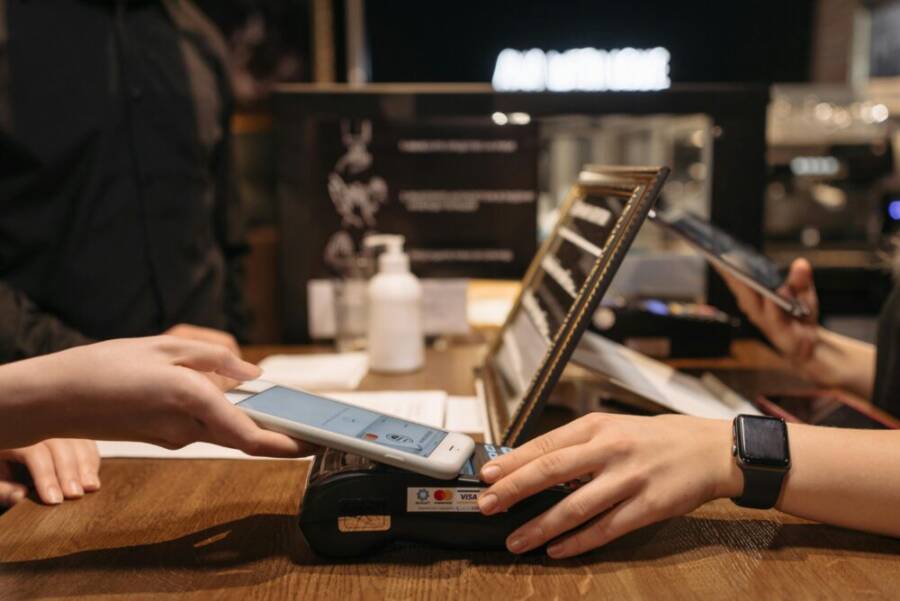
Whether you’re at a pop-up, at a beach stall, or on a weekend market, you need payment options that are fast and reliable. Here we compare three popular apps based on setup, fees, and the ease of generating QR codes that customers can scan from their phones. You’ll also learn how to link your bank in minutes and test payments to ensure a smooth checkout.
- App A: Square (with Pay by Square and QR codes)
- Setup: Quick start on your phone. You create a business profile, link a bank, and generate a QR code that customers can scan to pay. The setup is designed for non-tech users and walks you through each step with clear prompts.
- Fees: Processing fees are straightforward and transparent, making it easy to project costs for each sale.
- QR codes: QR codes are generated automatically for in-person payments, reducing the need for extra hardware or taps.
- Bank linking: You can link a bank account or debit card in minutes, then start accepting payments right away.
- Best for: In-person sales and quick onboarding.
- App B: Stripe (Online and mobile payments with QR support)
- Setup: The mobile onboarding guides you through creating an account, verifying details, and connecting a bank. Stripe is known for flexibility, particularly if you plan to scale online sales or add subscriptions.
- Fees: Competitive processing rates with straightforward online transaction pricing; great for growing businesses that occasionally need multi-channel sales.
- QR codes: QR code payments are supported in many regions, supporting a fast checkout flow for customers who prefer to pay by scanning.
- Bank linking: Bank account linking is typically fast, with immediate testing options to confirm funds flow.
- Best for: Mixed channels (in-person and online) and developers who want deeper customization.
- App C: PayPal Zettle (PayPal’s in-person solution)
- Setup: Simple, guided setup that emphasizes quick enablement for new sellers.
- Fees: Clear per-transaction fees; PayPal’s ecosystem can be convenient if you already use PayPal for online sales.
- QR codes: QR codes can be generated for quick, contactless payments; seamless cross-channel compatibility with PayPal’s platform.
- Bank linking: Bank connections are straightforward and can be ready to use within minutes.
- Best for: Sellers who want a familiar PayPal flow and strong buyer trust.
Tip: When choosing among these options, prioritize ease of use, daily costs per sale, and how well QR code payments fit your typical customer. A good move is to test each app with a small batch of sales to compare speed, reliability, and customer experience. For more on fee comparisons and features, you can explore independent comparisons like Square vs PayPal and Stripe vs PayPal to see current pricing and QR capabilities.
- Square vs PayPal: https://squareup.com/au/en/compare/square-vs-paypal
- Stripe vs PayPal: https://www.nerdwallet.com/business/software/learn/stripe-vs-paypal
- PayPal vs Stripe vs Square: https://wptravelengine.com/paypal-vs-stripe-vs-square/
If you want to keep things simple, start with Square, then consider Stripe if you plan to expand online sales or subscriptions. Use PayPal Zettle if you already rely on PayPal for buyers who expect instant checkout. The key is to have a payment option that keeps lines moving and minimizes friction for your customers.
Practical steps to get started today
- Pick one app you’ll test this week for in-person sales.
- Create your profile and link a bank account.
- Enable QR code payments and do a quick test sale with a friend.
- Add a simple note on receipts to reinforce your brand.
- Monitor fees with a quick daily tally to understand net revenue.
If you want more depth on setup steps, the linked comparisons provide concrete pricing and feature breakdowns that help you decide quickly. When you’re comfortable with one system, you can add a second channel later without disrupting your day to day.
Launch Simple Online Sales or Invoices
A lightweight approach to selling online lets you reach customers beyond the physical stall while keeping your setup simple. Use apps like Etsy or Shopify Lite for product catalogs, and handle invoices through mobile-friendly tools like Wave or FreshBooks. Here are practical steps to get your first sale quickly, along with tips to maintain momentum.
- Build a light product catalog with ready-to-use platforms
- Etsy app: Great for handmade or crafted products with an existing audience. It’s easy to set up store pages, list items, and manage orders from your phone.
- Shopify Lite: A lean option that lets you add a storefront to social channels or a small landing page. It’s fast to set up and scales as you add more products or channels.
- Handle invoices on the fly
- Wave mobile: A free option that covers invoicing, receipts, and basic accounting, all on mobile. Create a bill, send it, and track status with real time updates.
- FreshBooks mobile: A paid solution focused on simple invoicing and time tracking, ideal if you sell services or bill by the hour.
- Real steps for your first sale
- Photograph your top 3 items with good lighting and clear angles.
- Create a short product description with size, color, and price.
- List items on Etsy or Shopify Lite with mobile-friendly images.
- Share a direct payment link in your social profiles and in messages.
- Create a simple invoice for every sale that doesn’t go through the cart, using Wave or FreshBooks.
- Confirm payment received and mark the order as complete in the app.
Pro tips for a smooth mobile selling experience
- Keep product details short and scannable. Busy customers skim, so use bullets for key specs.
- Use funnels that start with a single call to action. A strong “Shop Now” or “Request Invoice” button keeps the flow clean.
- Maintain consistent branding across product photos, descriptions, and invoices.
- Use real customer photos when possible and protect privacy by avoiding sensitive details in captions.
- Schedule weekly reviews of your store stats to spot trends and adjust inventory.
For inspiration and practical examples, explore how small sellers use mobile storefronts to drive inquiries and sales. The aim is a clean, fast, mobile friendly store that your customers trust, even when you’re away from a laptop or desk. If you’re ready to expand later, you can add more products, switch to a broader eCommerce plan, or connect more advanced payment options without losing the convenience you’ve built.
To keep your online presence aligned with your brand, maintain a consistent storefront image and update product listings as you refine your offerings. If you run into limits on one platform, you can pivot to another without starting from scratch. The goal is momentum: a steady cadence of new items, clear invoices, and fast payments that keep customers coming back.
Image sources and further reading
- For a broader view of online selling options and pricing, see the app comparison links above.
- Consider exploring Etsy or Shopify Lite in depth to understand how each platform fits your product category and audience.
- Wave and FreshBooks offer mobile invoicing paths that pair well with quick payments in person or online.
This section maps a practical, phone-first path to sales and payments that stay fast, friendly, and affordable. You’ll be ready to handle orders, get paid, and keep your records tidy—all from the palm of your hand.
Handle Marketing and Customers from Your Pocket
You can grow your audience and keep customers engaged right from your phone. This section offers practical, phone-first tactics to promote your brand, schedule content efficiently, and respond to customers fast. With small, consistent steps, you turn your smartphone into a powerful marketing and service tool that travels with you.
Grow Your Reach with Phone Social Media Tools
Social media is where many customers discover small brands. The key is to publish consistently without spending hours online. Use mobile apps to schedule posts, reuse content, and monitor what works so you can double down on proven formats.
- Schedule posts on Instagram and Facebook from apps you already use. This keeps your content cadence steady even on busy days.
- Leverage free graphics in Canva mobile to create eye catching posts quickly. Consistent visuals build recognition and trust.
- Track what works with built in analytics or simple reports. Look for peaks tied to specific formats, times, or captions, and adjust your plan accordingly.
Tips for getting the most from mobile scheduling:
- Start with a realistic cadence. For many small shops, 3 to 5 posts per week balances visibility with time constraints.
- Mix formats to test engagement. Photos, short videos, and carousel posts each yield different results.
- Use local context to boost relevance. Add location tags when you’re at a stall or market to capture nearby searches.
If you want deeper comparisons of scheduling apps, you can check out resources comparing major tools and how they handle multi platform posting. For example, articles and reviews that examine features like scheduling efficiency, ease of use on mobile, and analytics can help you choose the right fit. See reputable roundups and guides that compare options like Hootsuite, Buffer, Later and more to understand what works best for a small business on the go. Links: https://adamconnell.me/social-media-scheduler-tools/, https://zapier.com/blog/best-instagram-scheduling-app/, https://planable.io/blog/schedule-social-media-posts/
Practical example: A palm shop owner posts 3 times a week—one product shot, one quick how to use the item, and one customer testimonial image. The workflow from phone to feed takes about 20 minutes, leaving time for in person sales and restocking. Consistency compounds, turning casual scrollers into paying customers over time.
Keep Customers Happy with Fast Replies
Speed matters in customer service, especially when you run everything from a single device. Fast, clear replies build trust and prevent small issues from becoming problems. Set up simple systems on your smartphone to handle messages, inquiries, and follow ups without friction.
- Set up chatbots in Messenger to handle common questions. A quick welcome message, hours, location, and payment options can be handled instantly, freeing you to close deals.
- Use Google Voice for calls when you’re away from the shop. A dedicated business number keeps your personal line private and makes messages easy to organize.
- Review handling tips regularly. Short, friendly responses, a clear call to action, and a quick follow up on every request help maintain a professional image.
Operational tips to keep replies crisp:
- Create a 24 hour reply standard. Even if you can’t answer immediately, acknowledge the message and tell the customer when you’ll respond.
- Use templates for common queries. Personalize slightly to avoid sounding robotic.
- Track response times. A simple weekly tally helps you spot delays and fix bottlenecks.
For readers exploring how to optimize messaging tools, there are practical guides and reviews on choosing the right chat platforms for small businesses. Look for sources that compare ease of setup, cost, and customer experience. Links: https://www.reddit.com/r/SocialMediaMarketing/comments/1hde63w/what_app_do_you_swear_by_for_instagram_post/, https://www.postplanner.com/blog/facebook-post-scheduler-app
Real world example: A seller at a weekend market uses Messenger automation to answer store hours, accepts pre orders via quick reply links, and follows up with a thank you message after each purchase. This simple setup reduces back and forth, speeds up service, and earns repeat customers.
If you’re building a routine, try this quick 3 step approach:
- Set a daily 10 minute window for customer messages.
- Use one or two templates for common questions.
- Review conversations weekly to catch recurring issues and update responses.
Incorporate these practices into your phone workflow and you’ll deliver fast, friendly service that fits your pace and your customers’ needs. Include direct links to your contact options in your profiles so customers always know how to reach you, even when you’re on the move.
To help you compare different messaging options, consider resources that review setup, pricing, and real world use. You can start with foundational guides on chat platform choices and expand as your business grows. Links: https://zapier.com/blog/best-instagram-scheduling-app/, https://www.reddit.com/r/SocialMediaMarketing/comments/1hde63w/what_app_do_you_swear_by_for_instagram_post/
Track Money and Stay Organized on One Device
You can keep a clear view of your finances and your day-to-day workflow all on one smartphone. With the right apps and habits, you’ll know exactly where money comes from and where it goes, while staying on top of tasks and stock. This section shows how to monitor income, manage expenses, and keep tasks organized without juggling multiple devices.
Watch Your Income and Costs in Real Time
Real-time visibility is the foundation of confident small business decisions. Start by linking your bank feeds so your income and expenses flow into one place, then categorize every transaction to reveal where you’re really earning and spending.
- Link bank feeds and payment accounts to an all-in-one dashboard. This reduces the guesswork and gives you instant awareness of cash flow. When a large payment hits or a recurring expense shows up, you’ll see it immediately.
- Categorize expenses as you record them. A simple system—sales, cost of goods sold, marketing, utilities, and miscellaneous—lets you generate meaningful insights fast. Consistent categorization makes monthly reviews painless.
- Generate monthly reports from your phone. A quick summary of income, expenses, and profit helps you course-correct before the quarter ends. Look for trends like rising costs in a particular category or spikes tied to marketing campaigns.
To reinforce these capabilities, many small businesses rely on mobile accounting workflows that integrate income tracking and expense categorization with bank feeds. This approach aligns with the needs of a busy counter, stall, or pop-up where speed matters. For a deeper comparison of popular options, explore resources like CNBC’s guide to expense trackers and other mobile accounting tools that suit small teams. You can read more here: Best Expense Trackers for Small Business Owners of 2025. And if you want a broader look at all-in-one dashboards for invoicing, expenses, and bank feeds, check out practical comparisons such as the comprehensive guide from Swipesum. Read more at: Best Accounting App for Small Business and 8 Top mobile accounting apps.
Practical tip: test your setup with a week of daily transactions. Reconcile at day’s end, review categories, and adjust rules so future items auto-classify correctly. Keeping a tight cycle reduces end-of-month stress and helps you plan for the next period. For ongoing reference, reputable tools emphasize real-time visibility and clean exportable data, which can save hours of hand entries when taxes or audits arrive.
External resources worth a quick look
- Real-world comparison of expense trackers and reporting features: Best Expense Trackers for Small Business Owners of 2025.
- All-in-one accounting experiences that emphasize income tracking and automatic categorization: Best Accounting App for Small Business.
- Practical take on mobile accounting and receipts: 8 Top mobile accounting apps.
Organize Tasks and Inventory Without Paper
A phone centered workflow shines when you can manage tasks and inventory without paper trails. Use a simple task manager for to-dos and a lightweight stock tracker to keep shelves and orders aligned.
- Use Todoist or Trello for tasks. Create project boards for orders, deliveries, and customer follow-ups. On a busy day, a glance at a single board tells you what to tackle next.
- Implement a simple stock tracker. Track SKUs, quantities, and reorder points directly from your device. A basic sheet or app keeps you from overstocking or running out at the worst moment.
- Keep workflows visible. Sync tasks with your calendar and set automatic reminders for reorders, supplier follow-ups, and important deadlines. This reduces missed steps and builds a reliable rhythm.
Putting these pieces together creates a paperless backbone for your business. You’ll have a clear picture of what needs attention and when, without carrying notebooks or printers. If you want further reading on mobile task management and inventory tracking, consider sources that compare user-friendly tools like Todoist, Trello, and lightweight stock apps. These references highlight how mobile-first solutions support real-world small business needs, from daily to-dos to stock checks on the go. For context, you can explore guidance on organizing tasks and inventory with mobile tools.
Practical examples to illustrate the approach
- A palm shop uses Todoist to manage daily tasks: restock, respond to messages, process orders. A single dashboard shows priorities for the day.
- A simple stock tracker keeps track of popular beach towels, ensuring enough stock for weekend events and pop-ups. When stock dips below a threshold, the person gets a reminder to reorder.
- Regular reviews help. A quick weekly check of tasks and stock levels prevents missed orders and keeps shelves balanced.
To keep everything in sync, link your task manager with your calendar and inventory tools. This creates a single, navigable flow that reduces back-and-forth and speeds up fulfillment. If you’re evaluating tools, look for features like mobile accessibility, offline mode, and easy collaboration with suppliers.
Incorporate these practices into your phone routine and you’ll stay organized without the clutter of paper and multiple devices. A lean setup means more time serving customers and fewer headaches at the end of the day.
External reading for further guidance
- Practical insights on mobile task management and inventory tracking.
- Real-world reviews of Todoist, Trello, and lightweight stock trackers to help you pick what fits.
By keeping money, tasks, and stock on one screen, you turn your phone into a compact, capable business hub. You’ll move faster, stay organized, and keep the customer experience steady. More sections are on the way to help you build a robust, phone-first operation.
Conclusion
Running a small business from one device is practical and doable. With the right tools, you gain real time insight, fast payments, and smooth customer service all from a single phone. The result is clearer control over your day to day operations and a more reliable path to growth.
You can wrap up the core ideas from this guide in a simple, repeatable workflow. You set up quick payments, publish a mobile friendly presence, and manage orders, stock, and messages without juggling multiple devices. This approach keeps you responsive and professional, even in busy moments.
Three action steps to start today
- Pick one payments app you’ll use this week and link your bank. Run a quick test sale to verify the flow.
- Create a minimal mobile storefront or landing page with clear calls to action and contact options.
- Start a daily 15 minute review of orders, stock levels, and messages to keep momentum steady.
These steps build momentum and expand your control from the palm of your hand. As you adopt them, you’ll notice faster checkouts, fewer missed messages, and more predictable cash flow. The goal is to keep things simple yet scalable, so you can focus on serving customers and growing the business.
Freedom comes with steady progress. Each small win compounds into bigger opportunities, whether you add new products, reach new audiences, or streamline your processes. Share your experiences in the comments and tell us which step you’ll tackle first.