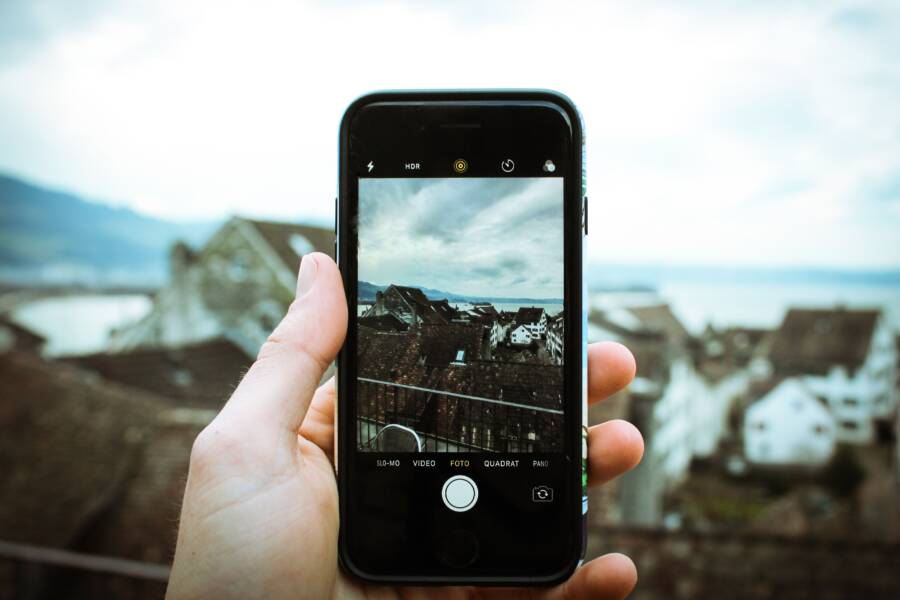
Yes, you can remove location data from photos before sharing, and it only takes a few taps on an iPhone or Android smartphone. That data, often called GPS metadata or geotags, can reveal where a photo was taken, which matters when you’re sending images to friends, posting on social media, or uploading them to apps.
Most people don’t realize a picture can share more than what’s in the frame. If you want to keep your privacy tighter, it helps to strip location info before you send the file, and the steps are simple on both iPhone and Android.
Here’s how to check and remove it before your next photo goes out.
What photo location data is and why it can be a privacy risk
Photo location data is hidden information attached to an image file. It can show where a photo was taken, often with GPS coordinates, a map pin, or a place name. On a smartphone, this data often gets added automatically when the camera app has permission to use location services.
That means the picture you share may reveal more than the scene itself. Someone can open the file, read the metadata, and learn where you were when you took it.
How photos store hidden details like GPS coordinates
Most photos contain metadata, which is data about the file itself. A common type is EXIF data, and it can include the camera model, date, time, and location. If your iPhone or Android camera has location access turned on, it can attach GPS details as soon as you take the shot.
This happens in the background, so you usually do not notice it. The image still looks normal, but the file carries extra details that can travel with it when you send or upload it.
When removing location data actually matters
Removing location data matters most when privacy is important. That includes posting to social media, sending photos in group chats, selling items online, sharing family pictures, or uploading travel photos.
In those cases, even small clues can matter. A location tag can show where you live, where your kids go, or where you spend time. If a photo is only staying on your phone, you may not need to worry as much. Still, it is smart to remove location data before sharing anything personal.
A simple rule works well:
- Public posts are safer without location metadata.
- Private messages can still be risky if the file gets forwarded.
- Marketplace listings should usually hide exact place data.
- Travel photos often reveal more than people expect.
If a photo could point someone to your home, routine, or family, strip the location data first.
What people can still see after location data is removed
Removing metadata does not hide what is visible in the image itself. Street signs, house numbers, landmarks, storefronts, and unique buildings can still give away a location. A photo can lose its GPS tag and still point to the exact place.
That is why metadata removal is only one part of privacy protection. A shared image should be checked for visible clues too, especially if it was taken near your home, workplace, or a familiar spot. In other words, hidden data can be deleted, but the photo still speaks for itself.
Turn off location tracking before you take photos
The cleanest way to keep location data out of photos is to stop the camera app from accessing location in the first place. Once that permission is off, new photos taken with that app should no longer include GPS tags or place data.
That matters because metadata is easiest to prevent before it gets attached. After a photo is taken, you may still be able to remove the location later, but turning it off ahead of time saves work and lowers the chance of missing a file.
Turn off camera location access on iPhone
On iPhone, the path is straightforward. Open Settings, tap Privacy & Security, then choose Location Services. Scroll down to Camera, and change the setting to Never.
If you want even tighter control, check whether Precise Location is available and turn it off. That limits the app’s ability to capture exact coordinates. After this change, the Camera app stops adding location data to new photos.
You can confirm the setting anytime by returning to the same menu. If you later want location tags again, switch the permission back on. For privacy-focused use, keeping it off is the safer default.
Turn off camera location access on Android
Android menus vary by brand, so the path may look a little different on Samsung, Pixel, Motorola, or other phones. Start in Settings, then look for Location, App permissions, or Camera permissions. From there, find your camera app and remove its location access.
Some phones group this under Apps or Permissions Manager. Others let you open the Camera app itself and toggle location tagging inside the app settings. If you don’t see the option right away, check both places, since some camera apps manage location separately from system permissions.
The goal is the same on every device, stop the camera from recording where the photo was taken. Once that permission is off, new images should no longer carry location metadata.
Check whether other camera apps are also tagging photos
Your default Camera app is only part of the picture. Third-party camera apps, social media camera tools, and messaging apps can also save location info if you granted them access.
That includes apps used for quick posts, filters, stories, and in-app photo capture. If an app can take the picture, it may also attach location data in the background.
Review permissions for each app you use to shoot photos, then remove location access where you don’t need it. A quick check in your phone settings can prevent extra metadata from slipping into a photo without you noticing.
If you use more than one camera app, each one needs its own privacy check.
A simple habit helps here, open the permissions list once in a while and review which apps can use location. That small step keeps new photos cleaner before you ever share them.
How to remove location data from photos you already took
If the photo is already on your phone, you can still remove its location data before sharing it. On iPhone and many Android phones, this takes only a few taps for a single image, and some apps also support batch removal for several photos at once.
The exact steps depend on the device and app you use. Still, the goal stays the same, open the photo, find the location field or metadata details, and delete the place info before sending the file.
Remove location data from a single photo on iPhone
On iPhone, the Photos app makes this easy for one image. Open the photo, then tap the Info button or swipe up to view its details. If the photo has location data, you should see a map or a place name.
Tap the location field, then choose the option to remove or adjust the location. In many cases, you can clear the place tag right from that screen. Once it’s removed, the image no longer shows where it was taken when you share it from the Photos app.
This method works best when you only need to fix one picture. It’s a quick privacy check before posting a vacation shot, sending a family photo, or sharing something personal in a message. If you want the safest result, open the photo again after removing the location and confirm that the map pin is gone.
For a single image, the Photos app is usually the quickest way to strip the location tag without extra tools.
Remove location data from a single photo on Android
On Android, the steps depend on the app and phone model. Open the photo in Google Photos or your built-in gallery app, then tap the Info, Details, or menu icon to view metadata. If location data is attached, you may see a map, an address, or GPS details.
Some apps let you remove the location right away. Others only show the details, which means you may need to edit the file in another app or share it without metadata instead. Because Android menus vary by brand, look for options such as Details, Photo info, Metadata, or Remove location.
If you use Google Photos, check the share settings too. Some versions let you send the photo without location data, which is useful when the app does not offer direct removal on the detail screen. That gives you another path when your phone menu looks different from the steps above.
Strip location info from multiple photos at once
When you need to share a whole album, batch removal saves time. Some photo apps let you export copies, share without location data, or apply metadata removal to more than one file at a time. That can help when you’re sending event photos, travel shots, or product images.
The available tools depend on the app and phone model. On some devices, you can select several photos, choose a share option, and turn off location data before sending. On others, you may need to export copies or use a gallery tool that removes metadata from the selected files.
A few common batch options include:
- Share without location: Useful when sending several images through a supported app.
- Export copies: Some apps create new files with less metadata attached.
- Edit metadata in bulk: Certain gallery tools let you clear details for multiple photos at once.
Batch tools are worth using when the same file set goes to different people or apps. They cut down on repeated manual edits and keep your photos cleaner before they leave your phone.
Use a screenshot or export option when you need a quick workaround
If your phone or app won’t remove metadata directly, a screenshot can work as a quick workaround. A screenshot usually creates a new image without the original photo’s location data, which makes it handy for a fast share.
The tradeoff is image quality. Screenshots often crop the image, lower the resolution, and add interface elements if you don’t trim them out. That makes this option better for simple proofs, previews, or casual sharing, not for photos you want to keep sharp.
Exporting a copy through certain apps can also remove metadata in some cases. This depends on the app, so check the exported file before you share it. If the photo matters for quality, use direct metadata removal first, then fall back to a screenshot only when you need speed over detail.
Best ways to share photos without exposing your location
The safest way to share photos is to match the method to the moment. Some apps strip metadata for you, while others may keep the original file unless you change a setting first. If privacy matters, treat every share as a separate choice, because the same photo can be safe in one app and exposed in another.
Choose the safest sharing method for each situation
Different sharing paths handle photo metadata in different ways. Messages, WhatsApp, email, AirDrop, Google Photos links, and social media uploads all work differently, so the safest option depends on how much control you want.
A quick comparison helps:
When in doubt, use the method that gives you the most control over the final file. A phone photo sent through a social app may lose some metadata, but a direct file transfer can preserve more of it. That is why a smartphone photo should be checked before it leaves your device, especially if it includes places, faces, or routines you want to keep private.
The safest share is the one you confirm before sending, not the one you assume is private.
Double-check app settings before you post
Many apps have their own photo settings, and they can affect what gets shared. Some apps keep location tags in posts, some create albums with broad access, and some save uploads in higher quality with more metadata than expected.
Before you post or send anything, review the app’s permissions and upload controls. Look for location access, map tagging, automatic captions, album visibility, and whether the app shares the original file or a processed copy. If you use a smartphone for posting, these settings can change the final result as much as the photo itself.
A few settings deserve a second look:
- Location permissions: Turn off location access for apps that do not need it.
- Posting options: Check whether the app adds a place tag by default.
- Album sharing: Make sure shared albums do not expose extra files or details.
- Upload quality: Some apps change the file during upload, but that does not always remove metadata.
If an app has a privacy menu, read it before you share. A small setting can change whether a photo stays private or carries extra data into a public post.
Think about screenshots, edits, and cloud backups
Editing a photo does not always remove its metadata. Cropping, adding a filter, or drawing on the image can change how it looks, but the original location data may still stay with the file. Cloud backups can do the same thing, because they often store the untouched version even after you edit a copy on your phone.
That means the visible image is only part of the story. A photo can look clean on screen and still contain the original GPS tag in the file behind it. If you plan to share the image later, check the final copy, not just the version you edited.
A few safe habits help here:
- Open the file details and confirm the location field is gone.
- Check whether your cloud app kept the original photo.
- Send a test copy to yourself before posting publicly.
- Re-check screenshots, because they may avoid GPS data but still reveal sensitive content on screen.
If you want a quick fallback, a screenshot can remove the original photo metadata, but it may also lower image quality. For anything private, inspect the final file before it leaves your phone, your cloud folder, or your messaging app.
Common mistakes that leave location data behind
Removing GPS data from a photo only works if you handle the whole file, not just the part you can see. Many people clear the location tag once, then share a copy that still carries the original metadata. That happens in apps, albums, edits, and special photo formats on a smartphone.
The safest approach is simple, check the final file before you send it. If the app makes copies, exports previews, or keeps special versions, those versions may still hold location details.
Deleting location from the photo but not from the app
Some apps keep more than one version of the same image. You may remove location data from the photo you opened, but the app can still store an internal copy or share a different version with metadata attached.
That matters when you send from cloud albums, messaging apps, or photo editors. A preview may look clean while the shared file still contains the original GPS data. Before you post or message the image, confirm that the final file is the one going out, not just the thumbnail or screen preview.
A quick check helps:
- Open the file details again after removal.
- Share a test copy to yourself first.
- Compare the exported file with the original.
- Avoid assuming the app removed metadata from every version.
If an app saves an edited copy, that copy may still carry hidden data. In other words, the app can look clean on the surface while the file behind it still tells the story.
Forgetting about live photos, bursts, and shared albums
Special photo types can handle metadata in different ways. Live Photos, burst shots, and shared albums often keep extra file parts or synced versions that behave differently from a normal still image.
A Live Photo, for example, is more than one frame. A burst can include several near-duplicate shots. Shared albums may also compress, reprocess, or preserve details in ways that surprise you. Because of that, you should check these files carefully before sending them anywhere outside your phone.
Pay close attention when you share:
- Live Photos: Make sure both the still image and the motion file are handled as expected.
- Burst photos: Check which frame you selected, then confirm its metadata.
- Shared albums: Review privacy settings and file behavior before adding others.
Special photo formats need extra care, because the metadata may not follow the same path as a normal image.
A photo that looks harmless in an album can still carry place data in another format or copy. Before you send it, open the exact file you plan to share and verify what it contains.
Assuming editing a photo removes all metadata
Cropping a photo, adding a filter, or adjusting brightness changes the image, but it usually does not remove GPS data. The picture may look different, yet the metadata can stay attached in the background.
That is a common mistake because visual edits feel like a reset. They are not. A crop trims the frame, a filter changes the tone, and a sticker covers part of the image, but none of those actions clears the location tag by itself.
Use this simple rule:
- Edit the photo if you want.
- Remove the location data with a specific metadata step.
- Check the file details again before sharing.
A visual edit can hide a street sign or house number, but it does nothing to the hidden location field. If privacy matters, treat editing and metadata removal as two separate steps.
A simple privacy checklist before you hit send
A quick check before sharing a photo can stop location data, personal clues, and accidental oversharing. If the image is leaving your phone, treat it like a file with a paper trail, because metadata and visible details can both reveal more than you expect.
Check the file, not just the picture
Open the photo details and confirm the location tag is gone. On an iPhone or Android smartphone, that usually means checking the info panel, map pin, or metadata section before you share.
Use this quick review:
- The location field is empty or removed.
- The photo does not show a map pin or place name.
- The file you plan to send is the edited or cleaned copy.
- Any cloud backup or shared album holds the same version you want to send.
If the app shows two copies, pick the one with the clean metadata. A preview can look safe while the original still carries GPS data.
Scan the image for visible clues
Hidden data is only part of the risk. Street signs, house numbers, license plates, school logos, and nearby landmarks can still give away where you are.
Before you send the photo, look for:
- Home addresses or mailbox numbers
- Business signs or storefront names
- School names, uniforms, or badge logos
- Landmarks that narrow the location fast
A photo can lose its GPS tag and still point straight to your street. That is why a fast visual scan matters just as much as metadata removal.
Pick the safest way to share
The final step is choosing the sharing path that gives you the most control. Some apps send cleaner copies, while others keep the original file intact.
A simple rule helps:
- Remove location data first.
- Send the cleaned copy, not the original.
- Avoid file attachments when an app shares untouched originals.
- Double-check app settings for location access and upload options.
If privacy matters, the safest file is the one you verify before it leaves your phone.
That last check takes less than a minute, and it protects more than one photo. It protects the details that can follow you after the image is gone.
Conclusion
Removing location data from photos is one of the easiest privacy steps you can take, and it matters most when a photo leaves your phone. A few taps can keep your GPS metadata from showing where you were, which is useful for social posts, messages, marketplace listings, and family photos.
On iPhone, turn off Camera location access in Settings or remove the location from the photo in Photos; on Android, disable camera location permissions and clear the photo details in your gallery or Google Photos before you share. That simple check keeps the file cleaner and reduces what others can learn from it.
Make it a habit to review camera permissions and sharing settings on your smartphone from time to time. A quick privacy check now saves trouble later.