Ever delete an important message by mistake and feel a rush of panic as you realize it’s gone for good. It happens to the best of us, but the good news is that most deleted messages can be recovered if you act fast. This guide walks you through practical options for both iPhone and Android users, with clear steps you can follow today.
First, you’ll learn the fastest checks you can make right away. Some messages survive in temporary folders like Recently Deleted on iPhone or Trash on Android, and your backups may hold the answers you need. If you regularly back up your device, you’ve already laid the groundwork for a quick recovery.
Next, we cover the main paths to get messages back without fuss. Built-in recovery folders offer a ready-made rescue route, while backups via iCloud or Google Drive can restore older chats when you’re willing to reset or selectively restore data. When backups aren’t available, reliable software tools can scan your device for recoverable data and show you a preview before you decide what to restore.
Finally, you’ll get simple, practical steps you can trust. We’ll break down the process into tiny, actionable tasks so you can act with confidence, no tech degree required. You’ll come away knowing exactly how to approach both iPhone and Android recoveries, with tips to prevent future losses so a missing message stays a rare blip rather than a bigger problem for your smartphone.
Check the Recently Deleted Folder First
When you realize a message is gone, the quickest chance to recover it is often right where the device stores recently removed data. Both iPhone and Android devices offer a Recently Deleted or Trash folder where messages linger for a short window. Checking this folder first can save you time, avoid more invasive methods, and reduce the risk of overwriting data. Think of it as the recycling bin for your smartphone messages—sometimes you just need to fish out the item before it’s permanently erased.
Steps for iPhone Users
If you’re an iPhone user, your first stop should be the Messages app itself. Apple has built in a Recently Deleted feature that holds onto deleted texts for a limited time, giving you a clean, straightforward recovery path.
- Open the Messages app.
- Tap Edit or Filters, then choose Show Recently Deleted.
- Browse the conversations and select the messages you want to recover.
- Tap Recover and confirm the action. This recovers both iMessages and SMS messages that were recently deleted.
- Note that the Recently Deleted option is part of the current iOS design; it updates as new features roll out and can vary slightly by device and region. If you don’t see it right away, make sure your iPhone is running an up-to-date version of iOS.
Why this matters for you: recovering from Recently Deleted is fast, requires no third party tools, and minimizes the risk of data loss. If you don’t find what you need here, you can move on to backups or other recovery methods, but this path is usually the quickest for everyday mishaps.
For more guidance from Apple on recovering deleted messages, see:
- Recover deleted text messages on your iPhone or iPad. https://support.apple.com/en-in/102615
- Recover deleted messages in Messages on iPhone. https://support.apple.com/en-in/guide/iphone/iph16ecebf48/ios
If you’re curious about how this feature fits into your longer-term data strategy, you can also review Apple’s guidance on iCloud notes and data recovery, which complements message recovery when you use multiple Apple services together. https://support.apple.com/guide/icloud/delete-and-recover-notes-mm2f42f05cb9/icloud
Steps for Android Users
Android devices split recovery paths by the messaging app and device brand, but the underlying idea is the same: check for a Trash, Recycle Bin, or Recently Deleted folder before trying more involved options. The exact steps can vary, but the general workflow remains consistent across many smartphones.
- Open your default messaging app (often Google Messages) or another app you use for texts.
- Access the app’s menu and look for a Trash, Recently Deleted, or bin option.
- Tap to view deleted conversations, then select the ones you want to restore.
- Choose Restore or Recover to move messages back into your chat list.
- If you’re using a Samsung device, you might find a Recycle Bin inside Secure Folder if you have that setup. Restore from there when available.
Important notes as you navigate this path:
- Not all Android devices expose a Recently Deleted folder in the standard Messages app. Some manufacturers implement it in their own messaging apps or under a different label.
- Restoring from Trash typically only works if the messages were deleted recently. If the message has been purged, you’ll need to turn to backups, cloud backups, or data recovery tools.
- If you don’t see a Delete or Trash option at all, it may be disabled by the manufacturer’s app design or you may be in a region where the feature is not available.
If you want quick reassurance on the limits of recovery for Android messages, review the guidance from Google Support. It clarifies cases where deletion is permanent and what to expect from in-app recoveries. https://support.google.com/messages/thread/198825291/is-there-any-way-to-recover-deleted-conversations-in-messages-app-please?hl=en
If you’re using a Samsung or a device with a similar interface, Samsung’s own guidance on Recycle Bin and Trash can be a lifesaver as you work through the recovery flow. https://support.google.com/messages/thread/348220764/how-to-restore-sms-deleted-by-mistake?hl=en
Finally, if your device is backed up to Google Drive, a backup restoration can recover messages that were deleted long ago. This path requires a bit more setup and a reset or selective restore, but it’s a powerful option when the in-app trash has already emptied. https://support.google.com/messages/thread/334605142/accidentally-deleted-important-text-thread?hl=en
Tips to keep in mind as you try this route:
- Act quickly. The longer you wait, the higher the chance the app overwrites the deleted data with new content.
- Check multiple locations if you have more than one messaging app installed. Sometimes messages live in a secondary app’s folder.
- If you rely on backups, ensure you regularly back up your device. A routine backup is your best defense against accidental deletions.
By starting with the Recently Deleted or Trash folders, you maximize your odds of recovery with minimal hassle. If this route doesn’t yield results, the next steps involve backups and, as a last resort, data recovery tools that scan the device for recoverable fragments. Either way, you’ll be back in control of your conversations without losing context or important details.
Restore from an iCloud or Google Backup
When you miss a text or message you need, the fastest route back often lies in the backups you already made. iCloud backups for iPhone and Google Drive backups for Android provide reliable paths to restore data, including messages, apps, and settings. This section walks you through practical, step by step methods. You’ll learn how to use existing backups without touching your live data, plus what to do if you need a full device reset to access older messages.
iPhone iCloud Restore Guide
Restoring from an iCloud backup can bring back messages exactly as they were at the moment of the backup. This method is ideal if you recently deleted a conversation and you have a recent backup available. Before you start, make sure your iPhone is connected to Wi-Fi and has enough power to complete the restore.
- Start with a clean slate: you’ll erase all content on the device to restore from the backup. This step is necessary to replace the current data with the backup data.
- Verify your backup: go to Settings > your name > iCloud > Manage Storage > Backups. Check the date and size of the backup to confirm it contains the data you want.
- Initiate the restore: during device setup, choose Restore from iCloud Backup. Sign in with your Apple ID, pick the correct backup, and wait for the process to finish.
- Complete the setup: after the restore finishes, your iPhone will reboot and finish syncing apps and settings. It can take a while, depending on the amount of data.
If you prefer a safer, non-destructive approach, you can perform a restore using a computer. This method reduces the risk of interrupting the process on the device itself and can help you manage backups more precisely.
- Connect your iPhone to a Mac or PC with iTunes or Finder, depending on your OS.
- Choose Restore from iCloud Backup or restore from a local backup if available.
- Follow the on-screen prompts and let the device restore in place.
Why this approach matters: restoring from iCloud is straightforward and requires minimal extra tools. It’s especially useful if you have a recent backup that contains the messages you need. For official guidance, Apple lays out the restoration process clearly in their support articles, including how to restore all content from a backup. You can consult these resources to verify steps and any region-specific differences:
- Restore your iPhone, iPad, or iPod touch from a backup. https://support.apple.com/en-us/118105
- Restore all content to iPhone from a backup. https://support.apple.com/guide/iphone/restore-all-content-from-a-backup-iph1624229a/ios
- Update, back up, or restore your iPhone, iPad, or iPod … https://support.apple.com/guide/mac-help/update-back-up-and-restore-your-device-mchla3c8ed03/mac
If you’d like to see how iCloud backups fit into a broader data strategy, Apple’s guides also cover how iCloud notes and data recovery complement message recovery when you use multiple Apple services together. https://support.apple.com/guide/icloud/delete-and-recover-notes-mm2f42f05cb9/icloud
Practical tip: keep a recent backup on hand before making any major changes to your device. A quick check in Manage Storage helps you confirm that backups are happening and that the backup you plan to restore from is intact.
Android Google Drive Restore
Android users can recover messages by restoring from Google Drive backups or by reinstalling apps and data during setup. The exact steps can vary by brand because manufacturers sometimes customize backup flows. The general path remains consistent: you restore data from a Google backup during device initialization or after a factory reset.
- Verify your backup status: on your Android device, open Settings, then Google, then Backup and restore. Ensure Back up to Google Drive is turned on and tied to the right account.
- Prepare for the restore: if you’re performing a factory reset, you’ll be guided through the setup steps after the reset. If you’re simply restoring a specific app data, you may use the odd one out option in the setup flow or within the app’s own restore feature.
- Complete the restore: during setup, select the most recent backup to restore from. The device will pull in apps, call logs, and messages as part of the process.
- Verify after restore: once the device finishes, open your messaging app to confirm that SMS threads and chat data are restored. Some apps store messages in cloud backups that tie to your Google account.
If you’re curious about the broader backup mechanism on Android, Google’s support pages outline how to back up and restore data on an Android device. These guides cover common questions about restoring messages and app data:
- Back up or restore data on your Android device. https://support.google.com/android/answer/2819582?hl=en
- Restoring Google Messages after a factory reset or switching devices. https://support.google.com/messages/community-guide/340526760/restoring-google-messages-after-a-factory-reset-or-switching-devices?hl=en
- Restoring from a Google Drive backup during setup. https://support.google.com/messages/thread/334605142/accidentally-deleted-important-text-thread?hl=en
Samsung and other brands often add a recycled bin or similar feature for messages. If your device includes a Recycle Bin or Trash option for Messages, you can restore from there during the initial setup or from within the app. For brand-specific guidance, check your device’s support pages or the Messages help articles from Google.
- Samsung guidance on Recycle Bin and Trash can be a lifesaver during recovery: https://support.google.com/messages/thread/348220764/how-to-restore-sms-deleted-by-mistake?hl=en
Tips to maximize success:
- Act quickly after deletion. The longer you wait, the higher the chance new data overwrites the deleted messages.
- Use backups as your first fallback if the in-app trash has already emptied.
- If you regularly back up, you’ll reduce the risk of losing conversations you care about.
If a direct restore isn’t available, you may still recover data by scanning the device with reputable recovery tools. These can preview recoverable items before you commit to restore, helping you avoid unnecessary changes to your phone. For users who routinely back up to Google Drive, you may find older messages reappear after selecting the appropriate backup during the setup phase.
External resources can provide deeper guidance on the exact steps for your device model and OS version. For more information, you can explore these official sources and community guides to tailor the process to your phone:
- Google’s Android backup and restore overview. https://support.google.com/android/answer/2819582?hl=en
- Google Messages recovery after reset or switch. https://support.google.com/messages/community-guide/340526760/restoring-google-messages-after-a-factory-reset-or-switching-devices?hl=en
Remember, backups are your safety net. Treat them as part of your regular maintenance routine, not just a one-time safety measure. When you keep backups current, you can recover from mistakes with minimal disruption to your daily life and smartphone use. For more practical help on setting up reliable backups and keeping them up to date, consult the official guides and trusted tutorials linked above.
Use Recovery Software for Tough Cases
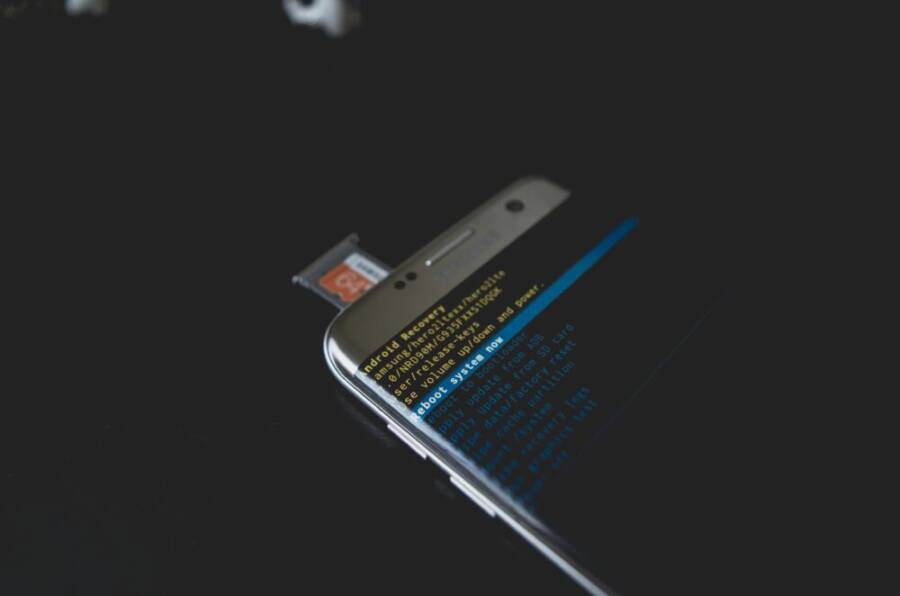
When simple restores don’t cut it, recovery software can be a true safety net. These tools scan your device, locate recoverable fragments, and preview what can be saved before you commit. They’re especially handy after a lot of data has been overwritten or when you’ve deleted messages from multiple apps. Think of them as a last-resort recovery partner for your smartphone. Below, you’ll find vetted options for both iPhone and Android, plus practical tips to maximize your chances of success.
 Photo by Kelvin Valerio https://www.pexels.com/@kelvin809
Top Picks for iPhone Recovery
When the in-device recovery paths miss your message, third-party software often offers a clean, non-jailbreak route to recover texts, iMessages, and other data. Reputable iPhone recovery suites share a few common strengths: they connect to your device without requiring a jailbreak, they perform a device scan to reveal recoverable items, and they let you preview before saving to your computer. The biggest benefit is that you can recover individual conversations or even single messages with minimal risk of overwriting what you need.
What to look for in a solid iPhone recovery tool:
- Easy connection process: plug in your iPhone and let the software detect it automatically.
- Clear previews: see recoverable messages before you choose.
- Safe export: save recovered data to your computer in widely supported formats.
- Non-destructive workflow: you don’t have to reset your phone to start recovering.
Top tools commonly recommended by experts include Dr.Fone, Tenorshare UltData, iMobie PhoneRescue, and Gbyte Recovery. They share a straightforward flow:
- Connect the iPhone to your computer.
- Run a scan focused on Messages and related apps.
- Preview recoverable texts and choose what to save.
- Save to your computer in a compatible format.
How these tools typically work:
- They use a direct connection to extract data from the device or from an accessible backup.
- They avoid jailbreaking, which keeps your warranty intact and reduces risk.
- They offer guided steps to recover and export specific conversations.
Practical tip: if you regularly back up to iCloud, you can cross-check results against a backup to confirm what exists in each source. For more guidance from Apple on managing messages and backups, see their official support resources:
- Recover deleted text messages on your iPhone or iPad. https://support.apple.com/en-in/102615
- Recover deleted messages in Messages on iPhone. https://support.apple.com/en-in/guide/iphone/iph16ecebf48/ios
If you want to explore broader context on iPhone data recovery options, consider these additional reads:
- Top iPhone data recovery software reviews. https://www.macgasm.net/reviews/best-iphone-data-recovery-software/
- Best iPhone data recovery software roundup. https://www.reviews.pandorarecovery.com/best-iphone-recovery-software/
When to choose recovery software for iPhone:
- You’ve emptied the Recently Deleted folder without success.
- You don’t have a usable iCloud backup from the needed timeframe.
- You want a targeted recovery without a full device restore.
External links provide deeper dives into each tool’s strengths, limitations, and user experiences. For a quick start, pick one option, follow its guided steps, and save the results in a safe place on your computer. A recovered thread can restore context and save you from miscommunications.
Top Picks for Android Recovery
Android recovery can be more varied because of the wide ecosystem of devices and messaging apps. Recovery software for Android often shines in two areas: it can scan internal storage for lost messages from SMS apps, and it can pre-preview results before you restore. You’ll typically enable USB debugging, run a scan, and export the recovered data to your PC before transferring back to the phone.
Key considerations for Android recovery tools:
- Compatibility with your device and OS version.
- Depth of scan for SMS, chats, and app-specific messages.
- Clear previews so you can confirm what to recover.
- Safe export options to avoid data loss on the device.
Popular Android recovery options include Dr.Fone, EaseUS MobiSaver, and FonePaw. These utilities follow a common workflow:
- Enable USB debugging on the device.
- Connect the phone to your computer and launch the recovery tool.
- Run a scan focused on text messages and chat apps.
- Preview recoverable items, select what to restore, and save to PC.
- Transfer recovered messages back to the phone if needed.
Why USB debugging matters: enabling this option gives the software deeper access to the device’s data. If
Conclusion
Recap the three proven paths to recovered messages in order: first check the built-in folder like Recently Deleted or Trash; if that fails, turn to backups such as iCloud on iPhone or Google Drive on Android; and when those options aren’t available, use reputable recovery software as a last resort. Acting fast matters because the moment new data writes over deleted items, recovery becomes unlikely, especially on a busy smartphone.
Backups should be your everyday shield. Set up automatic backups today and verify them regularly. A current backup makes future recoveries simple and minimizes disruption to your life. If you miss a message, you’ll have a clean, non destructive way to restore it without touching your live data. Think of backups as a safety net that keeps conversations intact across devices and time.
When you do need a tool, choose a trusted recovery option and follow the guided steps. Recovery software can preview what’s recoverable and save only what you select, reducing risk to your device. If you still don’t see the data you want, don’t panic; you can revisit a backup or explore additional scans later. Most people end up with a positive outcome, especially when they combine quick action with solid backups.
Have you recovered an important thread recently? Share your experience in the comments and help others avoid common pitfalls.