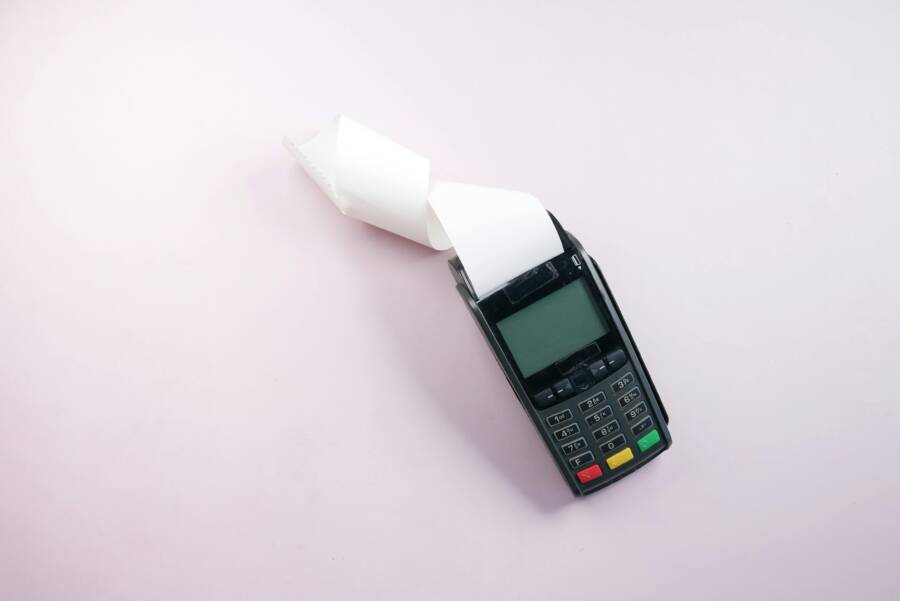
Using your smartphone to scan and save receipts is the most efficient way to manage your personal or business finances. You no longer need to store messy shoeboxes filled with fading paper slips.
These apps turn paper into searchable, digital data in seconds. You will save time, simplify your tax preparation, and finally reduce the physical clutter in your home or office.
Keep reading to learn how to set up your device for effortless expense tracking.
Why You Should Go Paperless with Your Receipts
Transitioning to a digital receipt system simplifies your financial life by removing physical clutter. Using your smartphone allows you to capture expense data instantly at the point of sale. You no longer need to manage shoeboxes or bulky folders to keep track of your spending. Digital records offer a cleaner, faster way to maintain your budget while ensuring your documents remain searchable and accessible whenever you need them.
The Benefits of Digital Filing for Your Taxes and Budget
Organizing receipts digitally speeds up your expense tracking because you can categorize items as soon as you scan them. Many apps allow you to tag expenses by project, vendor, or category immediately. This habit makes month-end reconciliation much faster compared to sorting through a pile of loose slips. During tax season, you simply export your data into a spreadsheet or accounting software.
Tax authorities generally accept digital copies as proof of business expenses. Most agencies focus on the accuracy of the data rather than the physical paper itself. Because thermal paper prints fade and become unreadable after a few months, keeping a digital backup is often a safer choice for long-term audits. Having a clear image of the original receipt provides the evidence you need to support your deductions.
Protecting Your Personal Records from Damage and Fading
Thermal paper receipts lose their legibility quickly due to heat, light, and friction. Many people find their older receipts are completely blank when they finally need them for tax purposes or returns. Storing photos or PDF scans on your smartphone prevents this information loss entirely. Your digital files remain crisp, clear, and perfectly readable for as long as you keep them on your device or in cloud storage.
Digital storage also removes the risk of losing important documents to accidental damage. Paper slips get torn, stained, or misplaced inside coats and bags every day. When you scan a receipt using your smartphone, the image saves to a secure location that stays with you. You can sync these files across your computer and phone to ensure you have a permanent record of every transaction.
Moving to a digital system ensures your records survive the test of time. You avoid the frustration of blank thermal paper and the stress of a lost receipt during a tax review. Once you establish the habit of scanning documents, your financial documentation becomes a reliable, permanent asset for your budget.
How to Scan Receipts Using Your Smartphone Camera and Apps
You can capture digital copies of your receipts using tools already installed on your smartphone. These built-in features provide a high-quality, free method to digitize paper records without installing extra software. Most users find that these tools handle standard receipts with high clarity and accuracy.
Using Built-in Tools on Your iPhone or Android Device
If you own an iPhone, Apple Notes is the most direct tool for scanning. Open a new note, tap the camera icon, and select Scan Documents. Position the camera over your receipt, and the phone automatically detects the edges and captures the image. You can save multiple receipts into a single note or create individual notes for each vendor. It stores these files as PDFs, which keeps them legible and prevents the ink from fading over time.
Android users have a similar option through the Google Drive app. Open the app, tap the plus button, and choose the scan option. After you capture the receipt, the app provides tools to crop the image or adjust the color for better contrast. Google Drive saves these files directly to your cloud storage, where they remain accessible from any computer or other devices. This method works well if you already use the Google ecosystem for your document management.
Choosing the Right Third-Party Scanning Apps
Dedicated scanning apps offer advanced features beyond basic image capture. Apps such as Adobe Scan or Microsoft Lens use optical character recognition, often called OCR. This technology reads the text on your receipt, including the date, merchant name, and total amount. Once the app converts the image into text, you can search for specific expenses using keywords. This functionality saves significant time when you need to find a past purchase for tax reporting or budget reviews.
OCR also simplifies the data entry process for your bookkeeping. Instead of typing every receipt detail manually, you can export the data from these apps directly into your expense tracking software or a spreadsheet. Some apps even flag potential duplicate entries or categorize your spending automatically. If you have a high volume of receipts to manage, these third-party tools provide a more robust system for long-term organization compared to basic photo storage. When choosing an app, prioritize options that allow for easy export to common formats like CSV or PDF.
Best Practices for Organizing and Tagging Your Files
Effective organization prevents your digital receipt collection from becoming a cluttered mess. Without a standard structure, you will struggle to find documents during tax season or expense audits. A consistent approach turns your smartphone into a powerful personal accountant.
Creating a Simple Folder System That Works
A reliable filing system relies on a hierarchy that mirrors how you track your life. You can organize your digital records using a clear folder structure such as Year > Month > Category. This method lets you find any receipt by narrowing your search through a logical tree.
You should store files following a pattern like this:
- Create a root folder named Receipts.
- Inside that, create subfolders for each year (e.g., 2024, 2025).
- Within each year folder, create folders for every month.
- Move your receipts into these month folders, or add a secondary layer for categories if your volume is high.
Assign categories based on your typical spending habits to make retrieval fast. Common categories include:
- Grocery: Daily household needs and food.
- Medical: Pharmacy visits, doctor co-pays, and prescriptions.
- Business: Travel, office supplies, or client meals.
- Home Repair: Hardware store items and contractor invoices.
You can add a simple code to your filenames to keep things precise. A format like YYYY-MM-DD-Vendor-Amount works well because it sorts files chronologically by name. For example, a receipt from a hardware store becomes 2024-05-12-HomeDepot-45.pdf. This small habit makes your files searchable and neat.
The Importance of Cloud Backups for Your Scanned Documents
Storing receipts only on your smartphone internal memory puts your financial history at risk. If you drop your device or lose it, you lose all your evidence for tax deductions. Cloud services provide a secure, redundant home for your digital files that stays independent of your hardware.
Syncing your files to services such as iCloud, Google Drive, or Dropbox offers several advantages. First, it creates an automatic copy of every scan as soon as you save it. If you upgrade to a new smartphone, your entire archive appears on the new device the moment you sign in. You never have to worry about manual transfers or migration cables.
Cloud providers also let you access your records from a desktop computer. Reviewing a year of expenses is often easier on a large screen than on a handheld display. You can quickly generate reports or share batches of PDFs with your accountant through a simple link. Furthermore, these platforms provide search tools that scan the text inside your documents. You can type a vendor name, and the app will find the matching receipt in seconds. Relying on cloud storage ensures your records remain available regardless of what happens to your physical equipment.
Common Questions About Digital Receipt Management
Managing financial documents on your smartphone raises a few standard concerns for most users. Whether you worry about data privacy or the legality of digital records, knowing the facts helps you build a reliable system. Use the following answers to address your concerns about switching to a digital workflow.
Are digital receipts legally valid for tax returns?
Tax agencies generally accept digital images of receipts as proof of business expenses. The most important factor is the legibility of the document. You must ensure the scanned image clearly shows the date, the vendor name, the total amount paid, and the nature of the expense. As long as your digital file contains this information, it counts as an official record. Keep your original receipts until you are certain the digital copy is clear and properly backed up.
How do I keep my financial data private on my phone?
Security starts with the tools you choose to install on your smartphone. Many top-rated scanning apps offer biometric locks, such as FaceID or fingerprint recognition, to prevent unauthorized access. You can also encrypt your files or use cloud storage services that provide multi-factor authentication. Always review the privacy settings of your chosen app to understand how they handle your data. Limiting the number of third-party apps that have access to your photo library is another simple way to maintain control over your personal information.
What should I do if my receipt is too long or crumpled?
Smartphone cameras handle most standard receipts, but long or damaged paper requires extra attention. If your receipt is very long, take multiple photos of the document in sections. You can merge these images using common photo editing tools or scanning apps. For crumpled receipts, flatten the paper on a dark, non-reflective surface before taking the shot. A dark background helps the app identify the edges of the paper more accurately, which improves the quality of the final digital file.
How long should I keep the physical copies after scanning?
You don’t need to keep paper receipts indefinitely once they are in your digital archive. Most people discard the paper version after they verify the scan is clear, readable, and synced to their cloud backup. If the receipt relates to a major tax deduction or a long-term warranty, consider keeping the original for a few months. After that period passes and your financial records for that year are settled, you can shred the physical document. This process keeps your home free of unnecessary paper while keeping your records safe and organized.
Conclusion
Scanning receipts with your smartphone is a simple habit that replaces messy paper files with a clear digital archive. You save significant time on bookkeeping and tax preparation by digitizing these documents at the point of sale.
Start today by scanning just one receipt using the camera on your device. You will quickly see how much easier it is to track your spending when you remove physical clutter from your life.
An organized digital wallet provides peace of mind and total control over your financial history. You no longer have to worry about fading ink or lost slips because your data stays safe in the cloud.