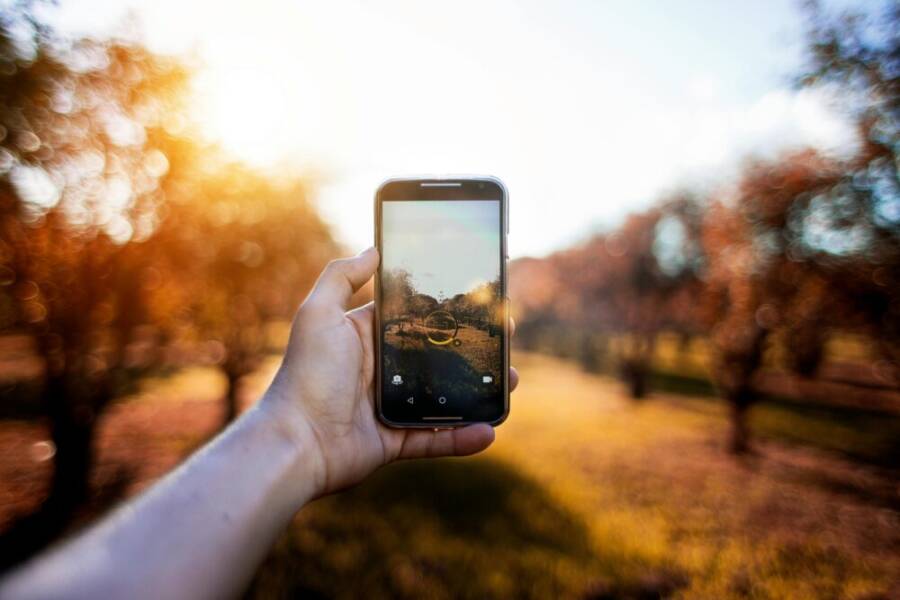
Portrait mode on your smartphone can elevate everyday photos with a natural background blur and sharper subject detail. This guide explains when to use it, how to frame shots, and the lighting basics that matter most for real world results.
You’ll learn practical framing tips for people, pets, and objects, so your shots look clean and focused. We’ll cover common mistakes and quick fixes that keep photos from looking studio stiff.
By the end, you’ll know how to switch on the feature without overdoing it, how to compose for depth, and when to fall back to standard shooting. This quick overview helps you get better results with your smartphone from day one.
Understand Portrait Mode: What It Is and How It Makes Photos Stand Out
Portrait mode is a simple tool with a big effect. It highlights your subject by softening the background, giving you a cleaner, more professional look without extra gear. This section breaks down what the feature does, how depth is created, and when it makes sense to use it.

Photo by Almada Studio
What portrait mode does
Portrait mode analyzes the scene to separate the main subject from the background. It creates a depth effect by keeping the subject crisp and the background blurred. Edge detection helps the phone distinguish where the subject ends and the background begins, so the cut looks natural rather than boxed. The result is a photo that draws the viewer’s eye to the person or object while the rest recedes softly.
How depth sensing works on phones
Think of depth sensing like a quick game of catch with your eyes. The phone uses data from its sensors or multiple lenses to estimate distance for every pixel. The result is a depth map: a grayscale guide where lighter areas are closer and darker areas are farther away. Software then uses that map to blur the background selectively while keeping the subject sharp. It’s not magic, but it feels close, and the more you practice, the more natural the effect looks.
When to use portrait mode and when to skip it
Portrait mode shines in situations with clear edges and a distinct subject. Ideal uses include portraits of people, pets, or objects where a soft background helps the subject pop. It also works well for close-ups where the background is busy or distracting, and you want to separate the subject from clutter.
Avoid portrait mode when the background is crowded with details you want kept in full view, or when the light is very flat and you don’t need a depth effect. If you’re after a wide landscape or a scene where background texture matters, skip the blur to preserve context. In mixed lighting, test both modes quickly; choose the look that best conveys the moment.
Get the Right Distance and Framing for Sharp, Natural Portraits
In portrait photography, distance and framing are as important as the phone you’re using. The goal is to capture a natural look with clean edges and just enough background separation. You’ll learn practical guidelines you can apply right away, no fuss, whether you’re shooting close-ups or full portraits. Think of it like tuning a lens: small changes in distance change the feel of the photo without needing fancy gear.
Distance and angle tips
- Close-ups (head and shoulders): Stand about 2 to 3 feet away from your subject. This puts the face in the frame with enough room for natural headroom and a comfortable amount of background blur. If you’re using a phone with portrait mode, test from 2.5 feet and 1.8 feet to see which distance yields the most pleasing edge separation around hair and ears.
- Medium portraits (chest to mid-torture, roughly waist up): Move to about 3 to 6 feet. This distance keeps the shoulders in frame without exaggerating perspective. It’s a safer bet for groups or if the subject wears bulky clothing near the shoulders.
- Full-body portraits: Stand farther back, around 6 to 10 feet depending on the lens and the space you have. This preserves natural proportions and avoids stretched limbs.
- Camera height and angle: Position the camera roughly at eye level for a direct, engaging look. If you want a slightly relaxed vibe, shoot a notch below eye level. For a more dynamic feel, a tiny angle from above can be flattering, but avoid looking down on the subject from too steep a drop.
- Keep a little space around the head: Avoid clipping the top of the head or forehead by leaving a finger-width margin above the hairline. This prevents the image from feeling cramped in the frame.
Intuitively, you want the subject to breathe in the frame. If you’re unsure, start with the eye line about one third from the top of the frame. Then adjust based on how much background you want to show. If you’re unsure about the distance, practice a few quick test shots at different distances to compare how the depth, perspective, and background blur feel.
For readers curious about the science behind distance, a deeper look at how distance affects depth of field can help you predict results more reliably. Learn more about how distance influences depth of field and why it matters for portraits at this guide: Depth of field and the importance distance to subject plays. You’ll see how distance interacts with aperture and focal length to shape what’s in focus and what’s blurred.
If you want a quick verdict on typical portrait distances, a practical takeaway from photographers is that the minimum comfortable distance for head and shoulders is often around 1.5 to 2 feet for very close shots, while full-body portraits benefit from stepping back to 6 to 10 feet. For a more detailed discussion on ideal distances, this explainer is helpful: What is ideal distance to subject for head and shoulder portraits.
Positioning your subject for best blur
- Place the subject off-center using the rule of thirds. This creates more visual interest and helps the eye land on the face first.
- Mind the headroom: Leave enough space above the head so the subject doesn’t feel cramped. Too little headroom makes the portrait look rushed.
- Reduce background clutter: A clean background keeps attention on the face. If you can’t move, zoom in a touch or step sideways to find a simpler backdrop.
- Use leading lines: Door frames, sidewalks, railings, or a shoreline can guide the viewer’s gaze toward the face. Align these lines to converge at the subject’s eyes for impact.
- Frame for depth: A shallow foreground element like a railing or a blurred plant can add depth without distracting from the subject. Keep it subtle so the face remains the primary focal point.
- Eyes first: Ensure the eyes are sharp. If your phone’s autofocus hesitates, tap the screen on the subject’s eyes to lock focus and exposure before shooting.
- Head and shoulder balance: In a close-up, avoid including too much neck or chin. A tight crop around the head and upper shoulders tends to look natural and flattering.
To visualize the effect, imagine a stage where the subject stands as the main performer while the background fades softly into the wings. The right framing makes that stage feel intimate rather than crowded.
Avoiding edge halos and background clutter
- Check for halos near hair and glasses: A halo is a light outline that can appear around fine edges when the depth map isn’t perfect. If you notice it, try slightly adjusting the subject’s distance or switch to standard mode for that shot.
- Tidy the backdrop: Remove bright, high-contrast objects that draw attention away from the face. If you can’t move them, angle the subject a bit to shift the background texture out of the critical area.
- Soft backgrounds without losing detail: Use portrait mode to blur a busy background, but ensure the subject remains crisp. If the blur looks too mushy, step back a bit and reframe to reclaim edge sharpness.
- Reduce flare and reflections: Glasses can catch light and create unwanted glare. Tilt the head slightly or adjust the angle to avoid direct reflections. A small reflector or a diffuse shade can also help when lighting is harsh.
- Background cleaning tips: If you’re shooting indoors, move away from busy wallpaper or busy posters. A solid wall or a simple texture can clean up the frame quickly. Outdoors, choose a background with fewer distracting patterns, or use a shallow depth of field to soften it.
If you want a quick reminder about protecting the subject from edge halos and clutter, keep the camera at eye level, maintain a short distance for close-ups, and choose a clean backdrop. A well framed portrait feels effortless and natural when the edges stay clean and the subject stays sharp.
To deepen your understanding of distance and framing with portraits, you can explore additional guidance on depth of field and distance to subject at this Digital Photography School article: Depth of field and the importance distance to subject plays. If you’re curious about practical distance in real portraits, the Stack Exchange discussion provides quick, real-world estimates: What is ideal distance to subject for head and shoulder portraits.
Lighting and Composition Tricks to Enhance Portrait Mode
Great portraits often hinge on two things: the light that falls on the subject and how you frame the scene. In portrait mode, you get a built in separation between subject and background, but the final look still depends on smart choices about lighting and composition. This section shares practical, easy to apply tricks to elevate your portraits without extra gear. You’ll learn to harness natural light, balance shadows, and choose backgrounds that make the subject pop. For deeper reading, see expert tips on natural light and angles in the linked resources.
Natural light basics
Soft, even light from a window or open shade is the sweet spot for portrait mode. It wraps around the face with gentle shadows, reducing harsh lines and keeping skin tones natural. If you must shoot outdoors, aim for shade during the middle of the day or wait for the golden hour when the sun sits low and produces flattering, warm tones.
- Use window light as your main source: place the subject near a large window with the light diffusing across the face. If the window is small, move the subject closer to it to increase softness.
- Avoid the noon sun: direct overhead light creates stark shadows under the eyes and nose. If you’re outside, look for a shaded spot or a north facing facade that keeps light even.
- Work with the golden hour: the hour after sunrise or before sunset adds a natural glow that enhances skin texture without looking blown out. Position the subject so the light hits from the side or three quarters to sculpt the face gently.
- Watch the background: reflected light from a bright surface can fill shadows naturally. A white wall or a light colored surface nearby can bounce light back onto the subject for a more even look.
If you want a broader take on natural lighting techniques, check out the practical guide on natural light portrait tips from Digital Photography School: “10 Tips for Amazing Natural Light Portrait Photography.” It breaks down direction, position, and gear free ways to improve results. You can read it here: https://digital-photography-school.com/10-tips-for-amazing-natural-light-portrait-photography/.
Using fill light and shadows
Shadows can add depth, but a portrait mode shot benefits from a touch of fill light to keep details in the face visible. Simple, safe options work well and require no fancy gear.
- Reflector basics: a white foam board or even a clean sheet of white paper can bounce light back into the face. Hold it at a 45 degree angle to the shadow side to lift cheekbones and brighten the eyes.
- White wall as a fill source: stand the subject near a white wall; the wall acts like a giant reflector, filling in shadows softly. Move a step or two to control how much light wraps around the face.
- A phone screen as a makeshift light: in a pinch, a bright screen can act as a subtle fill light. Position the phone at a low angle off to the side so it nudges light toward the subject without causing reflections.
- Safety and practicality: never direct harsh light at the subject. If you’re using a reflective surface, angle it to avoid glare in the eyes or on glasses.
For additional practical guidance on navigating light in mobile portraits, Wandering Iphone offers approachable tips on using natural light and avoiding harsh flash: “Seeing the Light: Tips for Mobile Photography Portraits.” You can explore it here: https://www.wanderingiphone.com/seeing-the-light-tips-for-the-portrait-iphoneographer/.
Background choice and color contrast
A clean background helps the subject stand out and reduces distractions. The right backdrop also enhances color contrast, making skin tones look accurate and the outfit pop.
- Pick simple backgrounds: a smooth wall, a plain door, or a backdrop with a soft texture keep attention on the subject. Blur can help, but avoid a busy backdrop that competes for attention.
- Color contrast matters: choose clothing and background colors that separate the person from the scene. For example, a blue shirt against a warm, neutral background usually reads well.
- Be mindful of clothing clashes: avoid backgrounds with colors that clash with the subject’s outfit. If the subject wears a bright red shirt, a neutral or cool toned background is often safest.
- Depth adds interest: use a shallow depth of field to push the background away, but keep enough context so the scene still feels real.
If you want to learn more about shooting in tricky lighting and how to handle color and contrast, a quick read from Shutterstock’s blog covers phone portraits in challenging light and practical tips for keeping subjects sharp: https://www.shutterstock.com/blog/phone-portraits-challenging-light. The article offers quick fixes for glare, edge halos, and color balance that you can apply right away.
Portrait Mode Across Subjects: People, Pets, and Objects
Portrait mode is a versatile tool that helps you separate your subject from the background with a natural look. It works well across people, pets, and everyday objects when you know how to frame, light, and compose. In this section, you’ll find practical, fast tips for quick family photos, playful pet moments, and still life that begs to be touched. You’ll also see how small adjustments can make a big difference, all without extra gear or complicated setups. For deeper context, you can explore trusted guides linked below as you read.
People portraits tips
When you’re shooting family photos or casual headshots, the goal is warmth and clarity. Use eye level framing to create a connection and keep the subject centered long enough to tell a story, but allow a hint of backdrop that hints at location or mood.
- Eye level framing keeps expressions natural. Stand or sit so the camera is level with the eyes, not at chin height or above.
- Relaxed expressions win. A quick joke, a natural breath, or a soft smile just before the shutter helps people feel comfortable.
- Center the subject, but don’t lose the story in the background. Let a simple, meaningful backdrop peek in, like a doorway, window light, or a garden path that adds context without distraction.
- During quick sessions, shoot short bursts. A rapid series helps you catch fleeting smiles and genuine looks without overthinking every frame.
- Keep the background clean but interesting. A single color wall, a plant, or a hint of sky can add depth without stealing attention from the face.
- Tap to focus on the eyes. If the phone’s autofocus stumbles, touch the subject’s eyes on the screen to lock focus and exposure.
For added context and practical tips on family photography using a phone, you might enjoy reading practical insights from experts who emphasize lighting and framing: How to take better family pictures with your phone. Link to external guide.
A quick note on distance and space: keep enough room above the head for natural headroom, and give a little space to breathe around the shoulders. If the background feels busy, move a step sideways or back a bit to push it further out of the frame. If you want to see how distance changes depth and perspective in portraits, this Digital Photography School piece explains depth of field and subject distance with clear illustrations: Depth of field and the importance distance to subject plays. Link to external guide.
To keep things practical, plan a few quick looks: a tight headshot, a three-quarter shot, and a wider scene that shows the setting. These mini-sets cover most family moments and give you flexible options for social media or prints. If you’d like a quick checklist, consider referencing a compact guide such as the one that covers ideal distances for head and shoulder portraits: What is ideal distance to subject for head and shoulder portraits. Link to external guide.
Pets and kids
Pets and kids bring energy that photos rarely replicate in a studio, but they also demand patience. The most reliable approach is steady hands, short bursts, and a calm pace that lets a natural pose emerge.
- Steady hands beat perfect timing. If you’re juggling a busy scene, brace your elbows and hold the phone close to your body to reduce shake.
- Use short bursts. A sequence of 3–5 frames increases the chance of catching a genuine moment, from a wag to a curious gaze.
- Patience pays off. Let them explore the space and choose a moment when attention is drawn to the camera without looking staged.
- Focus on behavior, not just pose. A dog tilting its head at a squeaky toy or a child reaching for a favorite book can become a stronger portrait than a forced smile.
- Keep backgrounds simple. A clean wall or a simple outdoor backdrop helps the subject pop and reduces distractions.
If you want additional practical guidance on mobile portraits with animals and children, consider a concise set of tips from a photographer who covers family moments on a phone. You can read more here: How to Take Family Pictures with My iPhone. Link to external guide.
A few quick setup ideas for pet portraits: shoot at the animal’s eye level, use a familiar toy or treat to hold attention, and shoot in short bursts when the pet starts to settle. For children, a familiar routine or a comfortable corner in the house often yields the best expressions. If lighting is limited, a window with soft shade can provide flattering, even illumination without harsh shadows.
Objects and still life with depth
Turning everyday objects into still life portraits is a great way to practice depth and texture. The trick is to create dimension with light, foreground interest, and a clean background.
- Depth through perspective. Place a foreground element like a plant leaf or a glass ornament slightly closer to the camera than the main subject. This creates a sense of depth without clutter.
- Clean, simple backgrounds. A solid color wall or a smooth surface keeps the subject crisp and helps textures like glass, metal, or fabric stand out.
- Texture matters. Look for surfaces with tactile qualities—rough wood, glossy ceramic, or a matte fabric. Portrait mode will blur the background but keep texture visible on the main subject.
- Light plays a pivotal role. Side lighting from a window emphasizes texture, while a soft overhead light minimizes harsh shadows on the object.
- Background color contrast. Choose a backdrop that makes the subject pop without competing for attention. For example, a warm terracotta background can complement a blue bottle nicely.
If you want a broader take on shooting in natural light and handling still life with a phone, a practical guide on phone portraits in challenging light offers helpful fixes. See it here: Shooting phone portraits in challenging light. Link to external guide.
A quick example to illustrate the approach: photograph a single flower with a shallow depth of field, a clean dark background, and a softly angled side light that reveals petal texture. A second image can place the flower closer to the foreground with a gentle bloom in the blur, guiding the viewer’s eye toward the center of the bloom.
In all cases, keep the subject crisp and let the background fade just enough to tell a story. If you want more ideas for creating depth in still life, check out additional inspiration from photography resources that discuss depth, lighting, and composition for mobile portraits.
To recap, the right distance, steady hands, patient timing, and clean backgrounds are the core moves for turning people, pets, and objects into compelling portrait mode subjects. The smallest adjustments in framing and lighting can yield portraits that feel natural, not staged, which is exactly what most readers want to replicate with a quick smartphone session.
External resources for further reading:
- How to Take Better Family Pictures With Your Phone. Link
- How to Take Family Photos with My iPhone. Link
- What is ideal distance to subject for head and shoulder portraits. Link
- Depth of field and the importance distance to subject plays. Link
- Seeing the Light: Tips for Mobile Photography Portraits. Link
- 10 Tips for Amazing Natural Light Portrait Photography. Link
- Phone portraits in challenging light. Link
Fine-tuning Settings and Post Processing for Maximum Impact
Fine-tuning portrait shots after capture helps you move from good to standout. This section provides practical tweaks you can apply on most modern phones to sharpen edges, control blur, and keep color natural. You’ll learn where to adjust exposure and blur strength, how to refine edge sharpness, and when to export in RAW for advanced edits. The goal is quick, repeatable steps you can use to improve every portrait you take, whether you’re at a family dinner or a pet photoshoot.
Brand differences: iPhone vs Android basics
Portrait mode options vary by brand, but the core ideas stay the same. On both iPhone and Android devices, you’ll find a depth effect slider, edge detection tweaks, and post-capture editing controls. Here’s a simple, actionable guide to the basics you’ll encounter across popular brands:
- iPhone basics: Portrait Lighting and Depth Control appear at capture, with options like Natural, Studio, Contour, and Stage Light. After capture, you can tweak the depth slider, exposure, and warmth in the Photos app.
- Android basics: Many Android phones offer variable blur strength and edge refinement in the camera app, plus post-capture edits in the Gallery or Photos app. Some models expose a separate “Bokeh” or “Portrait” mode with manual adjustments for blur and subject distance.
- Common ground: Look for these shared controls in any device’s portrait mode panel: Exposure or brightness, blur or depth strength, and a refinement or edge toggle.
- Practical tip: When you switch devices, start with the same distance and lighting you used on your prior shot. Then compare how the subject edges hold up as you move the depth slider. This small test helps you predict results on the new device.
Image recommendations can reinforce this section if you want to illustrate how edge refinement looks across phones.
Photo by Plann — Woman edits social media content on phone and laptop at a cafe in Bali.
https://www.pexels.com/photo/4549414/
Portrait Lighting effects and editing
Built-in lighting effects give you creative control without extra gear. After you capture, you can fine tune exposure, blur strength, and edge sharpness to restore natural look or push a specific vibe.
- Adjust exposure: If the subject is brighter than the background, lower exposure slightly to preserve skin tones. If the face looks flat, nudge exposure up a touch for a more lively look.
- Blur strength: Use a moderate blur for a clean separation. If the background still feels busy, increase blur a notch; if the subject begins to lose crisp edges, back off a little.
- Edge sharpness: Some devices offer an edge refinement slider. Use it sparingly to keep hairlines and eyelids natural. Pushing too hard can create halos.
Quick step-by-step:
- Open the portrait in the editor.
- Tap to adjust exposure until skin tones look natural.
- Increase blur to the point the background softens without swallowing facial details.
- Fine-tune edge sharpness until hair and eyes stay distinctly defined.
If you want broader guidance on natural light and portrait tweaks, a practical resource covers natural light portrait tips with actionable steps: “10 Tips for Amazing Natural Light Portrait Photography.”
https://digital-photography-school.com/10-tips-for-amazing-natural-light-portrait-photography/
Saving, exporting, or RAW options
Choosing the right file type and workflow matters for future edits. The default JPEG saves are fast, but RAW captures unlock flexibility for color and exposure adjustments.
- Non-destructive edits: Always shoot in a format that preserves the original data or enable non-destructive editing in your editing app. This keeps your options open for future changes without degrading image quality.
- RAW capture when to use it: Use RAW when you plan significant color or exposure edits, or when you’re shooting in tricky lighting. RAW files are larger but give you more latitude for adjustments without introducing artifacts.
- File types at export:
- For quick sharing, export as JPEG with a moderate compression to balance quality and size.
- For portfolio edits, retain a high quality JPEG or TIFF if your workflow supports it.
- If your editor supports it, export as HEIC for efficient high-quality images on iOS devices, or JPEG on other platforms.
- Non-destructive editing workflow: Keep a master version in a non-destructive editor, then export optimized copies for social media or print.
If you’re hunting deeper guidance on portrait photography across devices, see a practical comparison of mobile camera workflows and file type tradeoffs: “iPhone vs Android: Which Phone is Better for Photography?”
https://www.retpix.com/blog/iphone-vs-android-which-is-the-best-for-professional-photography
Optional image to illustrate the editing flow:
Photo by Plann — Woman edits social media content on phone and laptop at a cafe in Bali.
https://www.pexels.com/photo/4549414/
Tip: keep edits non-destructive. Save and label versions like “Portrait_v1″, “Portrait_v2”, so you can revert to earlier looks if needed without re-shooting.
External reading for further depth on file types and workflow:
- Depth of field and the importance distance to subject plays.
https://digital-photography-school.com/depth-of-field-and-the-importance-distance-to-subject-plays/ - What is ideal distance to subject for head and shoulder portraits.
https://photo.stackexchange.com/questions/45329/what-is-ideal-distance-to-subject-for-head-and-shoulder-portraits - Seeing the Light: Tips for Mobile Photography Portraits.
https://www.wanderingiphone.com/seeing-the-light-tips-for-the-portrait-iphoneographer/
Photo credits are from the linked images above. If you want, we can add more visuals showing before/after edits to help readers visually compare outcomes.
Overall takeaway: the right post-processing approach keeps the portrait natural. Small, targeted tweaks to exposure, blur, and edge sharpness can dramatically improve the final look without turning the shot into a studio render.
Images
- Photo by Plann: Woman edits social media content on phone and laptop at a cafe in Bali.
https://www.pexels.com/photo/4549414/
Conclusion
Portrait mode on your phone is a practical tool, not a gimmick. With the right distance, clean framing, and careful lighting, you can make everyday moments feel closer and more polished. Practice simple tweaks after each shot and you’ll see steady improvement over time.
Key steps you can try today
- Start with eye level framing and keep the subject slightly off center for interest.
- Shoot at two or three distances to compare edge sharpness and depth of field.
- Use natural light near a window and add a little fill if shadows feel too dark.
- Keep the background simple and watch for stray reflections on glasses or shiny surfaces.
- Review the depth slider after capture and adjust to taste, then export a couple of quick edits to see what resonates.
A repeatable checklist for practice
- Choose a subject (person, pet, or object) and shoot at head and shoulders, chest to waist, and full body.
- Stand at 2 to 3 feet for close-ups, 3 to 6 feet for mid shots, and 6 to 10 feet for full body.
- Tap to focus on the eyes, lock exposure, and frame with a little headroom.
- Compare a standard mode shot with a portrait mode shot and note edge sharpness and background blur.
- Do two quick edits: adjust exposure and blur strength, then save a preferred version.
Next steps to keep improving
- Try a mini family session in three locations with different backgrounds.
- Experiment with pets and kids using short bursts to catch genuine moments.
- Explore post processing non-destructive edits and keep a master file for future tweaks.
If you want to deepen your skills, return to the core ideas here and test them against new subjects. With deliberate practice, your portrait mode shots will feel natural, not staged, and ready for sharing.