In most cases, a phone speaker that sounds underwater is caused by moisture, dirt, or debris trapped in the speaker grille. The quickest safe fix is to dry the phone, clean the opening gently, and test it again.
A software glitch, a thick case, or real hardware damage can also make a phone speaker sound muffled. If your smartphone still sounds distorted after the basic checks, the problem may need a deeper fix or repair.
The steps below start with the safest fixes first, then move to the signs that point to a hardware issue.
Why your phone speaker sounds muffled or underwater
A muffled phone speaker usually means sound is being blocked, distorted, or routed the wrong way. In many cases, the cause is simple, such as trapped water, pocket lint, or a software glitch.
The trick is spotting the pattern. Water, dirt, and software problems all change sound in different ways, and those clues can save you time.
Signs the problem is from water, dirt, or both
Water damage and blockage can sound similar at first, but they leave different clues. A wet speaker often sounds crackly, weak, or warped, almost like the audio is trapped behind a thin sheet of plastic. A clogged speaker usually sounds duller and lower in volume, as if the sound is being smothered by dust or lint.
Pay attention to when the problem happens. If your phone sounds bad right after rain, a spill, or a drop in water, moisture is the likely cause. If the audio gets better after drying overnight, that points even more toward water in the speaker grille.
Dirt and debris usually cause a more steady problem. The sound may be tinny, quiet, or uneven all the time. In some cases, calls sound worse than music because the earpiece speaker is blocked while the main speaker still works.
A quick comparison can help:
If both water and dust are involved, the sound may shift between crackly and muffled. That mix is common on a smartphone that has seen a spill and also spent time in a pocket or bag.
When the issue is caused by software instead of hardware
Sometimes the speaker is fine, but the phone sends audio the wrong way. This can happen after a system update, after installing a new app, or when Bluetooth grabs the sound by mistake. A frozen system can also make the speaker act broken even when it isn’t.
One useful clue is that the speaker works in some apps but not others. For example, videos may sound normal, while calls or voice notes stay muffled. That points to an app problem, an audio setting, or a routing issue rather than a damaged speaker.
Check a few simple signs before assuming hardware failure:
After an update: The speaker may sound off until the phone restarts or the bug is fixed.
With Bluetooth on: Audio may route to earbuds, a car system, or another device by mistake.
In one app only: The app may have its own sound setting or a temporary glitch.
After the phone freezes: A restart often clears the problem if the system got stuck.
If the sound comes back after a restart, the issue was likely software-related. If the problem stays the same across calls, videos, and music, the speaker itself is more likely at fault.
Start with the safest fixes that do not risk damage
Begin with the easiest checks first. A phone speaker that sounds underwater often improves after a simple reset, a case removal, or a sound setting change. These steps are safe, fast, and they help you rule out the most common causes before you clean anything more aggressively.
Power off the phone and remove the case
Turn the phone off before you handle the speaker area. Powering it down helps protect the device if moisture is still inside, and it can stop a small audio glitch from repeating while you test it.
Next, remove the case and inspect the edges of the speaker grille. A thick case, a screen protector that curls at the edge, or even a dust cover can block sound, especially near the bottom edge where many phones place the main speaker. If the opening looks packed with lint or grime, leave deeper cleaning for later and start with the visible obstruction first.
If the speaker sounds worse only when the case is on, the case is part of the problem.
Test the speaker with different sounds
Play a few different audio types to see whether the problem follows the phone or only one app. Try music, a voice memo, a ringtone, and a YouTube video. If all of them sound muffled, the issue is probably with the speaker, the settings, or moisture inside the phone.
If only one app sounds bad, the app may be the source. Also check both audio paths if your phone has them. Many smartphones use a main speaker for media and an earpiece for calls, so one can sound fine while the other stays distorted.
A quick test helps narrow it down:
Music can show whether the main speaker is clear.
Voice memos can reveal problems with speech playback.
Ringtones help confirm whether system audio is affected.
YouTube videos can show if the issue happens across apps.
Restart and check audio settings
A simple restart clears many temporary audio problems. If the speaker still sounds wrong after that, check the basics: volume level, silent mode, Do Not Disturb, and Bluetooth. Your phone may be sending sound to earbuds, a car system, or another paired device instead of the built-in speaker.
Also review the audio balance if your phone offers it. A balance setting shifted too far left or right can make one speaker seem weak. On some devices, accessibility options can also change how sound comes through, so a quick look there is worth the time.
How to dry a phone speaker after water exposure
Drying a phone speaker starts with simple airflow, not heat or force. Place the phone upright with the speaker facing down, then leave it in a dry room where air can move around it. If you use a fan, keep it on a room-temperature setting and aim it nearby, not directly into the grille.
A little gravity helps more than most people expect. Water often sits inside the mesh, so letting it drain naturally gives it a better path out. If you hear a soft slosh or see a droplet near the opening, gentle tapping against your palm can help move it loose, but never shake the phone hard.
Let gravity and airflow do most of the work
The safest setup is simple: power off the phone, remove the case, and set it on a clean, dry surface with the speaker grille pointing downward. That position helps water drip out instead of settling deeper inside the speaker chamber.
A fan can speed the process, as long as it blows normal air. Hot air from a dryer can stress the phone, and strong heat may drive moisture into places that were still drying on their own. Keep the phone in a dry room, away from steam, bathrooms, and windows with humidity.
If you want to help a trapped droplet move, tap the phone lightly against your palm. Use a few small taps, then stop. Hard shaking can spread water across internal parts, which makes the problem worse.
Skip common mistakes that can make things worse
Rice sounds harmless, but it creates dust and tiny particles that can get inside the speaker grille. Those bits can add a new blockage on top of the water problem. If lint already clings to the opening, rice can make cleanup harder.
Hair dryers cause another problem. Warm or hot air can push moisture farther into the phone and may damage seals or adhesives. A phone speaker needs time and airflow, not a blast of heat.
Avoid poking the grille with pins, toothpicks, or other sharp objects. The mesh is thin, and one slip can tear it or push debris deeper inside. Once the mesh is damaged, the speaker can sound worse even after it dries.
Use a simple waiting window before testing again
Give the phone several hours before you test the sound. If it was clearly wet, wait overnight. Moisture often leaves slowly, so checking too soon can make the speaker sound the same or even worse.
After the wait, play a short audio clip at low volume and listen for changes. If the sound improves, repeat the drying step once more before pushing the volume up. If the speaker still sounds muffled after drying time, the issue may be more than surface moisture and needs a closer check.
Clean the speaker opening without damaging it
Once you have ruled out software issues and drying time, the next step is to clear the speaker opening with care. The goal is to lift away lint, dust, and grit without bending the mesh or pushing debris deeper inside. A gentle cleaning is usually enough for a phone speaker that sounds underwater.
Use a soft brush, tape, or compressed air with care
Start with a clean, dry soft brush, such as a small paintbrush or a soft-bristled toothbrush. Brush lightly across the grille, using short strokes to loosen surface dust. Keep the pressure light, because the mesh can tear if you press too hard.
Low-tack tape can also help when lint sits on top of the opening. Press the tape onto the surface and lift it away so it picks up loose debris. Do not dig into the grille with the tape, since that can pull on the mesh or leave adhesive behind.
Compressed air can work, but only with restraint. Use short bursts from a safe distance, and keep the nozzle away from the opening. If you hold it too close or spray too hard, you can force dust deeper into the speaker or damage the internal parts.
A safe order is simple:
Brush the visible dust away.
Use low-tack tape for surface lint.
Add a light air burst only if needed.
If the grille starts to look bent or loose, stop right away.
Clean the area around the grille and charging port
Dirt around the speaker opening often comes from pockets, purses, beaches, or dusty work sites. Small fibers and sand collect near the edges first, then work their way into the speaker mesh. Wiping the outside area clean can help stop the blockage from returning.
Do the same for the charging port. Debris there can affect sound on some phones, and it can also interfere with moisture control after water exposure. Use the same gentle approach, a soft brush and careful cleanup, rather than metal tools or sharp objects.
A quick wipe with a dry microfiber cloth helps remove loose grime from the frame. If you see stubborn buildup, repeat the brush step instead of pressing harder. That keeps the opening intact while clearing the dirt that muffles sound.
Know when to stop before causing physical damage
A damaged speaker opening often creates a bigger repair than the original problem. A torn mesh, a pushed-in grille, or a broken seal can let in more dust and water. At that point, even a small cleaning mistake can turn into a hardware issue.
Stop if the opening looks deformed or if you can hear crackling after gentle cleaning. Those signs often mean the speaker is already stressed. If the sound still stays watery after careful cleaning and drying, the cause may be internal rather than surface debris.
That usually points to one of these problems:
Moisture inside the speaker assembly that has not fully cleared
Dust packed below the mesh where a brush cannot reach
Hardware damage from a drop, spill, or worn seal
If the opening looks fine but the audio still sounds muffled, move on to deeper troubleshooting. The speaker may need a stronger fix, or in some cases, a repair visit.
Try software fixes if the speaker still sounds off
If your phone speaker still sounds underwater after drying and cleaning, the next step is software. Audio can get routed to the wrong place, settings can drift, and a bad app update can make a healthy speaker seem broken.
The good news is that these fixes are safe and often solve the problem without repair. Start with routing checks, then move to updates and reset options if the sound still seems wrong.
Check Bluetooth, audio routing, and app permissions
A phone can stay linked to earbuds, a watch, a speaker, or a car long after you stop using them. When that happens, the sound may leave the built-in speaker and play through another device, which makes it seem faint or muffled.
Check Bluetooth first and turn it off for a quick test. Then open the app you use for calls, music, or video and look for an audio output choice. Streaming apps, call apps, and voice chat apps often let you pick the sound source inside the app itself.
App permissions matter too. If a calling or recording app lacks microphone access, it can behave strangely and make audio seem poor even when the speaker is fine. Review the permission list for any app that handles voice or media, then allow the needed access.
A quick check list helps here:
Bluetooth connections can send audio to another device without making it obvious.
Audio output menus inside apps can switch playback away from the phone speaker.
Microphone permissions can affect call and voice-note behavior.
If the problem appears only in one app, the speaker may be fine and the app may be misrouted.
Update the phone and reset audio-related settings
Software bugs often show up after an update, but the fix can also be an update. Install the latest operating system version, then update the apps that sound distorted. A newer version may clear a bug that affects call audio, media playback, or Bluetooth handoff on your smartphone.
If the problem continues, reset the settings that control sound. On iPhone and Android, that usually means checking or resetting network, Bluetooth, accessibility, or general settings that affect audio routing. The exact menu names differ, but the goal is the same, restore the phone’s sound-related settings without erasing your data.
Use this order:
Update the phone software.
Update the problem app.
Restart the phone.
Reset audio-related settings if the issue stays.
This step often fixes strange sound behavior after an app crash or system glitch. If the speaker still sounds watery after that, the issue is probably outside software.
Use safe tests to confirm it is not a bad app
Test the phone with more than one sound source before you blame the speaker. A phone call, a voice recorder, and a different media app give you three clean checks. If all three sound bad, the problem is broader than one app.
If only one app sounds underwater, the speaker may not be the real issue. A streaming app can have its own output setting, and a voice app can keep old permissions or cache data that affect playback. In that case, reinstalling or updating that app can fix the sound faster than any speaker repair.
A simple test pattern works well:
Make a short phone call and listen for clarity.
Record a voice memo, then play it back.
Open a second media app and compare the sound.
When two apps sound normal and one does not, focus on that app first. When everything sounds off, move back to the speaker, moisture, or hardware checks.
When the speaker likely needs repair or replacement
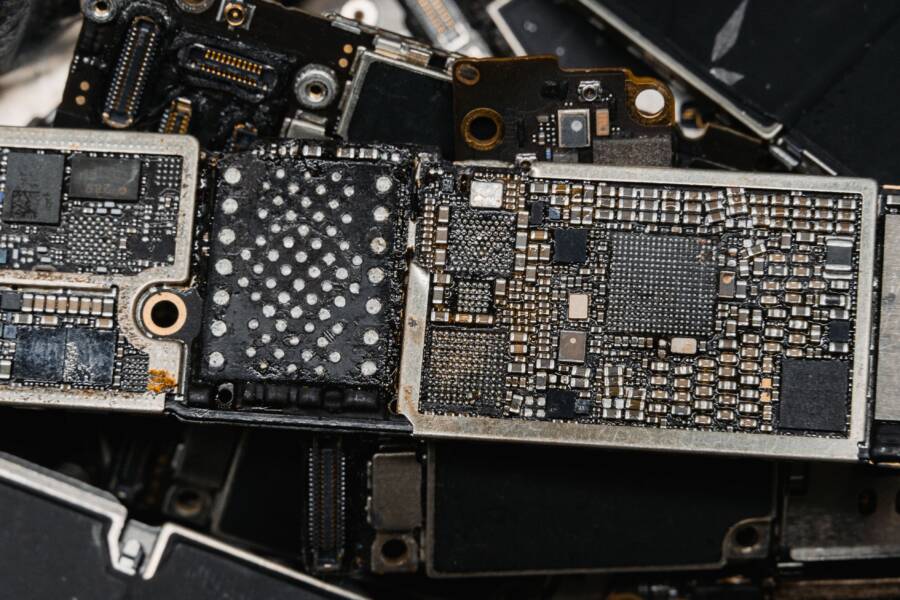
If the sound stays warped after drying, cleaning, and a full restart, the speaker may have internal damage. Repeated problems after a drop, spill, or long exposure to moisture often point to the speaker module, the phone seal, or even the board.
At that stage, more cleaning usually will not fix it. The signs become clearer when the audio cuts in and out, changes with pressure, or never returns to normal across different apps and volume levels.
Red flags that point to internal damage
Persistent distortion after the phone is dry is one of the clearest warning signs. If the speaker still crackles, buzzes, or sounds flat after careful cleaning, the problem is likely inside the device rather than on the grille.
Sound that cuts in and out is another strong clue. A loose connection, damaged speaker coil, or water-damaged part can behave like a failing light switch, working one moment and failing the next.
A drop or liquid spill raises the risk even more. Even if the phone still works, the impact or moisture may have cracked the speaker module, weakened the seal, or caused hidden corrosion.
Watch for these patterns:
Distortion that stays the same after drying suggests deeper speaker damage.
Audio that drops out at random often points to a loose internal connection.
Problems after a fall or spill can mean the speaker, seal, or board was affected.
If the sound keeps returning to the same bad state, the issue is usually hardware, not a setting.
What a repair shop can check that you cannot
A repair shop can test the speaker module directly and replace it if needed. That matters when the driver itself is worn, torn, or waterlogged.
Technicians can also inspect for water intrusion, clean corrosion from the inside, and test the phone’s seals. If a smartphone has been wet for a long time, that kind of inspection is often better than guessing and hoping the sound comes back on its own.
In some cases, the speaker is only part of the problem. Corrosion on the board or damage near the connector can make a new speaker fail too, so a proper check saves time and avoids repeat repairs.
A repair visit makes sense when:
The speaker still sounds underwater after drying and cleaning.
The problem gets worse after a drop or spill.
The audio cuts out, crackles, or changes with pressure.
The phone has been wet long enough that corrosion is possible.
If the device passes all the basic checks but still sounds wrong, replacement is often the cleaner fix. That gives you a clear answer instead of chasing the same muffled sound over and over.
Conclusion
A phone speaker that sounds underwater usually comes down to moisture or debris. Start with the safest order, power off the phone, let it dry, remove the case, then clean the grille gently.
After that, check Bluetooth, audio settings, and app behavior so you don’t miss a simple software issue. If the sound still stays muffled across calls, music, and videos, the problem is probably inside the speaker or another hardware part.
That same pattern showed up in the opening hook, and it still matters here. Careful, simple steps fix many cases before they turn into bigger damage, which is why drying and gentle cleaning should always come first.