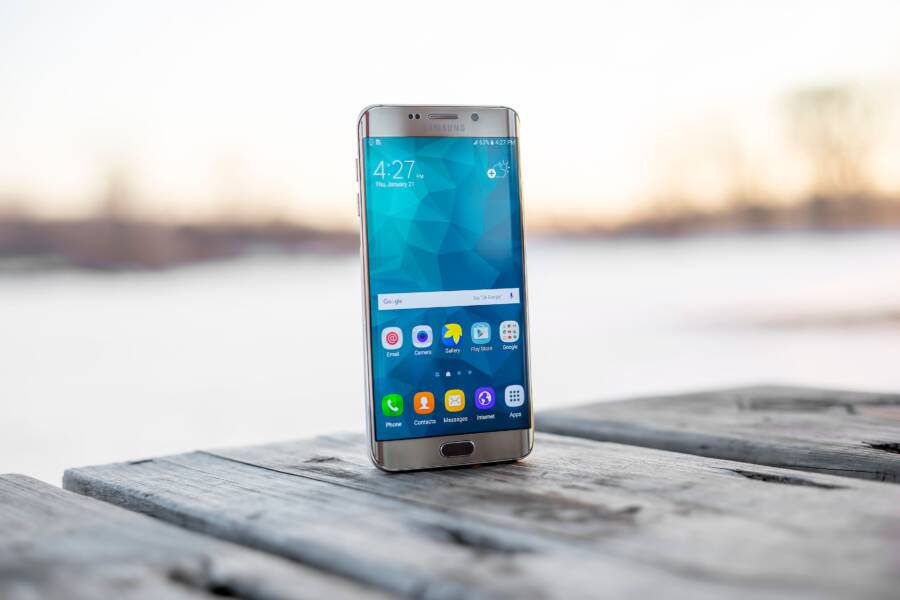
Screenshots usually stop showing up in cloud backup because sync settings are off, storage is full, permissions are missing, or the phone saves them in a folder the backup app isn’t watching.
If your phone can take screenshots but they disappear from Google Photos, iCloud, or another backup service, the fix is usually simple once you find the break in the chain. This guide walks you through the most common causes on Android and iPhone, then shows you how to repair the setting so your screenshots stay visible in backup again.
First, check where the screenshots are being saved and how your cloud app is syncing them.
What usually causes screenshots to vanish from cloud backup on a phone?
Screenshots usually vanish from cloud backup because the phone and the cloud app are not looking at the same place, or because sync has been restricted in the background. On Android and iPhone, that can happen for a few simple reasons, such as folder mismatch, storage limits, paused backup, missing permissions, or an app update that changed how backup works.
If screenshots appear on the phone but not in Google Photos, iCloud, OneDrive, or another service, the problem is usually in the upload path. The file exists, but the cloud app never gets a clean chance to copy it.
Check whether the cloud app is watching the right folder
A screenshot can only back up if the cloud app scans the folder where the phone saves it. That sounds obvious, but it is a common miss, especially on Android where different apps use different folders.
Screenshots may land in:
ScreenshotsPicturesDCIMA custom folder created by a camera, gallery, or messaging app
If the app is only set to back up Camera or DCIM, screenshots stored in a separate Screenshots folder may never upload. On some phones, a screenshot from a specific app can even be routed into its own folder, which makes the problem harder to spot.
Open the cloud backup settings and confirm the source folder or folder backup setting. If the phone uses more than one gallery path, add the missing folder manually. That one check solves a lot of cases where screenshots seem to disappear for no clear reason.
Look for sync limits, storage caps, or paused backup
A backup can look active while screenshots still fail to upload. That happens when the service is blocked by a storage cap, a pause setting, or a background restriction.
Common blockers include:
Full cloud storage, which stops new files from uploading
Paused backup, often after a sign-in change or a failed sync
Weak Wi-Fi rules, where the app waits for unmetered Wi-Fi
Data Saver mode, which limits background transfers
Battery optimization, which can stop the app from running long enough to finish uploads
This is easy to miss because older photos may already be synced. New screenshots then fail silently, especially on a smartphone that has aggressive battery controls. If the app says backup is on, check whether it is also waiting for Wi-Fi, charging, or a manual resume.
A backup status that looks “on” does not always mean every new screenshot is uploading.
Remember that file permissions and app updates can break backup
Cloud apps need permission to read photos and storage. After an OS update, app reinstall, or privacy change, those permissions can reset or narrow. When that happens, the backup app may still open, but it loses access to the files it needs.
Screenshots often show the problem first because they are small, recent, and should upload quickly. If a new screenshot never appears, but older photos still do, the app may have lost access to the photo library or the specific folder where screenshots are saved.
Check for these changes:
The app was reinstalled and never granted photo access again.
A phone update changed storage or media permissions.
The cloud app was updated and now asks for a new permission prompt.
The gallery or file app was moved to restricted access on the smartphone.
A quick permissions review often fixes the issue faster than a full reset. If the app can see your camera roll but not your screenshot folder, that points to a folder permission problem rather than a sync failure.
Why screenshots fail before other photos
Screenshots are usually the first files to expose a backup problem because they happen often and should sync almost immediately. When they do not, the cause is usually one of three things: the wrong folder, a blocked sync setting, or lost access after a system change.
That makes screenshots a useful test file. If a fresh screenshot uploads, the backup path is working. If it disappears again, the problem is still in the folder settings, permissions, or upload limits.
Fix the cloud backup settings that hide screenshots
When screenshots stop showing up in cloud backup, the fix usually starts in the backup app itself. The phone often saves the file correctly, but the app is not watching the right folder, lacks permission, or has paused sync in the background.
Go through the settings in order. The goal is simple, get the screenshot folder recognized, give the app access, then force a fresh sync so the new screenshot appears where it should.
Confirm the cloud account is signed in and backup is turned on
Start with the basics, because the wrong account is one of the most common reasons screenshots seem to disappear. Open the cloud app and confirm you are signed in to the account you actually use for photo backup, not a second work, family, or old account.
Then check that photo backup or sync is turned on. Some apps show a green check or backup status, while others hide the setting under account, library, or upload options. If the app signed out after an update or password change, the backup may look normal until you notice nothing new is uploading.
A quick sign-in check should include:
the correct email address or cloud account name
backup or sync switched on
upload paused or offline mode turned off
enough cloud storage for new screenshots
If the phone is using the wrong account, screenshots may upload somewhere else entirely. That makes them feel lost, even when the backup actually worked.
Turn on screenshot folder backup in the cloud app settings
Many cloud apps back up camera photos automatically, but they do not always include screenshots by default. Open the app settings and look for albums, folders, device folders, or gallery sync options.
In Google Photos, check whether the Screenshots folder is included in backup settings. On Samsung Gallery, verify that sync is enabled for the screenshot album. In iCloud Photos, make sure Photos sync is active and the screenshot is being saved inside the Photos library on the device. OneDrive and Dropbox can also back up selected folders, but the screenshot folder may need to be chosen by hand.
The exact menu names differ, but the pattern is the same. The app must know that screenshots are part of the backup set, or it will ignore them.
If screenshots save to a separate folder, the app has to be told to watch that folder. Automatic camera backup alone is often not enough.
If you use a smartphone with custom gallery software, look for a setting that says something like back up device folders, include local folders, or sync hidden albums. Then confirm that Screenshots is toggled on.
Give the app permission to access photos and storage
Backup apps cannot upload what they cannot read. On iPhone, open Settings, find the cloud app or Photos, then check that photo access is allowed. If the app only has limited access, screenshots may stay invisible until you expand permission to the full library.
On Android, open Settings, then go to Apps, choose the cloud app, and review Photos and videos, Files and media, or Storage permissions. The wording changes by phone brand, but the fix is the same, the app needs permission to see and upload your screenshots.
Privacy settings can block backup in smaller ways too. For example, some phones restrict background access after a privacy reset, and some gallery apps hide albums from third-party apps. If the app can see camera photos but not screenshots, permission is usually part of the problem.
A good rule is simple, if the app cannot browse the folder, it cannot back it up.
Clear the cache, update the app, and restart the phone
If the settings look right but screenshots still do not sync, do a quick cleanup. Update the cloud app first, because older versions can break folder detection or upload status.
On Android, clearing the app cache can also help. Go to Settings, open the app, then choose Storage and Clear cache. This removes temporary files without deleting your account or backed-up photos. After that, restart the phone so the backup service reloads fresh folder data.
Then open the cloud app again and let it recheck recent screenshots. In many cases, that is enough to restart a stalled sync queue. If the app had been stuck in the background, this step gives it another chance to scan the screenshot folder and upload new files.
For a quick maintenance pass, use this order:
Update the cloud app.
Clear cache on Android.
Restart the phone.
Reopen the app and confirm backup is still on.
Reupload a test screenshot to confirm the fix worked
Take a new screenshot after you finish the settings check. Wait a minute or two, then open the cloud app on another device or in a web browser and look for the file.
That test matters because it tells you whether the problem is fixed or still hiding in one setting. If the screenshot appears, the backup path is working again. If it does not, return to the folder sync and permission settings, because one of them is still blocking upload.
A fresh screenshot is the cleanest test you can use. It shows whether the phone, the app, and the cloud account are finally talking to each other the way they should.
Phone settings that can block screenshot backups without warning
A screenshot can save correctly on your phone and still miss cloud backup because a hidden setting blocks the upload path. Battery limits, mobile data rules, and folder placement often stop the app before the file ever reaches the cloud.
That is why the problem feels random. The screenshot is there on the smartphone, but the backup app never gets a clean chance to send it.
Disable battery saver or background restrictions for the backup app
Phones often stop apps from working in the background to save power. That helps the battery, but it can also delay or block screenshot uploads before they finish.
On Android, check battery optimization, battery usage limits, or any setting that restricts the backup app in the background. Some brands call this background restriction, sleeping apps, or app power management. On iPhone, look at Background App Refresh and make sure the cloud app is allowed to update when you’re not using it.
This matters because a screenshot upload is usually small, but it still needs background time. If the app gets paused the moment you lock the screen or switch apps, the file stays local and never syncs.
A quick check helps:
Turn off battery saver while testing backup.
Allow the backup app to run in the background.
Remove the app from any sleep or deep-sleep list.
Reopen the app and wait for it to rescan recent screenshots.
If screenshots upload only when the app is open, background control is the likely blocker. Once that restriction is removed, the phone can hand the file off normally.
Check mobile data and Wi-Fi rules that stop uploads
Backup settings often change depending on the connection. A screenshot may upload at home on Wi-Fi, then fail on mobile data, which makes the problem look inconsistent when it’s really a network rule.
Look for Data Saver, Low Data Mode, Wi-Fi only backup, and restricted roaming. These settings are common on both Android and iPhone, and they can stop cloud apps from uploading photos in the background. Some services also wait for an unmetered connection before they send anything at all.
That means your screenshots may sync perfectly on your home network, then stall the moment you leave it. If you travel, use hotspot data, or have roaming turned off, the app may hold the files until it gets the right connection again.
A simple comparison helps:
If screenshots only show up later, after you return to Wi-Fi, the app is following a network rule. Changing that setting usually restores normal sync.
Make sure the screenshot is being saved in a visible photo location
A screenshot can only back up if the cloud service can see where it landed. Some phones save screenshots in hidden folders, app-private storage, or separate albums that the cloud app does not index right away.
That can create a strange split. The gallery app shows the image on the phone, but the cloud service has not picked it up yet. In other cases, the screenshot sits in a local album that looks normal on the device, while the backup app only scans shared photo locations such as the main camera roll or a standard Screenshots folder.
If you use a smartphone with more than one gallery app, check where the file actually saved. A screenshot stored in a private album, a hidden folder, or an app-specific location may not appear in cloud backup views even though it looks fine in the local gallery.
Look for these signs:
The image appears in the phone gallery, but not in the cloud library.
The screenshot sits in a separate album the backup app does not watch.
The cloud service shows older photos, but not the newest capture.
The gallery app displays the file locally, while the online account has not indexed it yet.
A visible image on the phone does not always mean the cloud has seen it.
If the screenshot folder is hidden or separate, move the files into a shared photo location or add that folder to backup. That small change often fixes the gap between local storage and cloud sync.
Why some screenshots sync on one device but not another
Screenshots often sync on one device but not another because the two devices are not using the same account, folder view, or sync timing. One phone may upload the file correctly while the other is looking at a different library, a filtered album, or a delayed sync queue.
That gap makes the screenshot look missing when it is really just hidden, late, or saved under another account. Once you check the account, the folder, and the upload delay, the problem usually becomes clear.
Different accounts can make the same screenshot look missing
A screenshot can back up under one account and seem to vanish on another. This happens a lot when you use family sharing, a work account, or a secondary cloud login on the same phone.
For example, your smartphone may save the screenshot to your personal Google Photos account, while the tablet you check is signed into a work profile. The file exists, but each account has its own library, so the screenshot appears missing on the second device.
Common causes include:
Family sharing setups that split access between personal and shared libraries
Work accounts that store media in a separate cloud space
Secondary cloud logins added for backup, testing, or storage
When a screenshot seems gone, compare the signed-in email address on both devices first. If they do not match, the file may be sitting in the other account all along.
Cloud sync can lag behind your phone by a few minutes
A short upload delay is normal. Your phone may save a screenshot instantly, while the cloud app finishes sending it a little later. On a busy connection, that delay can stretch long enough to make the file look missing.
That said, a delay that keeps repeating is a warning sign. If screenshots appear on the phone first and on the second device later, the sync system is probably just behind, not broken.
It helps to check whether older screenshots show up before the newest one. If they do, the app is probably working through a queue. If none of them appear after several minutes, the issue is more likely a sync failure than a delay.
A screenshot that shows up later is usually queued, not lost.
Shared albums and device folders do not always match
A screenshot can sit in the main cloud library and still fail to show in a shared album, archive, or device-specific folder view. That mismatch is easy to miss because the phone gallery and the cloud app may filter files differently.
One device might show only the camera roll, while another shows shared items, hidden albums, or a folder like Screenshots. If the file lands in the main library but not in the view you opened, it can look missing even though it synced correctly.
Check these views one by one:
The main cloud library
Shared albums or shared folders
Device folders, especially
ScreenshotsArchive or hidden sections
If the screenshot is present in one place but not another, the file is fine. The view is the problem, and changing the filter usually brings it back.
How to keep future screenshots backed up and easy to find
Once your screenshot backup is working again, the next step is keeping it that way. A simple setup is easier to trust, and it also makes recovery faster when you need to find a receipt, error message, or saved conversation later. The best approach is to keep one clear backup path, check it once in a while, and organize important screenshots before they turn into a long, messy timeline.
Use one cloud service as the main photo backup path
Keep screenshots tied to one primary cloud service whenever possible. When photos are split across too many apps, recovery gets messy fast because you have to remember where each file went, which account holds it, and which folder was backed up.
A single main path gives you a clean habit. If you use Google Photos, iCloud Photos, or OneDrive, pick one as the default backup route and let it handle your screenshots first. You can still use a second app for extra storage if you need it, but avoid making both apps responsible for the same files unless you have a clear reason.
That matters on a smartphone because split backups often create gaps. One app may capture the camera roll, another may watch the screenshot folder, and a third may miss both after a settings change. A clear path makes screenshot recovery much easier because you always know where to look.
Create a quick monthly backup check
A monthly check is enough for most people. You do not need a heavy routine, just a short review of recent screenshots, available storage, and sync status.
Open the cloud app and confirm three things:
Recent screenshots are appearing.
Cloud storage still has room.
Backup is active and not paused.
If any of those look off, fix it right away before the problem grows. This also helps you catch small changes, such as a new phone update, a permission reset, or a storage warning that could stop future uploads.
A few minutes each month is usually enough. That quick habit saves you from finding out months later that important screenshots never left the device.
Organize screenshots before they pile up
Screenshots are easier to find when you sort them early. Move anything important into a labeled album or a starred folder as soon as you know you want to keep it.
This helps because cloud apps often sort by date or device, which makes older screenshots hard to spot later. A labeled folder gives you a shortcut, so you do not have to scroll through hundreds of casual captures just to find one password reset code or shipping label.
A simple setup works well:
Put receipts in one album.
Keep travel or event screenshots in another.
Star or favorite anything you may need later.
If a screenshot matters, move it right away. Waiting until later usually means forgetting where it came from.
That extra step also helps when your cloud library is shared across devices. The screenshot stays easy to find even if the app groups files by upload date, phone model, or photo type.
When the problem is bigger than a simple settings fix
If your screenshots still refuse to sync after the usual setting checks, the problem may sit deeper in the phone or the cloud app. That usually means a storage issue, a damaged sync state, or a support problem that needs a reset without wiping your data.
The good news is that you can often fix it without a factory reset. Start with the least risky support steps, then move to help from the cloud service or device maker if the same failure keeps coming back.
Watch for signs of a phone storage or system problem
A deeper device issue often shows up in more than one place. If screenshots fail to upload repeatedly, never appear in local storage, or cause the gallery or cloud app to crash, the phone itself may be part of the problem.
Look for patterns like these:
Screenshots save, then vanish from the gallery or file manager
New uploads fail every time, even after restarting the phone
The cloud app crashes when it tries to scan photos
Other photos are missing, delayed, or out of order
Storage warnings appear even though the phone does not seem full
When more than one photo feature breaks at once, treat it as a system issue, not a simple screenshot setting problem. A corrupted media database, low device storage, or a failing app update can block screenshots along with other images.
If screenshots are missing and other photos are missing too, the phone needs more than a folder check.
That is especially true on a smartphone that has been through several updates or has very little free storage. The file may exist, but the system cannot index or upload it cleanly.
Try support steps before a factory reset
A factory reset should be the last move, not the first. Many sync problems clear up after a sign-out, reinstall, or settings refresh, and those steps do not erase your photos.
Try these in order:
Sign out of the cloud app, then sign back in.
Reinstall the cloud app if it still behaves oddly.
Reset sync settings inside the app, if that option exists.
Restart the phone and test with a new screenshot.
These fixes help because they force the app to rebuild its connection to the account and photo library. If the backup state got stuck, the sign-out and sign-in cycle often clears it. Reinstalling the app can also repair a broken cache or damaged session file.
Before any bigger reset, confirm that the screenshots are still on the device or already backed up somewhere else. That way you avoid losing files that never had a chance to sync.
Know when to contact cloud or device support
Reach out when the same issue keeps happening after you have checked settings, permissions, and app resets. If screenshots upload on one device but never appear in the cloud, the service may have an account-level sync problem. If multiple backup apps fail at the same time, the phone itself may need support.
Contact cloud support when:
Screenshots upload on the phone but never show in the online library
The app says backup is active, but the file never appears
The same account fails on more than one device
Contact device support when:
Screenshots do not save correctly on the phone at all
Gallery, storage, and backup apps all misbehave together
Other file types are missing or the phone storage system seems unstable
Bring simple details with you, such as the phone model, OS version, app name, and a few recent examples. That saves time and helps support trace the failure faster. If you can say exactly where the screenshot stops, on the device, in the app, or in the cloud, you give them the clearest starting point.
Conclusion
When a phone cannot keep screenshots visible in cloud backup, the fix usually starts with the basics, not a repair shop. Check the screenshot folder first, confirm backup is turned on, then give the app full photo and storage access.
After that, remove battery saver or data limits that block background uploads, and test the setup with a fresh screenshot on your smartphone. That single check tells you whether the sync path is working again.
Most screenshot backup problems are settings issues, not broken phones. A careful reset of the folder, permissions, and sync rules usually brings everything back into view.