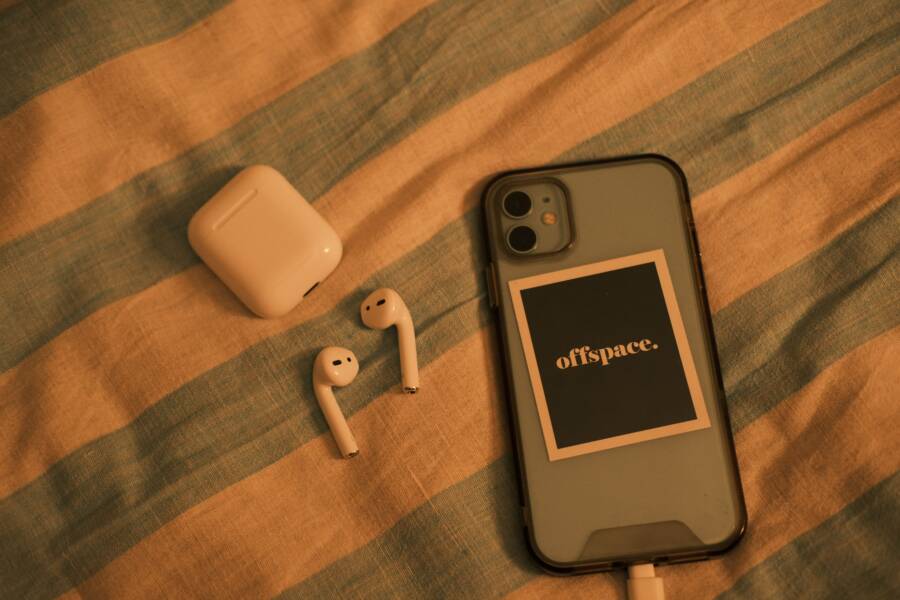
A phone that drops Bluetooth while charging is usually dealing with interference, a faulty cable or charger, power-related noise, or a weak Bluetooth setup, not a broken phone. In many cases, the fix is as simple as swapping the charger, moving the cable away from the device, or changing a few settings.
If your smartphone keeps cutting out only when it’s plugged in, the charging hardware is a strong place to start. The most common fix is replacing the charger or cable with a better-quality, properly matched one.
Below, you’ll find the fastest checks to find the real cause, the first fixes to try, and the signs that the phone or accessory may need to be replaced.
What usually causes Bluetooth to fail only while the phone is charging
When Bluetooth drops only during charging, the charging setup is usually part of the problem. A weak charger, extra heat, or software that reacts badly to power changes can interfere with the wireless radio and make the connection unstable.
The good news is that this pattern usually points to a narrow set of causes. Once you separate charger issues, heat and power strain, and software problems, the fix becomes much easier.
How cheap chargers and cables can create wireless interference
A low-quality charger can send electrical noise into the phone while it powers up. That noise may not affect the screen or battery display, but it can still disrupt the Bluetooth antenna and cause brief drops, stuttering audio, or repeated reconnects.
This happens most often with uncertified adapters, frayed cables, or loose USB ports. A damaged cable can create unstable current flow, and a wobbly connector can make the phone shift between charging states. Even a multi-port charger can cause trouble if it spreads power too thin across several devices.
If Bluetooth only fails on one charger, that charger is the first suspect. Try a known-good adapter and cable, then check whether the connection stays stable.
A quick comparison helps:
If Bluetooth fails only on one charger, treat the charger and cable as the test, not the phone.
Why heat, battery strain, and power saving can make the signal worse
Charging raises phone temperature, and heat changes how the device manages power. When a phone gets hot, it may reduce performance, limit background tasks, or adjust radio behavior to protect the battery and internal components.
That can hurt Bluetooth stability, especially during heavy use. A smartphone that is charging, streaming audio, and running apps at the same time has more work to do, so the wireless connection can become less steady.
Power-saving behavior can also play a role. Some phones reduce background activity or shift resources when the battery is under strain, and that can make Bluetooth feel weaker even though the charger is the trigger.
Keep an eye on these signs:
The phone feels warm near the charging port or back panel.
Bluetooth drops happen after a few minutes, not immediately.
The issue gets worse during gaming, navigation, or video calls.
The connection improves after unplugging and letting the phone cool down.
If this pattern sounds familiar, the heat is part of the problem. A cooler charging setup, lighter phone use while plugged in, or a slower charger can help the Bluetooth radio stay stable.
When the problem is software, not the charger
A charging-related Bluetooth drop can also come from software. Outdated OS versions, Bluetooth bugs, and pairing errors can make a phone look like it has a charger problem when the real issue is a stale wireless connection.
This is common after system updates, accessory changes, or repeated pairing attempts. The phone may keep trying to reconnect using old pairing data, and charging can simply make the problem more visible. Device memory issues can add to that, especially on older phones with limited storage or crowded background processes.
Start with the basics:
Forget the Bluetooth device and pair it again.
Restart the phone.
Install the latest system and firmware updates.
Clear out old or unused Bluetooth pairings.
Test the connection again while charging.
If the same headset or speaker works fine on another device, the pairing data on the phone is a stronger suspect than the charger. In that case, the Bluetooth drop is usually a software or memory issue that only shows up when the phone is already under power and heat pressure.
Sometimes the pattern looks physical, but the root cause is digital. A stale connection, old firmware, or a buggy Bluetooth stack can make charging look guilty when it is only exposing a deeper problem.
The fastest checks to try before you dig deeper
Start with the simplest tests first. In many cases, Bluetooth drops while charging because one part of the charging setup is noisy, loose, or out of spec, and you can find it without opening settings menus or replacing the phone.
The fastest path is to change one variable at a time. That way, you can see whether the problem comes from the charger, the Bluetooth pairing, or a temporary software glitch on the phone or accessory.
Swap the charger, cable, and outlet one at a time
Begin with a different wall adapter, then try a different USB cable, then a different outlet. If possible, use the original charger that came with the phone or a certified accessory from a trusted brand. That gives you a cleaner test and reduces the chance of electrical noise.
Change only one item at a time. If you replace the charger, cable, and outlet all at once, you won’t know which part fixed the problem. A good test flow looks like this:
Keep the same cable, but switch to a different wall adapter.
If the issue stays, keep the adapter and swap the cable.
If it still happens, move to another wall outlet or power strip.
Test again with the original or certified setup, if you have it.
This is a fast way to isolate a bad charger, a worn cable, a weak power brick, or a noisy outlet. A phone can tolerate a lot of variation while charging, but Bluetooth is more sensitive than most people expect. If the drops stop on one setup, you’ve found the likely source.
Reconnect Bluetooth the clean way
A fresh pairing often clears up connection problems that show up only when the phone is charging. First, forget the device on your phone, then remove the phone from the Bluetooth device if that option exists. After that, restart the phone and pair again from scratch.
This matters because old pairing data can hold onto errors. When the phone is already managing charging heat and power changes, those errors can surface as stuttering audio or repeated disconnects. A clean pairing gives both devices a fresh start.
Keep the process simple:
Forget the accessory in your phone’s Bluetooth settings.
Remove the phone from the headphones, speaker, car system, or watch if needed.
Restart the phone.
Pair again and test while charging.
If you use earbuds, headphones, speakers, a car system, or a watch, check each one separately. A single stale pairing can make one device fail while the others work normally.
Restart the phone and the Bluetooth device
A full restart clears temporary glitches in the wireless stack, which handles Bluetooth, Wi-Fi, and related radio tasks. That reset can fix brief software hiccups that appear only when the phone starts drawing power from a charger.
Restart the phone first, then power-cycle the Bluetooth device too. For earbuds and headphones, place them back in the case or switch them off and on again. For speakers, car systems, and watches, use their normal restart or power-off method before testing again.
This simple step matters because both devices keep temporary connection state in memory. If one side gets stuck, charging can make the problem show up more often. After the restart, test the same setup again before moving on.
If Bluetooth works after a restart, the problem was likely a temporary wireless glitch, not permanent damage.
A clean restart is often the fastest way to separate a minor software issue from a real charging fault.
Change phone settings that can interfere while charging
If Bluetooth drops only when your phone is plugged in, the problem may come from power-related settings rather than the charger itself. Many phones adjust wireless behavior, background activity, or battery use when the battery gets low or the device starts charging, and that can affect a Bluetooth headset, speaker, or car kit.
Start with the settings that change how the phone manages power and connections. These adjustments are safe, easy to test, and often point straight to the cause on a smartphone that acts normal the rest of the time.
Update the operating system and Bluetooth device firmware
Software updates often include Bluetooth fixes, battery improvements, and wireless stability patches. If your phone has been missing updates for a while, the Bluetooth stack may have a bug that shows up only during charging or when the battery level changes.
Check three places if the brand supports them:
Your phone’s system update menu
The accessory’s firmware update tool or companion app
The headphones, earbuds, or car kit app from the manufacturer
That last step matters more than many people expect. Some headphone and car kit brands push firmware updates through an app, and those updates can fix pairing drops, audio stutter, and reconnect failures. If your accessory has a brand app, open it and look for firmware or device update options.
A good test is simple. Update the phone first, then update the accessory if the maker supports it, then pair the devices again and charge the phone for a few minutes. If the drops stop after the update, you probably found a software bug that had been hiding in plain sight.
Turn off battery saver, low power mode, or aggressive power management
Battery saver modes can limit background tasks, reduce performance, and change how the phone handles wireless activity. On some phones, that can make Bluetooth less stable, especially when the battery gets low and the phone switches into a tighter power-saving state.
This test is especially useful if the problem starts during low battery charging or if it appears right after battery saver turns on automatically. Some phones enable the mode at a set percentage, so the Bluetooth drop may happen at the same point every time.
Turn the feature off, then test the phone while charging again. If you use a brand that offers extra power management controls, look for settings that restrict app activity, background syncing, or system optimization. Those controls can be just as aggressive as battery saver mode.
If Bluetooth becomes stable after disabling power saving, the phone was limiting wireless performance under load.
That doesn’t mean you need to leave battery saver off forever. It only means the setting may be too aggressive for your Bluetooth use case. You may need to keep it off during calls, music playback, or car audio sessions, then turn it back on later.
Reset network settings if pairing keeps failing
If the same Bluetooth device keeps failing to reconnect, a network reset can clear damaged Bluetooth records, Wi-Fi settings, and connection conflicts. This is a stronger step, so use it after the simpler checks above.
A reset like this can help when the phone holds onto bad pairing data or corrupted wireless settings. It can also clear hidden conflicts between Bluetooth, Wi-Fi, and hotspot features, which sometimes show up when the phone is charging and using more system resources.
Before you do it, expect to reconnect saved networks afterward. That means:
Your saved Wi-Fi networks will be removed.
Bluetooth pairings will be cleared.
VPN or mobile network settings may reset, depending on the phone.
After the reset, pair your accessory again and test it while charging. If the connection is solid, the issue was probably buried in the phone’s wireless settings rather than the accessory itself. This step is more disruptive than the others, but it often clears stubborn Bluetooth problems that keep coming back.
How to test whether the charger is the real problem
If Bluetooth only drops while the phone is plugged in, the charger is one of the first things to test. A bad adapter, weak cable, loose port, or noisy power source can create unstable power that affects Bluetooth before it shows up anywhere else.
The easiest way to confirm the charger is the culprit is to change one part at a time and watch what happens. If the same phone behaves normally with a different setup, the charger side is the problem. If the drops continue across multiple chargers and cables, the issue is more likely inside the phone or in the Bluetooth connection itself.
Use a certified charger with the right power rating
Start with the charger your phone is designed to use. Matching the recommended wattage lowers the chance of unstable power delivery, especially on a smartphone that supports fast charging. An underpowered adapter may struggle, while an off-brand high-wattage charger can still deliver noisy power if it is poorly made.
Look for the right standard and certification for your device. OEM chargers are the safest first test because they match the phone’s power profile. For many USB-C phones, a USB-C PD charger from a reputable brand is also a solid option. If you’re charging an iPhone or Apple accessory, MFi-certified accessories help reduce compatibility issues.
A simple test sequence helps here:
Charge with the original OEM adapter and cable.
Try a certified USB-C PD charger if your phone supports it.
Compare the result with a third-party charger you trust.
Watch whether Bluetooth stays stable on only one setup.
If Bluetooth works on the OEM charger but fails on a cheap replacement, the charger is the likely problem.
Test wireless audio away from other electronics
If the charger passes the first check, move the phone to a cleaner environment. Routers, microwaves, USB hubs, laptops, and crowded power strips can all add radio noise or electrical interference. That noise can make Bluetooth audio unstable, especially while the phone is already handling charging load.
Test the phone in a different room, then listen again while it charges. Leave the headset or speaker paired, but reduce the number of nearby electronics. If the drops stop when you move away from a desk full of devices, interference is part of the issue.
A good real-world test looks like this:
Unplug from the crowded desk setup.
Charge from a wall outlet away from the router and laptop.
Keep the Bluetooth device at the same distance from the phone.
Play audio for a few minutes and check for dropouts.
If the connection is stable in a quieter spot, the charger may still be fine, but the surrounding electronics are creating a tougher signal environment. In that case, the fix may be as simple as changing where you charge the phone.
Check the charging port for dust, looseness, or damage
A charging port can look fine and still cause trouble. Lint, dirt, bent pins, or a loose connector can make the phone charge in short bursts instead of a steady flow. That unstable connection can affect Bluetooth, because the phone keeps reacting to tiny power changes.
Use a flashlight and inspect the port closely. If you see compacted dust, the cable may not seat fully. If the plug wiggles too much, or the phone only charges when you hold the cable at an angle, the port may be worn or damaged.
These signs point to a simple cleaning issue:
The cable feels blocked before it clicks into place.
The phone charges again after careful cleaning.
Charging stops if the cable is nudged, but starts once it is reseated.
These signs point to port damage instead:
The connector feels loose even after cleaning.
The cable works in one position only.
Charging cuts in and out without any movement.
You see bent pins, scorch marks, or visible wear inside the port.
If the port is dirty, a gentle cleaning can help. If it is loose or damaged, the phone may need repair. A Bluetooth drop that appears only when charging often starts with a power issue, and the port is one of the most overlooked places to check.
When to clean, replace, or repair the hardware
The right fix depends on what the hardware is telling you. If the problem comes from dust, lint, or a loose fit, cleaning may solve it. If the cable or charger is worn out, replacement is the better move. If you see heat, swelling, sparks, or repeated Bluetooth drops with every charger, the phone itself may need service.
A good rule is simple: clean light dirt, replace damaged accessories, repair damaged hardware. That keeps you from forcing a bad port or wasting time on a charger that can no longer deliver stable power.
Safe ways to clean the charging port and cable ends
Start with the gentlest method first. A soft brush, a dry microfiber cloth, or a clean wooden or plastic pick can remove lint from the charging port and clear grime from the cable end. If you use compressed air, keep the can upright and use short bursts, because long blasts can push debris deeper into the port.
Avoid metal tools, pins, paper clips, and liquid cleaners. Metal can bend contacts or scratch the port, and liquid can leave residue or creep into the phone. If the cable end looks dirty, wipe it clean and check for bent connectors before plugging it back in.
If the port feels packed with debris, stop before you force it. A smartphone port is small and delicate, so repeated scraping can turn a simple cleaning job into real damage.
Signs the battery or charging port may need service
Some symptoms go beyond normal wear. If the phone overheats, swells, shuts down at random, or charges very slowly no matter which cable you use, it needs a closer look. The same is true if you notice a spark, a burnt smell, or Bluetooth problems that happen with every charger and every cable.
These warnings point to a deeper hardware fault, not a simple pairing issue. A damaged battery or charging port can create unstable power, and that instability can disrupt Bluetooth while the phone is charging.
Bring the phone to a technician if you see any of these signs:
The battery swells or lifts the screen or back cover.
The phone gets unusually hot during light charging.
Charging only works at an angle or stops when the cable moves.
Bluetooth fails on every known-good charger and cable.
You notice a burning smell, spark, or visible scorch marks.
If the phone shows heat, swelling, or scorch marks, stop charging it and get it checked.
How to choose a replacement charger or cable that will not cause the same issue again
When the accessory is the problem, choose a replacement that matches your phone model and power standard. Certified brands are safer because they are built to handle the right voltage and current. For USB-C phones, look for a reputable USB-C PD charger. For Apple devices, use MFi-certified cables and accessories when supported.
Skip no-name chargers with vague labels or oversized promises. Cheap accessories often fail because they cut corners on shielding, wiring, or power regulation. Reliable ones cost more, but they usually charge more consistently and create less electrical noise, which matters when Bluetooth is already sensitive.
Before buying, check three things:
The charger matches your phone model and charging standard.
The cable supports the needed power level.
The brand offers warranty support or a clear return policy.
A cheap charger may work for a week and then start causing dropouts again. A well-made charger is less likely to create the same Bluetooth problem, and that makes it the better long-term fix.
Conclusion
A phone that loses Bluetooth while charging usually has a fixable cause, and the best results come from checking the charger first. If a better cable and adapter solve it, the problem was power noise or a loose connection, not the phone itself.
If that doesn’t clear it, restart the phone, re-pair the Bluetooth device, update the software, adjust power-saving settings, and inspect the charging port for dust or wear. Those steps cover the most common causes without wasting time on guesswork.
Most phones do not need repair unless the problem follows every charger or comes with heat, damage, or a worn port. With step-by-step testing, this is usually a repairable problem, not a permanent one.