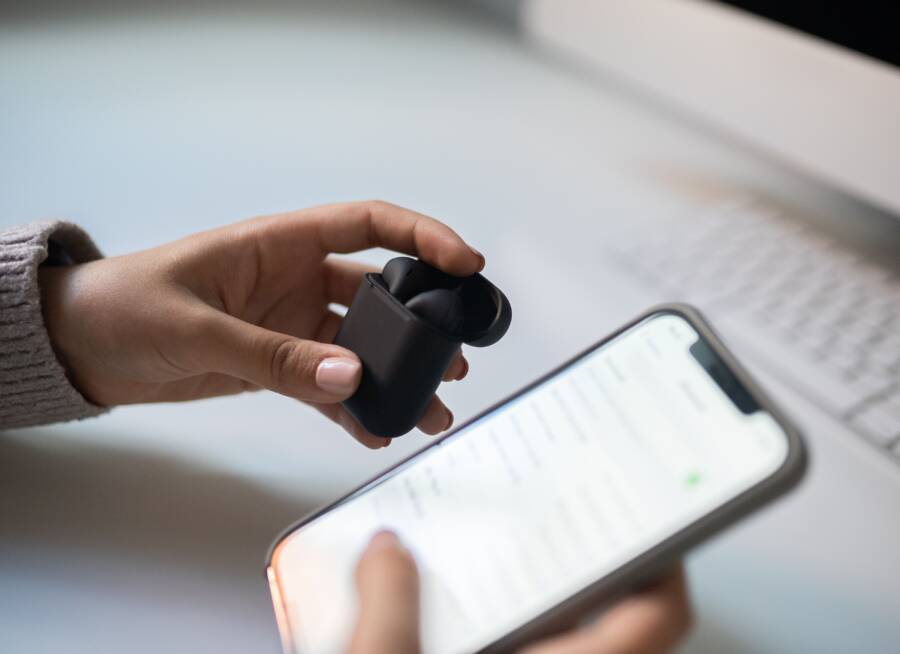
Turn Bluetooth off and back on, forget the hearing aids in your phone’s Bluetooth settings, then re-pair them. If that doesn’t fix it, check for app and operating system updates, move away from nearby interference, and make sure both devices have enough battery.
A phone that can’t hold a Bluetooth connection to hearing aids usually has a pairing glitch, low battery, outdated software, interference, or a hearing aid setting that needs a reset. In most cases, the phone itself isn’t broken, which means you’ve got a clear path to fix the problem on your smartphone without replacing anything.
The steps below will help you narrow down the cause and get a stable connection again.
Why your phone loses the hearing aid connection
A hearing aid connection usually drops because the phone, the hearing aids, or the Bluetooth link between them gets out of sync. Small issues, such as a bad pairing record, low power, interference, or outdated software, can break the connection again and again.
The good news is that most dropouts come from fixable causes. Once you know where the weak point is, you can stop guessing and handle the problem with a clear next step.
Pairing got stuck or saved the wrong device profile
An old or incomplete pairing can cause repeated disconnects even when both devices look connected. Your phone may be holding onto a damaged Bluetooth profile, while the hearing aids remember a different setup. That mismatch can make the connection fail every time it tries to reconnect.
This often happens after:
a failed first pairing
switching to a new phone
reinstalling the hearing aid app
changing phone settings or resetting one device but not the other
The quickest fix is to forget the hearing aids in your phone’s Bluetooth settings, then pair them again from scratch. That clears out hidden errors and gives both devices a clean start. If the pairing screen keeps looping or the aids disappear after connecting, this step often solves it.
A stale pairing can look normal on the screen and still fail behind the scenes.
If your hearing aid app has its own device list, remove the hearing aids there too before pairing again. That helps the phone and the app rebuild the same profile instead of keeping conflicting information.
Battery and power problems on either device
Weak power is one of the simplest reasons Bluetooth gets unstable. A phone with a low battery may reduce wireless performance, and hearing aids with a weak charge can drop their Bluetooth link before the audio stays locked in.
Watch for these common power problems:
low phone battery
hearing aids that are near empty
a charging case that isn’t fully charging the aids
one aid charging well while the other is not
a device that enters a low-power state too early
Even when a phone still shows battery left, a nearly drained smartphone can act less reliably with wireless connections. The same is true for hearing aids that are only partly charged, because Bluetooth audio needs steady power on both sides.
If the connection falls apart after a few minutes, check the battery level first. Then charge both devices fully and test again. A stable charge gives Bluetooth less room to fail.
Bluetooth interference from other wireless devices
Bluetooth works best when the air around it is quiet. In a busy room, other wireless signals can crowd the connection and cause dropouts, delayed audio, or one-sided sound.
Common sources of interference include:
Wi-Fi routers
laptops
smartwatches
tablets
multiple active Bluetooth devices nearby
A crowded wireless space can act like traffic at a merge point. The phone and hearing aids are still trying to connect, but too many signals compete for attention. As a result, the link can become weak or unstable.
Try moving away from crowded equipment and testing the connection in a simpler setting. If the hearing aids work better in another room or outdoors, interference is likely part of the problem. You can also disconnect extra Bluetooth accessories that you are not using, since fewer active devices can mean a steadier connection.
Phone, app, or hearing aid firmware is out of date
Older software can cause dropouts, pairing errors, and connection failures. That risk goes up after a phone update or a hearing aid app update, because one side may change while the other side stays behind.
When the software versions no longer match well, the connection may still work at first and then fail under normal use. You might notice:
repeated disconnects after waking the phone
the app losing contact with the hearing aids
audio delays or brief cutouts
pairing problems right after an update
Check for updates on the phone, the hearing aid app, and the hearing aids themselves if your model supports firmware updates. Many connection issues start when one device has newer Bluetooth behavior than the other. Keeping all three current gives them a better chance of speaking the same language.
If the problem started right after a phone update, the update may have changed Bluetooth behavior or reset permissions. If it started after an app update, the app may need fresh pairing or a newer firmware version to stay stable.
Start with the fastest fixes on your phone and hearing aids
When a Bluetooth connection drops, start with the simplest resets first. A phone, a smartphone app, and hearing aids can all keep a stale connection in memory, so a quick reset often clears the problem before you touch any deeper settings.
Begin with the steps that refresh the link between both devices. These fixes take little time, and they often solve pairing glitches, short dropouts, and connection loops without changing anything permanent.
Turn Bluetooth off, wait a few seconds, then turn it back on
A short Bluetooth reset can clear temporary glitches in the wireless stack. On both iPhone and Android, turn Bluetooth off, wait about 10 seconds, then turn it back on and test the connection again.
On iPhone, open Settings, tap Bluetooth, switch it off, then switch it back on. On Android, open Settings, go to Connections or Bluetooth, turn it off, wait, and turn it on again. If your hearing aids use an app, open it after Bluetooth comes back on and check whether the connection returns.
This quick reset helps when the phone shows the hearing aids as connected, but the audio still cuts out or the app stops responding. It is a simple first move, and it often clears a temporary Bluetooth hiccup.
Restart the phone and fully power cycle the hearing aids
If Bluetooth alone does not fix it, restart the phone next. A full restart clears background errors that can keep the Bluetooth service stuck, especially after an update or a long period of use.
After the phone comes back on, fully power cycle the hearing aids. For many models, that means turning them off and back on again. If your hearing aids normally reset in the charging case, place them in the charger, wait until they power down, then remove them and try pairing again.
A clean restart on both sides gives the connection a fresh start. If one device has been holding a bad state in memory, this step often clears it. Keep the test simple, then check for sound in one call or a short audio clip.
Forget the hearing aids and pair them again from scratch
If the connection still drops, remove the saved hearing aid profile from the phone first. On iPhone, go to Bluetooth settings and tap the info icon next to the hearing aids, then choose Forget This Device. On Android, open the Bluetooth list, select the hearing aids, and remove or unpair them.
After that, pair them again through the hearing aid app or through Bluetooth settings, depending on your model. If the app gives pairing instructions, follow those steps closely so the phone and hearing aids rebuild the same connection record.
Persistent dropouts often come from a bad saved pairing, not a bad hearing aid.
This step helps when the phone reconnects for a moment and then fails again. A fresh pairing clears old records that can keep breaking the link behind the scenes.
Keep the devices close during setup and the first test call
Initial pairing works best at short range. Put the phone close to the hearing aids, stay in the same room, and avoid large gaps between the devices during setup. Distance matters more at the start, when the connection is still being established.
It also helps to move away from other active Bluetooth gear. Turn off nearby earbuds, speakers, or watches you are not using, since extra wireless traffic can slow down pairing or create a shaky first connection.
Once pairing is stable, make a short test call or play a brief audio clip while the phone stays near the hearing aids. If the connection works at close range but fails later, you can move on to range, interference, or software checks with a clearer picture of the problem.
Check the settings that often break Bluetooth stability
If the phone keeps dropping hearing aids, the problem often sits in the settings, not the hardware. Permissions, power controls, audio routing, and other Bluetooth accessories can all interrupt a connection that looks fine on the screen.
Start with the settings that control how your phone and hearing aid app behave in the background. A small permission or routing error can stop the app from managing the link properly, which makes the connection feel random and unreliable.
Make sure the hearing aid app has the right permissions
Many hearing aid apps need more than Bluetooth access to work well. Depending on the brand and your phone, the app may also need location, microphone, and notification permissions. If one of those is missing, the app may open but fail to control the hearing aids correctly.
Check the app settings on your smartphone and allow the permissions it requests. Bluetooth permission lets the app find and talk to the hearing aids, while location is often required on Android for Bluetooth scanning. Microphone access may be needed for calls, streaming, or sound adjustments, and notifications can help the app stay connected and alert you to status changes.
If the app cannot manage the connection, you may see pairing errors, delayed reconnects, or settings that never seem to save. A missing permission can break the link without showing an obvious warning, so review the app setup before you assume the hearing aids are at fault.
Turn off battery saver, low power mode, or data restrictions if needed
Aggressive power saving can interfere with Bluetooth in the background. On both iPhone and Android, low power settings may limit app activity, pause background refresh, or reduce wireless performance. That can cause dropouts even when the hearing aids are close by.
Check whether Low Power Mode, Battery Saver, or similar data restrictions are active. If they are, turn them off and test the connection again. Some phones also restrict background data for apps, which can prevent the hearing aid app from staying in sync with the device.
If the connection works while the phone is plugged in but fails on battery, power management is a strong suspect.
Check audio routing and accessibility settings
The phone may be sending sound to the wrong output, which makes it seem like Bluetooth failed when the audio route is the real problem. Calls can switch to the phone speaker, wired audio, or another Bluetooth device without warning, especially after a restart or app change.
Open the call and audio settings on your phone and confirm that the hearing aids are selected for sound output. Also check accessibility settings, since some phones let you set hearing devices as the default call route. If another route takes over, you may hear only part of the audio or lose the connection during calls.
Unpair extra Bluetooth accessories that may compete for the connection
Other active Bluetooth devices can crowd the phone and confuse the connection. Headphones, earbuds, watches, car systems, speakers, and even a nearby tablet can all compete for attention, especially if they reconnect automatically.
Turn off accessories you are not using and remove any old pairings you no longer need. This helps the phone focus on the hearing aids instead of juggling multiple devices at once. If the hearing aids become stable after that, one of the extra accessories was likely pulling the connection off track.
Update the software that keeps the connection stable
If your hearing aids keep dropping off a phone Bluetooth connection, software is one of the first things to check. The phone, the hearing aid app, and the hearing aid firmware all have to speak the same Bluetooth language, and a mismatch can make the link unstable.
Start with the updates that matter most, then test the connection again. If the problem began right after a change, the timing gives you a useful clue, because the last update, app install, or system change may be the source of the trouble.
Install the latest phone operating system update
Check for the newest iOS or Android update on your phone first. Operating system updates often include Bluetooth fixes, permission changes, and connection stability patches that help hearing aids stay paired.
On iPhone, open Settings > General > Software Update. On Android, go to Settings > System > Software update or the update area used by your phone brand. Install any available update, then restart the phone before testing the hearing aids again.
A restart matters because the update may not fully settle until the phone reloads its Bluetooth services. If the issue started right after a recent phone update, the timing matters even more. In that case, the problem may be tied to the new Bluetooth settings, not the hearing aids themselves.
Update the hearing aid app and hearing aid firmware
The app and the hearing aids can each need their own updates. A newer app version may fix connection bugs, while firmware updates can improve how the hearing aids hold a Bluetooth link with your smartphone.
Open the hearing aid app and check for update prompts. Many brands also place firmware updates inside the app settings, device settings, or support section. Some updates only work when the hearing aids are in their charging case or very close to the phone, so keep them near each other during the process.
A few brands require the aids to stay on the charger while the update runs. Others need a strong battery level and a steady connection to the phone. If the update stops midway, start over only after the devices are charged and close together.
Reinstall the app only if the problem keeps coming back
If the app still crashes, fails to connect, or forgets your hearing aids after updating, reinstall it. Use this step after you’ve checked the phone software and firmware, because it clears broken app files and resets the local connection data.
Before uninstalling, note your login details and any device setup steps the app may require. Then remove the app, restart the phone, and install the latest version again from the App Store or Google Play. After that, pair the hearing aids again and test whether the app remembers them correctly.
This step is most useful when the app acts unstable even after a fresh update. If the same problem keeps returning, the app likely needs a clean start rather than another quick reconnect.
When the problem is not the phone
If your hearing aids keep dropping the Bluetooth connection, the phone is only one possible cause. In many cases, the real issue is the hearing aids themselves, the app, or the wireless environment around you. Once you check those parts, the pattern usually becomes clearer.
A bad connection often leaves clues. One ear may cut out first, the pairing may never finish, or the devices may fail in a way that points away from the smartphone. Those signs matter because they help you stop chasing the wrong fix.
Signs the hearing aids may need service or a reset
A hearing aid problem often shows up as an uneven connection. One side may work while the other drops out, which usually means the devices are not syncing well with each other or with the phone. If both sides fail at the same time, the issue may be broader, such as a reset need or a battery problem.
Pay close attention to these patterns:
One ear keeps dropping out while the other stays connected
Both sides fail together after pairing starts
Charging gets unreliable, such as one aid not charging fully
Pairing never finishes, even after several tries
The app sees the aids, then loses them again
When a hearing aid pair keeps failing in the same way, a reset may be needed before pairing will hold. Some models also need service if the charging contacts, internal battery, or wireless radio is acting up. If the connection breaks right after a full charge and fresh pairing, the aids themselves deserve a closer look.
A connection that fails the same way every time often points to the hearing aids, not the phone.
How to tell if the issue happens on one phone but not another
Testing on a second phone is one of the fastest ways to separate a phone problem from a hearing aid problem. If the hearing aids connect normally to another device, the issue likely sits with the original phone, the app permissions, or the Bluetooth settings on that phone. If the same problem follows the hearing aids, the aids are the more likely source.
This test works best when both phones are nearby and updated enough to support the same hearing aid app or Bluetooth profile. Try the same action on both devices, such as opening the app, starting a call, or playing audio. If your smartphone connects cleanly but another phone does not, that difference tells you a lot.
A simple comparison can save time:
When both phones behave the same, the hearing aids need attention. When only one phone has trouble, focus on that device first instead of resetting everything again.
Common signs of wireless interference in the home or office
Wireless interference often shows up in a pattern, not at random. If the hearing aids drop only in one room, near a router, or around a cluster of devices, the environment is likely the cause. That points away from the hearing aids and toward nearby wireless traffic.
Watch for dropouts in places like these:
beside a Wi-Fi router or mesh node
in a conference room packed with laptops and headsets
near a TV, smart speaker, or streaming box
in a kitchen or office with many active Bluetooth devices
in one part of the house, but not outside or in another room
The clue is consistency. If the hearing aids work fine outdoors but fail near the same desk every day, something in that space is crowding the signal. A router, smartwatch, tablet, or even several active accessories can create a noisy wireless area.
You can test this in a few minutes. Move to a quieter room, turn off nearby Bluetooth accessories, and reconnect the hearing aids. If the connection improves right away, the environment is the problem, not the hearing aids or the smartphone.
What to try if the Bluetooth connection still drops
If the hearing aids still disconnect after the basic fixes, move to the settings and diagnostics that often reveal the real cause. At this point, the problem is usually a stale network setting, another app taking over audio, missing support details, or a device fault that needs service.
Work through the next steps one by one. They help you separate a phone issue from a hearing aid issue without guessing.
Reset network settings only after the basic fixes fail
A network reset can clear stubborn Bluetooth problems, but use it carefully. It removes saved Wi-Fi networks, Bluetooth pairings, and some cellular settings, so you may need to set those up again afterward.
That makes it a good last-resort phone fix, not a first move. Try it only after restarting, re-pairing, and checking updates have failed. On many phones, a network reset clears hidden wireless conflicts that keep the hearing aids from holding a stable link.
Before you reset anything, make a note of your Wi-Fi passwords and any Bluetooth devices you want to reconnect later. Then test the hearing aids again after the reset, ideally in a quiet environment with no other wireless accessories nearby. If the connection improves, the phone likely had a corrupted wireless profile.
A network reset can help, but it also wipes saved connections, so treat it as a careful reset, not a quick tap.
Test the phone with Bluetooth off in other apps and devices
If the hearing aids keep dropping, check whether another app is taking over audio. Music apps, call apps, voice assistants, and navigation tools can all interrupt the Bluetooth path or switch sound away from the hearing aids without making it obvious.
Try a few simple tests. Make a short phone call, play music, then use a voice assistant while watching whether the connection drops during one activity more than the others. That pattern can point to the source of the break. If music works but calls fail, the issue may sit in call routing. If the assistant triggers the drop, another app may be fighting for control.
It also helps to disconnect other Bluetooth devices for a short test. A smartwatch, earbuds, or car system can grab the audio profile and leave the hearing aids behind. When you test with fewer devices and fewer apps, the cause is easier to spot.
A quick comparison can save time:
If one app keeps breaking the connection, close it fully and retest. If that fixes the issue, the problem is likely in audio handoff, not the hearing aids themselves.
Contact the hearing aid maker or phone support with the right details
If the problem keeps coming back, support will need specific details to help you faster. Have your phone model, operating system version, hearing aid model, app version, and the exact troubleshooting steps you already tried.
That information matters because Bluetooth problems often depend on the combination of phone, app, and hearing aid software. For example, a support agent may know that one phone update affects a certain hearing aid line, or that a specific app version needs a firmware update before it reconnects reliably.
Write down what the connection does, not just that it fails. Mention whether it drops during calls, music, or app use, whether one side cuts out first, and how long the connection lasts before it breaks. Those details help support narrow the issue faster.
Keep this list ready before you call or chat with support:
Phone model and storage size if relevant
iPhone or Android version
Hearing aid brand and model
Hearing aid app name and version
Battery charge level on both devices
Steps already tried, such as forgetting the device or resetting network settings
A clear description of when the drop happens
The more precise you are, the less time you spend repeating the same troubleshooting steps.
Know when a repair or replacement may be needed
A repair starts to make sense when the phone works normally with everything else, but the hearing aids still fail. If your smartphone connects fine to earbuds, speakers, watches, and car audio, yet the hearing aids keep dropping, the hearing aid side may need service.
The same is true if the hearing aids fail with multiple phones. That pattern points away from the phone and toward the aids, the battery, the charging contacts, or the wireless radio inside the device. In that case, a reset may no longer be enough.
Look for these signs of a hardware problem:
The hearing aids disconnect on every phone you test
One aid charges or connects poorly every time
The app loses contact even after fresh pairing
A reset and update do not change the behavior
The same ear keeps failing no matter what phone you use
If you reach this point, service is the next sensible step. A hearing care professional or the manufacturer can test the device, check the charger, and confirm whether repair or replacement is the right call. That keeps you from spending more time on phone settings when the fault is already inside the hearing aids.
Conclusion
A phone that can’t keep a Bluetooth connection to hearing aids usually needs a reset, a fresh pairing, or a setting change before anything more serious. The strongest fix is to work in the right order: restart both devices, re-pair them, check permissions and audio settings, update the software, then test for interference.
Most connection dropouts are caused by a stale Bluetooth profile, low power, or a mismatched setting on the phone or hearing aid app. In many cases, the phone is not the problem, which means you can restore stable hearing aid audio without replacing your device.
If the connection still fails after those steps, the pattern will point you toward the hearing aids, not the smartphone. That gives you a clear next move and keeps the troubleshooting focused on the fix that matters.