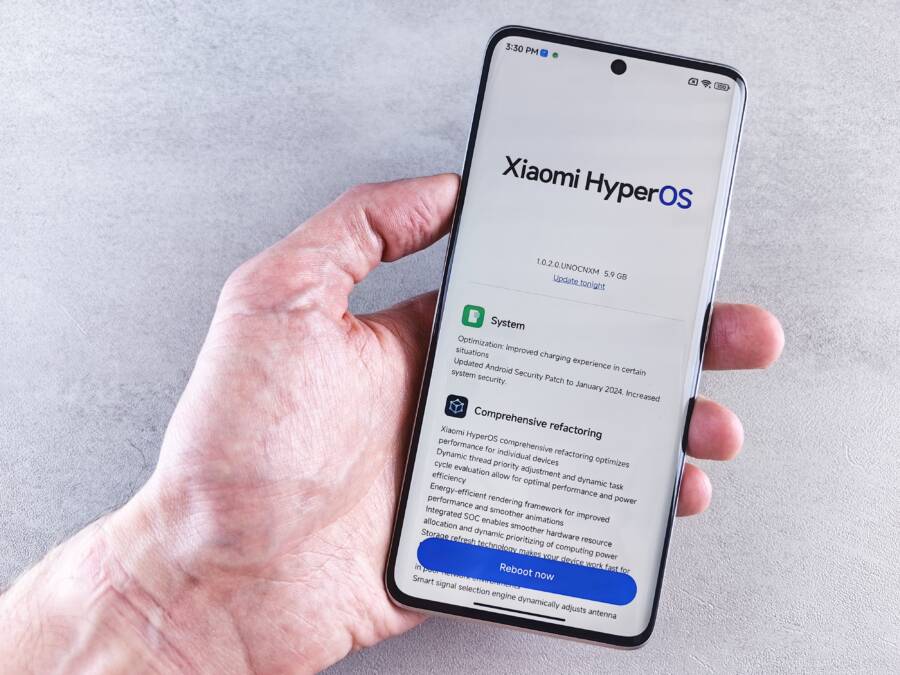
A software update can make your phone battery drain faster because the device is still rebuilding files, reindexing apps, and syncing settings in the background. In many cases, that extra drain is temporary and settles after a day or two.
If the battery keeps dropping fast after that, there’s usually a fix. A few quick checks can tell you whether your smartphone is going through normal post-update activity or dealing with a real software problem.
This guide walks you through the steps that help most, so you can spot the cause and get your battery life back under control.
First, check whether the battery drain is actually unusual
A phone battery can drain faster after an update, and that does not always mean something is wrong. New software often keeps working in the background for a while, so the first step is to tell normal post-update drain from a real problem.
If your phone is still settling, battery life often improves on its own within a day or two. If the drain stays severe, then you have a different issue on your hands.
Give the phone time to finish background work
After an update, your phone may spend time optimizing apps, re-indexing photos, syncing cloud data, and cleaning up system files. That extra work uses power, so a higher drain rate right away is common.
During this period, you might notice:
Slightly warmer-than-usual behavior
Slower battery recovery after a charge
More activity in apps like Photos, Mail, or cloud backup tools
Better battery life once the background tasks finish
Let the phone sit on charge for a while, stay connected to Wi-Fi, and use it normally for a day or two. On many smartphones, the battery settles once the system finishes its cleanup work.
If the drain only shows up right after the update, give it time before you assume the battery is faulty.
Spot the warning signs that point to a real battery issue
Some battery drain patterns are not normal, especially if they continue after the phone has had time to finish updating. A phone that still loses power too fast after a full charge may need a closer look.
Watch for these warning signs:
The phone gets hot during light use
The battery drops sharply overnight
The device shuts down before the battery reaches 0%
Battery life is much worse than before, even with the same apps and habits
The charge falls fast while the phone is idle
A clear comparison helps here. If your smartphone used to lose 10% overnight and now loses 40% with no change in use, that points to a real issue. If the drain only happens while photos are syncing or apps are updating, it may be temporary background activity.
Once you know the battery drain is unusual, you can move on to the fixes with more confidence.
Use the quickest fixes that often solve battery drain after a software update
If your phone battery started dropping fast after an update, start with the easy fixes first. A restart, a few app updates, and a quick look at battery settings often solve the problem without deeper troubleshooting.
These steps matter because updates can leave apps out of sync with the new system version. They can also leave background services stuck in a loop, which drains power even when you are not using the device.
Restart the phone and let it settle after the update
A restart clears out stuck processes and gives the system a clean start. After an update, that can help refresh services that did not load correctly the first time.
It also gives the phone a chance to settle. Some background tasks continue after the update finishes, and a reboot can help them complete normally instead of running in the background all day.
If the battery drain is mild, this may be all you need. For a lot of users, a simple restart fixes temporary bugs that show up right after the update.
A restart is one of the fastest checks because it removes small software glitches before they turn into bigger battery problems.
Check for app updates, especially for social, messaging, and streaming apps
Older apps can behave badly after a system update. They may keep syncing, refreshing, or retrying background tasks because they do not fit the new software version well.
Start with the apps you use most often, especially:
Social apps
Messaging apps
Streaming apps
Email apps
Cloud storage apps
Open the App Store on iPhone or Google Play on Android, then install any pending updates. If several apps were waiting, update them all before you test the battery again.
A smartphone with outdated apps may drain power in the background even when the screen is off. Updating them often stops that extra activity and brings battery use back to normal.
Review battery usage to find the apps draining power
Go to your battery settings and check which apps used the most power since the update. Look for anything unusual, such as an app you barely opened showing up near the top of the list.
Battery menus often show whether an app used power while the screen was on or in the background. That detail matters, because an app can drain the battery even when it seems closed.
If one app stands out, compare it with your normal use. For example, a messaging app that used a lot of background power may be syncing too often, while a video app may keep refreshing content. A quick review makes it easier to spot the culprit before the drain spreads across the whole phone.
Turn off background refresh, location access, and push features you do not need
Some settings keep working after an update and quietly use power in the background. Background refresh, location access, and push alerts can all add to battery drain if too many apps use them at once.
You do not need to turn everything off. Instead, disable only the features you do not use often. That keeps the phone responsive while cutting down on waste.
A simple way to decide is to ask whether the app really needs constant updates. If the answer is no, reduce its background activity. For example, a shopping app probably does not need location access all day, and a game does not need push alerts unless you want them.
A balanced setup often looks like this:
Keep location on for maps, rideshare, and navigation apps
Turn off background refresh for apps you open only once in a while
Limit push alerts for apps that send frequent, low-value notifications
Leave system services alone unless you know what they do
These quick fixes solve a large share of post-update battery complaints because they target the most common causes first. If the drain is still heavy after this, the next step is to dig deeper into system settings and app behavior.
Fix settings that changed during the update and may be draining power
A phone update can reset or tweak settings in the background, and those changes often explain sudden battery drain. Display, wireless, and sync options are the first places to check because they can keep your smartphone active far more often than you expect.
Start with the settings that wake the screen, keep radios running, or force constant data checks. These are small switches, but together they can pull power all day.
Lower screen brightness and check adaptive display features
The screen is one of the biggest battery users on any phone. If an update raised brightness, changed refresh behavior, or turned on a feature you rarely use, battery life can drop fast.
Check these display settings first:
Auto-brightness: This can push the screen brighter than needed in some lighting conditions.
Refresh rate: A higher refresh rate feels smoother, but it uses more power.
Always-on display: Even a dim lock screen still draws battery.
Screen timeout: A longer timeout keeps the display on after you stop using the phone.
Adaptive display or color boost settings: These can increase power use without making the change obvious.
Lower the brightness manually for a while and see if the drain improves. If your phone has a high refresh rate option, try switching it to a lower setting when you do not need extra smoothness. That small change can help more than people expect.
Disable battery-heavy wireless features when you do not need them
Wireless radios keep checking for signals, and that takes power. After an update, some phones turn features back on or change how they behave, so it’s smart to review them one by one.
Pay close attention to:
Bluetooth, especially if you are not using earbuds, a watch, or a car connection
Wi-Fi scanning, which can look for networks even when Wi-Fi seems off
Mobile hotspot, which drains battery very quickly
GPS and location services, especially for apps that do not need constant tracking
5G use, which can use more power than 4G in weak coverage areas
Poor signal is a major battery drain on its own. When your phone keeps searching for a stronger connection, it works harder and burns power faster. That matters indoors, in rural areas, and anywhere the signal keeps bouncing around.
Weak cellular signal can drain a phone faster than heavy app use because the device keeps trying to stay connected.
If you do not need one of these features, turn it off. Even a smartphone with a healthy battery can lose charge quickly when it spends the day hunting for a signal.
Check notifications, syncing, and mail fetch settings
Frequent alerts and constant syncing wake the phone over and over. After an update, these settings can be more active than before, especially if app permissions or account settings changed behind the scenes.
Review the apps that sync most often, such as:
Email
Cloud storage
Calendar
Messaging
Social media
If your mail app fetches new messages every few minutes, switch it to manual fetch or a longer interval. The same idea applies to other accounts that do not need instant updates. Fewer wake-ups usually mean better battery life.
Also look at notification settings for apps that send repeated alerts. A phone that lights up, vibrates, and reconnects data all day will drain faster, even if you barely open it. Trim the noisy apps, keep the important ones, and test the battery again after a few hours.
When these settings are back under control, the drain often drops fast. If it doesn’t, the next step is checking for apps or system services that still run too often in the background.
Try deeper fixes if the battery still drains fast
If your phone battery still drains fast after the basic checks, the problem is usually a buggy app, a setting mismatch, or a system-level glitch left behind by the update. At this stage, focus on changes that clear bad behavior without wiping your personal data. That keeps the fix practical and low-risk.
Update or remove apps that keep crashing or running in the background
A single buggy app can drain a battery after an OS update. Some apps crash, restart, and retry tasks over and over. Others keep syncing in the background even when you are not using them.
Start with any app you installed or updated right before the battery problem began. If one stands out, uninstall it for a day and see whether the drain improves. You can also check the App Store or Google Play for developer updates, since app makers often release fixes soon after a system update changes how their app behaves.
A quick test helps narrow it down:
Remove recent problem apps one at a time
Reboot the phone after each change
Watch battery use for a few hours
Reinstall the app only if the drain stops
A phone battery that improves after removing one app usually points to software trouble, not hardware damage.
If the problem app is important, update it first before you delete it. Sometimes a newer version fixes the drain without any extra work. On a smartphone, this is one of the cleanest ways to stop background churn without changing the rest of your setup.
Reset network settings or system settings if needed
If the battery drain started after the update and you still see odd behavior, some settings may be stuck in a bad state. A reset can clear that without erasing your photos, messages, or personal files. It is a useful next step when wireless connections, syncing, or notifications seem off.
Network resets are helpful when the phone keeps searching for Wi-Fi, mobile data, or Bluetooth connections. System setting resets can also clear small conflicts that affect battery life after a major update. You keep your data, but the phone returns certain settings to their default state.
Use this route when:
The phone struggles to hold a signal
Wi-Fi or Bluetooth keeps reconnecting
Battery drain happens even with light use
Several settings changed after the update and now act strangely
After the reset, reconnect only the services you need. Then test the battery again before changing more settings. That way, you can tell whether the reset fixed the issue or whether the drain comes from something else.
Calibrate your battery expectations, not the battery itself
A battery percentage can look wrong after a major update. The phone may say 20% one minute, then drop faster than expected the next. In many cases, that is a reading issue, not a damaged battery.
This happens because the system is still learning how to report battery levels after the software change. The battery itself may be fine, but the percentage display needs time to settle. If the phone lasts close to its normal amount of time, the number on the screen is the part that is off.
Signs that point to a reading problem include:
The phone shuts down with some percentage left
Battery levels jump around after charging
The phone lasts about as long as it used to
The battery meter improves after a few full charge cycles
If the phone still powers through a normal day, the battery is probably healthy. Give it a few charge cycles, keep an eye on real-world use, and watch whether the percentage becomes more stable. A smartphone can look unreliable on the battery meter while still performing normally in daily use.
Know when the update exposed a battery problem that needs repair
A phone update can reveal a weak battery that was already near the end of its life. If the drain stays severe after basic fixes, the issue may be hardware, not software.
Look for patterns that point to wear. A healthy battery should hold a charge through normal use, even after an update settles. When it cannot, the update may have only made the problem easier to see.
Look for battery health signs that point to wear, not software
Battery health tools give the clearest clue. On iPhone, check Maximum Capacity in Battery Health. On Android, use the battery section in settings or a manufacturer tool if your phone includes one.
A low battery health reading does not always mean immediate failure, but it matters when drain gets worse after an update. Pay close attention to these signs:
Maximum capacity is low and keeps dropping
The phone shuts off before the battery hits 0%
Battery percentage falls in big jumps
Basic fixes did not slow the drain
The phone lasts far less than it did before the update
If your smartphone still drains fast after app updates, a restart, and settings changes, that is a strong clue. Software can cause bad battery behavior, but worn cells often show the same symptoms every day.
When battery health is poor and the phone keeps shutting down early, the update may have exposed a battery that already needed replacement.
Get help if the phone overheats, swells, or will not hold a charge
Safety comes first here. Heat, swelling, and charging problems need professional help right away. Stop using the phone and do not keep charging it if the battery feels hot for long periods, bulges the back cover, or refuses to charge past a very low level.
A battery that swells can damage the screen, frame, or internal parts. It can also become unsafe if you keep using it like normal.
Get repair help if you notice:
The phone gets hot during simple tasks
The battery swells or pushes against the case
Charging starts and stops without reason
The device only works while plugged in
The phone shows battery drain even after replacement cables and chargers
If the problem reaches this point, a technician should inspect the battery before you try more software fixes. A post-update drain can wait, but a failing battery should not.
Conclusion
If your phone battery started draining after a software update, begin by waiting for background tasks to finish. Then restart the phone, update or remove problem apps, and review battery-heavy settings like screen brightness, syncing, and location access.
Those steps fix most cases without a repair. A smartphone that still overheats, shuts down early, or loses charge fast after all of that likely has a deeper battery or hardware issue.
If the drain keeps going after these checks, keep troubleshooting only if the phone is otherwise stable, but get repair help right away when heat, swelling, or sudden shutdowns start showing up.