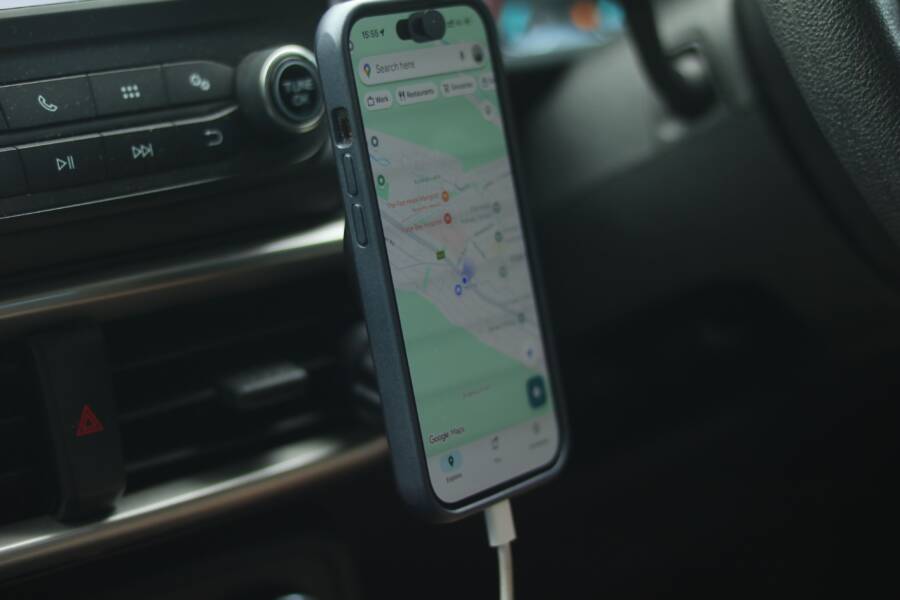
Yes, location history can drain your phone battery, because it keeps checking GPS, Wi-Fi, and cell signals in the background. On a smartphone, that can mean more wake-ups, more tracking, and faster battery loss than you expect, especially if several apps keep asking for location access.
The good news is that you usually don’t need to turn off useful location features completely. Small changes to location settings, app permissions, and battery use can cut the drain fast, and the steps below show how to do it without breaking maps, weather, or other everyday tools.
Why your phone battery drains when location history stays on
Location history drains battery because your phone keeps checking where you are, even when you are not using it. That means repeated use of GPS, Wi-Fi scans, cell tower signals, and motion sensors, all while the screen stays off. On a smartphone, that background work adds up fast, especially if apps keep asking for updates all day.
The drain is usually small at first, then it builds. A maps app, a travel tracker, or a timeline feature may seem harmless on its own, but each one can wake the phone, request new data, and send location details to a cloud account. The more often your phone checks in, the more power it uses.
How location history keeps your phone working in the background
Location history does more than save a place name. It records where you go, checks movement patterns, and updates app or cloud services so your recent trips and visits stay current. That process can keep running after you lock the screen, which is why battery loss often shows up during idle time.
Your phone may use several signals at once to build a more accurate picture of where you are. GPS gives precise location, Wi-Fi helps indoors, and cell networks fill in gaps when GPS is weak. Motion sensors can also help the phone figure out whether you are walking, driving, or sitting still.
Common features that rely on this background activity include:
Maps and navigation history that remember places you searched or visited
Travel tracking apps that log your route, pace, or stops
Timeline features in Google Maps or similar services that save location history by day
Photo tagging tools that attach places to pictures
Weather and local apps that refresh based on where you are now
Because these services update in the background, the phone keeps “checking in” even when you are not opening the app. That is why location history can feel like a small setting, yet act like a steady battery drain.
If your phone stays warm while idle, location checks are one of the first settings to review.
The settings and apps that usually cause the biggest drain
The biggest battery drain usually comes from one app or setting, not the whole phone. That matters, because it means you can often fix the problem without turning off location services completely.
Some of the most common causes are easy to spot:
Always-on location access lets apps track you all the time instead of only when you use them.
High-accuracy mode asks for GPS, Wi-Fi, Bluetooth, and cell data together, which uses more power.
Location sharing keeps sending your position to people, groups, or family apps in the background.
Fitness and activity apps may check movement often to log steps, runs, and routes.
Social apps can request location for check-ins, tags, and nearby suggestions.
Navigation apps left open keep refreshing maps and rerouting, even after you stop driving.
A quick test can help you find the source. Check battery usage by app, then look for any app that appears near the top and also uses location often. If one app shows high battery use and strong location access, that app is likely the main drain.
You can also narrow it down by behavior. If your battery drops faster after a long drive, the map app may be the culprit. If it drains overnight, a background service or location-sharing feature may be running when nothing else is active.
The key is to match the drain with the app that caused it. Once you know that, fixing phone battery drain from location history becomes much easier, because you can change the one setting that matters most.
Check which apps are draining the battery first
Start with the apps that use the most power, because they often point straight to the problem. On a smartphone, battery drain usually comes from one or two heavy users, not every app at once.
The goal is simple: find which app is active a lot, which app keeps running in the background, and which app has location access it may not need. Once you sort those out, the fix becomes much easier.
How to read your battery usage screen the right way
Your battery usage screen shows which apps used the most power over a set period. That period might be since the last full charge or over the past 24 hours, depending on your phone. The top of the list does not always mean the app is broken, though.
A high number is only a problem when the app did little work and still drained a lot of battery. For example, a maps app used during a long drive will show high use, but that is expected. A weather app or social app that sits in the background for hours and still ranks near the top is more concerning.
Look for three things on the battery screen:
Battery charts show when the drain happened, so you can match it with your day.
Background activity tells you whether an app kept working after you stopped using it.
Screen-on time shows how long you actively used the phone, which helps explain heavy app use.
If an app used a lot of battery while the screen was on, that usually makes sense. If it used a lot while the phone was idle, that is a red flag. That gap is often where location history causes trouble.
Battery use only tells part of the story. Background use tells you whether the app kept working when you were not touching the phone.
A simple way to read the screen is this:
Check the top battery-draining apps.
Open the one with the highest use.
See whether the drain came from active use or background activity.
Compare that timing with when your battery dropped.
If the numbers spike while you were asleep or away from the phone, the app deserves a closer look. If the spike lines up with heavy use, the app may be fine.
Signs the problem is coming from location permissions
Location permissions can keep an app awake longer than you expect. If an app has “Always allow” access, it can check your position even when you never open it. That creates a steady drain, especially on apps that refresh often.
Watch for repeated GPS use in the battery or privacy settings. If one app keeps showing location access throughout the day, that app may be polling your position too often. A sudden battery drop after turning on location history is another clear clue, especially if the timing matches the change in settings.
A few common signs stand out:
The app appears often in your location activity history.
The app has permission set to always allow instead of while using the app.
Battery drain got worse right after you enabled location history.
The app keeps using location even when you only needed it once.
System services can also play a part. On Android and iPhone, features like Google Play services, Find My, or other system location tools may support app tracking in the background. If those services show up with high battery use, they can still be part of the issue, even if another app triggered the activity.
The best move is to match the battery drain with the permission level. If an app does not need constant location access, change it to while using the app or turn it off. That one change often cuts background drain fast and gives you a clearer picture of which app was the real culprit.
Turn down the location settings that use the most power
The fastest way to reduce phone battery drain from location history is to limit the settings that run all the time. A smartphone does not need full-strength location access for every app, and many apps work well with lighter permissions.
Start with the settings that ask the most from your battery. Always-on access, high-accuracy location, and history or timeline features tend to keep the phone checking in more often than you need. When you cut those back, the phone makes fewer background requests and uses less power throughout the day.
Switch apps from always on to while using only
This is one of the best battery-saving moves because it stops apps from checking your location in the background. When an app only has access while you use it, the phone does less work after you close the app. That means fewer wake-ups, fewer checks, and less drain.
Many apps do not need constant access to work well. A weather app, a shopping app, or a social app usually only needs your location when you open it. If it is not giving you real-time navigation or safety alerts, it probably does not need to track you all day.
Use these permission choices as a guide:
Always allow for trusted apps that need constant tracking, like live navigation or family safety tools
While using the app for most everyday apps
Never for apps that do not need your location at all
If an app only needs your location once in a while, “while using” is usually the better choice.
This single change often makes a clear difference because it cuts down on background checking. It also helps you spot weak apps faster. If battery drain drops after you change one permission, you have likely found part of the problem.
Reduce location accuracy when you do not need it
High accuracy can use more battery because it combines GPS, Wi-Fi, Bluetooth, and sensors to pin down your position. That is useful for turn-by-turn directions or delivery tracking, but it is overkill for many other apps.
Lower accuracy when exact location is not needed. Entertainment apps, shopping apps, and casual games usually do fine with a rough location or no location at all. Even a small change here can reduce how often your smartphone searches for signals.
A good rule is simple: use high accuracy only when the app needs exact positioning. For everything else, choose a lower setting if your phone gives you that option. You still get the app features you want, but the phone does less work in the background.
Pause or trim location history and timeline features
If location history is more about convenience than necessity, pausing it can help right away. These features save where you go, which means your phone and account keep recording activity even when you are not using a map.
You can usually turn off location history, pause timeline tracking, or shorten how much data gets saved. That does not have to break your maps or navigation apps. In many cases, you can still get directions, search nearby places, and find routes without saving every stop you make.
A balanced approach works well here. Keep the tools that help you, but trim the parts that run all day. For many people, that means:
keeping maps available for navigation
turning off saved place history
limiting timeline or trip logging
reviewing which account is storing the data
That small reset often reduces battery drain without making the phone less useful.
Cut background activity that keeps waking your phone
Background activity can drain a phone battery even faster than location history itself. When apps keep waking your smartphone to check location, sync data, or refresh alerts, the screen may be off, but the processor is still working.
The fix is to reduce those wake-ups. That means closing apps that no longer need to run, using power-saving tools when battery is dropping fast, and restarting after you change settings so the new limits actually take hold.
Close the apps that keep requesting your location
Some apps check location far more often than people expect. Maps, ride-share apps, food delivery apps, fitness trackers, and camera apps with geotagging can all keep asking for updates in the background if they stay open or keep permission access.
If you finished using a navigation app after a drive, close it fully instead of leaving it in recent apps. The same goes for delivery and ride-share apps after a trip, or fitness apps after a workout. On many phones, a background app can keep pulling location updates even when you are not touching it.
A few common examples to watch closely:
Maps and navigation apps, because they refresh routes and traffic
Ride-share and delivery apps, because they track pickup, drop-off, and arrival status
Fitness and health apps, because they log movement, pace, and routes
Camera apps with geotagging, because they may save photo location data
Travel or check-in apps, because they often update place records in the background
If you do not need an app right now, close it. If you still want to use it later, limit its location access to while using the app. That small change helps reduce background wake-ups without breaking the app.
Use power-saving mode the smart way
Battery saver or low power mode can slow the drain when your battery is dropping fast. These modes usually reduce background tasks, limit refreshes, and cut how often apps poll for location. As a result, your phone does less work between charges.
This is a strong short-term fix, especially during travel, long workdays, or any time you cannot charge right away. It can buy you extra hours, but it does come with tradeoffs. Notifications may arrive later, sync can slow down, and some location-based features may update less often.
That is why power-saving mode should help, not replace, better settings. Use it when you need to stretch battery life, then go back and adjust the apps or permissions that caused the drain in the first place.
A quick comparison helps here:
If your smartphone is losing charge quickly, start with battery saver, then trim the apps that keep waking it up. That combination works better than either step alone.
Restart the phone after changing settings
A restart clears stuck background processes and helps new location settings take effect. Many people skip this step, but it can matter more than expected. An app that still had old permissions or a service that stayed active in memory may keep draining power until the phone starts fresh.
After you change location access, battery saver settings, or app permissions, restart the device once. It gives the system a clean reset and helps rule out a stuck process as the cause of the drain.
If battery use drops after the restart, you know the change worked. If it does not, you still have a useful clue, because the problem is more likely tied to an app or permission that needs one more adjustment.
When the battery still drops, look for device or app problems
If your phone still loses charge after you fix location history settings, the problem may be bigger than location alone. An aging battery, a buggy app, or a stuck system setting can keep draining power in the background on a smartphone.
The next step is to check the device itself and the apps you use most. That gives you a clearer answer, because battery drain often comes from a mix of software and hardware issues.
Update the phone and the problem apps
Software updates often fix battery bugs and location service problems. A system update can improve how your phone handles GPS, background access, and power use. App updates matter too, because a bad version of Maps, social apps, or fitness apps can keep asking for location more often than it should.
Start with the phone update first, then update the apps that use location most often. Check the system update menu on your device, then open the app store and install pending updates. If one app keeps draining battery after a recent change, that app is a strong place to start.
A simple update check can look like this:
Install the latest phone software.
Update apps from the App Store or Google Play.
Restart the phone after the updates finish.
Watch battery use for a day or two.
If the drain drops after updating, the issue was likely a software bug. If it stays the same, the app may need a permission change, or the battery itself may be getting weaker.
Check battery health and charging habits
An aging battery can make location drain feel much worse. When battery health drops, even normal tasks use a bigger share of power. A smartphone with weak battery health may also fall fast during light use, which makes location history look like the main cause.
Look for signs such as fast percentage drops, unexpected shutdowns, or poor battery life even when you barely use the phone. Those are common clues that the battery can no longer hold charge well. If your phone dies while it still shows 20% or 30%, that points more toward battery wear than location tracking alone.
Charging habits matter too. Avoid extreme heat, and do not leave the phone in a hot car or under a pillow while charging. Also, frequent low-quality charging patterns can add stress over time. A healthy battery gives you a more accurate picture of what location history is really doing.
Reset location settings if the problem keeps coming back
If normal fixes do not hold, reset the location, network, or app permission settings. This can clear bad permissions, stuck background behavior, or a setting that keeps re-triggering location checks. It also gives you a clean starting point if one app keeps acting strangely.
After the reset, you may need to set permissions again for maps, weather, or safety apps. That is normal, and it helps you rebuild access only where you need it. Re-enable location carefully, one app at a time, so you can spot the one that starts the drain again.
If you want a quick order of attack, use this:
Reset location settings if app updates did not help.
Reconnect Wi-Fi and network settings if signals seem unstable.
Recheck permissions for only the apps that truly need them.
A reset is useful when the phone keeps acting as if an old location rule is still in place. It clears the clutter and makes the next battery test more reliable.
Simple habits that help your battery last longer every day
Small daily habits make a real difference when your phone battery starts slipping. You do not need to shut off every location feature. A smarter routine, where your smartphone only uses location when it helps, keeps battery use lower without making maps or safety tools useless.
The biggest wins come from two things, keeping location on only for the apps that need it, and checking permissions before they pile up. These steps take a few minutes, yet they stop a lot of background activity that quietly drains power during the day.
Use location only when it adds real value
Keep location on for the moments that truly need it, like navigation, ride tracking, emergency tools, and services that rely on your position. Maps, delivery updates, and safety features work better when your phone can find you quickly.
For everything else, turn location off or limit it to use only while the app is open. A weather app, shopping app, or social app usually does not need constant access. That simple split reduces background checks and helps the battery last longer.
A good daily rule is easy to remember:
Leave location on for navigation
Keep it on for safety and emergency tools
Turn it off for apps that do not need your position
Use while using the app when you want a middle ground
A balanced setup usually works better than turning everything off. You still get the features that matter, but your phone does less work in the background.
Review app permissions every few months
Set a quick permission check every few months. Apps change often, and a setting that made sense before may no longer be useful now. An app that once needed location for check-ins or travel may no longer need it at all.
A short review keeps your phone cleaner and your battery healthier. Open your privacy or app permission settings, scan the list, and remove location access from any app you no longer trust, use, or need.
If you have not checked permissions in a while, you probably have at least one app asking for more access than it deserves.
That small habit pays off fast. It helps you catch extra tracking before it becomes another reason your phone battery drains too quickly.
Conclusion
Location history can drain a phone battery, but the fix is usually simple. Check battery usage first, then reduce location permissions, limit background activity, and update the phone if the drain stays high.
The goal is to control when location runs, not shut off every useful feature. Most apps work fine with while using the app access, and that one change often makes the biggest difference on a smartphone.
Start with one app permission today, then watch battery life over the next day. If the drain improves, you have found the right setting.