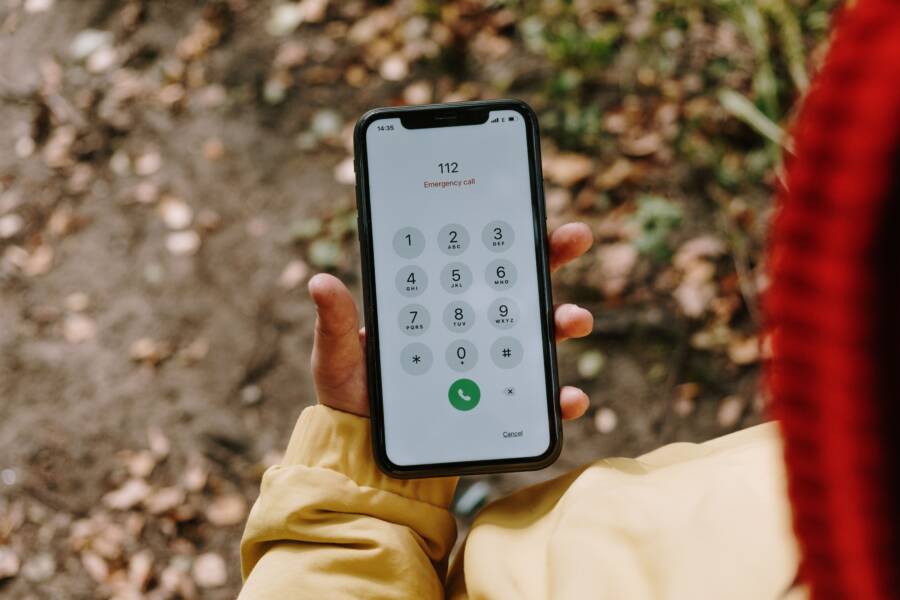
Most of the time, a phone that can’t see passwords in autofill has a simple fix: a wrong setting, a missing permission, a disabled password manager, or a sync problem. You don’t need advanced tech skills to sort it out.
This issue can happen on Android and iPhone, and it often shows up after an update, a new app install, or a change to your Google, Apple, or third-party password manager. If your smartphone isn’t showing saved logins where you expect them, the problem is usually in the settings, not the device itself.
A few quick checks usually get autofill working again, including password manager settings, app permissions, account sync, and basic phone updates or restarts. Next, we’ll go through the fixes in a simple order so you can get back to signing in without extra hassle.
What is usually causing autofill passwords to disappear on a phone?
When saved passwords stop showing up, the cause is usually a settings issue, a sync problem, or a restriction inside the app you are using. On most phones, the passwords still exist somewhere, but the device is not pulling them into the autofill prompt.
That means the fix often comes down to checking which service your phone is using, whether your password manager is synced, and whether the app, browser, or keyboard is blocking the prompt. On an Android phone, Google Password Manager may be active, but a built-in password manager or third-party app may be the one holding your logins. On an iPhone, iCloud Keychain may be off, or another password app may not be set as the default.
Autofill is turned off or set to the wrong service
Phones can use more than one autofill service, and that is where problems often start. If your phone is set to the wrong service, it may never show the passwords you expect.
Check whether autofill is turned on for the right manager, such as:
Google Password Manager on Android
iCloud Keychain on iPhone
A built-in password manager from the phone maker
A third-party app like 1Password, Bitwarden, or Dashlane
If the wrong service is selected, your phone may still save logins somewhere else, but it will not surface them in the password field. A quick settings check usually clears this up.
Your password manager is not syncing correctly
Saved passwords can exist in your account and still fail to appear on your phone. That usually happens when sync is paused, the account is signed out, or a network issue blocks updates.
This is common after a password change, a new device setup, or an account switch. If your smartphone is offline for too long, or if sync is restricted in the background, the password list can look empty even though it is not.
A few common causes are:
Sync is turned off in the password manager
You are signed out of the account
Battery saver or data limits block background sync
A weak connection prevents the latest password data from loading
The app, browser, or keyboard is limiting autofill
Sometimes the password manager works, but the place you are trying to sign in does not cooperate. Some apps handle autofill poorly, and private browsing modes can limit saved password prompts.
Keyboard apps can also get in the way. If a third-party keyboard overrides the password field or hides the autofill bar, the login suggestion may never appear. In a browser, private tabs and strict privacy settings can reduce what gets suggested.
A simple comparison helps here:
If the password appears in one app but not another, the problem is usually with that app’s autofill support, not the password itself.
Check the phone settings that control password autofill
If saved passwords are not showing up, start with the phone settings that control autofill. A wrong toggle, the wrong default service, or a hidden restriction can stop your phone from offering logins even when the passwords are still saved.
This check matters on both Android and iPhone, because the menus are different and the defaults can change after an update. On a smartphone, the fix often comes down to one setting buried in the right place.
Turn autofill on and choose the correct password manager
First, confirm that autofill is enabled and that the right password manager is selected. On Android, that may be Google Password Manager, a phone maker’s built-in service, or a third-party app like 1Password or Bitwarden. On iPhone, it may be iCloud Keychain or another password app set through Passwords settings.
The exact menu names vary by phone, so look for words like Autofill, Passwords, Password manager, or Passwords and accounts. If autofill is off, turn it on. If more than one service appears, pick the one that actually holds your saved passwords.
A quick check usually looks like this:
Open your phone’s Settings.
Search for “autofill” or “passwords.”
Open the password service list.
Turn autofill on if it is disabled.
Select the correct default password manager.
If the wrong service is set as default, your passwords may still be saved, but the phone will ignore them.
Make sure passwords are allowed in the browser and app
Some browsers handle password saving and autofill separately. That means the phone may be ready, but the browser still blocks saved logins. Chrome, Safari, and other browsers often have their own password settings, so check both the phone menu and the browser settings.
Test the place where the problem happens, then compare it with another app or browser. If passwords appear in one app but not another, the issue is usually local to that browser or app. For example, a saved login may show in Chrome but not inside a shopping app.
Keep an eye on settings such as:
Save passwords
Autofill passwords
Private browsing or incognito mode
App-specific password permissions
A browser can also remember one account while refusing to autofill another. So if you changed browsers recently, or if the problem only started in a specific app, check that app’s password settings before moving on.
Check privacy, screen lock, and security settings
Many phones require a passcode, fingerprint, or face unlock before they reveal saved passwords. That protects your accounts, but it can also make autofill look broken if screen lock is missing or turned off. If your device asks for verification, finish that step before testing autofill again.
Privacy controls can also block password prompts. Work profiles, parental controls, and company device rules may restrict saved logins or hide autofill suggestions. On a managed smartphone, the policy may come from your employer or school, so the setting may not be on the phone itself.
If passwords still do not appear, check whether:
The phone lock screen is active
Biometric unlock is working
A work profile is limiting personal apps
Parental controls are filtering password access
A secure device often shows passwords only after you prove it is really you. That is normal, and it is easy to miss during troubleshooting.
Refresh the password manager app
When autofill stops showing passwords, refreshing the password manager app often fixes it faster than changing every setting. A clean sign-in, a quick update, or a reset of cached data can force the app to pull fresh account data onto your phone.
This helps because the problem is often local. Your passwords may still be in the cloud, while the app on your smartphone is holding stale data, a broken session, or an old sync token.
Sign out and sign back in to force a fresh sync
A clean sign-in can restore missing passwords when the local copy gets stuck. It clears the current session and asks the app to load your saved logins again from the account.
Start with the password manager itself, then check whether the passwords return after a fresh login. In many cases, this is enough to update the device copy without changing anything else.
Try this sequence:
Open the password manager app.
Sign out of the account.
Close the app completely.
Sign back in with the same account.
Wait a few minutes for sync to finish.
If you use the same account on another device, compare the password list there. When the other device shows the logins but the phone does not, the problem is usually a stale local session.
A fresh sign-in often fixes missing autofill entries because it forces the app to rebuild its local password cache.
Update the app and the phone software
Older app versions can break autofill, and outdated phone software can cause the same issue. Password manager apps depend on system features, browser support, and security permissions, so even a small bug can interrupt the prompt.
Check both the app store and your phone settings for updates. An app update may fix a sync bug, while an operating system update may restore missing autofill support or permissions.
Before testing again, update:
The password manager app
Your phone’s operating system
The browser you use for sign-ins
Any companion app tied to the password manager
After the update, restart the phone. That gives the system a clean chance to reload autofill services and saved login data.
Clear cache or reset the app without losing passwords
If the app still behaves badly, clear its cache before you touch anything more serious. Cache files are temporary data, and removing them can fix a bad local state without deleting saved passwords.
That is different from deleting the account or uninstalling without checking sync first. A cache clear usually leaves your saved data intact, while an account reset can remove stored logins from the device or the service itself if sync is not complete.
Use this simple rule:
Safe step: clear cache, force stop the app, or reinstall after confirming sync
Risky step: delete the account, wipe app data, or reset storage without a backup
If the app offers a reset option, read the prompt before you tap it. The safest move is to refresh temporary data first, then test autofill again before making bigger changes.
Try quick fixes when autofill still will not show passwords
When autofill still won’t show passwords, a few quick checks can save time. Start with the simple fixes first, because temporary glitches, stale sessions, and missing entries are common on any smartphone.
These steps help you narrow the problem fast. If the password is saved, the phone usually just needs a reset, a fresh lookup, or a comparison with another app.
Restart the phone and open the app again
A restart clears small system glitches that can block password prompts. It also refreshes background services, which matters when autofill permission checks get stuck after an update or app switch.
This fix sounds basic, but it often works because the phone reloads the pieces that handle passwords. A browser, keyboard, or password manager can all hang on an old state until the device starts fresh.
After the restart, open the app or browser again and test the login field. If autofill appears now, the issue was likely temporary. If it still does not show up, move on to the next check without changing several settings at once.
Confirm the saved password is actually there
Before you assume autofill is broken, open the password manager and search for the site or app name. Many people skip this step and spend time fixing the wrong thing.
A saved login can disappear from view because of sync delays, account changes, or a different manager being selected. The password may still exist, but the phone will not offer it if it is stored under another account or service.
Use the search box inside your password manager and try both the website name and the app name. If you find the entry, open it and confirm the username, site address, and account match what you are trying to use. That small check can reveal a simple mismatch right away.
If nothing shows up, the login may never have been saved on this account. In that case, the autofill feature may be working fine, but it has nothing to suggest.
If the password is not in the manager, autofill cannot show it.
Test another app or browser to spot where the problem starts
Comparing apps helps you see whether the issue belongs to one site, one browser, or the whole phone. That saves you from changing settings that are not related to the real problem.
Try the same login in a different browser or another app that uses the same account. For example, test a site in Chrome if it failed in Safari, or check a second app with a saved login if the first app refused to show autofill. If the password appears in one place but not another, the password itself is fine.
A quick comparison can point you in the right direction:
This kind of test is especially useful on a smartphone because app behavior can vary a lot. Some apps support autofill well, while others hide it or handle it poorly. If the prompt works in one place and not another, you already have a strong clue about where to focus next.
When the password is there but still won’t appear, use these deeper checks
If the password is saved but autofill still stays hidden, the issue is usually deeper than a basic setting. In many cases, the phone is holding the login, but the screen you are using is blocking the prompt, a keyboard is interfering, or a work policy is limiting access.
These checks help when your smartphone looks fine on the surface, yet the password never shows up where you need it.
Some login screens do not support autofill well
Custom login pages often cause trouble because they do not follow normal password field rules. Pop-up windows, embedded web views, and in-app browsers can also hide the password prompt or stop the suggestion bar from loading.
This is common in shopping apps, travel portals, and older sites that use custom sign-in forms. If autofill works in Chrome or Safari but fails inside one app, the app itself is usually the problem.
Try the same login in a full browser instead of an in-app window. If the password appears there, you have your answer. The saved login is fine, but that screen does not play nicely with autofill.
Accessibility tools or custom keyboards may interfere
Screen overlays, autofill helpers, and third-party keyboards can block the password prompt before you ever see it. Some accessibility tools sit on top of the login field, and that can confuse the system’s autofill detection.
Custom keyboards can cause the same issue, especially if they replace the standard password field behavior. On an iPhone or Android device, this may look like a missing suggestion, when the keyboard is actually covering it.
If that happens, switch back to the default keyboard and test again. Also turn off any overlay apps, floating tools, or extra autofill helpers for a moment. A clean test often shows whether the issue comes from the phone or from a tool sitting on top of it.
Work accounts, device management, or VPNs can restrict saved passwords
Company-managed devices often limit password access for security reasons. A device management profile can block autofill in work apps, hide saved credentials, or require stronger checks before showing a login.
VPNs and security apps can add another layer of friction. They may not block passwords directly, but they can affect the page load or the sign-in flow enough to stop autofill from appearing.
If this is a work phone or a managed smartphone, check the device policy first. A personal password manager may be working normally, but company rules can still keep it from showing inside certain apps.
Conclusion
When a phone cannot see passwords in autofill, the fix usually starts with the basics. Check autofill settings, choose the right password manager, and make sure sync is on.
If that still does not work, restart the phone, update the app and software, then test another browser or app. Those steps solve most cases because the password is usually still saved, but the phone is not showing it correctly.
The main takeaway is simple: most autofill problems are settings or sync issues, and you can fix them without losing any saved passwords.